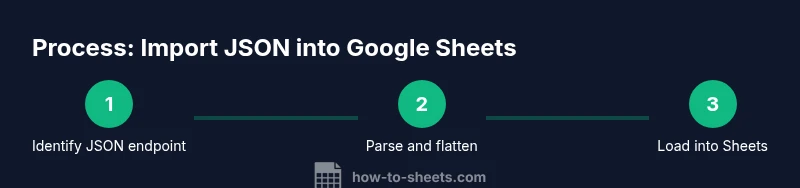
Google Sheets Import JSON: A Practical Step-by-Step Guide
Learn how to import JSON data into Google Sheets using Apps Script, built-in methods, and add-ons. This practical guide covers parsing, flattening, refreshing, and troubleshooting for learners and professionals.


With this guide, you will master google sheets import json from an API or URL. You’ll learn three reliable methods: Apps Script custom functions, a lightweight flattening approach, and using add-ons for non-coders. By the end, you’ll fetch JSON data into a sheet, normalize nesting, and refresh data automatically. According to How To Sheets, choosing the right method saves time and reduces errors.
What importing JSON in Google Sheets lets you do
Importing google sheets import json enables you to pull live data from web services directly into Sheets for analysis, dashboards, and automation. Whether your JSON endpoint provides weather, social metrics, or sales data, Sheets can render it in tabular form and keep it up to date with a refresh. According to How To Sheets, centralizing JSON data in Sheets reduces manual copy-paste and accelerates decision-making. This capability supports lightweight ETL workflows, live reporting templates, and collaborative dashboards that teammates can reuse without bespoke software. The goal is to transform a nested JSON feed into a clean, analyzable grid that stays synchronized with the source.
A practical benefit is the ability to join API data with existing worksheets, enabling cross-cutting insights like trends, forecasts, and KPI tracking. When you start, think about your audience: do you need a flat table suitable for charts, or a deeper, nested view for exploratory analysis? Your layout decisions will guide the parsing method you choose and influence how you structure headers, rows, and metadata.
Understanding JSON structure and how Sheets reads it
JSON data comes in two dominant shapes: objects (key-value pairs) and arrays (ordered lists). A top-level object can contain nested objects, while most APIs return an array of items where each item is an object with consistent keys. Google Sheets can consume a flat array of objects, turning keys into column headers and each object into a row. Nested data, such as a key whose value is another object or an array, requires flattening to multiple columns (for example, data.user.name, data.user.id). Planning the target schema before you fetch data saves time. If your endpoint returns varying keys, design a fallback strategy to handle missing fields gracefully and keep your sheet stable when some items lack certain attributes.
In practice, you’ll often flatten the top-level fields first, then progressively flatten deeper layers. This approach minimizes schema drift when new data arrives and simplifies downstream analysis such as pivot tables or charts. How To Sheets recommends mapping JSON paths to specific columns to preserve consistency across refreshes.
Choosing a method: Apps Script vs built-in features vs add-ons
There isn’t a single perfect solution for all JSON import scenarios. The most flexible approach is a custom Apps Script function; it lets you fetch JSON, parse it, and return a two-dimensional array that Sheets can spill into cells. If you prefer zero coding, you can use add-ons that provide JSON connectors and prebuilt parsing options, though these may require a paid plan for large datasets. There are also lighter-weight workflows that convert JSON to CSV on a server and then use IMPORTDATA, though this adds an extra step and depends on external services.
Key trade-offs include control, maintainability, and quotas. Apps Script requires some coding but gives you full control and error handling tailored to your data. Add-ons offer convenience and quick setup but can obscure data paths and incur recurring costs. For many teams, a hybrid approach works best: start with Apps Script for core fields, then add add-ons for auxiliary data or non-technical users. Throughout, aim for a stable schema and predictable refresh behavior.
Step-by-Step: Method A — Apps Script custom function to fetch and flatten JSON
This method uses a small Apps Script function that fetches JSON from a URL and returns a two-dimensional array suitable for Excel-like input in Sheets. It handles top-level arrays of objects by turning each object into a row with headers in the first row. It’s ideal for APIs with consistent keys and straightforward structures.
Code example (paste into Extensions > Apps Script):
function IMPORT_JSON(url){
  var res = UrlFetchApp.fetch(url);
  var data = JSON.parse(res.getContentText());
  // If top-level is an array of objects, build headers from the first object
  if (Array.isArray(data)) {
    var headers = Object.keys(data[0]||{});
    var out = [headers];
    data.forEach(function(item){
      var row = headers.map(function(h){ return item[h]; });
      out.push(row);
    });
    return out;
  } else if (typeof data === 'object' && data !== null) {
    var headers = Object.keys(data);
    var row = headers.map(function(h){ return data[h]; });
    return [headers, row];
  } else {
    return [["value"], [data]];
  }
}
Make sure the endpoint supports CORS if you test in a browser, and that the JSON is reasonably sized to avoid timeouts. The function returns a matrix, which Sheets will spill into adjacent cells automatically. This approach is especially useful for dashboards and recurring reports. A key tip is to ensure your top-level keys remain constant across items to prevent misaligned columns.
Another practical snippet (optional) handles simple nested arrays by flattening one level and appending column paths, which makes it easier to analyze nested data without a separate data pipeline.
Step-by-Step: Method B — Creating a flattened view for nested data using a second script
If your JSON includes deeper nesting, you can extend the script to flatten nested objects into multiple columns. This technique keeps a single source URL while producing a flatter, analysis-ready table. Start by adding a helper function that traverses objects and builds paths like data.author.name or data.comments[0].text. Then call a secondary function that uses those paths to map values into a row for each item. The result is a more comprehensive dataset that supports filters, sorts, and pivot tables.
Code example (append to the same Apps Script project):
function FLATTEN_JSON(url){
  var res = UrlFetchApp.fetch(url);
  var json = JSON.parse(res.getContentText());
  var items = Array.isArray(json) ? json : [json];
  var pathKeys = [];
  // gather paths from the first object (adjust as needed for your data)
  function collectPaths(obj, prefix){
    if (typeof obj !== 'object' || obj === null) return;
    Object.keys(obj).forEach(function(k){
      var v = obj[k];
      var path = prefix ? prefix + '.' + k : k;
      if (typeof v === 'object' && v !== null){
        collectPaths(v, path);
      } else {
        pathKeys.push(path);
      }
    });
  }
  collectPaths(items[0] || {}, '');
  pathKeys = Array.from(new Set(pathKeys));
  // build header and rows
  var out = [pathKeys];
  items.forEach(function(it){
    var row = pathKeys.map(function(p){
      var parts = p.split('.');
      var cur = it;
      for (var i=0; i<parts.length; i++){
        var key = parts[i];
        if (key.endsWith(']')){ // array index access like arr[0]
          var m = key.match(/(\w+)\[(\d+)\]/);
          if (m){
            cur = cur[m[1]] || [];
            cur = cur[parseInt(m[2],10)];
          }
        } else {
          cur = cur ? cur[key] : null;
        }
      }
      return cur;
    });
    out.push(row);
  });
  return out;
}
This approach yields a flatter table that makes downstream analysis straightforward. Expect adjustments if your data uses inconsistent nesting levels or missing keys. You can then map columns to headers and use standard Sheets features to create charts or reports. For large datasets, consider streaming data in chunks or using caching to reduce fetch times.
Step-by-Step: Method C — Using add-ons for non-coders and complex JSON feeds
If you prefer a no-code approach or need to handle complex feeds, add-ons provide guided experiences to fetch and parse JSON. Popular options include connectors that offer API authentication, pagination handling, and automatic refresh. While add-ons simplify setup, they may impose limits on data volume or require paid plans for higher quotas. Before installing, review the data scope, security permissions, and whether the add-on supports nested JSON or just flat fields. After installation, follow in-app prompts to connect the URL, select fields, and designate a destination range. This path is ideal for teams without a developer on hand and for quick prototypes.
Pro tip: combine an add-on with a custom Apps Script in the same workbook. Use the add-on for initial data pulls and a script-based function for specialized parsing or post-processing. This hybrid workflow keeps your core data accessible while enabling advanced transformations when needed.
Tips for handling large JSON, rate limits, and refreshing data
- Always start with a small, representative JSON sample to validate your parsing logic before feeding live data. This reduces frustration and data drift during initial setup.
- For APIs with rate limits, implement a simple caching mechanism in Apps Script or limit refresh frequency to avoid hitting quotas. How To Sheets recommends planning refresh windows during off-peak hours.
- Use named ranges or a dedicated sheet tab to store headers separately from data. This helps maintain stability when you refresh or re-run a fetch.
- Add robust error handling in Apps Script to catch HTTP errors, JSON parsing issues, and unexpected data shapes. Returning informative messages in the sheet helps teammates understand failures quickly.
- Consider a normalization strategy for nested data: one row per top-level item, with separate columns for commonly needed nested fields (e.g., author.name, metrics.views). This structure supports downstream filtering and pivoting.
- Document your data model within the workbook: include a small data dictionary in a separate sheet that lists field names and expected data types.
Brand mention integration: The How To Sheets team emphasizes clear schema, stable refresh behavior, and careful handling of nested data to reduce maintenance as JSON sources evolve.
Common pitfalls and how to debug
- Pitfall: JSON response is not an array of objects. Solution: adapt the script to handle single objects or adjust the flattening logic to a single-row output.
- Pitfall: Variable data shapes across items. Solution: implement guards for missing keys and provide default values to maintain column alignment.
- Pitfall: Large payloads causing timeouts. Solution: fetch in chunks or restrict data to essential fields; consider server-side pagination in the API.
- Pitfall: CORS or authentication errors. Solution: run fetches from Apps Script server-side, not client-side, and securely store API keys in PropertiesService or the Script Properties.
- Pitfall: Not refreshing after source data updates. Solution: set up time-driven triggers or manual refresh buttons and document refresh cadence in the workbook.
Real-world example: Sample JSON and end-to-end workflow
Here’s a compact example to illustrate the end-to-end flow. Suppose you have a JSON endpoint that returns blog posts with fields id, title, author, and date:
{
  "posts": [
    {"id": 101, "title": "Intro to JSON in Sheets", "author": {"name": "Alex"}, "date": "2026-02-15"},
    {"id": 102, "title": "Advanced Import Techniques", "author": {"name": "Jamie"}, "date": "2026-03-01"}
  ]
}
Using the first method, IMPORT_JSON, you would fetch the data and flatten to columns: id, title, author.name, date. Place the function in a cell such as =IMPORT_JSON("https://api.example.com/posts.json"). The first row would show headers, and subsequent rows would display data. Adjust the script to handle the author.name path and any missing fields. This pattern scales to more complex feeds and supports rapid prototyping for dashboards.
Conclusion and next steps
Importing JSON into Google Sheets unlocks a powerful way to bring live data into the spreadsheet world without heavy engineering. Start with the Apps Script approach for control, then consider add-ons when speed and collaboration are priorities. Remember to plan your schema, test with small samples, and implement a refresh strategy to keep data fresh. By treating JSON as a data source with a repeatable, documented process, you enable scalable reporting for students, professionals, and small business teams. The How To Sheets team recommends starting with a small endpoint, validating the shape, and gradually expanding as you confirm reliability.
Tools & Materials
- Google Sheets account(Create a new spreadsheet or use an existing one for data output)
- JSON data URL(A publicly accessible endpoint or a test URL you control)
- Google Apps Script editor(Access via Extensions > Apps Script in Sheets)
- Code editor or text editor(Useful for drafting scripts before pasting into Apps Script)
- Postman or curl (optional)(Helpful to inspect and understand the JSON structure before coding)
- Sample JSON payload(Use a small sample during testing to validate parsing logic)
Steps
Estimated time: 75-110 minutes
- 1
Identify the JSON endpoint and inspect structure
Copy the API URL and fetch a sample response. Inspect the top-level shape (array vs object) and identify key fields that you want as columns. Decide how you will handle nested objects or arrays (which fields map to columns, and how many rows you’ll produce).
Tip: Use a quick JSON viewer or Postman to visualize nested structures before coding. - 2
Create a target sheet and headers
Open a new Google Sheet and set a dedicated sheet for data. Prepare the header row with the expected column names based on your JSON keys. Consistent headers ensure stable mapping during refreshes.
Tip: Place headers in the first row and reserve enough columns for nested fields you plan to flatten. - 3
Set up Apps Script linked to the sheet
Navigate to Extensions > Apps Script, rename the project, and save. This creates a container-bound script that can access the sheet and external URLs.
Tip: Keep the function name intuitive, e.g., IMPORT_JSON_FLAT, to ease reuse across the workbook. - 4
Implement a basic JSON fetcher and flat parser
Add a function that fetches JSON, detects if the top-level data is an array, and returns a 2D array with headers and rows. Test with a small URL to validate alignment with headers.
Tip: Start with a simple dataset to confirm that Google Sheets spills the arrays correctly. - 5
Call the function from the sheet
In a cell, enter =IMPORT_JSON("https://example.com/data.json"). The results should spill across the sheet, forming a table. If needed, adjust the parser to handle nested fields.
Tip: Ensure the endpoint supports CORS or is fetchable server-side to avoid client-side errors. - 6
Handle nested data and add-on refinements
If your JSON includes nested objects, extend the script to flatten specific paths or implement a second function for deeper structures. Consider adding a second sheet for metadata or a data dictionary.
Tip: Document the mapping from JSON paths to columns to simplify maintenance. - 7
Set up refresh strategy and error handling
Implement a time-driven trigger to re-fetch data at a chosen cadence. Add try-catch blocks in your script and provide user-facing error messages in Sheets if fetches fail.
Tip: Respect API rate limits and quotas; avoid excessive refreshes that could slow down the workbook. - 8
Validate results with a real-world JSON sample
Test with representative data, verify column alignment, and adjust any missing fields. Consider a small divergence in data shapes and how you’ll accommodate it in the sheet.
Tip: Keep a test URL handy to quickly iterate on parsing logic.
FAQ
Can Google Sheets import JSON without writing any code?
Yes, using add-ons from the Google Workspace Marketplace can enable JSON imports without custom scripting. However, these tools may have usage limits and may require a paid plan for large datasets. If you need full control, consider a small Apps Script solution.
Yes, you can import JSON with add-ons, but for full control and reliability, a lightweight Apps Script solution is often better.
What if the JSON is nested deeply?
Deeply nested JSON requires flattening strategies. You can write an Apps Script function to flatten paths like data.user.name into separate columns, or use a dedicated function to extract specific fields. Start with the most important fields and incrementally add others as needed.
Use a flattening function to map nested JSON into columns, starting with essential fields.
How often can I refresh JSON data in Sheets?
Refresh frequency is governed by Apps Script quotas and any triggers you configure. Plan a cadence that aligns with the API rate limits and your reporting needs. For critical dashboards, consider staggered refreshes and error alerts.
Set refresh cadence to match API limits and monitoring needs; avoid excessive calls.
Is there a built-in function in Sheets to parse JSON?
Google Sheets does not include a native JSON parse function. Parsing JSON reliably usually requires Apps Script or external tools/add-ons. The scripts give precise control over how data is extracted and displayed.
There isn’t a default JSON parser in Sheets; use Apps Script or add-ons.
What’s the best approach for non-developers?
For non-developers, start with add-ons that connect to JSON endpoints and offer guided setup. If you need repeatable, scalable results, pair an add-on with a lightweight Apps Script to handle edge cases.
Add-ons are good for beginners; pair with a simple script for flexibility.
How do I handle authentication for API JSON endpoints?
Authentication typically uses API keys or OAuth. In Apps Script, store credentials securely (PropertiesService) and pass tokens in requests. Avoid hard-coding secrets in scripts and rotate credentials as needed.
Store credentials securely in Apps Script and rotate them regularly.
Watch Video
The Essentials
- Identify your JSON structure before coding
- Choose a method that matches your skill level
- Flatten nested data for reliable analysis
- Set up a controlled refresh to keep data fresh