Google Sheets List of Dates: Step-by-Step Guide
Learn practical methods to create, format, and manage a list of dates in Google Sheets with formulas, templates, and tips for scheduling and tracking.


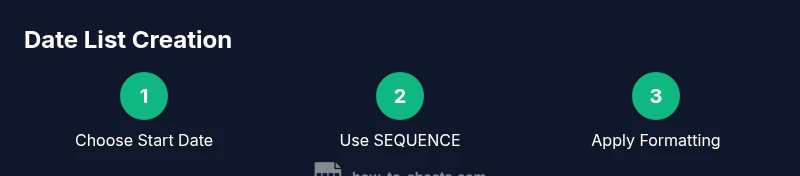
To create a dynamic list of dates in Google Sheets, start with a starting date and use SEQUENCE to generate consecutive days. You can customize with DATE, TODAY, or EDATE for offsets, and apply consistent date formatting. Include validation or filters as needed, and add conditional formatting to highlight weekends or holidays. A Google account and Sheets access are required.
Why a google sheets list of dates matters
A well-structured list of dates in Google Sheets is a backbone for planning, scheduling, and tracking activities across projects, classes, and teams. When dates are clearly listed and consistently formatted, you become able to sort, filter, and visualize timelines with confidence. According to How To Sheets, starting with a single anchor date and expanding with SEQUENCE or EDATE reduces downstream edits and keeps workflows tidy. By establishing a single source of truth for dates, you avoid scattered notes, misread calendars, and missed deadlines. This approach supports reminders, Gantt-style views, and automated summaries that scale with your needs. Whether you’re coordinating a class syllabus, a project plan, or a simple attendance log, a robust date list is a practical foundation for accuracy and efficiency.
Quick start: set up your date list
Before you jump into formulas, decide what your date list should represent: is it a project calendar, a daily checklist, or an event log? Define the start date, how many periods you need, and whether weekends should be included. Create a dedicated sheet area with a single column titled Dates (or Day) to keep things clean. Set your locale and date system in File > Settings so that all dates print consistently. In practice, many users begin with a static list of 7–14 dates and then convert it to a dynamic sequence using SEQUENCE and TODAY or EDATE, which minimizes manual edits and makes updates scalable.
Generating dates with formulas: SEQUENCE, DATE, TODAY
The SEQUENCE function is the most straightforward way to generate a block of dates. For a fixed range starting on a specific date, you can use =SEQUENCE(10,1,DATE(2026,1,1),1) to create ten consecutive days starting January 1, 2026. If you want the dates to shift over time, combine SEQUENCE with TODAY(), e.g., =SEQUENCE(365,1,TODAY(),1). For monthly or yearly steps, wrap the start date with EDATE, e.g., =ARRAYFORMULA(EDATE(DATE(2026,1,1), SEQUENCE(12,1,0,1))). These patterns cover most daily and periodic date-list needs.
Handling date formats and locale for consistency
Date formatting is a common source of confusion when sharing sheets across teams or countries. Google Sheets stores dates as numbers but renders them differently based on locale. To ensure consistent appearance, set a standard format with Format > Number > Date (or use TEXT(date, "yyyy-MM-dd")). If you need an ISO-like format for data imports, TEXT helps you convert dates into a stable string that can be sorted or filtered reliably. You can also adjust the spreadsheet's locale under File > Settings to align with your team’s regional preferences.
Working with dynamic date ranges: TODAY, EDATE, and OFFSET
Dynamic date ranges keep lists fresh without manual updates. A common pattern is =SEQUENCE(365,1,TODAY(),1) to generate a rolling year starting today. For monthly sequences, use =ARRAYFORMULA(EDATE(DATE(2026,1,1), SEQUENCE(12,1,0,1))). If you want only weekdays, combine WEEKDAY with FILTER: =FILTER(SEQUENCE(365,1,TODAY(),1), WEEKDAY(SEQUENCE(365,1,TODAY(),1),2)<6). These approaches give you flexible, scalable date schedules for planning and reporting.
Practical templates and examples you can reuse
Templates are a quick way to start. Example A: a daily class schedule where Dates column is populated by =SEQUENCE(14,1,DATE(2026,9,1),1) and the Topic column lists topics. Example B: a project calendar that shows only weekdays using FILTER with WEEKDAY. Example C: a birthday tracker that uses =EDATE(DATE(2026,6,15), SEQUENCE(12,1,0,1)) to forecast annual reminders. You can adapt these templates to regional holidays by adding a holiday table and using VLOOKUP or XLOOKUP to annotate dates with notes. For large lists, consider splitting data across multiple tabs to keep formulas efficient.
Troubleshooting: common issues and fixes
Date handling surprises often come from formatting, locale settings, or mixed data types. If dates appear as text, try VALUE or DATEVALUE to convert them back to true dates. If SEQUENCE returns errors, ensure the start date is valid and that the number of rows isn’t too large for the sheet. Locale mismatches usually show up as dd/mm vs mm/dd; fix by updating File > Settings or formatting text with TEXT(date, "MM/dd/yyyy"). Finally, when sharing with others, confirm their settings to avoid misinterpretation of dates in different regions.
Advanced tips: automation and interoperability with other data
Want to automate date lists further? Apps Script can generate dynamic date arrays and write them to your sheet on a schedule. You can connect Google Sheets with external calendars via IMPORTRANGE or Google Calendar API, enabling bi-directional date sync for events and deadlines. For teams, pair your date lists with conditional formatting to flag upcoming milestones, and create simple dashboards with charts to visualize timelines. As a practical best practice, maintain a dedicated template with clearly named ranges and documentation so new collaborators can reuse the system without breaking formulas.
Tools & Materials
- Google account with access to Google Sheets(Essential for creating and saving sheets.)
- Computer or mobile device with internet(Access to Google Drive and Sheets.)
- Starting date example(Optional starter date for demonstrations (e.g., 2026-01-01).)
- Holiday calendar (optional)(Helpful for annotating dates in templates.)
Steps
Estimated time: 20-30 minutes
- 1
Define the date-list goal
Decide whether your dates represent a project timeline, a class schedule, or an attendance log. This shapes your start date, range, and whether weekends should appear. A clear goal prevents unnecessary complexity later.
Tip: Write a one-line goal before drafting formulas. - 2
Choose a start date
Enter a concrete start date in a dedicated cell as the anchor for your list. Ensure the date is recognized by Sheets (not text).
Tip: Format the start date as a date cell to avoid text parsing issues. - 3
Generate dates with SEQUENCE
Use =SEQUENCE(n,1,startDate,1) to create n consecutive days. Replace startDate with a cell reference like A2 or a fixed date. This creates a dynamic, scalable list.
Tip: If you update n, the list expands or contracts automatically. - 4
Apply consistent formatting
Set a uniform date format (yyyy-MM-dd or your preferred format) across the entire Dates column.
Tip: Use Format > Number > Date and consider a locale-aware format. - 5
Add dynamic ranges or filters
Incorporate TODAY() or EDATE to shift ranges, or filter to show only weekdays if needed.
Tip: Test with small ranges to verify logic before expanding. - 6
Validate and document
Add data validation to ensure only dates enter the list and document the template for teammates.
Tip: Include a short instructions tab to guide future editors.
FAQ
How do I generate a list of dates in Google Sheets?
Use SEQUENCE to create consecutive dates, e.g., =SEQUENCE(10,1,DATE(2026,1,1),1). Combine with TODAY() for dynamic ranges and EDATE for monthly shifts.
Use SEQUENCE to generate consecutive dates, and combine with TODAY for dynamic ranges.
Can I include only weekdays in my date list?
Yes. Generate the date list then filter out weekends using WEEKDAY, for example: =FILTER(SEQUENCE(365,1,TODAY(),1), WEEKDAY(SEQUENCE(365,1,TODAY(),1),2)<6).
Yes—filter by weekday using WEEKDAY to exclude weekends.
How do I format dates consistently across locales?
Set a standard format in Format > Number > Date and consider using TEXT(date, 'yyyy-MM-dd') for stable string formats. Change locale under File > Settings if needed.
Set a standard format and adjust locale settings if needed.
How can I make my date list automatically update each day?
Use TODAY() in combination with SEQUENCE, e.g., =SEQUENCE(365,1,TODAY(),1), so the range advances as days pass.
Use TODAY with SEQUENCE for automatic daily updates.
Is there a limit to how many dates I can list in Sheets?
There isn’t a fixed date limit; practical limits depend on spreadsheet size and performance. Break very large lists into multiple sheets if needed.
There isn’t a fixed date limit; performance depends on the sheet size.
How do I shift dates by month or year easily?
Use EDATE to shift dates by months, e.g., =EDATE(DATE(2026,1,1), SEQUENCE(12,1,0,1)), to create monthly anchors.
Use EDATE with SEQUENCE to create monthly dates.
Watch Video
The Essentials
- Define a clear date-list goal before building formulas
- Use SEQUENCE with a stable start date for dynamic lists
- Format dates consistently and respect locale settings
- Leverage dynamic functions (TODAY, EDATE) to keep lists current
- Test templates on small ranges before scaling