How to Use Google Sheets Columns After Z: AA, AB, and Beyond
Meta description: Learn how Google Sheets handles columns beyond Z, how to reference them in formulas, and practical layouts for wide datasets across sheets. A practical guide for students, professionals, and small business owners.


Definition: In Google Sheets, columns extend beyond Z automatically using double letters (AA, AB, etc.). You reference them with A1 notation just like single letters (AA1, AB12). If your task requires more width, organize data across multiple sheets or use formulas like INDIRECT to build dynamic references. This guide explains practical ways to work with wide spreadsheets.
google sheets more columns after z
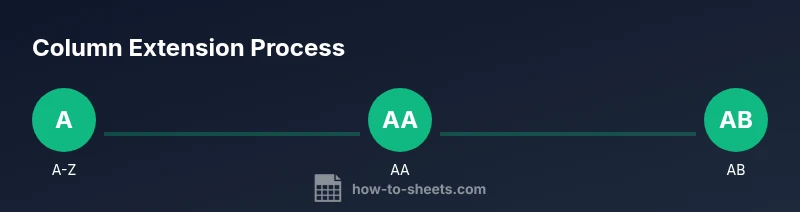
If you thought Google Sheets stops at Z, think again. google sheets more columns after z describes how Sheets actually handles additional columns by advancing to AA, AB, AC, and beyond. This labeling scheme is automatic and transparent to users, and it works in any sheet as soon as you type beyond Z in the column header. You reference these columns in formulas the same way you reference A through Z, using A1 notation like AA1, AB12, or AC100. As you design wide datasets, keep in mind that the UI displays new double-letter headers, and almost every function accepts these references just as they would for single-letter columns.
When teams start dealing with large datasets, the natural question is how to maintain clarity. The How To Sheets team has found that starting with a clear labeling strategy makes future growth easier. For example, reserve specific blocks of columns for input, calculations, and outputs, and use named ranges to simplify references. If you want to show a compact summary to collaborators, you can hide unused columns and freeze headers to keep the right-hand area legible. The upshot is: you can go well beyond Z without changing how you write formulas or reference cells.
Labeling patterns beyond Z for clarity
Beyond Z, Sheets uses AA, AB, AC, AD, and so on. For practical purposes, create a simple reference map (A, B, C, ..., Z, AA, AB, AC, ...). This makes it easier for teammates to understand which column holds which data, especially when sharing sheets that are wider than a standard 26-column block. Maintain consistent spacing rules (e.g., every 10 columns) and document any deviations in a README tab so new collaborators don’t get lost in the layout.
Tools & Materials
- Google Sheets (web)(Open a sheet and ensure you have edit access)
- Computer with internet(Stable connection to Google Drive)
- Browser with JavaScript enabled(Chrome/Edge/Firefox recommended)
- Optional: Google Apps Script editor(If you plan to automate column management)
- Keyboard shortcuts guide(For quick navigation (e.g., to the far-right columns))
Steps
Estimated time: 60-90 minutes
- 1
Assess width and groups
Identify how many columns you need in total and group them by function (input, calculations, output). This helps decide whether to widen a single sheet or split across sheets. Start with a conservative estimate and plan for future growth.
Tip: Draft a quick grid sketch mapping columns to logical groups. - 2
Plan column labeling
Commit to a labeling scheme that extends beyond Z (AA, AB, AC, ...). Keep the pattern consistent and document the rule in a note tab so everyone uses the same references.
Tip: Create a small helper cell that can generate the next label if expanding programmatically. - 3
Decide on single vs multi-sheet layout
If the data remains readable on a single sheet, you can stay centralized. For very wide datasets, distribute sections across multiple sheets and link them with references or formulas to present a unified view.
Tip: Use a landing sheet that aggregates data from others with IMPORT/QUERY or FILTER. - 4
Create named ranges
Define named ranges for commonly used column blocks to simplify references across formulas and sheets. This reduces maintenance when the column set shifts.
Tip: Name ranges like Inputs_All or Calculations_Wide for quick reuse. - 5
Use INDIRECT for dynamic references
INDIRECT lets you construct a column reference as text (e.g., 'Sheet1'!AA1) and evaluate it. This is useful for dynamic dashboards where column positions change.
Tip: Be mindful of performance: INDIRECT is volatile and recalculates often. - 6
Link sheets with robust formulas
Combine VLOOKUP/FILTER/QUERY with named ranges to build cross-sheet views that feel continuous to users while staying logically organized.
Tip: Prefer FILTER over multiple VLOOKUPs for wide data joins. - 7
Test edge cases
Check behavior when the sheet contains many columns and when you insert new ones. Ensure formulas reference correctly and that dashboards update as expected.
Tip: Test on a copy of the sheet to avoid breaking live data. - 8
Document and maintain
Keep a concise data map and change log within the workbook. This helps new users adopt the layout quickly and reduces errors over time.
Tip: Create a 'Docs' tab with a quick reference of column blocks.
FAQ
Can I have more columns than Z in Google Sheets?
Yes. Google Sheets extends column labels beyond Z using AA, AB, AC, and so forth. You can reference these columns in formulas just like A-Z.
Google Sheets supports extra columns using AA, AB, and beyond; you can reference them as usual.
What is the best way to layout data that's wider than a single sheet?
Split data across multiple sheets and use references or functions like FILTER/INDEX to assemble a single view.
Split wide data across sheets and reference them as needed.
How can I automate adding new columns after Z?
Use Google Apps Script to insert columns after the last used column at a defined position.
You can automate inserting columns using Apps Script.
Are there performance concerns with very wide sheets?
Yes. Large numbers of columns and complex formulas can slow down your workbook; design with efficiency in mind.
Performance can degrade with very wide sheets; optimize formulas.
How do I navigate quickly to far-right columns?
Use the name box or keyboard shortcuts like Ctrl+Right Arrow to jump to the edge, or search within the sheet.
Use shortcuts to jump to the far-right columns.
Watch Video
The Essentials
- Extend columns with AA, AB, and beyond
- Reference wide columns with standard A1 notation
- Split data across sheets to maintain readability
- Use named ranges to simplify maintenance
- Automate where possible to reduce manual errors