Google Sheets Personal: A Step-by-Step Mastery Guide
Master private Google Sheets workflows for budgets, tasks, and goals with practical templates, formulas, data validation, and privacy best practices from How To Sheets.


You will build a private Google Sheets workflow to manage tasks, budgets, and goals. This guide covers creating a reusable template, core formulas, data validation, and privacy-friendly sharing settings for personal use. By the end, you’ll have ready-to-copy templates you can customize today, plus a clear plan to expand your sheets as needs grow.
Why Google Sheets Personal matters
For many students, professionals, and small business owners, personal data lives across scattered documents and apps. Google Sheets personal workflows offer a centralized, private space to track tasks, budgets, calendars, and goals without the friction of switching between tools. According to How To Sheets, a well-structured private sheet can dramatically reduce miscommunication and duplicate effort. By keeping data in a single workbook you can audit progress, forecast trends, and make faster decisions. This approach aligns with practical, beginner-friendly guidelines that emphasize clarity, consistency, and privacy.
Getting started: set up your private workspace
Begin with a clean slate in Google Sheets and name your file in a consistent way (for example, Personal-Planner-2026). Turn off link sharing for most personal documents to keep information private, and enable offline access if you work without a constant internet connection. Create a master sheet with tabs for Tasks, Budget, Contacts, and Goals. Use descriptive tab names and freeze the header row to keep context visible as you scroll. The goal is a private workspace you can trust and extend over time.
Core features you’ll use
Your personal Google Sheets setup hinges on a few core features. Data validation keeps entries tidy (dates in the right format, numeric fields restricted to numbers). Conditional formatting highlights overdue tasks or budget overruns. Basic formulas like SUM, AVERAGE, and IF drive automatic calculations, while FILTER and SORT help you organize views without duplicating data. Use named ranges for common calculations so formulas stay readable and portable between sheets.
Practical templates for daily tasks
Start with three templates that cover most personal use cases: a simple task tracker, a monthly budget, and a basic contact list. Each template should include headers, sample data, and a short instruction row with notes for future you. Copy these templates into a new sheet, then customize column names to fit your workflow. Keeping templates modular makes it easy to reuse components across different projects, like a shopping list that also doubles as a budget tracker.
Data organization and basic formulas
Structure data using consistent column orders (Date, Item, Amount, Category, Status). Use data validation to constrain categories, status options, and date formats. Write clear formulas: =SUM(B2:B100) for totals, =IF(A2="Overdue","Yes","No") to flag items, and =AVERAGE(C2:C100) to gauge averages. Helpful practices include hiding intermediate calculations, using notes for context, and documenting assumptions in a separate Documentation tab. This foundation makes your sheet scalable and easy to audit.
Automating common tasks
Automation saves time and reduces errors. Start with simple copy-paste automation via array formulas like =FILTER and dynamic ranges. If you’re comfortable, explore Google Apps Script to auto-create weekly summaries or to email you a summary on a schedule. Macros can also record a sequence of actions for repetitive formatting. Begin with a small automation project in the Budget or Tasks sheet to see immediate gains.
Privacy and sharing best practices
For personal use, treat sharing as a potential risk and minimize exposure. Keep most sheets private, and only share what is necessary and with trusted individuals. Review access rights periodically, disable link sharing, and avoid embedding sensitive data in publicly accessible folders. Consider downloading backups or exporting to CSV for extra protection. A privacy-first mindset helps you prevent accidental leaks and aligns with best practices for personal data.
Common pitfalls and how to avoid them
Beware of inconsistent data formats, which make analytics unreliable. Use a single date format across all sheets and enforce numeric inputs with data validation. Overusing hard-coded numbers in formulas makes maintenance harder; prefer named ranges and modular formulas. Finally, avoid clutter by archiving old data rather than deleting it; this keeps historical context intact for future reference.
Authority sources
For readers who want to dive deeper, consult reputable sources. How To Sheets recommends validating formulas with test data and documenting assumptions in a dedicated sheet. Educational resources such as Google's own help center and government or university guidance can reinforce good data practices. See authoritative guidance at sources like edu.google.com and sba.gov for general data-handling principles and privacy considerations.
Next steps and customization
Once you have the core personal workflow in place, extend it by adding charts for visual trends, integrating a calendar view, or building a simple dashboard. Start with a weekly review process: update tasks, reconcile budgets, and reflect on goals. The How To Sheets team recommends iterating on templates monthly to adapt to changing needs and improve efficiency.
Tools & Materials
- Internet-connected device (computer, tablet, or phone)(Stable connection recommended; use Chrome or Edge for best compatibility)
- Google account(Required to access Google Sheets and Drive)
- Google Sheets app or browser(Ensure you have the latest version for smooth features)
- Sample data set (optional)(Use for practicing templates without exposing real data)
- Notebook or documentation template(Jot down rules, formulas, and naming conventions)
Steps
Estimated time: 45-60 minutes
- 1
Create a new private workbook
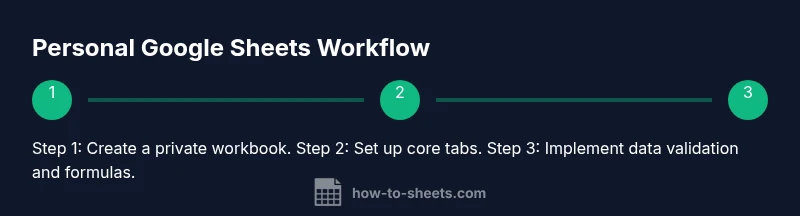
Open Google Sheets and create a new, private workbook named Personal-Workspace-2026. Set the sharing to private unless you explicitly need to collaborate. This first step establishes a controlled environment for your data.
Tip: Use a standardized naming convention to locate the file quickly later. - 2
Set up core tabs
Add tabs for Tasks, Budget, Contacts, and Goals. Freeze the header row on each tab to keep column titles visible. Create a Documentation tab to capture formulas and rules for future you.
Tip: Keep tab names short but descriptive for easy navigation. - 3
Define data types with validation
In each tab, apply data validation to critical columns (dates, currency, status). This reduces errors and keeps your dataset clean. Use a drop-down list for Status: (Pending, In Progress, Done).
Tip: Validation helps prevent typos that break analytics. - 4
Add core formulas
Implement totals with SUM, averages with AVERAGE, and basic conditional checks with IF. Use named ranges for recurring calculations to improve readability.
Tip: Document the purpose of each formula in the Documentation tab. - 5
Create a simple budget template
Set up a monthly budget sheet with categories and a running total. Link expenses to the Budget sheet with simple SUMIF to categorize costs automatically.
Tip: Use a consistent category list across months to enable trend analysis. - 6
Set up a task tracker
Create a Kanban-like view with Status and due date filters. Use conditional formatting to highlight overdue tasks.
Tip: Add a reminder column that can be used by Apps Script later. - 7
Introduce basic automation
Record a macro for formatting tasks when you complete a week, or write a small Apps Script to generate a weekly summary.
Tip: Start small; automate one routine at a time to measure impact. - 8
Review privacy and backup
Double-check sharing settings and add a backup routine (download as CSV or create a read-only copy in Drive).
Tip: Set a reminder to review access monthly.
FAQ
What is the best way to start a personal Google Sheets project?
Begin with a single workbook and 4 tabs: Tasks, Budget, Contacts, and Goals. Set up data validation and simple formulas first, then layer in templates and automation as you grow.
Start with one private workbook with four tabs, then add formulas and templates as you get comfortable.
How can I keep my personal data private in Google Sheets?
Keep sharing off by default, disable link sharing, and only grant access to trusted individuals if needed. Regularly review who has access and export backups for safekeeping.
Keep sharing off by default and review access regularly.
Which templates are most useful for daily life?
A basic budget, a simple to-do tracker, and a contact list are the most versatile for daily life. These can be started from scratch or by copying ready-made templates and adapting them.
Budget, to-do, and contact templates are the most versatile starter templates.
Can I automate tasks without coding?
Yes. Start with macros for repetitive formatting and built-in functions like SUMIF and FILTER. For more, Google Apps Script can automate summaries and alerts without heavy coding.
Yes—start with macros and built-in formulas; Apps Script can handle more if you want.
How should I structure data for future growth?
Use consistent headers, named ranges, and a Documentation tab. Separate data input, calculations, and outputs, so you can expand without breaking existing formulas.
Structure data with clear headers and named ranges for easy growth.
Where can I find trustworthy guidance on formulas?
Google’s support pages and education-focused resources provide reliable examples. Refer to reputable tutorials and the How To Sheets guide for practical, real-world cases.
Check Google’s support and trusted education guides for formulas.
Watch Video
The Essentials
- Start with a private, organized workspace.
- Use templates to save time and improve consistency.
- Validate data to prevent errors in personal records.
- Review sharing settings periodically for privacy.