Google Sheets Row Height: Adjust and Auto-Fit for Clean Spreadsheets
A practical, step-by-step guide on adjusting google sheets row height, auto-fitting, and maintaining clean layouts for students, professionals, and small business owners.


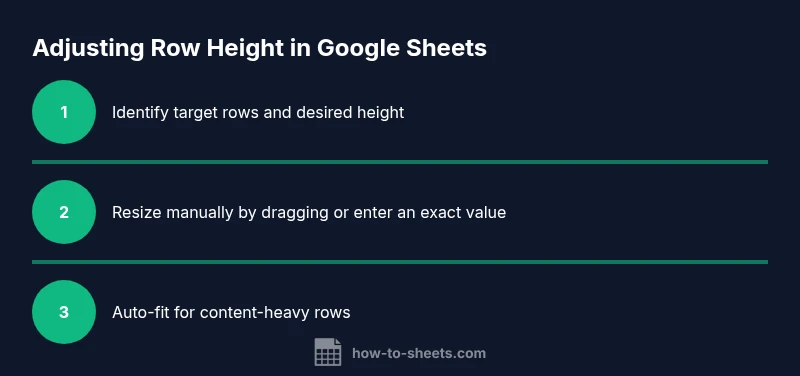
You can customize google sheets row height by manual resizing, auto-fit, and by using wrap text. Start by selecting the row(s) and dragging the bottom border to set a fixed height, or double-click the border to auto-fit to content. For uniform layouts across a sheet, apply a standard height and use wrap text for long entries.
Why row height matters in Google Sheets
In any professional or academic workflow, the height of rows in google sheets directly impacts readability, data scanning, and print-ready outputs. A well-chosen row height helps prevent text truncation, keeps headers visible, and makes numeric data easier to compare at a glance. When you standardize row height across a workbook, you reduce visual noise and create a more professional look. According to How To Sheets, a deliberate approach to row height improves not just on-screen navigation but also printed reports and exported PDFs, where inconsistencies can obscure essential details. For the keyword google sheets row height, the height you choose should align with your font size, wrap settings, and any merged cells in the sheet.
Beyond aesthetics, proper row height supports accessibility by ensuring users relying on screen magnification can view data without awkward scrolling. If your sheet contains long descriptions, consider a taller row at the cost of vertical density; if it’s a dashboard with compact metrics, shorter rows may work better. The goal is to balance legibility with space efficiency, so data remains easy to read and compare.
In practice, plan your height decisions around three dimensions: content type, audience, and how the sheet will be consumed (screen, print, or share via PDF). This guidance aligns with modern spreadsheet design principles and is particularly relevant for students, professionals, and small business owners who rely on clean, consistent formatting. Based on How To Sheets analysis, starting with a baseline height and adjusting for content complexity yields the best outcomes over time.
note”:null} ,
Quick ways to adjust row height manually
Manual adjustment is the fastest way to tailor row height to your needs. Start by selecting the row or multiple rows. Move your cursor to the bottom border of the row header until it turns into a resize handle, then drag to the desired height. You can also drag to a fixed height when working with a grid of cells that must align with other sheets. For precise control, right-click the row header and choose Resize row, then enter a specific height in pixels. This is especially useful when you need exact alignment across columns and sections that reference the same data scale. When rows contain wrapping text, a taller height may be necessary to display all content without truncation. Remember to apply the same height to multiple rows if your layout requires uniformity. If you’re resizing a group of rows, Sheets will apply the same height to all selected rows, ensuring visual consistency.
Tips for this step: use the keyboard shortcut to select all rows in a region, then apply a standard height to create a tidy, aligned grid. A well-chosen manual height is a reliable baseline before exploring auto-fit options.
tip“:
Auto-fit row height: fitting to content
Auto-fitting height helps rows grow to accommodate the tallest cell content automatically. The simplest method is to double-click the bottom border of the row header with the row(s) selected; Google Sheets will resize to the content’s tallest element. For bulk sheets, select all relevant rows and double-click one bottom border to apply uniform auto-fit where feasible. Be aware that merged cells and cells with long unbroken text can defeat exact auto-fit results; in such cases, you may need to adjust height manually for the affected rows.
If you frequently require auto-fit, consider a two-step approach: first apply a baseline height, then use auto-fit for rows with variable content. This ensures a clean baseline while still accommodating dynamic data. How-To Sheets analysis suggests combining auto-fit with wrap text settings for robust layouts that adapt gracefully as data changes.
tip:
Managing row height with wrapped text and merged cells
Wrap text is a powerful ally for readability, but it interacts with row height in complex ways. Enabling wrap text causes rows to expand vertically to show wrapped lines, which can dramatically increase height for cells with long content. If you rely on wrapped text across many rows, pre-plan your baseline height to minimize visual shifts when wrap is toggled on.
Merged cells often disrupt auto-fit behavior. If you merge cells within a row, Sheets may not resize the row as expected. In such cases, either unmerge temporarily to auto-fit or resize the row manually after the merge. A common practice is to wrap text, use a moderate initial height, then manually adjust any rows where data overflow remains visible. This approach keeps the sheet readable without sacrificing layout control.
Pro-tip: when sharing across devices, test how wrapped content appears on different screen sizes to ensure consistent readability.
tip:
Consistency across a sheet: setting a default height
A consistent row height across a sheet or workbook fosters a polished, professional appearance. To establish a default height for many rows, select the target rows or press Ctrl/Cmd + A to select the whole sheet, then right-click any row header and choose Resize rows, entering your standard height in pixels. This action applies to all selected rows, creating a uniform baseline. If you later add new rows, they inherit the existing height, preserving consistency.
For dashboards or reports that require compact or expansive visuals, maintain a few standard heights for different sections (e.g., headers, data zones, and notes). Saving these templates as a sheet style can speed up future work and reduce repetitive adjustments. How To Sheets recommends documenting your height conventions in the sheet’s header notes so collaborators understand the sizing decisions and can replicate them.
Remember to periodically review heights after updates to ensure content remains legible and aligned with your printing or sharing goals.
tip:
Printing considerations and row height
Row height has a direct impact on printed outputs. When you print a Google Sheet, legibility hinges on whether rows are tall enough to display complete content without clipping. If you anticipate printing, check the Print Preview before finalizing height choices. A common practice is to reserve extra space for headers and footers, ensuring numbers and labels aren’t truncated when pages break.
If you’re distributing reports to stakeholders who prefer printed copies, test a few representative pages to confirm that all critical data remains visible. In many cases, slightly increasing height for rows containing descriptive text improves readability on paper and reduces the need for excessive zooming on screen.
Printing-savvy layouts often separate sections with consistent row heights, using bold headers at fixed intervals to create a clear grid that’s easy to skim on paper. How To Sheets’ research shows that aligning row heights to a predictable rhythm improves scanning speed in printed reports.
tip:
Common pitfalls and troubleshooting
Even experienced Sheets users run into height-related snags. Merged cells, inconsistent font sizes, and hidden rows can throw off your auto-fit results. If you notice sudden height changes after data edits, check for wrap text behavior and content that spans many lines. Unintended line breaks, long URLs, or special characters can influence how much space a row needs.
Another pitfall is trying to force a single height for rows that contain multiple tall elements (e.g., a long note and a chart in adjacent cells). In such cases, you may need to increase the height of only those rows involved, rather than applying a blanket height. For sheets that feed into dashboards or reports, it’s also wise to review height after data imports to ensure new content doesn’t push surrounding rows out of alignment.
If auto-fit fails due to merged cells, break the merge or temporarily unmerge to re-run auto-fit. Finally, avoid over-relying on auto-fit for heavily formatted sheets where precise control over appearance is essential.
tip:
Practical templates and use cases
Consider common business and study scenarios where row height matters. A budget tracker benefits from uniform header rows that stay legible across printed sheets, while a course roster with student notes requires taller rows to fit longer comments. A project timeline with task descriptions uses varying heights to balance compact numeric data and longer text fields. In each case, set a baseline height for standard rows, enable wrap text for descriptive cells, and reserve taller heights for content-heavy rows.
When you design a template, include a labeled height key in the sheet’s metadata so future editors know why certain rows are taller than others. This all helps ensure consistency, readability, and a professional appearance across multiple users and devices.
If you routinely adjust heights for multiple sheets, consider saving a few height presets as named ranges or styles so you can apply them with a single click. How To Sheets’ approach to height presets reduces repetitive fiddling and accelerates template deployment.
tip:
Best practices and quick-start checklist
- Define a baseline row height that accommodates the smallest headline fonts you’ll use.
- Turn on wrap text for content-heavy rows to prevent truncation.
- Auto-fit selectively for data-rich rows; manual height for headers and notes.
- Test print and export to ensure height aligns with pages and margins.
- Use consistent heights for dashboards and reports to maintain a clean look.
- Document height conventions so collaborators apply the same standards.
Quick-start checklist:
- Select the target rows.
- Resize rows to your baseline height.
- Enable wrap text on descriptive cells.
- Use auto-fit for variable content, while preserving headers.
- Print preview to validate layout before sharing.
Following these steps helps you achieve reliable, professional results across all google sheets row height decisions. The How To Sheets team recommends starting with a baseline and iterating toward a final, polished height profile for your workbook.
tip:
Tools & Materials
- Google Sheets access (web), a sheet open for editing(Open the spreadsheet you want to adjust; ensure you have edit access.)
- Mouse or trackpad(Used to drag row borders or select cells.)
- Keyboard shortcuts (Ctrl/Cmd + A, Ctrl/Cmd + C, Ctrl/Cmd + V)(Speed up selection and editing; not strictly required.)
- Optional: Google Apps Script editor(For automating bulk height adjustments across many sheets.)
Steps
Estimated time: 15-20 minutes
- 1
Identify target rows and desired height
Review your sheet and decide which rows need adjustment. Note if headers, data rows, or notes require different heights to maintain readability. This upfront planning saves time during the resize process.
Tip: Clearly mark or note the target rows before making changes to avoid accidental edits. - 2
Select the target rows
Click the first row header, hold Shift, and click the last row header to select a block of rows. For non-contiguous rows, hold Ctrl/Cmd while selecting. The height changes will apply to all selected rows.
Tip: Use the keyboard to quickly select all rows in a block (Shift+Arrow keys). - 3
Resize manually by dragging
Move your cursor to the bottom edge of a row header until the resize handle appears, then drag to the desired height. Release to apply. This gives you immediate visual feedback.
Tip: Hold Shift while dragging to snap to increments if you have a pre-defined height. - 4
Or resize via the menu for precise control
Right-click a selected row header and choose Resize rows. Enter an exact height in pixels for consistent results across multiple rows.
Tip: Use this when you need pixel-perfect alignment. - 5
Apply uniform height to multiple sections
If your sheet has distinct sections (headers, data, notes), repeat the resize action for each section to maintain uniformity. Consistency improves readability.
Tip: Document the height values you use for headers vs. data to help teammates replicate the design. - 6
Enable text wrapping for descriptive cells
Turn on wrap text in cells with long content to control how height expands. This keeps content visible without forcing a single, large height for the entire sheet.
Tip: Wrap text is key when you have long notes or descriptions. - 7
Test auto-fit on variable-content rows
Select rows and double-click the bottom border to auto-fit. Review results to ensure no content is truncated and headers remain visible.
Tip: Auto-fit can be imperfect with merged cells. - 8
Handle merged cells strategically
Merged cells can interfere with auto-fit. If needed, temporarily unmerge to auto-fit, or apply height adjustments to the affected rows manually.
Tip: Consider avoiding heavy merging if consistent height is critical. - 9
Save, review, and share
Save your sheet, run a quick print preview, and share with collaborators to ensure the height choices look correct on different devices and in print.
Tip: Ask a colleague to review the layout for real-world readability.
FAQ
Can I auto-fit row height in Google Sheets?
Yes. Auto-fit works by double-clicking the bottom border of the row header or by selecting rows and using the resize option to fit content. Note that merged cells can hinder auto-fit, so adjust those areas if needed.
Yes. You can auto-fit by double-clicking the row boundary or resizing the rows to fit content, but merged cells may affect the result.
Does wrapping text affect row height?
Wrapping text typically increases row height to display all content. If you have long notes, enable wrap text and adjust height to prevent truncation while preserving readability.
Wrapping text makes rows taller to show all lines; you may need to adjust height accordingly.
What should I do if a row won’t resize evenly?
Merged cells or styles can block even resizing. Unmerge temporarily to resize, or apply height manually to the affected rows. Check for hidden rows or filters that might be impacting layout.
If a row won’t resize, check merges and hidden rows; resize manually if needed.
How can I apply the same height to all rows quickly?
Select the entire sheet (Ctrl/Cmd + A) and choose Resize rows to set a uniform height. This applies the height to all visible rows in the sheet.
Select all, then resize rows to set a uniform height.
Is there a limit to how tall a row can be?
Google Sheets supports tall rows, but extremely large heights can impact printing and performance. Use moderate heights and test print previews for best results.
Rows can be tall, but avoid extreme heights; test print previews to ensure legibility.
How do I reset a row’s height to default?
To reset, select the row(s) and resize to a common default, or reset by choosing a standard height you use as your template. This helps maintain consistency across the sheet.
Select and resize to a standard default height to reset the appearance.
Watch Video
The Essentials
- Set a baseline row height for headers and data to ensure consistency
- Use wrap text to manage content growth and avoid oversized rows
- Auto-fit works best on non-merged, content-heavy rows; adjust manually for merged areas
- Test print view to confirm height translates well to paper
- Document height conventions to help collaborators maintain a consistent look