Google Sheets to Form: A Practical Step-by-Step Guide
Learn how to connect Google Sheets to a form, prefill fields, and route responses back to Sheets with templates, safeguards, and best practices.


Learn how to link Google Sheets to a form so responses populate automatically and data flows bidirectionally. This quick answer shows how to set up a form that pulls prefilled data from Sheets, collects responses back into Sheets, and validates entries with simple rules. You'll also see common templates and troubleshooting tips to keep your workflow smooth.
Overview: Connecting Google Sheets to a Form
If you work with data in Google Sheets and collect responses via a form, connecting Sheets to a Form can save time and reduce data-entry errors. This is the essence of the phrase google sheets to form: linking a sheet-backed data source with a form to streamline data capture. According to How To Sheets, mastering this integration is a practical skill for students, professionals, and small business owners who want repeatable, auditable workflows. The How To Sheets team found that common use cases include prefilled surveys, event registrations, and feedback forms where fields reflect the latest data in Sheets. By understanding the core concepts and patterns, you can design a workflow that scales from a single class project to a small business operation.
In this guide, you’ll learn how to prefill Google Forms from Sheets, push responses back into Sheets, and maintain clean data with validation rules. We will cover practical templates and safe practices, plus concrete troubleshooting steps so you can start immediately.
Core concepts: Prefill, Dataflow, and Validation
At the heart of google sheets to form integrations are three ideas: prefill, dataflow, and validation. Prefill lets you open a form with fields already filled from a Sheet row, saving time and reducing errors. Dataflow describes how data moves: from Sheets to the Form when prefilled, and from the Form back to Sheets when responses are recorded. Validation ensures that the data entering Sheets or the Form meets your rules, such as required fields, numeric ranges, or dropdown constraints. How To Sheets emphasizes planning your field mappings first, then designing a robust data model that handles missing values gracefully. When you design with these concepts in mind, you’ll avoid common misalignments between the sheet’s column headers and the form’s questions and you’ll keep downstream analysis clean and consistent.
Practical takeaway: map each form question to a stable sheet column header, keep values simple (text, numbers, dates), and document any special handling (hidden fields, defaults, or conditional visibility).
Approaches to link Sheets and Form
There isn’t a single one-size-fits-all path for google sheets to form. You can use URL prefill parameters to open a form with fields filled from specific Sheet cells, write a custom Apps Script to push data into a form or read responses back into Sheets, or rely on automation platforms like Zapier or Make (Integromat) to synchronize data without code. The approach you choose depends on your comfort with scripting, your data volume, and how dynamic the data flow must be. A simple, low-code option is prefilling a form URL with query parameters built from your Sheet rows, then submitting responses to a sheet-stored form response sheet. For more control, Apps Script offers event-driven triggers and custom validation, while automation tools are excellent for cross-app workflows and scheduling.
Brand-wise, the How To Sheets team recommends starting with a clear data map and a minimal workflow to validate the end-to-end flow before adding layers like error handling and retries.
High-level workflow: A typical google sheets to form integration
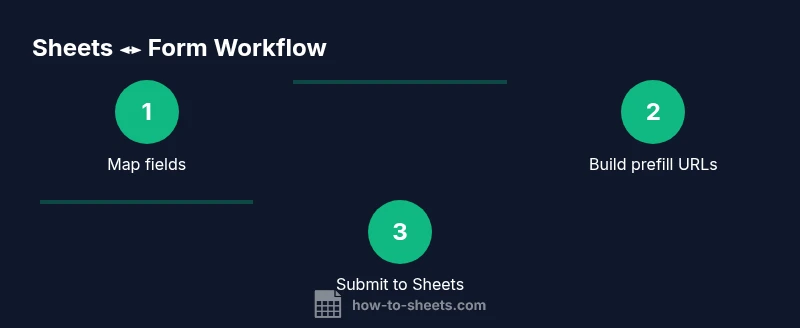
A practical workflow starts with preparing your data source (Sheet) and the target form (Google Forms). Next, you build a mapping between each sheet column and a corresponding form field. Then you generate a prefill URL for each row, or create a script that populates the form and records the submission in a response sheet. Finally, you test the flow with sample data, monitor for edge cases, and refine rules for validation and error handling. Adopting a template-driven approach helps you reuse structures across projects—surveys, registrations, and checklists all benefit from consistent mappings and prefill logic.
From the perspective of users, this pattern reduces repetitive tasks, improves data consistency, and enables easier reporting downstream in Sheets or other analytics tools. How To Sheets analysis shows that teams who standardize their mappings and validation rules tend to experience fewer data-entry errors and faster processing times when they scale to larger datasets.
Templates and patterns you can reuse
Templates are a powerful way to accelerate google sheets to form workflows. A typical template includes: a field mapping table (Form question IDs or names mapped to sheet headers), a prefill URL builder, and a submission handler that records responses back to Sheets. Start small with a single form and a few fields, then expand to multi-step forms and additional data sources. Patterns to adopt:
- Prefill patterns: Build a master prefill URL using a sheet formula to pull in values for specific rows.
- Two-way flow: After form submission, append a row to the sheet and update any derived fields with Apps Script logic.
- Validation layer: Use DataValidation in Sheets and Form validation rules to catch errors before they propagate.
- Error handling: Create a dedicated error log sheet and a recovery routine to reprocess failed entries.
These templates reduce setup friction and promote consistency across projects, which is especially valuable for students, professionals, and small business owners leveraging Google Forms in daily workflows.
Authority sources and data handling best practices
When you design data flows that involve forms and sheets, it’s essential to consider data governance and privacy. The authoritative resources below offer guidance on privacy frameworks and responsible data handling relevant to form integrations:
- https://www.ed.gov/
- https://www.nist.gov/privacy-framework
- https://www.nytimes.com/section/technology
These sources provide general principles you can apply when building google sheets to form workflows, including how to minimize data exposure, implement audit trails, and plan for secure data handling across apps.
Common pitfalls and troubleshooting
Even with a solid plan, users encounter common issues when implementing google sheets to form workflows. Typical problems include misaligned field mappings, incorrect prefill parameter names, and scripts that fail due to authorization scopes. Avoid these by keeping a single source of truth for field IDs, testing with representative data, and enabling detailed logging. If form responses don’t appear in Sheets, verify that the correct sheet is being updated and that the script uses the proper trigger or submission event. Regularly review permissions and ensure access is limited to trusted accounts. A well-documented, incremental approach minimizes debugging time and keeps the project maintainable.
What to do next: start with a minimal viable workflow, then progressively add complexity (validation, multi-row prefill, and automation) once the basics work reliably.
Real-world examples and next steps
To illustrate the value of google sheets to form, consider a club registration form where members’ data is prefilled from a master roster in Sheets. When a member submits the form, the response is automatically recorded in the same sheet, maintaining a single source of truth. For a small business, a survey form can be prefilled with customer data from Sheets, reducing friction and improving completion rates. Next steps include documenting your field mappings, creating a starter template, and setting up a simple Apps Script to push data to the form and log responses. As you gain confidence, you can layer in error handling, scheduled syncs, and more sophisticated validations to support growing data needs.
Tools & Materials
- Computer with internet connection(Essential for setup, testing, and maintenance)
- Google account (Sheets and Forms access)(Needed to create and modify Sheets, Forms, and Apps Script)
- Google Forms access(To design questions and enable prefill)
- Google Sheets access(To host data, mappings, and form responses)
- Apps Script editor (optional)(Required if you plan to implement custom scripts)
- URL builder formulas or an automation tool(Useful for constructing prefill URLs or managing flows)
Steps
Estimated time: 60-120 minutes
- 1
Define objective and field mappings
Clarify which fields you want to prefill from Sheets and which form questions will capture responses. Create a mapping table that links sheet column headers to the corresponding form field identifiers. This step reduces ambiguity later and helps you scale later on.
Tip: Document exact form question IDs or titles to prevent drift as forms change. - 2
Prepare the Google Form
Open your form and enable prefill. Note which fields are URL-prefillable and capture the prefill token names. This helps you assemble reliable prefill URLs later in the workflow.
Tip: Use the prefill feature to reveal field names used in the URL, then copy the parameter names for mapping. - 3
Prepare the Google Sheet
Organize your data so each row corresponds to a form entry. Ensure headers match the form field identifiers from the previous step. Set up validation rules as needed to catch invalid data before prefill.
Tip: Keep a separate test sheet with sample rows to avoid impacting production data during testing. - 4
Build the prefill URL
Create a formula in Sheets that builds a prefill URL using values from a row. This URL will populate the form when opened. Validate a few URLs to ensure the parameters map correctly to each form field.
Tip: Escape special characters properly (URL-encode values) to avoid broken links. - 5
Submit data back to Sheets
If you want form submissions to update Sheets, set up a script or use an automation tool to append responses to a designated sheet. This creates a complete data loop from form to sheet.
Tip: Test end-to-end with mock submissions to confirm the write operation behaves as expected. - 6
Test with real scenarios
Run multiple test cases using real-like data. Check for off-by-one errors, encoding issues, and missing fields. Confirm that validation rules trigger as intended and that data lands in the correct columns.
Tip: Keep a log of test results and adjust mappings as needed. - 7
Automate and monitor
Once the basic flow works, add triggers or automation to refresh prefill data or reprocess failed submissions. Monitor logs to catch errors early and set up alerts for failures.
Tip: Start with a simple trigger and expand only after you confirm stability. - 8
Document and iterate
Create a lightweight runbook that describes data sources, field mappings, and troubleshooting steps. Review the workflow periodically and refine as your data needs evolve.
Tip: Version-control your template and share with teammates for consistency.
FAQ
What does it mean to connect Google Sheets to a Form?
Connecting Sheets to a Form means linking a sheet-backed data source with a form so you can prefill fields and push responses into Sheets for auditing and analysis. This creates a repeatable workflow that reduces manual data entry and improves accuracy.
Connecting Sheets to a Form lets you prefill and save responses for easier data management.
Can I prefill a Google Form from multiple rows in Sheets?
Yes, you can build prefill URLs from each row and open forms with different fields filled. For large datasets, consider batching or scripting to manage URLs efficiently.
You can prefill from multiple rows by building separate prefill URLs per row.
Is two-way data sync possible between Sheets and Forms?
Google Forms primarily writes responses to Sheets. Two-way real-time syncing back into a form isn’t natively supported, but you can implement a two-way flow using Apps Script or automation tools to write submissions to Sheets and refresh form fields when appropriate.
Two-way sync isn’t built-in, but you can approximate it with scripts and automation.
What are security considerations for google sheets to form workflows?
Protect data by limiting form access, restricting who can view or edit the sheet, and avoiding exposing prefill data in URLs. Use audit logs and, where possible, trigger-based processing instead of flat-file exports.
Limit access, avoid exposing sensitive prefill data, and use audits.
What are common errors when building prefill URLs?
Common errors include incorrect parameter names, missing URL encoding, and mismatches between sheet headers and form questions. Validate each mapping and test URLs in isolation before batch processing.
Check parameter names, URL encoding, and header-question mappings.
Where can I find official guidance on Google Sheets to Form integration?
Look for official documentation and privacy guidance from credible sources, and supplement with reputable tutorials. While Google’s own docs cover forms and sheets, external sources on data privacy can help you design safer workflows.
Refer to official docs for Sheets and Forms, plus privacy guidelines.
Watch Video
The Essentials
- Plan field mappings before building the integration
- Test end-to-end with real-like data
- Use templates to scale across projects
- Protect sensitive data and audit data flows