Google Sheets Training: Your Complete Step-by-Step Guide
Practical, step-by-step Google Sheets training for students, professionals, and small businesses. Learn core skills, templates, and hands-on practice to master Google Sheets.


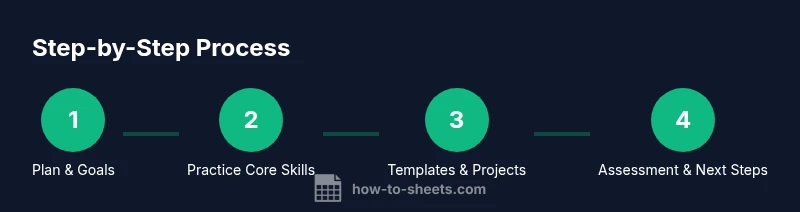
Google Sheets training helps you build practical skills from data entry to automation. In this guide, you’ll learn a structured plan, essential formulas, templates, and hands-on exercises you can apply immediately. According to How To Sheets, a focused training path accelerates real-world results. You’ll discover how to set goals, pace your practice, and track progress with milestones so you can demonstrate value to teammates and managers.
Why google sheets training matters
Google Sheets training matters because it turns scattered data tasks into repeatable, reliable processes. For students, it builds data literacy and confidence; for professionals, it speeds up reporting and decision-making; for small businesses, it reduces manual work and human error. The cloud-based, collaborative nature of Sheets means teams can work together in real time, sharing budgets, timelines, and dashboards without friction. In this section you’ll see a practical path to mastering Google Sheets—from core formulas to data validation and automation. The How To Sheets approach centers on action, not theory: define concrete goals, practice on realistic scenarios, and assemble a reusable toolkit you can apply across projects. As you read, you’ll notice how the lessons scale—from a class project to an actual client budget.
Core skills you’ll master in google sheets training
A solid google sheets training program covers a core set of competencies:
- Navigation and data entry: fast, accurate input, and efficient sheet structure
- Basic formulas and functions: SUM, AVERAGE, MIN, MAX, and logical checks
- Lookup and reference: VLOOKUP, INDEX/MATCH, and filters for dynamic data
- Data cleaning and validation: TRIM, CLEAN, and simple data validation rules
- Data organization: sorting, filtering, named ranges, and structured references
- Formatting and presentation: conditional formatting, charts, and dashboards
- Collaboration: sharing, commenting, and version control
- Automation basics: simple macros or automated workflows via functions and templates
To learn effectively, map each skill to a real-world task you’ll perform in your daily work or studies. The How To Sheets team emphasizes hands-on practice and repeatable templates that you can customize later for new projects.
Designing a hands-on curriculum for different audiences
Designing a practical curriculum means tailoring to three primary audiences: students, professionals, and small business owners. Start with a diagnostic: what tasks do they perform weekly? Then build modules that address those tasks with increasing complexity. A student-focused path might begin with assignment trackers and grade books, while an analyst path could prioritize dashboards and data pipelines. For small businesses, templates for budgeting, invoicing, and tracking KPIs are ideal. Each module should have clear objectives, real-world datasets, and a capstone project that demonstrates end-to-end capability. At each stage, provide short reviews, practical templates, and opportunities to get feedback from peers or mentors. The end goal is to deliver a toolkit users can reuse across roles and projects, not just a single worksheet.
Hands-on exercises and templates
Engaging hands-on exercises anchor learning. Start with a starter dataset and a guided task, then encourage learners to iterate and improve. Example exercises include building a monthly budget with categorized expenses, creating a student assignment tracker, and designing a small CRM-lite sheet that tracks leads and conversions. Templates help accelerate onboarding: a ready-to-use expense sheet, a project timeline, and a data-cleaning checklist. Encourage learners to modify templates to reflect their domain—adding parameters, constraints, and validation rules. These activities reinforce best practices for data integrity, reproducibility, and scalable design.
Templates you can start using today
Templates provide a fast path from learning to doing. Consider starting with an expense tracker that categorizes costs, a simple inventory list with validation and conditional formatting, a task tracker with due dates and priorities, and a data entry log that feeds into a master dataset. Each template should document its inputs, outputs, and the formulas used so new learners can understand the design decisions. Over time, learners should convert templates into reusable modules with named ranges, protected sheets for critical data, and documentation that explains the logic behind every calculation.
Tips for efficient learning and retention
Effective google sheets training hinges on small, consistent practice and deliberate reflection. Schedule short daily sessions rather than long, infrequent blocks. Build a personal cheat sheet of frequently used formulas and patterns. Use keyboard shortcuts to speed up common actions, and narrate your steps aloud if helpful. Try teaching a concept to a peer; verbalizing the steps reinforces memory and reveals gaps in understanding. Finally, periodically revisit completed templates to refactor formulas, improve readability, and add comments for future users.
Common pitfalls and how to avoid them
Common pitfalls include overcomplicating formulas, neglecting data validation, and failing to document logic. Avoid copying and pasting without understanding what a formula does. Use named ranges to simplify references, protect critical sheets, and maintain version history. Don’t forget to validate results with unit checks—compare a calculated total with a known correct total, or use a small test dataset to verify edge cases. Finally, resist the urge to rush through tasks; a deliberate, disciplined approach yields durable skills.
Advanced techniques to boost productivity in google sheets training
Once core skills are solid, explore advanced techniques that yield big dividends. The QUERY function enables powerful data extraction and transformation without leaving Sheets. IMPORTRANGE lets you consolidate data from multiple sources, while ARRAYFORMULA scales formulas across many rows. SPLIT and REGEXMATCH unlock flexible parsing and pattern matching for messy data. These techniques empower you to automate repetitive tasks, build dynamic dashboards, and implement lightweight data pipelines that save time and reduce errors.
Measuring progress and next steps
Track progress with a simple skills matrix that lists each capability and the learner’s proficiency level. Use small, standalone projects as checkpoints—one for data entry, one for data cleaning, one for dashboard creation, and one for a capstone automation task. When a learner can complete all modules with minimal guidance, plan next steps to deepen expertise, such as learning more about data modeling, advanced charts, or integrating Sheets with other tools. The goal is continuous improvement and the ability to apply lessons to real work.
AUTHORITY SOURCES
- https://www.ed.gov/
- https://www.nist.gov/
- https://www.sba.gov/
Tools & Materials
- Computer or tablet with internet access(Modern browser; ensure you’re logged into Google account)
- Google account(Needed to access Google Sheets and save templates)
- Google Sheets access (web or app)(Preferred: Google Workspace plan or free personal account)
- Sample dataset (CSV or Excel)(Use realistic data for practice tasks)
- Notebook or digital note app(For jotting formulas, observations, and fixes)
Steps
Estimated time: 6-8 hours
- 1
Define learning goals and audience
Identify who will use the training and what outcomes they need. Set 3 concrete goals that map to real tasks (e.g., build a monthly budget, create a dashboard, or automate data entry). This keeps the training focused and measurable.
Tip: Write down goals before you start and revisit them after each module. - 2
Set up a practice environment
Create a dedicated Google Sheet workspace with a starter dataset and a template directory. Establish naming conventions and a versioning approach so learners can track changes without losing work.
Tip: Use a copy of the starter data to avoid overwriting the original. - 3
Cover core functions and formulas
Introduce essential functions (sum, average, logic tests) and simple lookups. Practice applying them to real datasets and validating results against expected outcomes.
Tip: Start with one formula at a time to avoid cognitive overload. - 4
Practice data cleaning and validation
Demonstrate how to trim spaces, remove non-printing characters, and validate inputs. Implement conditional formatting for error indicators to help learners spot issues quickly.
Tip: Create a separate validation sheet that lists common data issues and fixes. - 5
Create practical templates
Build templates that address common tasks (budget tracker, task list, or inventory log). Include instructions, sample data, and a pre-built set of formulas.
Tip: Document the logic in comments so future users understand the design. - 6
Develop a capstone project
Combine data collection, cleaning, analysis, and a dashboard into a single project. Learners should present findings and recommendations based on the data.
Tip: Choose a dataset relevant to the learner’s domain for greater engagement. - 7
Assess progress
Use a rubric to evaluate each module: correctness, clarity, and reusability. Provide specific feedback with actionable next steps.
Tip: Pause between modules to reflect on what worked and what didn’t. - 8
Plan next steps
Identify advanced topics to pursue (e.g., IMPORTRANGE, QUERY, or dashboard automation) and set a continuation plan.
Tip: Schedule the next learning phase and set new goals.
FAQ
What is google sheets training?
Google Sheets training is a structured program to learn how to work efficiently with spreadsheets, covering foundational skills, data management, and practical templates. It emphasizes hands-on practice and real-world tasks.
Google Sheets training is a structured program to learn spreadsheet skills, focusing on real-world tasks and templates.
Who should take google sheets training?
Students, professionals, and small business owners who want to organize data, automate tasks, and create shareable dashboards can benefit from Google Sheets training. The goal is practical proficiency you can apply immediately.
Students, professionals, and small business owners who want practical spreadsheet skills will benefit from this training.
What prerequisites are needed?
A basic comfort with using a computer and internet access is enough. You should have a Google account to access Google Sheets and save templates.
A basic comfort with computers and a Google account is all you need to start.
How long does it take to complete the training?
A thorough program typically spans several hours of guided practice, plus time for independent work on templates and projects. Plan for multiple sessions to reinforce skills.
Expect several hours of guided practice plus additional time for personal projects.
Can I apply these skills to real work tasks?
Yes. The curriculum centers on templates and projects that mirror common workplace tasks like budgeting, project tracking, and data analysis. You’ll build a portfolio of practical sheets.
Absolutely—templates and projects mimic real tasks you’ll face at work.
Are there free resources available?
There are free introductory materials and community templates you can use to practice. Deeper, structured training or templates may come with paid options or subscriptions.
Yes, there are free starter resources and templates available to practice.
Watch Video
The Essentials
- Define clear, job-relevant goals before training.
- Practice with real-world templates to reinforce learning.
- Master core formulas and data cleaning first.
- Document logic and maintain reusable templates.
- Plan for ongoing practice and advanced topics.