Google Sheets Zoom Out: Master Display and Readability
Learn how to zoom out in Google Sheets to improve readability and workspace efficiency. This guide explains browser-based zoom, in-app options, keyboard shortcuts, printing considerations, and troubleshooting tips.


Goal: You will learn how to smoothly zoom out in Google Sheets to view larger areas, improve readability, and fit more data onscreen. You can achieve this with browser shortcuts or Sheets' own zoom options, plus tips for printing and display on different monitors. This quick guide covers the essential steps and caveats.
Understanding why google sheets zoom out matters
Zooming out in Google Sheets is more about readability and navigation than changing any data. When you work with large spreadsheets, a comfortable zoom level helps you see context, cross-check formulas, and spot trends without constantly scrolling. According to How To Sheets, display clarity is a common pain point for students and professionals who use Sheets for budgeting, project tracking, and data analysis. By mastering zoom, you can choose a view that reveals enough columns and rows while preserving legibility on laptops, desktops, and external monitors. This is especially important when sharing sheets in meetings or collaborating with teammates who view from different devices. In short, google sheets zoom out is a practical skill that improves focus and reduces eye strain during long sessions.
- Readability matters more than power users realize, and the right zoom level helps you catch mistakes early.
- A good zoom level should accommodate both data visibility and the surrounding context, such as headers and totals.
- When you standardize a preferred zoom, your team members can view sheets consistently across devices.
How browser zoom interacts with Google Sheets
Browser zoom is the primary mechanism for changing how Google Sheets appears on your screen. It scales the entire page, including menus, cells, fonts, and gridlines. There isn’t a separate, universal “Sheet zoom” control in all browsers, so most users rely on the browser’s zoom features to adjust readability. This means zooming out affects all elements on the page, not just the grid. Some users notice slight differences in line thickness or cell padding as you adjust the scale. If you need precise control over text sizing independent of the browser, you can increase font size within Sheets itself, but this does not alter grid density. For many workflows, browser zoom is the fastest path to a comfortable view, especially when presenting or sharing screens.
- The browser you use can influence how zoom behaves, so test on the devices your audience uses.
- If you notice layout anomalies at certain scales, try a nearby zoom level to find a stable view.
- Combining browser zoom with font-size adjustments inside Sheets often yields the best balance between density and readability.
Quick guide: Zoom out using keyboard shortcuts
To zoom out quickly, use your browser’s shortcuts. On Windows and Linux, press Ctrl and the minus key (-). On Mac, press Command and the minus key. To reset to the default, press Ctrl/Cmd and the zero key (0). If you prefer a mouse-based approach, use the browser menu’s Zoom option to select a percentage that feels right. Remember that these changes affect every tab in the browser, so you may need to restore zoom on other sites after finishing.
- Start with a mild reduction and test across different sections of your sheet.
- Use the reset shortcut to quickly return to the default view if things become cramped.
- For presentations, consider capturing a fixed zoom angle and sticking with it across slides.
Beyond browser zoom: Adjusting readability with Sheets settings
Google Sheets offers display adjustments inside the app that complement browser zoom. You can increase the font size to improve legibility, adjust text wrapping, and apply bold headers to improve scanning. These changes help when you want a more generous density without losing essential grid structure. Use the toolbar to change font size, and use the Format menu to adjust text wrapping and alignment. Avoid excessive font sizes that push data off-screen or create horizontal scroll.
- Consistent font choices support legibility across devices.
- Enable text wrapping for long values to avoid horizontal scrolling.
- Pair font-size changes with subtle column width adjustments to maintain a clean layout.
Printing, exporting, and sharing at different zoom levels
When you print or export a Google Sheet, the zoom level you used in the browser may not carry over to the output. It’s safer to configure print settings within Sheets to ensure headers, footers, and gridlines appear as intended. Use Print Preview to confirm margins and page breaks before printing. When sharing, remember that recipients may view on different devices, so provide a version with a comfortable default zoom. If you expect frequent printing, save a print-ready template with a fixed page setup that matches your preferred zoom level.
- Always check print preview to avoid surprises on paper or PDF exports.
- Create a standard print setup for consistent results across teammates.
Common pitfalls and best practices when zooming in Sheets
Don’t rely solely on browser zoom to interpret data layouts. Some fonts and gridlines may appear disproportionate at certain scales, which can affect readability and data interpretation. Always verify critical dashboards at the chosen zoom level and on devices your team uses. Establish a team guideline for a standard zoom level to minimize misreads. For long-term readability, pair a comfortable zoom with systemic formatting—consistent fonts, clear headers, and well-spaced gridlines.
Summary: applying zoom thoughtfully across your workflow
The goal of google sheets zoom out is to achieve readable, navigable views without altering data. Use browser shortcuts for quick adjustments, then fine-tune within Sheets with font sizes and wrapping. Test across devices and printing scenarios to ensure your view remains consistent when sharing or presenting. Adopting a thoughtful approach to zoom helps you work more efficiently and reduces visual fatigue over time.
Tools & Materials
- Computer with internet access(Stable connection for loading Sheets and syncing with cloud storage)
- Web browser (Chrome/Edge/Firefox recommended)(Keep browser updated for best zoom behavior)
- Keyboard and mouse/trackpad(Know shortcuts: Ctrl/Cmd + - and Ctrl/Cmd + 0)
- Notes app or sticky notes(Capture your preferred zoom level for future sessions)
- External monitor or adjustable display(Helpful for multi-screen workflows)
Steps
Estimated time: 30-60 minutes
- 1
Set your target zoom level
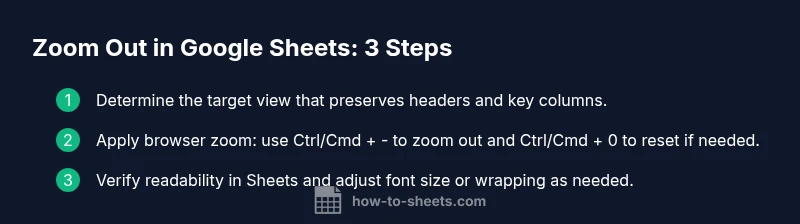
Decide the view that will show the most critical data with enough context. Consider headers, totals, and any charts you’ll reference. This upfront step avoids constant tweaking while you work.
Tip: Note your chosen level so you can reproduce it on other devices. - 2
Apply browser zoom
Use the browser’s zoom shortcuts to adjust quickly. Use Ctrl/Cmd + - to zoom out, Ctrl/Cmd + 0 to reset if needed. Check the Sheet at the new scale and assess readability.
Tip: If you’re presenting, apply the zoom before starting and stick with it for the session. - 3
Verify readability across regions
Scroll through multiple sections of your sheet to ensure headers and numbers remain clear. Check small values and thin gridlines at the chosen scale.
Tip: Switch to a second device or another browser to confirm consistency. - 4
Adjust fonts and wrapping in Sheets
If needed, increase font size or wrap text to improve legibility without shrinking data density too much. Use the Format menu to adjust font size and wrapping.
Tip: Keep font family consistent to avoid visual jitter when sharing. - 5
Test printing and exporting
Open Print Preview to verify page breaks and margins. Ensure the printed/exported version aligns with what viewers expect.
Tip: Create a print-ready template to reuse with future sheets. - 6
Document and share your setup
Save a note about the zoom level and formatting choices. If collaborating, share a quick tip sheet outlining the view you standardized.
Tip: Bookmark the current view for quick access later.
FAQ
Does zooming out affect formulas or data in Google Sheets?
No. Zooming out only changes how the sheet is displayed. Formulas, values, and data remain the same regardless of the zoom level.
No, zoom is just how the sheet looks on your screen; the data and formulas are unchanged.
Is there a dedicated zoom control in Google Sheets?
Most users rely on the browser zoom controls. Google Sheets does not consistently provide a separate, universal zoom slider in every browser.
Sheets relies on your browser zoom settings for display size.
What is a good zoom level for readability on a laptop?
Choose a level that keeps headers, keys, and numbers readable without excessive wrapping or scrolling. It’s about comfort across your typical work sessions.
Pick a comfortable zoom that makes headers and numbers easy to read.
Will zoom settings apply to printed output?
Printing uses its own settings; browser zoom may not carry over. Check Print Preview and adjust within Sheets for predictable results.
Prints use their own settings; check print preview to be safe.
How can I save my preferred zoom for future sessions?
Browsers often remember the last zoom per site. You can bookmark a zoomed view, but Sheets does not guarantee a persistent internal zoom state.
You can bookmark the page at your preferred zoom, but it may not always persist in Sheets.
Watch Video
The Essentials
- Zoom is display-only; data remains unchanged
- Use browser shortcuts for quick adjustments
- Test across devices and prints for consistent results
- Pair browser zoom with in-Sheets formatting for readability