Google Spread Guide: Master Google Sheets for Tasks
Master google spread in Google Sheets with practical steps, templates, and tips. This How To Sheets guide covers basics, data organization, and spreadsheet practices.


By the end of this guide, you'll confidently set up and use google spread in Google Sheets to organize data, build simple formulas, and automate common tasks. You’ll learn how to structure a sheet, apply filters, and create reusable templates. According to How To Sheets, starting with a clear data model reduces errors and saves time.
Understanding google spread
google spread is the informal name for working with data in Google Sheets. At its core, it's a cloud-based spreadsheet that lets you store, organize, and analyze information with a familiar grid. For students, professionals, and small business owners, google spread unlocks real-time collaboration, automatic saving, and cross-device access. For many, the real power comes from how you lay out data, name ranges, and structure sheets for consistency. According to How To Sheets, the most reliable google spread starts with a clear data model: separate inputs, calculations, and outputs, and avoid mixing raw data with analysis in the same sheet. This separation makes it easier to audit, share, and reuse work across projects. In practice, you should begin with a simple data dictionary that describes each column's purpose, data type, and accepted values. As you grow, you can layer on named ranges, data validation rules, and simple automation to speed common tasks. This foundation helps teams collaborate on a single google spread without stepping on each other’s changes. In short, google spread is a flexible tool; when you design it with intention, you reduce errors and improve decision-making.
Core features of google spread
google spread offers several core features that make everyday work faster and more reliable. Real-time collaboration means multiple people can edit a sheet at the same time, with live cursors and comments. Revision history allows you to see who changed what and when, so you can revert mistakes easily. Formulas such as SUM, AVERAGE, IF, and VLOOKUP (VLOOKUP-google-sheets) empower calculations inside the sheet itself. Data validation helps prevent bad entries (like mistyped IDs or dates) and keeps data clean across the google spread. Conditional formatting highlights exceptions at a glance, while filters help you focus on relevant rows without altering the underlying data. Charts turn numbers into visuals that support quick decisions. Because google spread is cloud-based, you can access it from any device; just remember to keep naming conventions consistent so everyone uses the same fields in their google spread.
Structuring data in google spread for reliability
A well-structured google spread reduces confusion and errors. How To Sheets Analysis shows that a clean header row, clearly named ranges, and controlled access dramatically improve reliability when working in google spread. Start with a single source of truth: separate input data from calculations and outputs. Use consistent data types (text, numbers, dates) and apply data validation where possible. Create a small data dictionary in the sheet or a companion doc that explains each column's purpose. Named ranges simplify complex formulas and make it easier to reuse logic across multiple sheets in the same google spread. If your team uses multiple sheets, link them with IMPORTRANGE or QUERY in a controlled way, keeping data sources documented. Finally, set up version control through the Sheets version history and standard sharing rules to prevent accidental edits in google spread.
Common tasks and workflows in google spread
In day-to-day work, you’ll use google spread for a variety of tasks. Data entry and tracking: build a table with clear headers and validation rules. Budgets and forecasts: create line items, apply SUM and SUMIF ranges, and format currency consistently. Project tracking: assign owners, set due dates, and use conditional formatting to flag overdue items. Inventory lists: maintain stock levels, use filters to drill into categories, and summarize totals with pivot-like calculations. Reporting: use charts and dashboards built from your data to communicate results to teammates. For the best results with google spread, clone a proven template, customize headers for your project, and store it in a shared drive so everyone uses the same starting point in google spread.
Advanced tips and pitfalls with google spread
Advanced users can leverage array formulas, named ranges, and custom templates to scale google spread across projects. Pro tips: keep formulas simple and modular, document complex logic in cell comments, and test on a small sample before applying to large datasets in google spread. Pitfalls to avoid include mixing data entry with analysis on the same sheet, relying on volatile functions for large datasets, and forgetting to lock critical ranges when sharing sheets in google spread. If you plan to automate, consider basic scripts or built-in macros to reduce repetitive tasks while keeping the sheet transparent for collaborators in google spread.
Tools & Materials
- Computer with internet access(Reliable browser (Chrome recommended) and stable internet connection)
- Google account(Needed to access Google Sheets and save files)
- Access to Google Drive(For organizing templates and sharing)
- Optional: mobile device with Google Sheets app(For field access)
- Optional: keyboard shortcuts cheat sheet(For faster editing)
Steps
Estimated time: 25-40 minutes
- 1
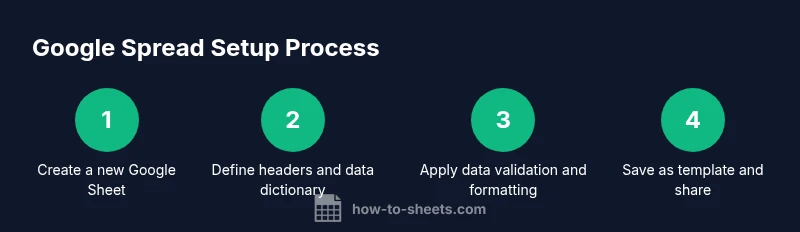
Open a new google spread document
Create a new Google Sheet in your browser or through Drive. Name the file with a project tag and date to keep versions clear. This establishes the project’s canonical data source.
Tip: Use a descriptive file name that includes project or date. - 2
Define headers and data dictionary
Set up a clean header row and document each column’s purpose, data type, and accepted values. This creates a reliable foundation for later calculations in google spread.
Tip: Keep headers short, use CamelCase, and avoid ambiguous abbreviations. - 3
Enter data and apply validation
Populate the table with your data, then apply data validation rules to prevent invalid entries. This preserves data integrity across google spread.
Tip: Use dropdown lists for restricted fields to reduce entry errors. - 4
Add formulas and checks
Implement essential formulas (SUM, AVERAGE, IF, VLOOKUP) and cross-checks to surface anomalies. Keep calculations modular for easier debugging in google spread.
Tip: Comment complex formulas to aid future editors. - 5
Save as template and share
Convert the sheet into a reusable template and set sharing permissions. Store it in a shared drive so teammates can start from the same google spread.
Tip: Lock critical ranges when sharing to prevent accidental edits.
FAQ
What is google spread?
google spread is the informal name for Google Sheets, a cloud-based spreadsheet that supports collaboration, formulas, and automation.
Google spread refers to Google Sheets, a cloud-based spreadsheet that supports collaboration.
Can I work on google spread offline?
Yes, enable offline mode in Google Drive; you can view and edit recently opened sheets offline, and changes sync when online.
Yes, you can work offline after enabling Drive offline mode.
How do I share a google spread with teammates?
Click the Share button, choose permissions, and share via link or email to collaborators who have access.
Share via the Share button and set permissions.
How do I protect data in google spread?
Use Protect sheets and ranges, set permissions, and avoid editing critical areas by multiple users at once.
Protect sheets and ranges to restrict edits.
What are essential formulas to start with in google spread?
Start with SUM, AVERAGE, COUNT, IF, and VLOOKUP to handle common calculations in google spread.
Try SUM, AVERAGE, IF, and VLOOKUP first.
How can I convert Excel data to google spread?
Upload the Excel file to Google Drive and open with Google Sheets; many formulas convert automatically.
Upload to Drive and open with Sheets to convert.
Watch Video
The Essentials
- Plan your data model before entering data in google spread.
- Use data validation and named ranges to maintain integrity.
- Create templates to scale google spread across projects.
- Share with clear permissions to avoid conflicts.
- Protect key sheets and ranges for security in google spread.