Troubleshooting google_service_sheets not found in Google Sheets
Facing google_service_sheets not found in Google Sheets? This urgent troubleshooting guide helps you diagnose API enablement, credentials, and permission issues with clear, actionable steps to restore access fast.


According to How To Sheets, the google_service_sheets not found error typically means the Sheets API is not enabled in the active Google Cloud project or the code is referencing an incorrect service name. Quick fix: verify the correct project, enable the Sheets API, and re-authenticate the app. If the error persists, review credentials and access scopes.
Quick Context: What google_service_sheets not found means
The message google_service_sheets not found usually appears when a system or script tries to access the Google Sheets API and cannot locate the expected service. This can occur in both developer workflows and automated tools that connect to Sheets from Apps Script, external apps, or custom integrations. The error often signals a mismatch between the Google Cloud project used by the code and the project where the Sheets API is activated. According to How To Sheets, the root cause is typically either an API not enabled or a misconfigured service reference. You should treat this as urgent because it blocks data access, automation, and reporting pipelines. Start by confirming the exact project, the intended API, and the credentials used by the connector.
Key hints to watch for include the project ID, the service account email, and the scope set requested by your app. When you see not found rather than unauthorized, it often points to a missing API or a misnamed service reference rather than an expired token. The goal is to align your code with the Cloud Console settings and refresh any tokens that may be stale.
In practice, you’ll want to audit three things first: (1) the active Google Cloud project in your environment, (2) whether the Google Sheets API is enabled for that project, and (3) that your application is calling the right service name exactly as expected by the API client library. This quick context should guide your next diagnostic steps. How To Sheets emphasizes establishing a baseline project and API enablement to avoid repeated not found errors.
Common Scenarios That Trigger the Error
Several common scenarios can trigger google_service_sheets not found. The most frequent are: a misconfigured Google Cloud project (using a different project than the one where the API is enabled), an attempt to reference a non-existent or renamed service in code, and stale credentials that fail to resolve the service name properly. Other frequent causes include using an incorrect API endpoint, or a domain-restricted account that blocks access to the Sheets API. In enterprise contexts, it can be caused by policy changes or IAM permissions that prevent the service from being located at runtime. If you’ve recently migrated projects, migrated credentials, or updated libraries, double-check that the new environment is aligned with the correct project and API enablement.
Businesses relying on Google Apps Script or third-party connectors should review the manifest or package configurations to ensure the service name google_service_sheets is still valid in the API client. If your code was working previously and suddenly stops, consider whether a recent update changed the service alias or deprecated an endpoint. The How To Sheets approach is to verify the intended service name against the API client library documentation and the Cloud Console configuration.
Immediate Checks You Can Do Right Now
Act fast with these two-minute checks:
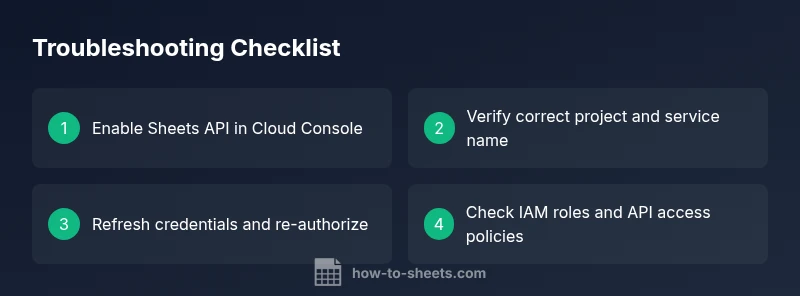
- Verify the active Google Cloud project: confirm the project ID in your environment matches the one where Sheets API is enabled.
- Check that the Sheets API is actually enabled in Cloud Console -> APIs & Services -> Library for the selected project.
- Validate the service name in your code: ensure you’re calling google_service_sheets exactly as the API expects and not a misspelled or aliased name.
- Review credentials: re-authenticate if using OAuth or refresh service account keys if you’re connecting from a server or CI environment.
- Inspect scopes: confirm your OAuth scope includes the Sheets API scope and that consent has been granted.
- Check network restrictions: firewall or VPC restrictions can block API discovery; ensure outbound access to Google endpoints is allowed.
- Look at logs: API call logs in Cloud Console can reveal whether a request reached the Sheets service and where it failed.
If you suspect a mismatch between environments, repeat these checks in the exact environment where the error occurred, since issues often disappear when the project and API are aligned. How To Sheets recommends keeping a short, auditable trail of project IDs, service accounts, and library versions to prevent future not found errors.
Why API Access and Permissions Fail
Many google_service_sheets not found errors stem from permission and access controls rather than a broken endpoint. If the API is enabled but access is blocked, you’ll get not found or restricted errors. Common culprits include missing or invalid OAuth tokens, expired or rotated credentials, and insufficient IAM roles for the user or service account accessing Sheets. Another frequent factor is domain restrictions that block access to Google APIs from certain networks or organizational units. To resolve, ensure the service account has at least the roles required for Sheets access and that any required OAuth consent is granted. Also confirm that the correct user or account is authorizing the request and that scopes are properly configured. How To Sheets’s guidance is to map each credential to a specific access need and to validate the lifecycle of credentials from creation to rotation.
If This Doesn’t Work, Try These Fixes
If the problem persists after basic checks, apply a structured set of fixes in order:
- Reconfirm the active project and re-enable Sheets API if needed. Then redeploy the code or reauthorize tokens.
- Correct any service name or endpoint misreference in your code; ensure the API client library is up to date.
- Regenerate and securely store credentials: rotate keys for service accounts and refresh OAuth tokens in your application.
- Validate IAM roles and permissions: grant the minimal required permissions for Sheets and ensure the account used by the app has access to the target spreadsheet.
- Check quotas and billing: verify the project is active, has billing enabled if required, and that you haven’t hit API limits.
- Test in a clean environment: replicate the issue in a sandbox project to isolate whether environment-specific policies are at fault. If you’re stuck, contact a cloud admin to audit project ownership, API enablement, and governance policies. How To Sheets’s guidance is to keep credentials in a secure vault and document each change for future troubleshooting.
Preventing Reoccurrence and Best Practices
To prevent google_service_sheets not found from reappearing:
- Maintain a single source of truth for the active Cloud project and API state used by your apps.
- Enable Sheets API at the project level and verify dependencies whenever you clone or migrate projects.
- Use service accounts with explicit, minimum permissions and rotate keys on a predictable schedule.
- Implement robust error handling to surface not found vs unauthorized versus forbidden vs rate limit errors clearly.
- Keep a changelog for environment updates, library upgrades, and credential rotations so you can rollback quickly if needed.
- Regularly review IAM policies and network rules to ensure continued access to Google endpoints.
Quick Prevention Checklist
- Confirm the active Cloud project and ensure Sheets API is enabled.
- Validate service names, credentials, and OAuth scopes.
- Rotate keys securely and test in a controlled environment before production.
- Review IAM roles and network restrictions to avoid accidental blocks.
- Document changes to support faster triage in the future.
Steps
Estimated time: 40-60 minutes
- 1
Verify the active Cloud project
Open your Cloud Console and confirm the project you are using in code matches the one where the Sheets API is enabled. A simple misalignment here is a frequent cause of the not found error.
Tip: Bookmark the project ID in your codebase for quick reference. - 2
Enable Sheets API in the correct project
Navigate to APIs & Services, Library, and search for Google Sheets API. If it’s shown as not enabled, click Enable. This step is essential to stop not found errors.
Tip: If multiple projects exist, double-check the API state in each one. - 3
Validate the service name in code
Ensure the API client calls the exact service name expected by the library. A small typo or deprecated alias can result in a not found condition.
Tip: Copy the service identifier from the official client docs rather than guessing. - 4
Refresh credentials and re-authorize
If you use OAuth, refresh tokens or re-authorize the app to grant fresh access. If you use a service account, rotate keys and re-deploy the credentials.
Tip: Store credentials securely and rotate regularly. - 5
Check permissions and scopes
Confirm that the user or service account has the proper Sheets access and that the OAuth scopes include the Sheets API.
Tip: Apply the principle of least privilege for ongoing security. - 6
Test in a clean environment
Clone the setup in a sandbox project to see if the issue is environment-specific. This helps isolate whether a policy or network rule is at fault.
Tip: Document any environment-specific differences for future troubleshooting.
Diagnosis: Error: google_service_sheets not found when configuring Sheets API or Apps Script
Possible Causes
- highThe Sheets API is not enabled in the Google Cloud project
- mediumUsing an incorrect service name or resource identifier in code
- mediumExpired or missing OAuth credentials / token
- lowIncorrect scope or restricted API access for the user
Fixes
- easyCheck the active Google Cloud project and enable the Sheets API for that project
- easyVerify the service name google_service_sheets in code against the API client documentation
- easyRefresh OAuth credentials or re-authorize the app to obtain fresh tokens
- mediumReview IAM roles and API access policies; adjust permissions if needed
- mediumCheck quotas and ensure the project is active and billed as required
FAQ
What does google_service_sheets not found indicate in practice?
It typically means the Sheets API isn’t enabled in the active Cloud project or the service name is misreferenced in code. Remedy by aligning the project, API enablement, and credential setup.
It usually means the API isn’t enabled or the service name is wrong. Fix by checking the project, enabling Sheets API, and refreshing credentials.
Can this error be caused by permission issues?
Yes. Insufficient IAM permissions or restricted OAuth scopes can trigger not found errors. Review roles, grant necessary access, and ensure scopes cover Sheets operations.
Permissions can cause this error. Check roles and scopes to ensure Sheets access is allowed.
What is the first thing I should verify?
Confirm the active Google Cloud project and that the Sheets API is enabled for that project. This is the most common cause and the easiest fix.
First, verify the project and enable the Sheets API.
Is re-authentication always required?
Not always, but often required when tokens have expired or credentials have rotated. Re-authenticate or refresh credentials and test again.
Sometimes you just need to refresh credentials and re-authenticate to fix it.
What if the error persists after fixes?
If the error remains, recheck the entire setup: project alignment, API state, credentials, and network access. Consider opening a support ticket if constraints are policy-based.
If it keeps happening, recheck everything and consider support if needed.
The Essentials
- Enable the Sheets API in the correct Cloud project
- Verify the exact service name and code reference
- Refresh credentials and re-authorize to restore access
- Check IAM roles and quotas to avoid access blocks