How Frequently Should Sheets Be Changed in Google Sheets: A Practical Guide
Learn how often to update, archive, and rename sheets in Google Sheets. This practical, step-by-step guide covers data lifecycles, templates, and team workflows to keep your spreadsheets accurate and organized.


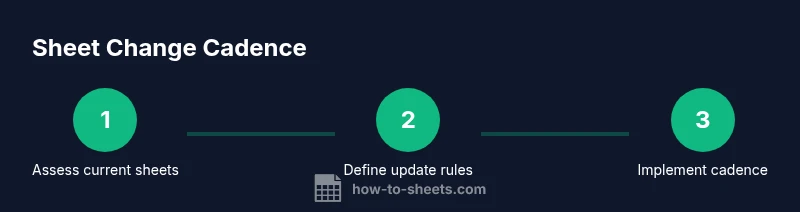
Understanding how frequently should sheets be changed helps teams keep data accurate and workflows smooth. This guide explains when to archive, refresh, or replace sheets in a Google Sheets workbook, and how to establish a practical change cadence. You’ll learn criteria, schedules, and templates to apply in real work.
Why Regular Change Frequency Matters in Google Sheets
In collaborative environments, changing sheets isn’t just a housekeeping task—it’s a data governance decision. When teams keep dozens of sheets open for different time periods, sources, or regions, small mismatches can creep in. A planned change cadence minimizes confusion, preserves audit trails, and keeps dashboards reliable. According to How To Sheets, establishing a routine for when to update or replace sheets helps teams stay aligned. By thinking in terms of data lifecycles—live inputs, stable archives, and evergreen templates—you can reduce rework and improve decision speed. In practice, this means identifying which sheets hold transient data (like daily logs), which are historical records (monthly snapshots), and which serve as templates (structure for new projects). When you treat each sheet as part of a lifecycle, you’ll know whether to refresh its contents, archive the sheet, or spin up a fresh tab with a new dataset. The goal is not to chase perfection but to maintain clarity: every sheet should have a clear purpose, a defined owner, and an obvious point at which it should be updated or retired. This approach also supports scaled work across teams, contractors, and departments.
How to Determine Change Frequency Based on Data Lifecycles
Data lifecycles define how often you should touch a sheet. If a sheet acts as a live data entry log pulled from an external source, you may need daily or weekly refreshes; dashboards summarizing results might be updated monthly. Consider data sensitivity and retention requirements—regulatory environments often require ongoing documentation of changes. Start by inventorying every sheet: list its purpose, its owner, the data source, and the expected refresh cadence. Then map each sheet to a recommended change frequency: quick-refresh for operational sheets, periodic review for analytical sheets, and archived status for obsolete sheets. Finally, align with stakeholders: product managers, finance, and operations often have different rhythms. When changes are coordinated, you minimize conflicting edits and ensure everyone references the same version of truth. If you maintain a separate data dictionary or data source sheet, set a distinct cadence for updating that dictionary too. In short, let lifecycles drive cadence: live inputs require more frequent attention, while evergreen templates stabilize over time. A well-defined calendar of updates can be shared across your team and documented in a change log.
Practical Rules of Thumb for Change Frequency
- Daily operational sheets: refresh data and check formulas once per day.
- Weekly dashboards: update inputs and run quality checks every week.
- Monthly master sheets: review structure, prune unused tabs, and archive outdated data monthly.
- Quarterly templates: refresh templates, rename versions, and ensure external links are up to date.
More nuanced guidelines: if data flows from external systems, follow their cadence; if a sheet holds regulatory data, follow retention requirements. For collaborative projects, agree in a kickoff meeting on who changes what and when. Use a change log to record who made what changes and why, and schedule automatic backups before large updates. If a sheet is used for a one-off project, mark it as temporary and plan its retirement date upfront. For teams with distributed hours, staggering changes can minimize conflicts. Finally, keep a simple naming convention: [Project]-[DataType]-[Date].
Templates, Versions, and Archiving Practices in Google Sheets
Effective change frequency hinges on how you treat templates, versions, and archived data. Always maintain a version history so you can reconstruct what happened and when. Create a lightweight archiving process: move stale sheets to an Archive folder, keep a minimal index, and clearly label the archive date. Use consistent naming such as ProjectName_DataType_YYYYMM to quickly identify content and lifecycle stage. For templates, clone the sheet for new projects rather than editing the master; this preserves a pristine starting point and reduces the risk of breaking formulas. Document ownership, dependencies (other sheets or external links), and the intended retirement date. A small, well-structured change log enhances accountability during audits and collaboration. Finally, consider a periodic governance review (every 3–6 months) to refresh naming conventions, retention rules, and access controls.
Automation Tips: Using Apps Script or Add-ons to Refresh Sheets
Automation can enforce your change cadence with less manual effort. Set up triggers to refresh data pulls, run integrity checks, or archive old sheets automatically on a scheduled basis. Use simple App Script snippets to append a timestamp when a sheet is updated, or deploy an add-on that monitors external data feeds and flags stale content. Establish safeguards: back up data before automated changes, alert owners of updates, and ensure that critical dashboards refresh only after data validation passes. For teams with shared drives, use access controls and version history to track automated changes. Start with a small pilot (one operational sheet) before expanding automation across the workbook. As you scale, document automation rules and keep a human review step for exceptional updates.
Case Studies: When to Change Sheets in Common Scenarios
Case 1 — Marketing Campaign Tracker: Run weekly data refreshes for campaign metrics and archive campaigns that have concluded. Rename active sheets for the next period and keep a short narrative in a Change Log. Case 2 — Quarterly Budget Workbook: Maintain stable master sheets, refresh projections monthly, and archive outdated forecast scenarios. Use versioned templates for each quarter and store supporting documents in a linked folder. Case 3 — Customer Support Dashboard: Update daily with new tickets, keep a separate historical tab, and rotate out stale data quarterly. In all cases, document changes and communicate ownership so teammates understand the cadence and responsibilities.
Tools & Materials
- Google account with edit access to the workbook(Must have permission to edit and view version history.)
- Change-log template(Spreadsheet to record who changed what and why.)
- Data dictionary (optional)(Useful for complex datasets and cross-sheet dependencies.)
- Archiving plan( blueprint for moving old sheets to an Archive folder.)
- Backup strategy(Regular backups before large updates.)
Steps
Estimated time: 60-90 minutes for initial audit and setup; ongoing cadence reviews monthly
- 1
Prepare and inventory
Open your workbook and list every sheet along with its purpose, data source, and owner. Note the current update cadence and any constraints (regulatory, internal policy).
Tip: Create a one-page inventory as a living document and share it with all stakeholders. - 2
Define criteria for changes
Decide which sheets require frequent updates, which are archival, and which are templates. Assign explicit criteria (data source, freshness, retention policy).
Tip: Use a simple table linking sheets to criteria (source, cadence, owner). - 3
Create a change schedule
Draft a calendar that assigns responsible people and update times for each sheet category. Ensure a clear retirement date for obsolete sheets.
Tip: Publish the schedule in a shared doc and set reminders. - 4
Establish naming and version conventions
Agree on naming (e.g., Project-DataType-YYYYMM) and enable version history on all sheets. Create a template for new projects.
Tip: Keep a master template untouched and clone it for new work. - 5
Document and train
Record all changes in the Change Log and train teammates on the cadence rules. Include examples and edge cases.
Tip: Use comments on changes to capture context. - 6
Review and iterate
Schedule a quarterly governance review to update cadences, archiving rules, and documentation.
Tip: Continuous improvement reduces drift over time.
FAQ
What does change frequency mean in a Google Sheets context?
Change frequency refers to how often you update, archive, or replace sheets within a workbook. It depends on data life cycles, governance requirements, and collaboration needs. Establishing a cadence helps avoid stale data and conflicting edits.
Change frequency is how often you update or retire sheets to keep data current and reliable.
How often should I archive old sheets?
Archive when a sheet becomes obsolete or is superseded by a newer data source or template. A quarterly to semi-annual archive policy works for many teams, but adjust based on retention policies and usage.
Archive sheets on a predictable schedule, such as quarterly, and keep a short log of what moved and why.
Can automation help manage sheet changes?
Yes. Automations can refresh data, validate inputs, and move old sheets to archives on a set schedule. Always include a manual review step for exceptions and data integrity checks.
Automation helps keep cadence consistent, but you should review automated changes to prevent mistakes.
What about naming conventions and version control?
Use clear naming conventions and enable version history. This makes it easy to identify the purpose and period of each sheet, and to roll back changes if needed.
Clear names and built-in version history make tracking changes simple.
Is there a risk in deleting sheets?
Deleting sheets can lead to data loss if archives aren’t preserved. Always back up and verify that the sheet is no longer required before removal.
Be cautious with deletion; back up first and verify deceased sheets aren’t needed for reference.
Watch Video
The Essentials
- Establish a documented cadence for sheet changes
- Archive obsolete sheets and preserve a clear history
- Use templates and versioning to protect data integrity
- Automate where sensible, with human oversight
- Regular governance reviews keep cadences relevant