How Often to Get New Sheets: Cadence for Google Sheets
Learn how to decide when to create new sheets or workbooks in Google Sheets, establish a cadence, and maintain clean, organized data with practical templates and governance.


How often to get new sheets? This guide helps you decide when to start a new Google Sheets workbook or a fresh tab, and how to organize data for clarity and governance. By applying a cadence based on project scope, data growth, and collaboration needs, you’ll keep sheets manageable and searchable. How To Sheets outlines practical rules for cadence and lifecycle.
What counts as a 'new sheet' in a Google Sheets workflow?
In daily work, a 'new sheet' can mean a brand-new spreadsheet file or a fresh tab within an existing workbook. When considering how often to get new sheets, the key factors are data scope, intended audience, and governance. If topics diverge or access rules change, creating a new sheet or starting a new workbook helps prevent cross-contamination of formulas and keeps version history clear. For many teams, starting with one workbook and adding new sheets as data grows is a practical default; for others, separating quarterly campaigns or financials into separate workbooks reduces clutter and simplifies auditing. The How To Sheets framework emphasizes a deliberate cadence over ad hoc creation to reduce duplication and preserve data lineage. Implement a policy that specifies when to add a sheet versus when to spin up a new workbook, lowering risk and improving searchability across your data ecosystem.
Cadence options: monthly, quarterly, or per project
There isn’t a one-size-fits-all cadence for when to get new sheets. Instead, align cadence with how your work evolves. If you regularly collect recurring data (e.g., monthly sales figures or weekly project statuses), a monthly or sprint-based cadence often works well. For long-running projects or campaigns, consider quarterly refreshes that consolidate updates and preserve historical context. For distinct initiatives, separate workbooks may be the cleaner path to governance. The How To Sheets approach recommends selecting a rhythm that matches data velocity and collaboration needs, then documenting it so everyone follows the same rules. A well-chosen cadence reduces redundant sheets, keeps formulas intact, and makes it easier to locate the right data when you need it.
How to decide between adding a sheet vs starting a new workbook
Deciding whether to add a sheet or start a new workbook comes down to scope and governance. If data topics share a schema, live in the same system, and require similar access, add a new sheet to the existing workbook. If the data topics diverge in structure, require stricter access controls, or require independent retention, start a new workbook. Consider future audits, data sharing, and backup needs. Use a simple decision tree: (1) Do topics share the same schema and audience? If yes, add a sheet. (2) Do topics require separate access or retention? If yes, create a new workbook. Following this rule helps you keep your Google Drive organized and your data easier to govern.
Naming conventions and templates to keep things clear
Consistent naming is essential when you scale sheet usage. Use a predictable pattern such as Year-Quarter-Topic-Format for sheets, and a separate, high-signal pattern for workbooks (e.g., Campaign-Year-Region). Examples: 2026_Q1_Sales, 2026_Q2_Marketing_Campaign. Use underscores or hyphens consistently, and store templates in a dedicated folder to ensure anyone can duplicate a safe starting point. Pair naming with a documented template that includes headers, common formulas, and instructions. This reduces confusion and speeds up onboarding for new collaborators. The goal is to create recognizable, searchable assets that lower the cognitive load of working with multiple sheets and workbooks.
Setting up templates and a cadence in Google Sheets
Create a master template workbook with standardized tabs, headers, and formulas. When starting a new sheet or workbook, duplicate the template and rename it according to your cadence. Use data validation and named ranges to minimize errors when linking data across sheets. For cross-sheet references, rely on robust formulas (e.g., IMPORTRANGE or query-based setups) that are resilient to renaming and structural changes. Document your cadence policy in a shared guide so every team member understands when to create new sheets, when to archive, and how to maintain consistency across the data landscape.
Automation: reminders to refresh or archive sheets
Automation helps enforce cadence without manual tracking. Set up calendar reminders or Apps Script triggers to prompt the team to refresh data, move dated sheets to an archive folder, or create a fresh sheet at the designated cadence. Centralizing reminders reduces drift and keeps data clean. If you manage many projects, consider a lightweight sheet that lists upcoming cadences, owners, and status. Automation should support governance, not replace human oversight.
Data hygiene and lifecycle management
A disciplined lifecycle for sheets includes archiving stale data, consolidating older sheets, and setting retention policies. Archive instead of deleting when possible to maintain a traceable history, but ensure archived data remains accessible for audits or reference. Regularly review active sheets to prune redundant ones and avoid nested or duplicate data. The end goal is a lean, well-documented set of sheets that supports quick insights and reliable reporting. How To Sheets analysis suggests teams benefit from clear policies and routine review to sustain data quality over time.
Collaboration and governance when adding new sheets
As teams grow, governance becomes critical. Limit who can create new sheets or workbooks and define access controls per project. Use shared drives with named owners and documented conventions to keep collaboration productive rather than chaotic. When you involve stakeholders, provide a short onboarding that covers cadence rules, naming conventions, and archiving processes. A well-governed approach reduces silos and ensures everyone can find the right data without unnecessary friction.
Real-world templates and workflows you can adapt
Practical templates help teams implement cadence quickly. A monthly revenue tracker, a quarterly project dashboard, or a per-project campaign workbook illustrates how cadence translates into real workflows. Adapt templates to your needs by copying the master schema, then customizing tabs and formulas. The templates should be designed to scale—allowing new sheets while preserving consistent structures, data validation, and reference integrity. If your organization deploys standardized templates, new sheets or workbooks can be created rapidly with minimal risk.
Common mistakes and how to avoid them
Avoid creating new sheets without a clear rationale; over-fragmentation leads to confusion and data fragmentation. Don’t rely on ad hoc cadences—document and enforce the policy. Avoid inconsistent naming, broken links, or hidden references that break when sheets move. Regularly audit the sheet ecosystem to ensure naming consistency, appropriate access, and up-to-date references. By embracing a documented cadence and well-designed templates, you can minimize errors and maximize data reliability.
Quick-start checklist to decide your cadence
- Define when to add a new sheet vs start a new workbook.
- Choose and publish a naming convention and template.
- Create a master template and duplicate it for new sheets/workbooks.
- Set up automated reminders for cadence events and archiving.
- Establish access controls and a governance plan.
- Schedule periodic reviews of the cadence policy for continuous improvement.
Tools & Materials
- Google account with Sheets access(You need edit permissions to create and modify sheets.)
- Master template workbook(Contains standard tabs, headers, formulas, and rules.)
- Cadence policy document(Document your policy for when to add sheets or create new workbooks.)
- Data retention and archiving plan(Optional but recommended for governance.)
- Backup strategy(Back up important sheets before archiving.)
- Named ranges and data connections guide(Helps maintain data links across sheets.)
Steps
Estimated time: 45-60 minutes
- 1
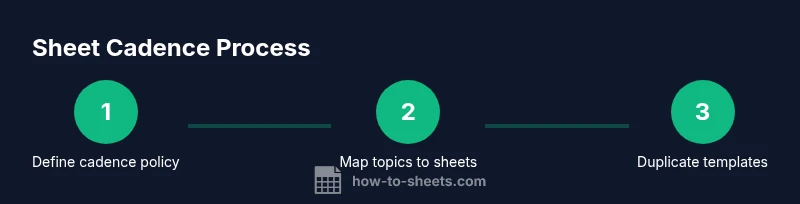
Define cadence policy
Document when to add a new sheet versus starting a new workbook. Include owners, trigger events, and review dates. This creates a predictable rhythm that reduces ad hoc creation.
Tip: Involve key stakeholders to ensure the policy covers all data domains. - 2
Map topics to sheets/workbooks
Create a simple map that links data topics to either a new sheet or a new workbook based on scope and access needs.
Tip: Use a decision table to avoid misclassifying topics. - 3
Establish naming conventions
Apply a consistent pattern for sheets and workbooks so that names convey time, topic, and structure at a glance.
Tip: Document examples in the policy guide. - 4
Create the master template
Build a template workbook with standard headers, formulas, and validation rules. This serves as the starting point for all new sheets or workbooks.
Tip: Lock critical formulas to prevent accidental edits. - 5
Duplicate for new sheets/workbooks
When the cadence calls for a new sheet or workbook, duplicate the template and rename it per the convention.
Tip: Keep a changelog of who created the new asset and when. - 6
Set up cross-reference references
If needed, configure safe cross-sheet references (e.g., IMPORTRANGE) to preserve data lineage while maintaining isolation.
Tip: Test references after duplication to catch errors early. - 7
Schedule automation reminders
Implement reminders for cadence events, archiving, and reviews using calendar invites or Apps Script triggers.
Tip: Assign owners to trigger and complete tasks on time. - 8
Review and refine the cadence
Hold quarterly or biannual reviews of the cadence policy based on feedback and changing requirements.
Tip: Update templates and policy to reflect new data practices.
FAQ
How often should I create a new sheet or workbook?
Cadence should align with data velocity and project scope. Start with a documented policy and adjust as needed based on feedback and governance requirements.
Cadence should match how fast your data changes and how your team collaborates. Start with a written policy and adjust as needed.
Is it better to add a new sheet or start a new workbook for a new project?
If the data shares the same structure and audience, add a new sheet. If the project requires isolation, different access levels, or separate retention, start a new workbook.
If it’s the same data with the same audience, add a sheet. If you need separation, go with a new workbook.
How should I name sheets and workbooks?
Adopt a consistent pattern like Year-Quarter-Topic-Format for sheets and a clearly defined folder structure. Document examples in your cadence guide.
Use a consistent year-quarter topic format and keep templates in a central folder.
What about linking data across sheets?
Use robust cross-sheet references such as IMPORTRANGE or QUERY with safeguards. Test references after changes to maintain data integrity.
Link data carefully with robust formulas and test regularly.
Can automation help enforce cadence?
Yes. Automations can trigger reminders, archive old sheets, and ensure new sheets are created per policy without manual tracking.
Automation helps enforce cadence and takes the manual load off your team.
Watch Video
The Essentials
- Define a clear cadence policy for sheets and workbooks.
- Use consistent naming to improve searchability.
- Prefer templates to maintain consistency across assets.
- Archive regularly to keep data lean and auditable.
- Automate reminders to enforce governance.