Getting Started with Google Docs: A Practical Guide
Learn how to get started with Google Docs—from signing in and creating your first document to sharing, exporting, and offline access. A practical, step-by-step guide for students, professionals, and small business owners seeking productive, collaborative document workflows.


Learn how to get started with Google Docs: sign in with your Google account, create a new document, format text, and share with others for real-time collaboration. This guide covers access, basic editing, offline setup, and exporting drafts. By the end, you’ll be able to create professional documents quickly and confidently, with tips to save time and stay organized.
What Google Docs is and why use it
Google Docs is a cloud-based word processing tool that lets you create, edit, and collaborate on documents in real time. You don’t need to install software; your work lives in Google Drive and syncs across devices. According to How To Sheets, Google Docs is a practical starting point for students, professionals, and small business owners who want a reliable, accessible platform for writing and sharing content. Whether you’re drafting a school essay, a project report, or a team memo, Docs keeps everything searchable, versioned, and easy to share. In this guide you’ll learn how to get started quickly, set up a clean document, and leverage essential features to stay productive.
Key concepts to know: documents are created in Google Drive, you can access them from any browser or mobile app, and collaboration happens in real time with comments and suggestions. Before you begin, confirm you have a Google account or create one, ensure you’re online, and decide how you want to name and organize your first document. The how-to approach below will walk you through the basics, then move into practical workflows that save time and reduce formatting headaches.
Getting started: Access and setup
To begin, open a web browser and go to docs.google.com. Sign in with your Google account or create one if you don’t have one yet. Once signed in, click the Blank document or choose a template to accelerate your work. Name your document with a clear, consistent convention (e.g., Project_Name_Date) to make it easy to locate in Drive. The basic editor is intuitive: the toolbar offers font choices, alignment, bullets, numbering, and styles. Enable the sidebar features like Page setup and Preferences to tailor the workspace to your needs. If you use Google Drive for organization, consider creating a dedicated folder for your documents and setting sharing permissions from the outset. This reduces clutter and ensures you control who can view or edit content.
Core editing tools you’ll use
Google Docs provides a familiar editing surface with powerful enhancements. Use the toolbar to format text (bold, italics, underline), apply heading styles for structure, and adjust line spacing for readability. Create consistent formatting with Styles, which keeps titles and body text uniform across the document. Insert images, tables, links, and comments to add context and collaboration touchpoints. Explore the Explore pane for quick research and citation insertion, or use the built-in dictionary and spell check. As you edit, keep an eye on autosave—Docs continuously saves changes to Drive, so you won’t lose work even if you forget to press a manual save.
Real-time collaboration basics
One of Google Docs' strongest features is real-time collaboration. Share your document via the Share button, then set permissions for individuals or groups (viewer, commenter, editor). Use comments to discuss specific sections, and suggest edits to propose changes without directly altering the original text. Version history lets you review past states of the document, restore earlier versions, or name milestones as you progress. When working with teammates, establish a clear commenting protocol and assign roles to streamline feedback and reduce edits conflicts.
Productivity tips to get more done
Customize your toolbar and styles to speed up repetitive tasks. Leverage templates for standard documents (resumes, reports, meeting notes) to save formatting time. Turn on offline mode if you’ll be working without internet access, ensuring you can continue editing and syncing later. Use keyboard shortcuts to accelerate common actions (e.g., bold, undo, and heading navigation). Keep a running outline to organize long documents, and take advantage of the Research pane for quick citations and image insertion without leaving the editor.
Export, import, and cross-app workflows
When you’re ready to share or deliver your document, export to formats such as PDF or Microsoft Word (.docx), or copy content into other apps. Import Word documents directly into Docs and preserve much of the formatting, though be aware that complex layouts may require a quick touch-up. If your team uses Sheets, Slides, or Forms, you can link assets between Docs and these tools for a cohesive workflow. Finally, explore add-ons for extended capabilities like advanced grammar checks, references management, and project templates to tailor Docs to your needs.
Advanced features to explore later
As you grow more proficient, explore features like voice typing for hands-free drafting, equation editing for technical documents, and the comment-driven review workflow for teams. Consider enabling offline editing to stay productive on the go, and use the Outline view to navigate large documents efficiently. By integrating Docs with other Google Workspace apps, you can automate parts of your workflow and maintain consistency across documents and presentations.
Tools & Materials
- Google account(You need a Google account to access Google Docs and Drive)
- Internet-connected device(Any computer, tablet, or smartphone with a modern browser)
- Web browser(Chrome, Edge, Safari, or Firefox with current version)
- Offline access setup (optional)(Enable offline mode in Docs settings to edit without internet)
- Templates (optional)(Use built-in templates to speed up common document types)
Steps
Estimated time: 15-25 minutes
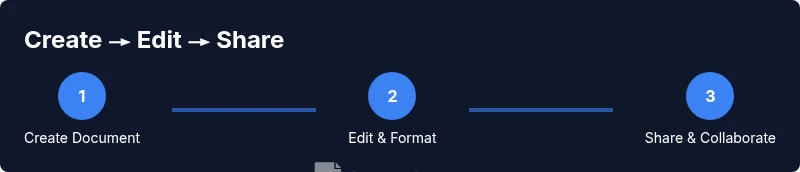
- 1
Open Google Docs and create a new document
Navigate to docs.google.com and sign in. Click Blank or choose a template to begin. This creates a live document in Drive that auto-saves as you work.
Tip: If you’re in a shared environment, pin Docs to your bookmarks for faster access. - 2
Name the document and set a basic layout
Rename the file to a clear, searchable title. Apply a simple structure using Headings and a consistent font size for readability.
Tip: Use a template if you’re unsure about layout; it preserves formatting and style rules. - 3
Edit content and format with styles
Type your text, apply bold or italics as needed, and use Paragraph Styles to ensure consistent spacing. Insert links and images to enrich the document.
Tip: Press Ctrl/Cmd+B for bold and Ctrl/Cmd+K to insert a link quickly. - 4
Share and collaborate with others
Click the Share button, set permissions (viewer, commenter, editor), and send invites. Use comments and suggestions to manage feedback without changing the original text.
Tip: Establish a commenting protocol to minimize back-and-forth edits. - 5
Review versions and export when ready
Open Version history to review or restore previous states. Export to PDF or Word when you need to share outside Google Docs.
Tip: Name milestones in version history for easy reference later. - 6
Enable offline mode and test
Turn on offline editing in Settings so you can work without internet. Connect again to sync changes automatically once online.
Tip: Test offline edits on a laptop or phone to ensure smooth syncing.
FAQ
Do I need to pay to use Google Docs?
Google Docs is free to use with a Google account. Optional paid plans exist for broader business features, but core editing and collaboration are free.
Yes, Google Docs is free to use with a Google account.
Can I use Google Docs offline?
Yes. Enable offline mode in Google Docs settings to edit without internet, and changes will sync when you go back online.
Yes, you can edit offline by enabling offline mode, and it will sync later.
How do I share a Docs document with others?
Open the Share button, enter email addresses or generate a shareable link, and assign Viewer, Commenter, or Editor permissions as needed.
Click Share, set permissions, and send the link or invite collaborators.
What formats can Docs export to?
Docs can export to PDF, Microsoft Word (.docx), Rich Text, and plain text formats.
You can export to PDF, Word, or other common formats.
How can I preserve formatting when importing Word docs?
Import Word files into Docs and review formatting; most styles carry over, but some adjustments may be needed.
Import Word files and adjust formatting as needed.
Is Google Docs suitable for long documents?
Yes. Use the Outline and Styles features to manage structure, length, and navigation effectively.
Yes—use outlines and styles to manage long docs.
Can I use Google Docs on mobile devices?
Yes. The Google Docs mobile apps provide core editing features and syncing with Drive.
Yes, Docs works well on mobile apps with syncing.
Watch Video
The Essentials
- Create your first Google Doc quickly and save in Drive.
- Share and collaborate in real time with clear permissions.
- Export or convert to PDF/Word with a few clicks.
- Enable offline mode to stay productive anywhere.