How to Link Google Form to Google Sheets: A Step-by-Step Guide
Learn how to automatically send Google Form responses to Google Sheets. This How To Sheets guide walks you through linking forms to sheets, creating auto-updates, and troubleshooting for students, professionals, and small business owners.


Want to automate data collection? This guide explains how to link Google Form to Google Sheets, so new submissions populate a live spreadsheet. You’ll learn two setup options, essential permissions, and a clear, step-by-step process to keep data organized and ready for analysis. How To Sheets provides practical, drop-in steps for any student, professional, or small business owner.
Why linking Google Form to Google Sheets matters
Data collection is only as powerful as the way it’s stored and analyzed. When you link a Google Form to Google Sheets, every new submission automatically lands in a structured, editable table. This seamless data flow reduces manual entry errors and accelerates reporting for students, professionals, and small business owners. The How To Sheets team has found that teams gain closer-to-real-time visibility into responses, enabling faster decisions and better collaboration. In short, you get an auditable, shareable data source that grows with your form. This is especially valuable in 2026 when teams rely on live dashboards, conditional formatting, and automated workflows to stay aligned.
The setup is intentionally simple: you create or select a destination sheet, and you enable a live link so form responses append to that sheet. From there you can apply filters, create charts, or trigger notifications, all without exporting CSVs or copy-pasting data.
How data flows from Form to Sheet: an overview
When you enable the link, Google Forms populates a sheet with one row per submission and a column for each form field. Timestamps are added automatically, and the sheet updates in real time as new responses arrive. This is ideal for: real-time dashboards, email automation, and downstream processes like booking confirmations or inventory updates. You can also add extra sheets for analytics, validation, or archival purposes. The data structure remains consistent, making it easy to write formulas, create pivot tables, or feed data into Google Data Studio for visual reports.
If you’re managing multiple forms, you can link each form to its own sheet or use a single sheet with separate tabs for organization. The key is to plan your column order and headers ahead of time so downstream automations don’t break if a form changes.
Prerequisites and permissions you need
Before you start, ensure you have a Google account with edit access to both the Form and the destination Sheet. If you’re in a team or school environment, confirm that your Google Workspace admin hasn’t restricted form-to-sheet linking. For best results, work with the form owner to enable the link and set sharing options that fit your collaboration needs. Having a clear naming convention for sheets and a simple data-schema map (which form fields map to which columns) makes maintenance far easier over time.
Security-wise, limit edit access to the destination sheet to trusted collaborators. If you plan to publish dashboards or share the sheet publicly, use protected ranges or view-only access where appropriate.
Step-by-step overview
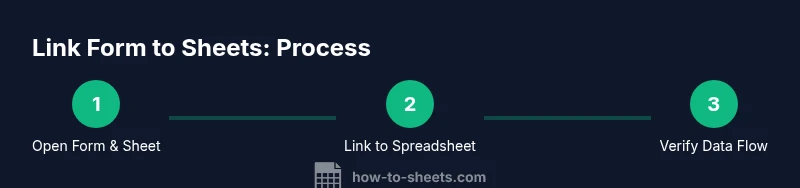
The linking process is straightforward but benefits from a quick mental map of the steps. You’ll decide whether to create a new sheet or use an existing one, decide which form fields map to which columns, and run a test submission to verify the data lands correctly. Once linked, you can enhance the sheet with filters, conditional formatting, and data validation to keep data clean and ready for reporting. Plan for ongoing maintenance by documenting the mapping and updating it whenever form questions change.
Real-world use cases and automation options
Linking forms to sheets unlocks practical workflows: event registrations feeding a participant list, customer feedback automatically stored for sentiment analysis, or inventory requests updating stock levels in real time. You can go further with automation: set up email notifications on new submissions, trigger scripts to post data to a Slack channel, or push updates to a Google Sheet-based CRM. Apps Script offers a programmable path to tailor submissions, transform fields, or route data to multiple sheets. In 2026, many teams pair Sheets with Apps Script and built-in Google Workspace features to reduce manual work and improve consistency.
Troubleshooting and best practices
If your data doesn’t appear or mapping seems off, check the form’s Responses tab to confirm the link status. Ensure the destination sheet uses the expected headers and that there are no conflicting column names. If you’ve added new questions after linking, you may need to re-check the mapping or adjust the sheet’s headers accordingly. Regularly test with a dummy submission and review the timestamp column for real-time update behavior. Avoid deleting core columns that hold form fields, as this can disrupt the data flow. Finally, consider creating a dedicated data sheet with separate tabs for analytics or archiving to keep the primary data clean.
Maintenance and security considerations
To keep the linkage robust, document your field-to-column mapping and naming conventions, and review permissions quarterly. Use protected ranges for sensitive columns if you’re sharing the sheet externally. Periodically audit form changes and update the sheet headers and data types to ensure consistent downstream analysis. Consider enabling notifications for new submissions and scheduling data backups so you never lose critical responses. Regular maintenance reduces surprises when forms evolve or when your team changes.
Tools & Materials
- Google Form(Create or open an existing form you want to link.)
- Google Sheets(Destination spreadsheet (new or existing) that will receive responses.)
- Internet connection(Stable connection to access forms and sheets.)
- Google account with edit access(Ensure you can edit both the form and the sheet.)
- Optional: Apps Script editor(For advanced automation and custom workflows.)
Steps
Estimated time: 15-25 minutes
- 1
Open the Form and the destination Sheet
Log into your Google account, open the Google Form you want to link, and switch to the sheet where submissions should land. Confirm you have editing rights to both the form and the sheet before proceeding.
Tip: Keep the form and sheet open side-by-side to visualize the mapping as you go. - 2
Access the Form responses
In the Form, click the Responses tab to see current submissions. If a link hasn’t been created yet, you’ll see an option to 'Link to spreadsheet' or 'Create spreadsheet'.
Tip: If you see multiple tabs, choose the main responses tab to avoid mislinking. - 3
Choose link option
Select 'Link to spreadsheet' and decide whether to create a new spreadsheet or link to an existing one. If using an existing sheet, pick the correct workbook and worksheet.
Tip: For clarity, name the sheet with a consistent convention like FormName_Responses. - 4
Confirm mapping and headers
Review the newly created sheet to confirm that each form question corresponds to a column. Adjust headers if necessary to maintain consistent data structure.
Tip: Avoid changing core column order after linking to prevent future mapping issues. - 5
Test with a dummy submission
Submit a test response from the form and verify that the new row appears in the sheet with correct values and a timestamp.
Tip: Create a test submission that covers all fields to validate full mapping. - 6
Set up basics for automation
Optionally, enable email notifications for new submissions or add simple formulas for validation. For advanced needs, plan a small Apps Script workflow to route data or trigger downstream actions.
Tip: Document your automation so teammates understand the workflow.
FAQ
How do I link a Google Form to Google Sheets?
Open the form, go to Responses, and select 'Link to spreadsheet' to choose a destination. You can create a new sheet or link to an existing one. This establishes a live connection where new submissions append to the sheet.
Open your form, click Responses, choose Link to spreadsheet, and select or create the sheet to store responses.
Can I link an existing form to an existing sheet?
Yes. In the Form Responses tab, choose the option to link to an existing spreadsheet. Pick the target workbook and worksheet, ensuring the headers align with your questions.
Yes. Use the responses tab to link to an existing spreadsheet and confirm the header mapping.
Will responses update in real time?
Yes. New submissions appear in the linked sheet as soon as they’re submitted, depending on Google’s syncing. You can rely on this for near real-time dashboards.
New responses show up in the sheet almost instantly after submission.
What should I do if I change a form question after linking?
Update the sheet headers to reflect the new fields and adjust any formulas or data validation rules that depend on those columns.
If you change questions, update the sheet headers and related formulas.
Can respondents see the connected sheet?
By default, respondents do not see the sheet. Only people with access to the sheet can view the data. Use sharing settings to control who can view or edit.
Respondents don’t access the sheet; manage visibility via Sheet sharing settings.
How do I disconnect the link?
Open the Form, go to Responses, and under the linked spreadsheet option, choose to unlink or remove the link. This stops automatic data flow but preserves existing data.
In Form responses, unlink the spreadsheet to stop automatic updates.
Watch Video
The Essentials
- Linking forms to sheets automates data capture
- Plan mapping and permissions before linking
- Test submissions to verify live updates
- Maintain a clean data structure for analytics