How to Open CSV Files in Google Sheets: A Step-by-Step Guide
Learn how to open, import, and work with CSV data in Google Sheets. Practical methods, encoding tips, delimiter handling, and best practices to save and share your Sheets CSV workflow.


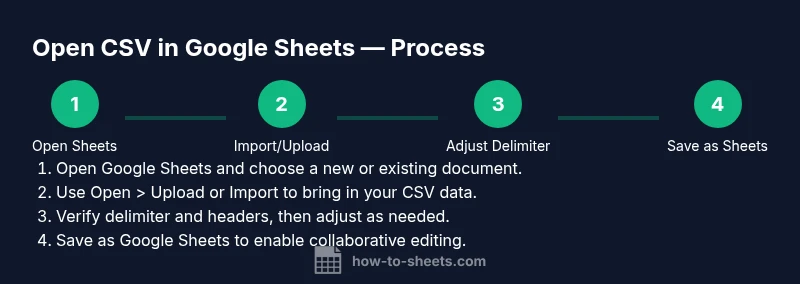
You can open a CSV file in Google Sheets by uploading or importing it, then adjusting delimiters if needed. Start by opening Google Sheets, then: File > Open > Upload and select your CSV, or use File > Import to add the file into an existing sheet. Ensure UTF-8 encoding and a comma delimiter for clean column separation. Save as Google Sheets for ongoing edits.
What is CSV and why Google Sheets handles it well
CSV stands for Comma-Separated Values. It is a simple, plain-text format where each line represents a record and fields are separated by a delimiter, most commonly a comma. CSVs are widely used for data export and import between systems because they are lightweight, portable, and easy to generate. When you open a CSV in Google Sheets, Sheets reads the file, splits each line into separate columns, and presents an editable grid you can format and analyze.
According to How To Sheets, CSV is one of the simplest and most compatible data interchange formats for moving data into Google Sheets, especially when collaborating with teammates who may use different software. The practical takeaway is that you can work with raw data in a familiar spreadsheet interface without losing access to the original file. A few caveats matter: CSV files contain data only (no formulas, no charts, no styling by default). If your CSV uses a delimiter other than a comma (such as a semicolon or a tab), you’ll need to adjust parsing so data lands in the right columns. If the file uses different encoding, choose the appropriate import option to preserve values.
In this guide, you’ll find reliable methods to open CSVs in Google Sheets, common pitfalls, and practical tips to keep data intact during import. The goal is to give you a smooth starting point for data work, whether you’re a student compiling class data, a professional importing client lists, or a small business owner tracking inventory in Sheets.
Quick method: Open CSV directly from Google Sheets
Opening a CSV directly from Google Sheets is often the fastest route. Start with a fresh or existing spreadsheet, then follow these steps:
- In Google Sheets, go to File > Open.
- Click the Upload tab and drag your CSV file into the window, or use the Browse button to select it from your device.
- After you choose the file, Google Sheets will display a preview and ask how to import it. Confirm that the delimiter is a comma and that the encoding is UTF-8 when available.
- Choose to open as a new spreadsheet or insert into the current sheet, depending on your workflow.
- Review the data in the grid. If any columns are not split correctly, use the delimiter options or the Split text to columns feature to tidy things up.
Why this matters: using the direct open method minimizes extra steps and helps preserve the original data structure. If your CSV uses a nonstandard delimiter (for example, a semicolon in European locales), switching to the correct delimiter during import will prevent misaligned columns. If you have headers, verify that the first row is treated as headers, which makes sorting and filtering easier.
Tip: keep a backup copy of the original CSV in case you need to re-import after a formatting change.
Alternative method: Import CSV via Google Drive
If you want more control or need to place the CSV data into an existing sheet, the Import workflow is often preferred. Steps:
- Upload the CSV to Google Drive (drag into Drive or use New > File upload).
- In Drive, right-click the CSV and choose Open with > Google Sheets.
- The data opens in a new Google Sheets document by default; from there you can copy-paste into an existing sheet or use File > Import to insert.
- When using Import, you can decide to Replace current sheet, Create new sheet, or Append to existing data. Make sure the delimiter matches the file’s structure (usually a comma) and that the first row is treated as headers if present.
This method is handy when you want to keep the original file separate in Drive while you work in Sheets. It also gives you a clean path to share the opened sheet with collaborators. If the file uses a different encoding (like UTF-8 with BOM), you may need to adjust the encoding option during import to ensure characters render correctly.
By the end of this workflow, your data will exist in a Google Sheets document that you can format, filter, and analyze as part of your wider project.
Working with large CSV files and encoding considerations
CSV imports into Google Sheets are convenient, but there are practical limits to consider. Large CSVs can slow down your browser and Sheets, especially on older devices or unstable connections. If you anticipate heavy data, plan to import in chunks or use filters to limit visible rows during work. Google Sheets supports up to 10 million cells per spreadsheet and many columns; if you’re working near that limit, performance may degrade and operations like sorting can become sluggish. If your data contains non‑ASCII characters, UTF-8 encoding is standard and is usually handled automatically by Sheets. If you encounter characters that render as or question marks, re-export the CSV as UTF-8 without BOM or re-save the file with a standard encoding, then re-import. Always ensure you’re using a delimiter that matches your file; for some European locales, semicolon is common, and Sheets’ Import settings let you switch delimiter accordingly.
Saving and exporting options after opening
Once the CSV data is in Sheets, you should decide how to save and share your work. Best practice is to save as a Google Sheets document to preserve formulas, formatting, and collaboration features. Sheets autosaves, but giving the file a descriptive name and organizing it in a project folder helps teammates find it quickly. If you need to share or download a copy, you can export to CSV, TSV, Excel (.xlsx), or PDF via File > Download. Note that exporting to CSV will lose any formatting or formulas that you created after import, as CSV is a plain-text format. If you plan to continue working in Sheets, keep the file as a Google Sheets document to maintain full accessibility and real-time collaboration.
Pro tip: consider setting up a shared Drive folder with clear naming conventions so teammates can locate and reuse your CSV-import workflows easily.
Common pitfalls and troubleshooting tips
While opening CSVs in Google Sheets is straightforward, a few problems crop up often. Delimiter mismatches are the most common culprit: if data lands in one column, re-import with the correct delimiter (comma, semicolon, or tab) or use Split text to columns to re-separate fields. Be mindful of headers—decide whether the first row contains headers and ensure you enable the header option in the import dialog or manually designate the first row as headers. Locale differences can affect date and number formats; you may need to adjust regional settings in Sheets to interpret dates correctly. Finally, remember that formulas and scripts from the CSV don’t transfer; you’ll need to recreate them in Sheets. If you lose formatting or alignment, re-import with the right encoding and delimiter and verify that there are no stray characters in the header row.
Practical examples: Cleaning and preparing data after import
After your CSV is loaded, you often need to tidy data for analysis. Here are practical steps you can take:
- Use Split text to columns to break apart fields that were not separated correctly during import.
- Apply TRIM to remove leading/trailing spaces and CLEAN to remove non-printable characters, ensuring consistent data.
- Use FILTER or QUERY to extract meaningful subsets of data for reporting.
- Validate numeric fields with simple checks (VALUE or ISNUMBER) to catch imported text that looks like numbers.
- Create a clean header row and freeze the top row for easier navigation during scrolling.
These techniques help you move from a raw CSV dump to a polished dataset ready for analysis in Google Sheets.
Quick reference cheat sheet
- Open via File > Open > Upload or Import to bring in CSV data.
- Confirm delimiter (comma) and encoding (UTF-8) during import.
- Save as Google Sheets to enable real-time collaboration and editing.
- If columns misalign, use Split text to columns or re-import with the correct delimiter.
- For large files, consider chunked imports or filtering to maintain performance.
Tools & Materials
- A device with internet access(Any modern computer, tablet, or smartphone with a browser)
- CSV file to import(Prefer UTF-8 encoding for best compatibility)
- Web browser(Chrome, Firefox, Edge, or Safari are all fine)
- Google account(Helpful for saving to Drive and sharing)
- Backup copy of the CSV(Optional safety net in case re-import is needed)
Steps
Estimated time: Estimated total time: 15-25 minutes
- 1
Open Google Sheets and start a new workbook
Launch Google Sheets in your browser and create a fresh, blank spreadsheet to host your CSV data. This gives you a clean workspace and avoids overwriting existing work.
Tip: Having a dedicated sheet helps prevent accidental edits to unrelated data. - 2
Upload CSV via File > Open
In the new sheet, go to File > Open, switch to the Upload tab, and drag your CSV into the window or browse to select it from your device.
Tip: If the file is large, give the browser a moment to prepare the data before proceeding. - 3
Confirm import options and delimiter
After selecting the file, review the import preview. Ensure the delimiter is set to comma and the encoding is UTF-8. Decide whether to open as a new sheet or insert into the current one.
Tip: If data looks misaligned, try re-importing with a different delimiter or use Split text to columns afterward. - 4
Choose destination (new vs existing sheet)
Select whether to create a new spreadsheet or insert the data into the current sheet. This choice affects how you’ll organize headers and subsequent edits.
Tip: For ongoing projects, inserting into an existing sheet often helps maintain context. - 5
Review and tidy the grid
Scan the first few rows to confirm proper column alignment. Use Data > Split text to columns if any fields remain combined in a single column.
Tip: Check header row alignment and adjust formatting to improve readability. - 6
Save as Google Sheets
Save the file as a Google Sheets document so you can edit, share, and collaborate in real time. Name the file clearly and place it in a relevant Drive folder.
Tip: Rely on Sheets autosave, but a descriptive name reduces confusion for teammates. - 7
Export or continue editing
If you need a different format, use File > Download to export as CSV, TSV, Excel, or PDF. If you’ll continue working in Sheets, keep the file as a Google Sheets document.
Tip: Remember that exporting to CSV loses formatting and formulas added after import. - 8
Troubleshoot common issues
If you encounter delimiter, encoding, or header problems, re-import with the correct options or adjust the data using split and text functions. Use QUERY for advanced filtering.
Tip: Document any recurring issues to streamline future CSV imports.
FAQ
Can I open a CSV file directly in Google Sheets without uploading it first?
Yes. You can open a CSV by using File > Open > Upload, then select the file, or use File > Import to place the data into a new or existing sheet. The method you choose depends on whether you want a standalone file or to merge into current work.
Yes. Use Open > Upload or Import to place the CSV in a new or current sheet.
What should I do if the columns aren’t split correctly after import?
Check the delimiter in the import options. If needed, re-import with the correct delimiter, or use Split text to columns to separate fields manually.
If columns don’t split, adjust the delimiter or use Split text to columns.
Can I edit the CSV data after importing it into Sheets?
Yes. Once saved as a Google Sheets document, you can edit, format, and share the data with others in real time.
Yes—save as Sheets and edit with collaborators.
Is there a size limit for CSV imports in Google Sheets?
Google Sheets can handle large datasets, but very big CSV files may slow down performance. Splitting the data or importing in chunks can help maintain responsiveness.
Very large CSVs can be slow; consider splitting or importing in chunks.
Should I convert the CSV to Google Sheets format after import?
Saving as Google Sheets ensures ongoing editing, sharing, and integration with other Sheets features.
Yes—save as Google Sheets to keep editing and collaboration smooth.
Watch Video
The Essentials
- Open CSV via File > Open > Upload or Import.
- Verify delimiter and encoding during import to prevent misalignment.
- Save as Google Sheets to enable collaboration and editing.
- Use Split text to columns and formulas for cleanup after import.
- Choose the proper import destination (new sheet vs existing sheet).