How to Organize by Date in Google Sheets: Step-by-Step Guide
A practical, step-by-step guide to organizing data by date in Google Sheets, covering sorting, date formatting, and dynamic views to keep timelines accurate and up-to-date.


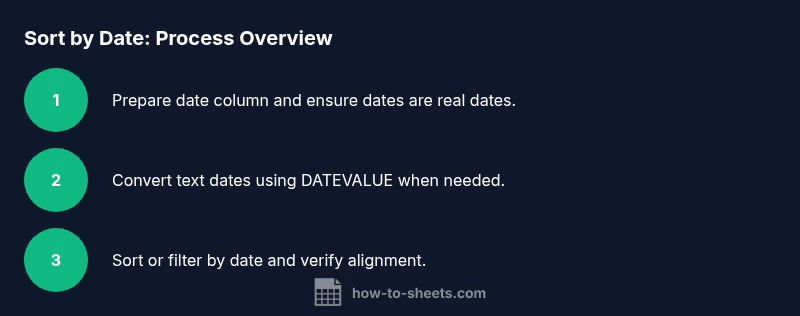
By date priority, you can organize data in Google Sheets using sorting, filtering, and date-aware formulas. Start by ensuring all date values are true dates, convert text with DATEVALUE if needed, and then apply a chronological sort or a dynamic FILTER formula to keep records ordered as dates change. According to How To Sheets, using dedicated date columns and consistent formatting minimizes errors and speeds up analysis.
Why date organization matters
When you want to extract meaningful insights from time-based data, organizing by date is foundational. If you want to organize by date in google sheets effectively, treat dates as first-class data rather than strings. This lets you sort chronologically, filter ranges by time windows, and calculate durations with confidence. A clear date structure also improves collaboration: everyone sees the same timeline and can spot gaps, overlaps, or delays quickly. By establishing a simple rule—dates stored as real dates rather than text values—you unlock reliable sorting, accurate dashboards, and scalable reports across projects, classes, or sales pipelines. In short, strong date organization is the backbone of dependable, fast analysis and decision-making.
As you design your sheets, start with a single date column that serves as the primary anchor for all time-based operations. This approach reduces confusion when multiple views (daily, weekly, monthly) are needed and makes it easier to extend your sheet with charts, pivots, and automatic summaries.
Date data types and formats
Dates in Google Sheets are stored as serial numbers representing days since a fixed epoch. The display format is cosmetic; what matters is that the cell value is a true date, not text. If dates arrive as text, you must convert them using DATEVALUE or VALUE, depending on locale. Set your spreadsheet locale to match how dates are written in your region to avoid misinterpretation (for example, MM/DD/YYYY vs DD/MM/YYYY). Consistent date formats simplify sorting, comparisons, and formulas like DATEDIF or NETWORKDAYS. Remember to keep the date column clean: no trailing spaces, no mixed types, and no stray characters that break recognition.
Pro tip: use a single date column to anchor all calculations and filters, then derive day, month, and year components with functions like DAY, MONTH, and YEAR for flexible views.
Sorting and filtering by date
Powerful time-based views come from sorting and filtering by date. Built-in features like Data > Sort range, and functions like SORT and FILTER, let you display records in chronological order without duplicating data. For dynamic dashboards, combine FILTER with conditions such as date >= TODAY() to show only upcoming items, or date between two dates to segment periods. If you prefer SQL-like querying, the QUERY function can sort, filter, and compute in one clean formula. Practice with a small dataset to see how the order changes when new dates are added or existing dates change.
Tip: always lock the header row when sorting large blocks to keep column names visible and prevent misalignment.
Cleaning and converting dates
When your sheet contains dates as text, conversions are essential. Use DATEVALUE to convert strings like "2026-03-15" or "March 15, 2026" into real dates, then wrap checks with IFERROR to handle bad entries gracefully. If your locale uses a different separator or month/day order, you may need to use TEXT to reformat before conversion. The goal is a uniform date column that responds predictably to sorting, grouping, and math operations like DATEDIF or network day calculations. This is where How To Sheets Analysis, 2026 emphasizes standardization as a guardrail for correctness.
After conversion, re-check a sample of rows to ensure no dates shifted due to locale issues.
Date dashboards and advanced techniques
Once dates are clean, you can build dashboards that reveal trends over time. Create month-year groupings with a helper column using EOMONTH and TEXT to produce headings like "Mar 2026". Use dynamic views with FILTER or a pivot table to summarize by date bucket. For ongoing projects, compute rolling metrics (e.g., last 7 days, last 30 days) with TODAY() and relative date ranges. If your data updates regularly, make your date-based views automatic by embedding formulas that recalculate on any change.
Advanced users might combine ArrayFormulas with IF to create compact, scalable sheets that auto-expand as new dates arrive.
Common pitfalls and mistakes
Date handling is easy to trip over if you mix formats, locales, or time components. Avoid storing dates as text, which breaks sorting and filtering. Be careful with time stamps when you only need the date portion; use INT or date truncation to ignore time. Inconsistent locales can scramble day and month order; always set the sheet locale and regional settings correctly. Finally, avoid hard-coding dates in formulas that should adapt when dates shift; prefer dynamic references like TODAY() or a date cell anchor.
Practical templates and ready-to-use patterns
A practical template starts with a clean date column, a few derived fields (Year, Month, Day), and a dynamic view that aggregates by date. A typical setup includes: a date column, a status column, and a numeric metric column. Add a small summary section that uses SORT to display upcoming items first, followed by a monthly breakdown using a pivot table or a grouped formula. Copy this pattern to new datasets with minimal adjustments, ensuring consistency across projects or classes.
Authority sources
For date standards and best practices, consult authoritative references:
- ISO 8601 date and time format: https://www.iso.org/iso-8601-date-and-time-format.html
- U.S. National Institute of Standards and Technology (date-time concepts): https://www.nist.gov/topics/date-time
- U.S. Census Bureau on time-based data handling: https://www.census.gov
Tools & Materials
- Google Sheets access(You need edit access to a Google Sheets document)
- Date column with real dates(Dates must be stored as date values, not text)
- Locale settings(Set to your region to ensure correct date formats)
- Sample dataset(A small test sheet to practice sorting and filtering)
Steps
Estimated time: 25-40 minutes
- 1
Prepare date column
Identify the column that will hold dates and ensure every entry is intended as a date. Clean any non-date values that look like dates but aren’t stored as date data types. This creates a reliable anchor for all time-based operations.
Tip: If you have mixed formats, first standardize them using DATEVALUE or a locale-aware approach. - 2
Convert text dates to real dates
If dates arrive as text, convert them with DATEVALUE and wrap with IFERROR to handle invalid entries gracefully. Confirm a sample of converted rows to ensure accuracy across the dataset.
Tip: Use a helper column to test conversions before overwriting the original date column. - 3
Set a consistent date format
Apply a uniform display format (e.g., MMM d, yyyy) to all date cells. This ensures readability and supports deterministic sorting regardless of locale.
Tip: Configure Google Sheets settings to match your regional date conventions. - 4
Sort data by date
Use Data > Sort range or the SORT function to order rows by the date column. Keep the header row locked to avoid misalignment during sorting.
Tip: When working with multiple related columns, sort all columns together to preserve row integrity. - 5
Create a dynamic date filter
Add a FILTER formula or a slicer-like dynamic view to show only dates within a chosen window (e.g., upcoming 30 days). This keeps dashboards focused and up-to-date.
Tip: Combine TODAY() with a date-bound condition for automatic updates. - 6
Add helper columns for grouping
Create Year(), Month(), and Day() derived columns to enable monthly or weekly breakdowns. Use EOMONTH or TEXT to generate cohort labels like "Mar 2026".
Tip: Helper columns simplify pivoting and charts later. - 7
Validate results
Spot-check a subset of rows to confirm that dates align with expectations after sorting or filtering. Look for outliers, missing values, or misformatted entries.
Tip: Automated checks with conditional formatting can flag anomalies. - 8
Automate maintenance
Embed dynamic formulas so new dates automatically join existing views. Consider using an array formula to propagate changes across the sheet.
Tip: Avoid hard-coded ranges anymore; rely on open-ended ranges and named ranges where possible.
FAQ
What is the best way to sort by date in Google Sheets?
The simplest approach is to use the SORT function or Data > Sort range on the date column. Apply the sort to all related columns to keep rows intact, and consider a saved view for repeated use.
Use SORT or sort range on the date column and sort all related columns together.
How do I convert text dates to real dates?
Use DATEVALUE to convert a date-like string into a real date. If your locale differs, wrap with VALUE or use a locale-aware formula to ensure correct parsing.
Convert with DATEVALUE, and handle locale differences if needed.
Can I automatically update date sorting as data changes?
Yes. Use dynamic functions like FILTER or QUERY with TODAY() and relative date ranges so the view updates as new rows are added or dates shift.
Yes, via dynamic FILTER or QUERY with TODAY.
What should I do if dates come in different locales?
Set the sheet locale to the correct region in File > Settings and use locale-aware date formulas to prevent misinterpretation.
Set the correct locale and use locale-aware formulas.
How do I handle time stamps along with dates?
If you only need the date portion, use INT or the DATE function to strip time. For analysis, keep a separate time column when necessary.
Use INT to remove time when only dates matter.
Watch Video
The Essentials
- Format all dates as true date values.
- Use a single date column as the anchor for filters and sorts.
- Leverage dynamic views (FILTER/QUERY) for up-to-date dashboards.
- Convert and validate text dates before sorting or aggregating.