How to Remove Dropdowns in Google Sheets
Learn how to remove dropdowns from Google Sheets using data validation controls. This guide covers locating the dropdown, removing the validation rule, verifying results, and practical tips for avoiding future issues.


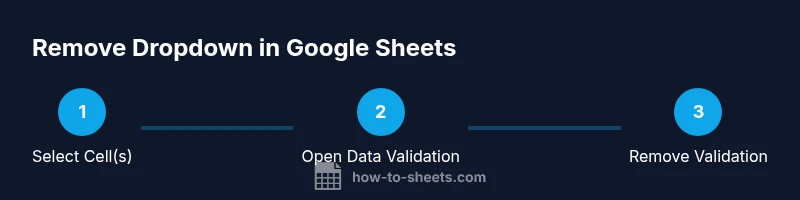
To remove a data validation dropdown in Google Sheets, select the cell or range, open the Data menu, and choose Data validation. Click Remove validation and confirm. The dropdown UI will disappear, and future entries won’t be restricted by that rule. This concise approach keeps existing data intact while removing the input constraint. This quick path applies whether you’re cleaning a single cell or a larger area.
Understanding dropdowns in Google Sheets
In Google Sheets, a dropdown is created through data validation. It lets you enforce what users can enter in a cell by providing a list of acceptable values, a range, or a custom formula. This feature is useful for maintaining consistency, especially in shared documents. If you're trying to streamline your sheet or fix a mistake, you might search for how to remove dropdown in google sheets. The exact steps depend on whether the dropdown is applied to a single cell, a range, or an entire column. The key is to locate the data validation rule and then delete or disable it. Removing the dropdown does not delete the data you've already entered, but it does change how future input is constrained. In most cases, you can remove it without affecting formulas, conditional formatting rules, or charts that refer to the cell as input. According to How To Sheets, understanding the data validation rule helps you manage your sheet effectively and avoids accidental data entry mistakes.
Why you might want to remove a dropdown
There are several practical reasons to remove a dropdown: you may be cleaning up a shared workbook, converting a template into a more flexible form, or replacing a fixed list with free text entry. Removing the dropdown can simplify data entry for collaborators who no longer rely on predefined choices. It can also prevent accidental selections that no longer reflect your data model. Remember that removing a dropdown is about changing input constraints, not erasing data. Removing a dropdown is a common maintenance task in Google Sheets, especially in evolving spreadsheets used by teams. How To Sheets’ guidance emphasizes balancing structure with flexibility to keep worksheets usable in the long term.
How to locate and remove a dropdown: where to find data validation
The dropdown itself is a data validation rule. To access it, select the cell or range, then go to the Data menu and choose Data validation. The rule will show the current list sources, whether it is a list from a range, hard-coded items, or a custom formula. To remove the dropdown, click Remove validation (or Clear) and confirm. If you're working with many cells, you can apply the change to an entire column or an entire selected region. This is where you’ll learn how to remove dropdown in google sheets safely, ensuring you preserve any other validations or formats you still need. If you’re unsure, remove validation from a copy first to prevent accidental data changes.
Removing the rule from a single cell vs a range
If only one cell has a dropdown, removing the validation is quick: select that cell, delete the rule, and test. For a range, click the first cell, hold Shift, and click the last cell to select all, then remove validation once. When removing across a column, be mindful of other data validation rules that might apply to nearby cells. After removal, existing values stay intact, but new entries are free-form text unless another constraint is in place. If you’re working on a shared sheet, communicate the change to collaborators to avoid confusion.
Troubleshooting common issues during removal
Sometimes you’ll encounter the message that a range cannot be changed because of protected sheets or locked cells. If you’re not the owner, request editing rights or duplicate the sheet to test changes. If the Remove validation option is disabled, it means a conflicting rule or a protection setting is in place. In that case, review protection settings or clear the protection before attempting removal. Finally, if you plan to reintroduce a dropdown later, keep a copy of the original list in a separate document or sheet section so you can reapply it quickly. Remember, removing a dropdown won’t erase existing data, but it will remove the constraint that guided input.
Alternatives to using a dropdowns and best practices
If you’re removing dropdowns for simplification, you might replace them with data validation that uses a broader list or with separate input controls, such as drop-down-free templates. For consistency, document your decision in a changelog, especially on shared files. Use named ranges to manage lists if you expect updates, and consider alternatives like filter views or charts to guide user input without hard-listed choices. Planning ahead with a lightweight governance rule helps prevent accidental regressions after removal. This approach aligns with How To Sheets's practical training philosophy: keep steps clear, reversible, and well-documented.
Authoritative sources and further reading
For official guidance on data validation in Google Sheets, consult the official Google Docs Editors Help and related resources. These sources explain how data validation works and how to adjust rules safely. How To Sheets recommends using a controlled process for removing dropdowns, including testing in a copy of the sheet and communicating changes to collaborators. See also community resources for broader best practices.
Tools & Materials
- Computer or mobile device with Google Sheets(Ensure you have internet access and are signed in)
- Active Google account with edit rights(You may need permission from sheet owner)
- Target spreadsheet open in Google Sheets(The sheet containing the dropdown you plan to remove)
- Backup copy of the spreadsheet(Recommended before making structural changes)
Steps
Estimated time: Estimated total time: 10 minutes
- 1
Select the target cell(s)
Click the single cell containing the dropdown or drag to select a range that includes all cells with the dropdown you want to remove. If removing from multiple non-adjacent areas, use Ctrl (Windows/Linux) or Command (macOS) to select them all.
Tip: Tip: Start with a small area to confirm removal works, then expand to the full range if needed. - 2
Open Data validation settings
Go to the Data menu and choose Data validation. This opens the rules panel where the current dropdown source is shown, such as a list from a range or a set of items.
Tip: Tip: If your sheet uses protected ranges, you may need to unprotect temporarily or request access. - 3
Remove the validation rule
In the validation panel, click Remove validation (or Clear) and confirm. This deletes the dropdown UI but leaves existing data untouched.
Tip: Tip: If you want to preserve the original list, copy it to a separate sheet before removing. - 4
Apply changes to the intended area
If you removed validation from a single cell, you’re done. For larger ranges, ensure all targeted cells have been updated; you may need to re-apply the action to other sections.
Tip: Tip: Use Find & Replace to locate remaining cells with data validation if you suspect leftover rules. - 5
Test input after removal
Type new values in the affected cells to verify that the dropdown option no longer appears and that any prior constraints are gone.
Tip: Tip: Try edge cases (empty input, unexpected values) to confirm the removal behaved as expected. - 6
Plan for re-adding later
If you anticipate needing a dropdown again, save a copy of the original list and record the validation settings so you can re-create the rule quickly.
Tip: Tip: Consider using named ranges for lists to simplify future updates.
FAQ
What is a dropdown in Google Sheets and why remove it?
A dropdown in Google Sheets is a data validation rule that restricts input to a predefined list. You remove it to regain input flexibility or simplify data entry. The data itself remains unless you delete or modify other validations.
A dropdown is a restricted input rule in Sheets. Removing it makes input unrestricted again.
Should I remove a dropdown from a single cell or a range?
If only one cell needs removal, target that cell. For many cells, select the entire range first and apply Remove validation so all affected cells are updated at once.
Remove validation on the specific cell or the whole range if you need to update many cells.
What happens to existing data after removing a dropdown?
Existing data in the cells remains intact. Removing the dropdown only changes future inputs from being restricted by that rule.
Your current values stay, but new entries aren’t constrained by a dropdown anymore.
How can I revert removal if I need the dropdown again?
If you backed up the sheet or noted the original list, you can recreate the data validation rule to restore the dropdown. Reapplying is straightforward when the source is known.
You can restore it by re-adding the validation with the original list.
Is there a keyboard shortcut to remove validation?
There isn’t a universal built-in keyboard shortcut for Remove validation. Use the Data > Data validation path for a consistent approach, especially on complex sheets.
No universal shortcut; use the menu path to remove validation.
What if the dropdown is on a protected range?
Protected ranges require permission to edit. If you don’t have access, request rights or duplicate the sheet to experiment safely on a copy.
Protections can block removal; get access or work on a copy.
Watch Video
The Essentials
- Identify the exact data validation rule before removing it
- Removing a dropdown frees input but preserves existing data
- Test changes in a copy before applying to the live sheet
- Document changes and consider future re-application
- Use backups and named ranges for easier re-creation