How to Remove Filter in Google Sheets: Step-by-Step Guide
Learn how to remove filters in Google Sheets quickly and confidently. This educational guide covers turning off filters, exiting Filter Views, clearing criteria, and best practices to ensure your data is fully visible and accurate.


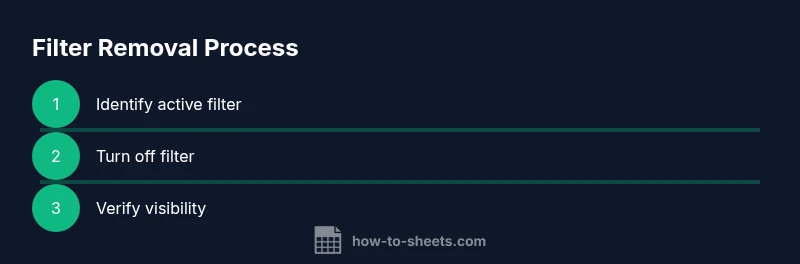
Removing filters in Google Sheets returns your data to its full, unfiltered view. You’ll remove the active filter or exit any Filter View, then re-check that all rows are visible. The key steps are turning off the filter, exiting Filter View if present, and clearing any active criteria across columns to ensure nothing is hidden.
Why removing filters matters
Filters are powerful for focusing on a subset of data in Google Sheets, but they can hide rows and distort your understanding of a dataset if left on by mistake. According to How To Sheets, removing filters restores full visibility and helps you verify calculations, totals, and trends across the entire sheet. This ensures you’re not drawing conclusions from a partial view. By removing filters, you also reduce the risk of overlooking outliers or anomalies that appear only when all rows are visible. In practical terms, a clean, unfiltered sheet is the foundation for accurate analysis and reliable reporting.
If you’re collaborating, remember that others may be seeing a different subset of data while a filter is in effect. Clear filters before sharing final results to avoid confusion and maintain data integrity.
Understanding filter types in Google Sheets
Google Sheets supports two main filtering paradigms: the standard filter and Filter Views. The standard filter applies to the active sheet and hides rows based on chosen criteria. Filter Views, on the other hand, are saved views you can apply without changing the underlying data or affecting collaborators who are viewing a different filter. Knowing the difference helps you decide when to simply turn off a filter vs. exiting a Filter View. According to How To Sheets, respecting the distinction can prevent accidental data misinterpretation and streamline your workflow.
When you remove a standard filter, you’re altering what is visible in the current view. When you exit a Filter View, you’re returning to the default, unfiltered sheet, which is essential for sharing a consistent baseline with teammates.
Step 1: Turn off the standard filter on a sheet
Locate the funnel icon or the active filter in the toolbar or next to a column header. Go to the menu and select Data > Turn off filter to disable the primary filter that’s restricting data visibility. If you don’t see the option, you may be in a Filter View, which requires a different exit path. Turning off the filter is usually the fastest way to reveal all rows and columns.
Tip: After turning off the filter, scan the header row to confirm no dropdown arrows remain in the column headers, which indicates that the filter has been fully deactivated.
Step 2: Exit a Filter View if you’re in one
If your sheet is currently in a Filter View, simply exiting is not enough to remove the view itself; you must switch back to the default view. Open Data > Filter views, then select the default view or click Exit current view. This action stops applying the saved view and returns you to the standard sheet display, ensuring everyone sees the same data without the saved filter criteria.
Pro tip: Give your Filter Views meaningful names (e.g., "Monthly Sales - Unfiltered") so you can reuse them later without confusion.
Step 3: Clear all filter criteria across columns
Even after turning off the main filter or exiting a Filter View, some criteria may remain in individual column filters. Click the filter dropdown in each column and remove any active conditions (e.g., specific values, ranges, or text matches). Do this for every column that previously had a filter. Clearing all criteria ensures no hidden rows remain and that future filters start from a clean slate.
Warning: If you rely on per-column criteria for other tasks, consider documenting or saving those settings in a Filter View before clearing them.
Step 4: Verify that all data is visible
Scroll through the sheet and skim for any rows that appear to be missing. Use a few key columns to confirm data continuity, and consider sorting on a non-filtered column to quickly verify that all rows are intact. If you still don’t see expected rows, recheck for any hidden rows via right-clicking row numbers and choosing Unhide rows.
This verification step helps catch edge cases where a filter is applied in an unseen area, or where rows were manually hidden.
Step 5: Save changes and prepare for sharing
Google Sheets autosaves, but it’s good practice to refresh and reopen the sheet to confirm the default view is active. When sharing with teammates, explicitly state that filters have been removed to avoid misinterpretation of data. If you expect to need filters again later, consider using Filter Views to preserve specific configurations without altering the base sheet.
Step 6: Optional advanced checks and automation
If you’re managing complex datasets, you may want to implement a quick audit: create a small audit column that flags any missing values in critical fields after removing filters. For repeatable workflows, consider a small script or macro that clears filters and saves the default view, so every time you run it, you start from a clean slate.
Tools & Materials
- Device with internet access(Make sure you’re signed in to your Google account)
- Open Google Sheets(Have a spreadsheet with filters to practice on)
- Optional: secondary device(For cross-checking views or verifying changes)
Steps
Estimated time: 15-25 minutes
- 1
Open the sheet and locate the filter
Open the Google Sheet containing the filtered data and identify the active filter icon (funnel) in the toolbar or next to a column header.
Tip: If you see a funnel icon in the toolbar, you’re in a standard filter; proceed to turn it off. - 2
Turn off the standard filter
Click Data > Turn off filter to disable the main filter and reveal all rows.
Tip: This clears the global filter but preserves any individual column criteria set in Filter Views. - 3
Exit a Filter View if active
Go to Data > Filter views, and select the default view or click Exit to return to the normal sheet.
Tip: Filter Views are saved like separate views; exiting them reverts to the normal view. - 4
Clear any remaining filter criteria
Click the filter dropdowns in each column and remove any specific criteria you set, so all rows match no filter.
Tip: Clear criteria in every column where you previously filtered to avoid hidden data. - 5
Verify visibility of all data
Scan the sheet to confirm every row is visible and no data is hidden due to filters.
Tip: Use a quick sort or a simple audit column to validate data integrity after removal. - 6
Save and share with confidence
Google Sheets auto-saves, but confirm by reloading and ensuring the default view is active before sharing.
Tip: If collaborating, inform teammates that filters were cleared to avoid confusion.
FAQ
How do I remove a standard filter in Google Sheets?
Open the sheet with the filter, then choose Data > Turn off filter to disable the main filter. If you’re in a Filter View, exit it first and then clear any criteria.
To remove a standard filter, go to Data and choose Turn off filter. If you’re in a Filter View, exit it and clear any criteria.
What is the difference between turning off a filter and exiting a Filter View?
Turning off the filter removes the live, sheet-wide filter. A Filter View is a saved, alternate view; exiting returns to the default sheet. Use Turn off filter for general viewing, and exit a Filter View to stop using a saved view.
Turn off filter affects the live sheet; Filter Views are saved views you can exit to stop using.
Can I remove filters without losing filtered criteria for later use?
Yes, use Filter Views to save and reapply specific filters later without changing the default view. You can delete or rename Filter Views to keep things organized.
Use Filter Views to save filters for later reuse without affecting the default view.
Will removing filters affect collaborators?
Removing filters changes what others see in the current session. If you’re collaborating, communicate that filters were cleared to avoid confusion.
Filters affect what others see in real time; inform teammates if you clear them.
What if filters reappear after I reload the sheet?
Filters can reappear if a Filter View is automatically applied or if a script re-enables them. Close Filter Views or adjust scripts as needed.
If filters come back after reload, check for an active Filter View or running script.
Watch Video
The Essentials
- Turn off filters to restore complete visibility of data
- Exit Filter Views to return to default viewing mode
- Clear column criteria to prevent accidental data hiding
- Verify data integrity after removing filters
- Use Filter Views to preserve filtered perspectives when needed