How to Use Apps Script in Google Sheets
Learn how to automate Google Sheets with Apps Script. This step-by-step guide covers basics, debugging, practical examples, triggers, and error handling to boost productivity.


By the end, you’ll know how to create and run Apps Script in Google Sheets, connect scripts to sheet events, and automate repetitive tasks. You’ll access the Apps Script editor, write simple functions, and deploy triggers without leaving Sheets. This quick guide sets up a practical workflow for students, professionals, and small businesses.
Getting Started with Apps Script in Google Sheets
Apps Script is a JavaScript-based platform that lets you automate tasks in Google Sheets and other Google Workspace apps. This section explains what Apps Script is, how bound scripts differ from standalone scripts, and how to decide when to use it. According to How To Sheets, the approach you choose will shape how you deploy and share your automation. You’ll need a Google account, a sheet you own or have edit access to, and a willingness to experiment with code. The built-in editor runs inside Sheets, so you won’t install anything extra. Before you start, sketch your goal: what action should run automatically, when it should trigger, and what data it will read or write. Common use cases include auto-filling cells, consolidating data from multiple sheets, or sending email reminders based on sheet data. If you’re new to JavaScript, start with simple functions and gradually add complexity.
Accessing the Apps Script Editor
To begin, open your Google Sheet and access the built-in script editor. Navigate to Extensions > Apps Script. The editor loads a new project with a default function, ready for editing. Rename the project to reflect your task, then create a new script file for each logical piece of automation. The editor provides a modern code surface, with syntax highlighting, a basic debugger, and a logs panel. If you’re transitioning from Excel, note that Apps Script runs in the cloud and uses Google services APIs, so you’ll interact with Sheets, Drive, and Gmail through the Script service. As you begin coding, keep a simple goal in mind: what should change in your sheet, and when should it happen?
Your First Script: A Simple Function
Here’s a tiny starter function that writes a message to cell A1 of the active sheet. This demonstrates the basic structure of Apps Script and how it interacts with the Spreadsheet service. You can copy/paste this into the script editor and run it to see instant results. This block also shows how to structure code for reusability by separating logic into small, testable functions.
function setStatus() {
  const sheet = SpreadsheetApp.getActiveSpreadsheet().getActiveSheet();
  sheet.getRange('A1').setValue('Automated');
}
Running the function creates a visible change in the sheet and confirms that your script is wired to the spreadsheet. As you expand, create functions that read from cells, transform data, and write results back. A good habit is to name functions clearly and add comments that describe what each function does.
Bindings, Triggers, and Events
Apps Script supports two broad kinds of automation: bound scripts that live with a particular sheet, and standalone scripts that exist independently. Bound scripts feel native to a sheet, often used for onEdit reactions or custom menus. Triggers can be simple (like onEdit) or installable (like time-based) and require permissions to execute. A common pattern is to attach a function to a custom menu so users can run it on demand, then add a time-driven trigger to perform nightly data consolidation. When you deploy triggers, you’ll grant the script permission to access your data. Always scope permissions to the minimum needed for your task to reduce risk and maintain control over your automation.
Working with the Spreadsheet Service
The Spreadsheet Service (SpreadsheetApp) is your primary interface for reading and writing Google Sheets data. Typical operations include getting the active spreadsheet, selecting a sheet by name, reading a range, and writing values. For example, getActiveSpreadsheet().getActiveSheet().getRange('B2').getValue() reads a cell, while sheet.getRange('C3').setValue(123) writes data. Use getLastRow() and getLastColumn() to handle dynamic data gracefully. When dealing with large ranges, batch operations are faster than cell-by-cell writes. Structuring data as arrays and using setValues() can dramatically improve performance on bigger sheets.
Debugging, Testing, and Deploying
Testing is essential in Apps Script due to asynchronous deployments and permission prompts. Use Logger.log() to trace values, and review the Executions page to diagnose errors. The built-in debugger lets you set breakpoints and inspect variables. When you’re ready, deploy scripts by saving a version and, if needed, publishing as an add-on or web app. For shared sheets, consider a bounded script with a scheduled trigger or a scoped installable trigger to manage access. Always test in a copy of the sheet before rolling out to production.
Best Practices and Security
Adopt a minimal-privilege mindset: request only the scopes you truly need (Sheets, Drive, Gmail, etc.). Keep functions small and testable, and add thorough comments for future maintenance. Be mindful of quotas and execution time limits, especially for large sheets or frequent triggers. Implement error handling for common failures (e.g., missing ranges, protected cells, or permission issues). Regularly review logs and adjust scripts to avoid breaking changes if the sheet structure changes. Finally, document your automation clearly so teammates can understand and reuse it.
Real-World Examples and Templates
Real-world use cases help you see the value of Apps Script. Example 1: auto-fill a date in column A when a row is added. Example 2: summarize data from multiple sheets into a master sheet. Example 3: send a reminder email when a threshold is met in a status column. For each example, start with a small, testable script, then gradually connect it to triggers and menus. Templates can speed up adoption by providing a starting point for common tasks such as data validation, formatting, or conditional updates.
Next Steps and Resources
Ready to deepen your skills? Practice with a dedicated practice sheet and build a short project: automate a routine data-cleaning task, then expand to multi-sheet orchestration. Official documentation is your best ally, and you should explore examples in the Apps Script guides. For further reading, see the official docs and reputable tutorials to reinforce concepts and stay updated on new features.
Tools & Materials
- Computer with internet access(Chrome or a modern browser; staying signed into Google is essential)
- Google account(Used to access Google Sheets and Apps Script editor)
- A Google Sheet you can edit(Bound script works best with your own sheet or one you own)
- Apps Script editor(Accessible via Extensions > Apps Script in Sheets)
- Sample code snippets(Helpful for learning and experimentation)
Steps
Estimated time: 90-120 minutes
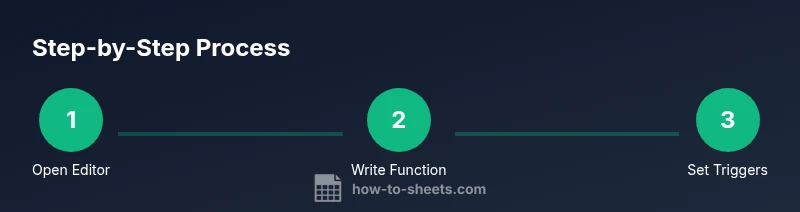
- 1
Open the Apps Script editor
In Google Sheets, go to Extensions > Apps Script to open the script editor. Rename your project to reflect its purpose and create a new script file for your module. This step initializes your automation environment.
Tip: Keep a separate script file per feature to improve readability. - 2
Write a simple function
Create a small function that performs a basic action, such as writing a message to a cell. This confirms the environment is wired to your sheet and helps you learn the syntax.
Tip: Use meaningful function names and comments to describe intent. - 3
Run the function to test
Click the Run button in the editor to execute your function. The first run requires authorization prompts to grant access to your sheet data.
Tip: Review the authorization dialog and accept only the necessary scopes. - 4
Add a simple trigger
Attach a simple or installable trigger that runs your function on an event, such as onEdit or onOpen. Triggers automate tasks without manual execution.
Tip: Understand the difference between simple and installable triggers for permissions. - 5
Create a custom menu
Add a custom menu item to Sheets to run your script on demand. This makes automation accessible to non-developers in the workbook.
Tip: Place menu actions in an unobtrusive location and label clearly. - 6
Test with real data
Run your script against live data in a copy of the sheet to verify behavior. Check for edge cases like empty cells or protected ranges.
Tip: Use try/catch blocks to gracefully handle errors and log them. - 7
Debug and iterate
Utilize the Logger and Execution logs to trace values and troubleshoot. Iterate after each test to refine logic.
Tip: Add console logs in key steps to surface state information. - 8
Deploy and share
Publish your script as an add-on or share the project with collaborators. Ensure permissions and scopes are appropriate for all users.
Tip: Document usage instructions and maintain version history for updates.
FAQ
What is Apps Script and how does it relate to Google Sheets?
Apps Script is a JavaScript-based platform integrated with Google Workspace. In Sheets, it lets you automate repetitive tasks, manipulate data, and extend sheet functionality with custom functions, menus, and triggers.
Apps Script is Google's JavaScript-based automation tool for Sheets that lets you extend features and automate tasks.
Do I need coding experience to start using Apps Script?
A basic understanding of JavaScript helps, but you can start with simple functions and gradually learn as you go. The editor provides helpful hints and debugging tools to assist beginners.
Basic JavaScript knowledge helps, but you can start with simple scripts and learn as you go.
Can scripts run automatically without my intervention?
Yes. You can use simple or installable triggers to run scripts automatically on events like edits or at scheduled times. Some permissions may be required for access to other Google services.
Yes, you can set triggers to run scripts automatically, with some permission prompts.
How do I test and debug Apps Script code?
Use Logger.log() to print values and the Executions dashboard to trace errors. Breakpoints and step-through debugging help identify logic or data issues.
Use logging and the built-in debugger to test and fix your code.
Is it possible to share or publish my Apps Script project?
Yes. You can share the script project with collaborators or publish as an add-on or web app, depending on your needs and permissions.
You can share it with others or publish it as an add-on or web app.
What are common pitfalls when starting with Apps Script?
Common issues include scope mismanagement, overuse of simple triggers, and handling protected ranges. Start small, test often, and document assumptions.
Common pitfalls are scope issues, triggers, and protected ranges—test often and document assumptions.
Where can I find official guidance on Apps Script?
Consult Google’s official Apps Script guides for overview, syntax, and examples. Also explore community resources and reputable tutorials for best practices.
Check Google's official Apps Script guides and trusted tutorials for best practices.
Can I use Apps Script with other Google Workspace apps?
Yes. Apps Script can interact with Sheets, Drive, Gmail, Calendar, and more, enabling cross-app automation within the Google Workspace ecosystem.
Absolutely, Apps Script can automate across Sheets and other Google Workspace apps.
Watch Video
The Essentials
- Learn the difference between bound and standalone scripts
- Use simple triggers for events and installable triggers for advanced automation
- Write modular, well-documented functions for maintainability
- Test with copy data before deploying to production
- Leverage the Apps Script editor for debugging and logging