How to Use Google Sheets Without Logging In
Learn safe, legitimate ways to view, publish, or export Google Sheets without signing in. This step-by-step guide covers permissions, offline options, and privacy tips.


Goal: Learn how to use Google Sheets without logging in for view-only tasks. If the sheet is publicly shared or published to the web, you can view and export data without signing in. Editing and advanced features require login. This quick guide covers verifying permissions, opening the link, and safe offline alternatives.
What does 'without logging in' mean for Google Sheets?
In the Google ecosystem, accessing a sheet without signing in is possible only if the owner has granted public view access or published the sheet for viewing. According to How To Sheets, this means you can open the link, read data, and occasionally copy small portions, but you cannot edit formulas, scripts, or protected ranges without authentication. This limitation protects sensitive data and preserves ownership. If you need to collaborate, you will need to request access or have the owner switch to a shareable link that permits editing.
Public view access is a deliberate setting chosen by the sheet owner. It does not apply to every sheet, and it does not automatically grant permission to edit, comment, or run scripts. Users should treat publicly viewable data as potentially transient and verify the current permissions before relying on it for decisions. How To Sheets emphasizes checking the exact sharing configuration before attempting any interaction that goes beyond viewing.
For learners and professionals, this distinction matters: you can extract data, perform offline analysis, or reuse headers and values in your own projects, but you should not assume you can modify the source document. If you must collaborate, request editor or commenter access from the owner.
When you can view without logging in
There are two main scenarios: publicly shared links and sheets published to the web. In the first case, anyone with the link can view; in the second, the sheet is embedded as a static webpage. The How To Sheets team notes that viewing without login is common in classrooms, event registries, or public datasets. It is important to distinguish between 'view' and 'comment' permissions; 'view' typically means you can see content, while 'comment' requires login for identity and moderation. Public viewing is designed to reduce friction for non-sensitive data while preserving ownership controls. If you need to annotate data, you will typically need to sign in or request access explicitly from the owner.
In practice, you’ll often encounter public view links on course resources, project dashboards, or community datasets. Users should verify the trustworthiness of the source and consider whether the data is updated in real time or on a schedule. The distinction between static and dynamic data matters when deciding whether to rely on a published view for decision making.
How to access a publicly shared Sheet in a browser
To access, start with the public link. If you do not see data, try opening the link in a private/incognito window to ensure there is no login prompt from cached credentials. If the sheet owner used 'Anyone with the link can view', you should see the data immediately. Otherwise, you may be redirected to a login page. If you encounter a login prompt, that means the sharing setting does not permit view-only access and you must request access. Always ensure you are using the official link provided by the owner or the platform hosting the published view. If the sheet includes restricted ranges or named cells, you may not see those details in a public view.
A practical tip is to copy the URL and paste it into a fresh browser session to confirm consistency across devices. Additionally, some browsers offer built-in privacy features that can block certain scripts; disabling those temporarily can improve visibility when troubleshooting access issues.
Publishing your sheet to the web for easy viewing
Owners can publish a sheet to the web so that anyone can view a static page without signing in. In Google Sheets, go to File > Publish to the web, choose the entire document or a specific sheet, and generate a link. This URL can be shared widely and will display data in a readable format. Note that published content may not reflect live edits and will not support editing. Publishing is useful for dashboards, event schedules, or public datasets where you want a stable, read-only presentation.
When setting publishing options, consider whether you want the entire workbook or just a subset. You can also choose to publish a filtered view, which helps avoid exposing sensitive sheets. If data updates frequently, you may want to publish a live feed and refresh the page periodically to reflect changes.
Exporting data for offline use
If you need to work offline or in applications that don’t support Google Sheets, export is your friend. From the sheet, choose File > Download as and select CSV, XLSX, PDF, or elsewhere. CSV is ideal for spreadsheet data; Excel preserves formatting; PDF is good for reports. After downloading, you can open locally in Excel, Numbers, or any table viewer. This method does not require a login to view the downloaded file.
For data analysis or integration with other tools, CSV and XLSX are typically the best options. If you’re sharing results with colleagues who don’t have Google accounts, a PDF can be useful for a static summary, while a CSV lets others re-import the data into their own sheets or databases. Always verify character encoding (UTF-8) when exporting international data.
Editing without login: options and limitations
In most cases, editing a Google Sheet requires signing in. If the owner grants editing permissions publicly, or invites you via email, you can modify the sheet after signing in. Without login, you can still copy data to a new sheet you own, or request the owner to enable 'Editor' access for you. Consider creating a local copy for editing and sharing results back via a new shared link. Public edits are rare and typically discouraged due to security considerations. If you must update a public dataset, coordinate with the owner to publish a revised version.
Another approach is to clone the content into a Google Sheet that you own, perform edits there, and then share a public link to the updated data. This method preserves the integrity of the original sheet while enabling your workflow. Remember that any edits you do offline won’t affect the source document unless you re-upload or re-share the updated version.
Security and privacy when using public links
Public links are convenient, but they carry risk. Do not place sensitive data in publicly viewable sheets. Review what data is visible and consider removing personal identifiers. When publishing to the web, remember that caches and search engines may store content. Use Google's access controls to limit visibility and rotate links periodically. If you manage a public dataset, add clear notes and data sources so viewers understand the provenance and update frequency. Always monitor for accidental data leakage and set up alerts for unusual access patterns.
Practical workflows and examples
Example 1: A teacher shares a roster that students can view during class without signing in; Example 2: A small business publishes a product catalog; Example 3: A research project posts a dataset for public analysis. In all cases, ensure the sheet owner trusts the audience and provide clear notes on data sources and update frequency. For teams, create a master sheet with controlled access and link to the public views. When you need to collect feedback, ask the owner to enable comments for a limited audience or to publish a separate form-based sheet that integrates data into the public view. These practices reduce friction while protecting data integrity.
Common pitfalls and troubleshooting
Common issues include a login prompt when you expected view-only access, a broken public link, or outdated cached data. Clear browser cookies, reload, or open in a new private window. If a sheet stops being public, you will lose access; the owner must re-share. When exporting, ensure encoding preserves characters (UTF-8) and formulas aren’t exported as text unnecessarily. If you suspect the data source is dynamic, confirm update schedules with the owner and test the published view after data refreshes. If you still encounter issues, contact the sheet owner for explicit permission changes and verify that you are using the correct link.
Authority sources
- https://www.nist.gov/publications
- https://dl.acm.org
- https://www.w3.org
Tools & Materials
- Web browser (Chrome/Edge/Firefox)(Any modern browser will work for viewing public sheets or published content.)
- Public Google Sheet URL(Owner must enable public view or publish to web.)
- Incognito/Private window(Helpful to verify view-only access without cached login.)
Steps
Estimated time: 30-40 minutes
- 1
Check sharing settings
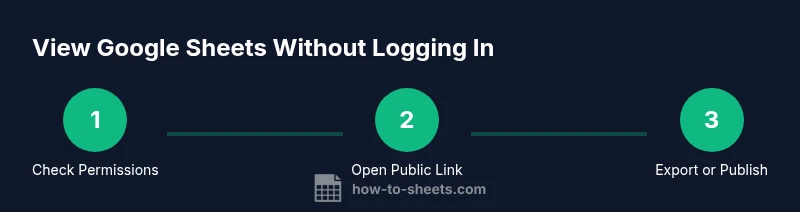
Open the sheet's URL and verify whether the owner has set sharing to 'Anyone with the link can view' or has published the sheet to the web. If not, request the appropriate access from the owner.
Tip: If you don’t see data, don’t assume permissions—ask the owner to confirm access. - 2
Open in a private window
In your browser, open the link in an incognito/private window to ensure you’re not prompted to sign in due to cached credentials.
Tip: Incognito mode helps test true login prompts across devices. - 3
View the published contents
If the sheet is published to the web, you’ll see a static view that updates according to the owner’s publish schedule. Confirm you’re seeing current data.
Tip: Published views may lag behind live edits. - 4
Export data for offline use
Use File > Download to export as CSV, XLSX, or PDF for offline analysis or sharing with non-Google users.
Tip: CSV is best for data reuse; PDF is best for reports. - 5
Request access for editing
If you need to edit, contact the owner and request Editor or Commenter access. Without login, editing isn’t possible.
Tip: Provide a clear reason and expected edits to improve success. - 6
Create a local copy for workflow
If access isn’t granted, copy content into a sheet you own and continue your work there, then share results as needed.
Tip: Keep traceable notes about data sources and dates.
FAQ
Can I edit a Google Sheet without signing in?
Editing generally requires a Google account. You can view or export data if the sheet is publicly shared.
Editing usually requires signing in; you can view or export if public.
What does it mean to publish to the web in Google Sheets?
Publishing creates a public, static view accessible via a URL without login. It doesn't reflect live edits.
Publishing makes a static page you can view without signing in.
How can I view data offline from Google Sheets?
Export the sheet as CSV, XLSX, or PDF and open it in another app; no login needed for the downloaded file.
You can view offline by exporting to formats like CSV or PDF.
Are there privacy risks when using public Sheets?
Public links expose data to anyone with the link. Avoid sharing sensitive information in public sheets.
Public sheets can be seen by anyone with the link, so be careful with data.
Can I automate data from publicly accessible Sheets?
Automations generally require authentication to access data programmatically. Public viewing alone won’t grant API access.
Automating access usually needs proper login and permissions.
What happens if a sheet stops being public?
If the owner revokes public access, you will need login-based access or a new share.
If it’s no longer public, you’ll need access from the owner.
Watch Video
The Essentials
- Verify sharing settings before sharing links
- Public view is possible without login but editing requires login
- Publishing to web enables easy, login-free viewing
- Export data to continue work offline without access to the source