Is There a Problem with Google Sheets? Troubleshooting Guide
Learn fast steps to diagnose and fix Google Sheets issues. This How To Sheets troubleshooting guide covers common errors, data syncing, formulas, and safety tips.


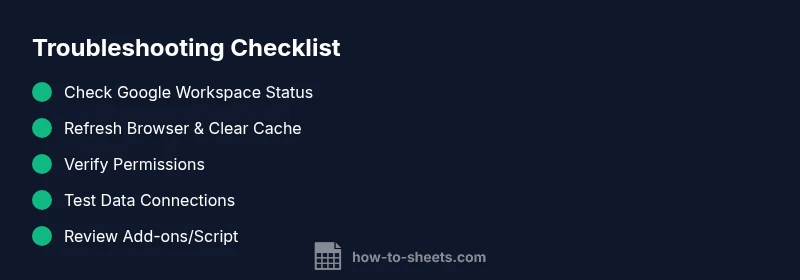
Most Google Sheets problems stem from temporary service issues, permissions, or formula errors. Quick fixes: check the Google Workspace status, refresh the page, and verify share settings. If the problem persists, inspect formulas, data connections, and any add-ons or scripts in use. Follow the diagnostic flow below for a clear path to resolution, then apply the recommended steps.
Immediate Checks You Can Do Now
When Google Sheets acts up, you want fast relief. This section outlines safe, high-impact checks that separate local glitches from larger service problems. According to How To Sheets, many issues resolve quickly after a status check, a browser refresh, and a quick verification of access rights. Use these steps to calm the situation and buy time for deeper investigation.
-
Check Google Workspace Status: Open the official Google Workspace Status Dashboard and look for outages affecting Sheets. If there’s a noted outage, wait for Google to confirm resolution; otherwise, proceed with the next steps.
-
Refresh and clear cache: Reload the page, then clear your browser cache or try a private/incognito window to rule out extension interference.
-
Verify permissions: Confirm you have edit access to the file. If you’re collaborating, ensure the sheet isn’t view-only or locked by another user.
-
Check file state: Look for read-only mode, protected ranges, or sheet-level protection that could prevent edits.
-
Confirm browser compatibility: Ensure you’re on a supported browser version and temporarily disable non-essential extensions.
-
If issues persist, proceed to deeper checks: The next sections cover data connections, formulas, and add-ons, with a clear diagnostic flow to follow.
Common Causes Behind Google Sheets Problems
Most issues fall into a few broad categories, and knowing them helps you decide what to test first. Based on How To Sheets Analysis, 2026, the majority of problems relate to connectivity, permissions, or formula errors. Distinguish between these early to avoid chasing symptoms.
-
Connectivity and network constraints: A slow or unstable connection can mimic more serious failures, especially when syncing data or loading large sheets.
-
Service outages or quota limits: Short outages or API rate limits can prevent updates from propagating across devices.
-
Sharing and access controls: If you’re not granted edit rights, Sheets may behave as if it’s restricted or unreliable.
-
Formulas and linked data: Complex formulas, volatile functions, or external imports (IMPORTRANGE) can fail if references change or sources become unavailable.
-
Add-ons and Apps Script: Third-party tools may introduce conflicts, slow performance, or trigger errors in your sheet.
-
Browser or extension interference: Outdated browsers or misbehaving extensions can break scripts or block requests.
Data Connections and Sharing Pitfalls
External data sources and sharing settings are frequent culprits when Sheets misbehave. When your sheet relies on IMPORTRANGE, IMPORTDATA, or connected queries, any change in source permissions or URL changes can freeze updates or show stale data. Sharing settings also matter: if viewers don’t have edit permissions or if a file is restricted to specific domains, edits won’t propagate properly across collaborators.
-
Verify source access: Check that the user or service account has permission to access each external source. Re-authenticate connections if prompted.
-
Validate URL references: For IMPORTRANGE and external feeds, confirm the exact URL and range references are intact and haven’t been altered.
-
Review protection rules: Ensure protected ranges or sheet protections aren’t blocking updates from other users or scripts.
-
Test in isolation: Create a duplicate sheet that mirrors a subset of your data to see if the issue reproduces without the complex setup.
Formulas, Functions, and Connected Data
Formulas can cause cascading failures if references change, ranges are renamed, or sheet names are edited. Circular references or volatile functions (NOW, RAND, TODAY) can slow performance or yield unexpected results. When external connectors are involved, a failed refresh may appear as a permanent error in your formulas.
-
Check for typical errors: #REF!, #VALUE!, or circular references; fix broken cell references and adjust named ranges.
-
Audit recent changes: Revisit the most recent edits to formulas or scripts; use Version History to compare states.
-
Isolate volatile functions: If a volatile function is causing slowdowns, consider caching results in an intermediate cell and referencing that cell instead.
-
Validate data connections: Ensure external data sources are reachable and that credentials haven’t expired.
Performance, Browser, and Add-On Interference
Sometimes the issue isn’t the sheet itself but the environment around it. Browser performance, extensions, or add-ons can interfere with scripts, requests, or rendering. If Sheets feels slow or unresponsive, test with extensions disabled and in a different browser or computer.
-
Disable extensions and try again: Turn off non-essential extensions and reload the sheet to see if performance improves.
-
Try a different browser: Use a supported browser with the latest version for a clean test.
-
Check Apps Script: If you use custom scripts, review recent changes and run them in a test sheet to avoid affecting collaborators.
-
Monitor resource usage: Large sheets with many formulas, validations, or conditional formatting can consume CPU and memory, slowing down performance.
Verifying Service Status and Access
When in doubt, verify the service status and your access level before deep-diving into the sheet itself. Google’s status pages and admin dashboards often reveal outages or permission changes that explain many symptoms. This also helps you determine whether you should escalate.
-
Check the Google Workspace Status Dashboard: Confirm Sheets is operating normally in your region.
-
Review admin announcements: If you’re in a domain with an admin, check for policy changes or maintenance windows.
-
Confirm access level: Ensure you have the appropriate role and that ownership hasn’t shifted to someone else during collaboration.
-
Attempt access from another account or device: If possible, sign in with a different account or on a different machine to rule out local account issues.
Recovery Steps for Common Scenarios
If the issue persists after the quick checks, follow these concrete recovery steps in order. This flow minimizes backtracking and concentrates on the most frequent failure modes.
- Restore status and refresh: Revisit the status page, refresh your session, and reopen the sheet.
- Clean data sources: Re-authenticate external connections and re-import data with minimal ranges.
- Repair formulas: Rebuild problematic formulas step-by-step and test with a small sample first.
- Isolate add-ons: Disable non-critical add-ons and Apps Script to identify the root cause.
- Revert to a known-good version: Use Version History to restore a clean state if data corruption is suspected.
- Communicate with collaborators: Notify teammates about the issue and agree on a temporary workflow if real-time editing is affected.
- Document the fix: Record exactly what you changed for future troubleshooting.
If none of these steps restore stability, consider reaching out to a Google workspace admin or Google Support with a concise summary of symptoms, steps taken, and any error messages.
Proactive Prevention and Best Practices
Proactive measures help you stay ahead of problems and minimize disruption. Adopting best practices reduces recurrence and enables faster triage when issues arise. These guidelines focus on reliability, collaboration, and data integrity.
-
Use Version History routinely: Enable quick restoration to a known-good state when issues appear.
-
Limit volatile functions: Reduce the use of NOW, RAND, and similar functions in large sheets; cache results where possible.
-
Optimize imports and connections: Schedule periodic refreshes outside peak hours and monitor access permissions.
-
Maintain clean sheet architecture: Separate data input from calculations, and keep a modular structure across multiple tabs to simplify debugging.
-
Back up critical workbooks: Regularly export or duplicate sheets to safeguard against data loss.
When to Escalate to Support
Some issues require escalation beyond routine troubleshooting. If you have tried the flow above without success, or you notice unusual account activity, broaden the scope of investigation and reach out for help. Early escalation can save time and protect data.
- Escalate when outages are confirmed but your team still experiences impact.
- Seek admin help to audit permissions and domain-level policies.
- Contact Google Support if you suspect an API or service issue beyond your control.
- Document the entire process for reference and future incidents.
Steps
Estimated time: 30-60 minutes
- 1
Start with a status check
Open the Google Workspace Status Dashboard and verify whether Sheets is experiencing an outage in your region. If there is a known issue, wait for the all-clear before making changes. If not, continue with the next steps.
Tip: Bookmark the status page for quick reference during incidents. - 2
Refresh and isolate
Refresh the browser, clear the cache, and try a private/incognito window to rule out extension interference. This step helps determine if the problem is browser-related.
Tip: Incognito mode helps isolate extensions from causing the issue. - 3
Check access and sharing
Confirm you have edit access to the sheet and that no one else is actively locking the file. If you lack permissions, contact the owner or admin to grant access.
Tip: Ask the owner to regrant or re-share the file if needed. - 4
Test data sources
If your sheet uses IMPORTRANGE or external data connectors, test with a simple import to confirm connectivity and credential validity.
Tip: Re-authenticate external connections if prompted. - 5
Evaluate formulas and scripts
Review recent changes to formulas or Apps Script. Look for #REF!, #VALUE!, or circular references and fix references or scripts as needed.
Tip: Use the built-in formula auditing tools to trace errors. - 6
Check add-ons and scripts
Disable non-essential add-ons and temporarily pause Apps Script to see if they’re causing the issue. Re-enable one by one to identify the culprit.
Tip: Document changes and revert if needed. - 7
Assess performance
If the sheet is large, simplify calculations, reduce volatile functions, and consider splitting data into multiple tabs to improve responsiveness.
Tip: Avoid loading massive arrays in a single sheet. - 8
Restore from a safe state
If data corruption or edits caused instability, use Version History to revert to a known-good state. Then reapply changes carefully.
Tip: Always review changes before restoring.
Diagnosis: Sheet won't load, formulas show errors, or data isn't syncing across devices.
Possible Causes
- highTemporary Google Sheets/Workspace outage or API limit
- mediumInsufficient permissions or sharing settings blocking edit access
- highOutdated browser or corrupted cache/session
- lowConflicting add-ons or Apps Script errors
Fixes
- easyCheck Google Workspace status and service dashboards; wait if outage is reported
- easyRefresh page, sign out/in, clear cache, try incognito mode
- easyReview sharing permissions and ownership; ensure edit rights
- mediumDisable third-party add-ons or Apps Script, re-authorize, reload
- mediumInspect formulas, data connections (IMPORTRANGE), and named ranges; fix references
FAQ
What is the first thing I should check when Google Sheets isn’t loading?
Start with the Google Workspace Status Dashboard to rule out a service outage. Then refresh the page, clear the cache, and try a private window to see if extensions are affecting loading. If the sheet still won’t load, proceed to permissions and data connections.
First, check the status page for outages, then refresh and isolate extensions. If it still doesn’t load, continue with permissions and data checks.
How can I tell if Google Sheets is down for everyone, not just me?
Use the Google Workspace Status Dashboard and trusted admin channels to confirm if Sheets is experiencing an outage. If the page shows issues or you see widespread reports, wait for Google to resolve the outage before troubleshooting locally.
Check the status dashboard and admin announcements to see if Sheets is down for everyone.
Why do my formulas keep showing errors like #REF! or #VALUE!?
Formula errors usually come from broken references, renamed sheets, or changed ranges. Re-check the affected cells, restore references from Version History if needed, and test formulas on a small sample sheet to isolate the issue.
Formula errors come from broken references or changed ranges; verify and test in a smaller sheet to pinpoint.
Can add-ons cause Google Sheets to behave oddly?
Yes. Add-ons and Apps Script can introduce conflicts that slow performance or throw errors. Temporarily disable non-essential add-ons, then re-enable them one by one to identify the culprit.
Add-ons can cause issues; try turning them off one by one to find the source.
When should I contact support or escalate the issue?
If you’ve completed the troubleshooting steps and the problem persists, contact Google Support or your domain admin with a concise summary, including error messages and steps you’ve tried. Document the incident for faster resolution.
If the issue continues after troubleshooting, contact support with details and steps you tried.
Watch Video
The Essentials
- Resolve issues fast with status checks and a browser refresh
- Identify if the problem is access, data, or formulas
- Isolate add-ons and external data connections when testing
- Use Version History to recover from bad edits
- Prevent recurrence with best-practice sheet design and monitoring