Why Is My Google Sheets Not Updating: A Practical Troubleshooting Guide
Urgent guide to fix Google Sheets not updating: check data connections, permissions, triggers, and formula errors with a step-by-step flow. Learn fast with How To Sheets.


The most likely causes are a stalled data connection, blocked permissions on external feeds (like IMPORTRANGE), or a cached browser state. Start by refreshing the page, re-authenticating connected services, and checking your internet. Then review formulas for errors and verify Apps Script triggers; if nothing works, duplicate the sheet to test updates propagation.
Common Update Scenarios
According to How To Sheets, the most frequent reasons Google Sheets doesn't update involve data connections and permissions rather than random outages. If you’ve asked, why is my google sheets not updating, the answer is often a data source permission issue or a cached browser state. When using IMPORTRANGE, IMPORTDATA, or IMPORTXML, a permission change or blocked source can freeze updates. Sheets can also lag when a formula references another sheet with different sharing settings, or when a script is running in the background. Additionally, a stale browser cache or limited network bandwidth can delay refreshes. Finally, if you use Apps Script triggers, a failed trigger or quota limit will prevent updates from firing as expected. Understanding these scenarios helps you diagnose quickly and apply the right fix.
Quick Checks You Can Do Right Now
Begin with fast, high-impact checks. Verify your internet connection is stable and that you are signed into the correct Google account with access to the required source data. Refresh the browser tab and clear the cache if updates appear stale. Confirm you're viewing the latest version of the sheet by reopening it in an incognito window. If a data connection is involved, re-authorize permissions when prompted and ensure the source file is accessible.
Diagnosing Through Real-World Examples
Consider common cases: an IMPORTRANGE error shows #REF! if access is denied; an IMPORTXML fetch fails due to site changes or blockers; a formula referencing a closed or renamed sheet may return incorrect results. In these cases, check the source’s sharing settings, update the formula range, and test the data pull in isolation to confirm behavior before applying changes back to the main sheet.
Step-by-Step Fixes for the Most Common Cause
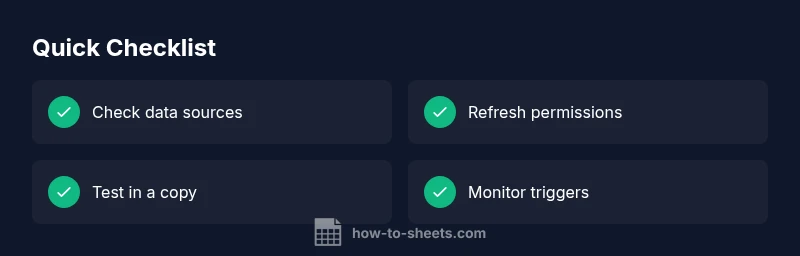
Follow this sequence to resolve the most frequent issue: 1) Refresh the page and re-authenticate connections. 2) Verify permissions for all external data sources and ensure the source is accessible. 3) Inspect formulas for errors or circular references. 4) If using Apps Script, review triggers and logs. 5) Duplicate the sheet to determine if the problem is workbook-specific.
Safety, Warnings, and Future-Proof Tips
Avoid relying on a single data source for critical workflows; duplicate essential data locally or use caching to prevent single points of failure. Regularly audit permissions after team changes, and document any data connections. Remember to back up sheets before making bulk edits, and limit the use of heavy scripts during peak hours.
Steps
Estimated time: 15-25 minutes
- 1
Refresh the sheet and re-authenticate
Reload the page, close and reopen the sheet, and re-authorize any data connections that prompt for access. This eliminates stale sessions and ensures the sheet can pull fresh data from external sources.
Tip: Keep the sheet open in a single tab to avoid session conflicts. - 2
Verify external data permissions
Check sharing settings for any IMPORTRANGE or external feed, and ensure the connected account has access. If access was revoked, re-grant it and re-run the data import.
Tip: If multiple people rely on the same import, confirm their access as well. - 3
Inspect formulas for errors
Look for #REF!, #VALUE!, or #N/A in cells dependent on external data. Correct range references, update sheet names, and remove circular references that block recalculation.
Tip: Use the formula auditing tools to trace dependencies. - 4
Review Apps Script triggers
Open the Apps Script editor, inspect installed triggers, review execution logs, and reauthorize if needed. Ensure triggers are set to run on desired events and there are no quota issues.
Tip: Avoid heavy scripts during peak times; set up error alerts. - 5
Test with a duplicate sheet
Copy the sheet to a new file and observe if updates propagate there. If the new copy updates correctly, the issue is workbook-specific and may require cleaning up complex formulas or data connections.
Tip: Use a simple import in the test copy to verify the data path.
Diagnosis: Google Sheets data or formulas are not updating from external sources or internal calculations lag
Possible Causes
- highExternal data source permission issue or blocked access
- mediumCached browser state causing stale results
- lowInstallable Apps Script triggers not running or misconfigured
Fixes
- easyRefresh the browser and re-authenticate data connections
- easyCheck and re-apply permissions for external sources (e.g., IMPORTRANGE)
- easyReview formulas for errors or circular references
- mediumInspect Apps Script triggers and logs; reauthorize if needed
- easyTest in a fresh sheet to isolate workbook-specific issues
FAQ
What should I do first when Google Sheets isn’t updating?
Start with a quick refresh, verify internet connectivity, and ensure you’re signed into the correct account with access to data sources. If external imports are involved, re-authorize permissions.
First, refresh, check your connection, and confirm access to data sources. If imports exist, re-authorize permissions.
Why do external data imports like IMPORTRANGE fail to update?
IMPORTRANGE can fail when the source sheet isn’t shared, permissions were revoked, or the range is incorrect. Re-check sharing and update the range as needed.
IMPORTRANGE can fail due to share settings or an incorrect range; fix those and try again.
How can I tell if a Apps Script trigger is causing updates to fail?
Open the Apps Script editor, review installed triggers, run the debugger, and check logs for errors. Reauthorize if required and confirm triggers are active.
Check triggers and logs in Apps Script to see if a failure is blocking updates.
Why do I see #REF! or #VALUE! in imported data?
These errors usually indicate a permission issue or a changed/invalid range. Verify the source access and adjust the import formulas to the correct range.
#REF! or #VALUE! often means permissions or a wrong range; fix those and retry.
Can updates be delayed if I’m offline or using cached data?
Yes. Being offline or using cached data can delay updates. Reconnect to the internet and refresh the sheet to sync.
Yes, offline or cached data can delay updates; reconnect and refresh.
When should I contact support for update issues?
If you’ve exhausted the troubleshooting steps and updates still don’t propagate, reach out with the sheet URL, exact error messages, and a description of data sources.
If all else fails, contact support with details and error messages.
Watch Video
The Essentials
- Identify the root cause: permissions, data source, or scripts.
- Refresh and re-authenticate before deep edits.
- Test changes in a copy to prevent data loss.
- Audit Apps Script triggers for reliability.
- Document and back up to prevent future outages.