Learn Google Sheets with PDF Guides: Step-by-Step Tutorial
A practical, educational guide to learning Google Sheets through PDF resources, templates, and printable cheatsheets. Blend offline study with hands-on practice to build lasting spreadsheet skills for students, professionals, and small business owners.


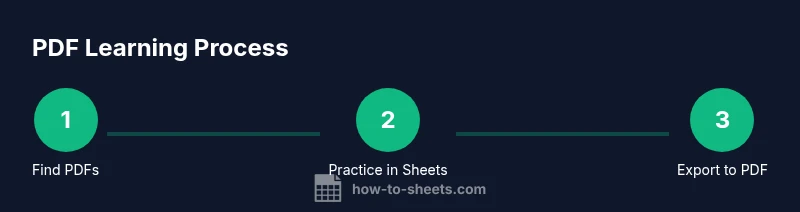
Learn how to use PDF guides to master Google Sheets efficiently. This quick guide reveals how to locate credible PDFs, extract actionable steps, and practice directly in Sheets while saving results as PDFs for review. By blending offline study with hands-on work, you’ll build confident, repeatable workflows that boost your spreadsheet skills.
What you will learn by using PDF guides to learn google sheets pdf
According to How To Sheets, PDFs can accelerate structured learning by providing concise, step-by-step references that you can study offline while applying concepts in Google Sheets. This block explains why PDFs are a powerful companion for learners who want a portable, printable reference you can annotate as you go. If you want to learn google sheets pdf efficiently, start with credible resources and a practical plan. The How To Sheets team found that pairing reading with hands-on practice helps retention far more than reading alone. PDF guides offer concrete actions, sample datasets, and checklists you can reuse across projects. For students, professionals, and small business owners, this blend of theory and practice translates into faster competence with tasks like data entry, formulas, and reporting. You will build a personal library of pages you can flip open during a live task or during a train ride, turning passive reading into active doing. In the next sections, you’ll learn how to choose high-quality PDFs, extract useful steps, and integrate them into a repeatable study routine that directly maps to real-world work in Google Sheets. Remember to bookmark resources that align with your goals, whether it’s budgeting, data cleanup, or dashboard creation.
Why PDFs are a good companion to interactive learning
PDFs offer stable, portable references that complement interactive practice in Google Sheets. They let you collect diverse perspectives—formulas, data validation strategies, formatting tricks, and sample workflows—without being tethered to an internet connection. This stability is particularly helpful for students who study on buses or trains, professionals juggling busy schedules, and small business owners who want a reference they can annotate during planning sessions. When used correctly, PDFs reduce cognitive load by providing concise steps you can implement immediately in Sheets, rather than searching the web for scattered tips. How To Sheets analyses reveal that learners who combine PDFs with deliberate practice tend to retain concepts longer and execute tasks more accurately. The emphasis should be on actionable steps, not just theory, so you can translate reading into concrete spreadsheet results.
Quick-start: building practice tasks from PDFs
Begin by skimming a PDF to identify 3–5 concrete tasks you can attempt in Google Sheets. Examples include creating a budget, cleaning a dataset, building a basic chart, or applying conditional formatting. For each task, write down a short checklist, then open a blank Sheets file to reproduce the steps exactly as described in the PDF. Keep the PDF open for reference as you work, and use features like version history to compare outcomes. This approach helps you translate printed guidance into practical muscle memory and confidence in your ability to solve real problems.
Step-by-step approach: from beginner to intermediate using PDF templates
Start with foundational templates in your PDFs—simple budgets, lists, and data entry templates. As you grow more comfortable, move to intermediate templates that introduce formulas, data validation, and basic reporting. Use PDFs as a guided roadmap: copy the structure, customize fields, and test results. Regular practice on authentic templates accelerates learning by providing repeatable patterns you can reuse across projects. When a template introduces a new function, pause and experiment in a separate sheet to confirm your understanding before applying it to live data.
Practical workflow: using PDF cheat sheets while you practice in Sheets
Keep a printable PDF cheat sheet nearby that summarizes core functions, shortcuts, and common patterns. Use it as a quick-reference during practice sessions, rather than a full textbook. Copy and adapt formulas directly from the PDF, then test them with your own data. Periodically print a one-page summary of steps for a weekly review. This workflow builds familiarity and reduces the time spent hunting for commands during actual tasks, which is especially valuable for students preparing for exams or professionals delivering reports.
Common mistakes when learning Sheets from PDFs and how to avoid
One common pitfall is treating PDFs as infallible manuals instead of step-by-step guides that require hands-on verification. Always test each step in Sheets with a safe dataset before applying it to critical work. Another mistake is using outdated PDFs; always note publication dates and seek updated resources. Finally, relying on a single PDF can narrow your view—combine multiple sources to capture different approaches and viewpoints. Regularly revisit PDFs after attempting tasks to reinforce correct methods.
How to create your own printable PDF guides for ongoing learning
As you progress, consolidate your knowledge into your own printable PDFs. Summarize key steps, formulas, and decision trees for common tasks (budgets, data cleaning, dashboards). Use a consistent format: a short heading, a step-by-step action list, and a small set of practice prompts. Your personal PDFs become a reusable training library for future projects, and they help you teach others in your team or class. This habit accelerates mastery by turning knowledge into a portable resource.
Additional resources and templates to accelerate learning
Beyond PDFs, consider supplementing your study with official Google Sheets help pages, community forums, and university tutorials. Look for printable cheat sheets, template galleries, and data-type practice datasets that align with your goals. A well-rounded approach includes practicing with sample data, exporting results to PDF for sharing, and iterating on your templates to reflect real-world needs. Building a diverse toolbox ensures you stay capable across budgeting, analytics, and collaborative work.
Tools & Materials
- Computer or tablet with internet access(Laptop or tablet with updated browser; Google account signed in)
- PDF reader with annotation features(Adobe Reader, browsers with annotation, or mobile PDF apps)
- Google Sheets access(Active Google account; enable offline access if needed)
- Printer (optional)(For printing practice sheets or cheatsheets)
- Printable PDF templates(Pre-made PDFs you can annotate and reuse)
Steps
Estimated time: 6-8 hours
- 1
Identify credible PDF resources
Scan for PDFs from universities, government education sites, and established publishers. Check authorship, publication date, and whether the material focuses on Google Sheets fundamentals before moving to advanced topics. Save links to a dedicated folder for easy reference.
Tip: Create a short list of 3 credible sources to begin with and add 1 new resource each week. - 2
Download and organize PDFs
Download PDFs to a named folder structure. Use a consistent naming convention like Topic-Author-Year and keep originals intact for reference. Create subfolders by topic (formulas, data cleaning, charts).
Tip: Use a cloud-synced folder so you can access materials from any device. - 3
Create a practical learning plan from PDFs
From each PDF, extract 3–5 concrete tasks to practice in Sheets. Plan 3 sessions weekly, each focusing on a theme (data entry, formulas, charts) and tie tasks back to PDF steps.
Tip: Document tasks in a simple checklist to track progress. - 4
Open Sheets and reproduce steps
Open Google Sheets and follow the steps exactly as described in the PDF. If a step is unfamiliar, try it on a blank sheet first before applying to a real dataset.
Tip: Take screenshots of outcomes to compare with the PDF examples. - 5
Export practice work to PDF
After finishing tasks, export your workbook as PDF to create a personal reference. Adjust print settings (orientation, scale) to ensure readability, then save to your learning folder.
Tip: Use Print Preview to verify alignment before exporting. - 6
Use printable cheatsheets during practice
Keep a one-page PDF cheatsheet nearby and reference it while practicing. Copy formulas directly from the PDF when applicable.
Tip: Annotate cheatsheets with your own notes to personalize the guide. - 7
Review and correct mistakes
Periodically revisit PDFs to close gaps. Use Sheets functions to verify results, and highlight any discrepancies for targeted practice.
Tip: Maintain a short error log to track recurring issues. - 8
Create your own PDF learning resource
Summarize key steps and formulas in your own printable PDFs. Group content by use-case (budgeting, data cleaning, reporting) to speed future reference.
Tip: Share your PDFs with peers for feedback and collaborative learning.
FAQ
What is the best way to start learning Google Sheets from PDF resources?
Begin with credible PDFs focused on fundamentals, skim for key concepts, then test each concept in Sheets. Take notes and save annotated PDFs for quick review.
Start with credible PDFs on fundamentals, skim key concepts, then test them in Sheets.
Can PDFs alone replace interactive practice in Google Sheets?
No. PDFs are references; you should combine them with hands-on practice in Sheets and occasional quizzes to reinforce learning.
PDFs are references; pair them with hands-on practice.
How often should I practice while using PDFs?
Aim for 3 short sessions per week, 30–45 minutes each, focusing on a theme like formulas or data visualization.
Aim for 3 short sessions weekly, 30-45 minutes each.
Where can I find credible PDF guides for Google Sheets?
Look for university course materials, government education sites, and established tech publishers. Verify authorship and publication date.
University and government sites are usually reliable; verify authorship.
What parts of Google Sheets are best learned via PDFs?
Foundations, formulas, data cleaning, and reporting templates are well covered in printable PDFs.
Foundations, formulas, data cleaning, and reporting templates are well covered.
Should I create my own PDF learning resources?
Yes. As you progress, summarize steps in your own PDF guide to reinforce memory and create a personal reference.
Yes—summarize steps in your own PDF guide.
Watch Video
The Essentials
- Use credible PDFs as a foundation for practice.
- Translate PDF steps into hands-on Sheets tasks.
- Export practice work to PDF for ongoing reference.
- Create and maintain your own PDF guides.
- Pair PDFs with regular, focused practice for best results.