Line Breaks in Google Sheets: A practical guide
A comprehensive guide to inserting and managing line breaks in Google Sheets, with keyboard shortcuts, formulas like CHAR(10), wrap-text settings, and real-world templates for clean multi-line data.


By the end of this guide, you will be able to insert and manage line breaks inside Google Sheets cells. You’ll learn keyboard shortcuts for Windows and Mac, plus formula-based methods using CHAR(10) and TEXTJOIN. This guide also covers wrapping behavior and best practices for shared workbooks in everyday tasks across team projects.
What is a line break in Google Sheets?
A line break inside a cell occurs when the content continues on a new line within the same cell. This is different from starting a new row; the data stays in one cell, but the display shows multiple lines. Line breaks are especially helpful for addresses, long project descriptions, multi-item lists, or names that would otherwise force the column to widen dramatically. When the cell is wrapped, Google Sheets preserves the underlying value as a single string, so you can copy, export, or reference the data consistently. According to How To Sheets, line breaks are a formatting technique that keeps related data in one column without creating extra rows, making sheets cleaner and easier to scan. If you want to verify, enter “123 Main Street” and press Alt+Enter to insert a break; you will see two lines within the same cell, while formulas still treat it as a single value.
For teams, clean multi-line cells are particularly valuable when consolidating notes, addresses, or item descriptions into one column. This approach reduces horizontal scrolling and helps you compare data points side-by-side without creating redundant rows. Remember to document the convention used in the sheet so collaborators understand how to read and edit the content.
The phenomenon is not unique to Google Sheets; many spreadsheet tools support in-cell line breaks, but the exact shortcuts and display behaviors vary. Keeping a consistent method across a workbook avoids confusion and ensures data remains robust when shared with others.
Quick keyboard methods to insert a line break
In Google Sheets, the easiest way to insert a line break inside a cell is with a keyboard shortcut, which varies by operating system. Windows users press Alt+Enter while editing a cell to insert a new line at the cursor position. Mac users press Option+Enter (the Alt/Option key serves as the break). You can also double-click a cell to edit, then insert the break. To ensure the line break remains visible, enable Wrap text for the column: Format > Wrap text > Wrap. Note that the display height may need adjustment, as multi-line cells can grow taller than a single-line cell. The How To Sheets team emphasizes practicing these shortcuts on sample data before applying them to critical spreadsheets, so you’ll be confident under time pressure.
Using CHAR(10) for programmatic line breaks
For dynamic data, inserts, or concatenation, you can embed a line break via formulas using CHAR(10). Example: =A2 & CHAR(10) & B2 creates two lines in the resulting string. If you are joining many cells, TEXTJOIN(CHAR(10), TRUE, C2:C5) returns a single cell with each value on its own line, skipping blanks when TRUE. When using CHAR(10), be sure Wrap text is enabled so the line breaks render in the sheet view. You can also replace existing line breaks with formulas: =SUBSTITUTE(D2, CHAR(10), ' | ') to show a visible separator in the cell, while leaving the data untouched for further processing.
Wrapping text and row height adjustments
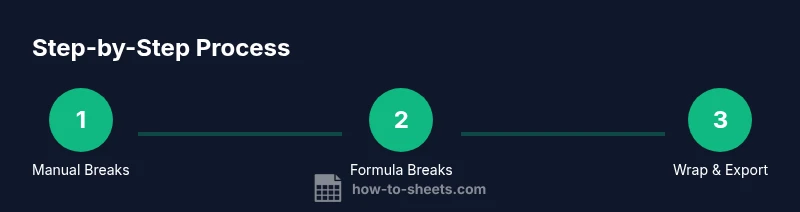
Wrapping text is essential to maintain readability when a line break is used. In Google Sheets, enabling Wrap text ensures content respects line breaks and fits within the visible area. If the content remains clipped, adjust row height manually or set it to Auto-fit via a right-click > Resize row > Auto-fit. In shared sheets, consider standardizing wrap behavior to prevent misalignment when multiple users edit cells. The combination of wrap, manual breaks, and consistent row heights improves readability during reviews and exports.
Working with imported data and CSV exports
Line breaks can behave differently when data is imported from or exported to other formats like CSV. CSV stores data as a flat sequence of text; a line break within a cell is still part of that cell’s text, but some programs may treat it as a cell boundary if not quoted properly. When you export, ensure the target uses quoted fields and supports multiline text. If you regularly export to CSV, you may want to replace line breaks with stable delimiters before export (for example, using TEXTJOIN or SUBSTITUTE) and then re-introduce breaks after import if needed.
Practical examples and templates
Example 1: Name with title on separate lines: =A2 & CHAR(10) & B2 (wrap enabled). This displays as two lines in the same cell, such as “Jane Doe” and “CEO.” Example 2: A multi-item checklist in a single cell: =TEXTJOIN(CHAR(10), TRUE, C2:C5). This method lists each item on a separate line within the cell for compact dashboards. These patterns scale to longer datasets, including addresses, bullet lists, or combined metadata.
Best practices and troubleshooting
Best practices: keep a consistent approach to line breaks across a workbook, document the method in a sheet legend, and use wrap text to ensure visibility. Troubleshooting: if line breaks disappear after copying, verify that the target editor supports multiline cells and avoid pasting as plain text. If you see squares or garbled characters, check the encoding of the source data and ensure no hidden characters were introduced during concatenation. Regularly test with sample data to prevent surprises during sharing or deployment.
Authority sources
For authoritative guidance on line breaks and wrap behavior in Google Sheets, consult official documentation and credible publications. The How To Sheets team references Google’s support resources and widely used tips from community experts. Support page on wrapping text in Google Sheets. Additional guidance on joining and splitting text with newline characters.
Tools & Materials
- Google Sheets access (web)(Ensure you are signed into a Google account with edit access)
- Keyboard with Alt/Option keys(Windows: Alt; Mac: Option (⌥))
- Computer or device with internet(Desktop or mobile; line breaks work on both)
- Optional sample data(A sample dataset to practice line breaks)
Steps
Estimated time: 25-40 minutes
- 1
Open your sheet and select the target cell
Open the Google Sheets file, click the cell you want to format, and press F2 or double-click to enter edit mode. This prepares the cell for a line break and lets you insert it precisely where you want it.
Tip: Use the arrow keys to position the cursor exactly where the break should occur. - 2
Insert a manual line break
With the cursor at the desired point, press Alt+Enter (Windows) or Option+Enter (Mac). This creates a new line within the same cell. If the break doesn't appear, ensure Wrap text is enabled for the column.
Tip: If you can't see the new line, switch to a wider column temporarily to confirm the break. - 3
Insert line breaks with CHAR(10) in formulas
Edit a formula to add a newline via CHAR(10). Example: =A2 & CHAR(10) & B2. For joining many cells, use TEXTJOIN(CHAR(10), TRUE, C2:C5).
Tip: Test smaller ranges first to verify the result before applying to large ranges. - 4
Wrap text and adjust row height
Enable Wrap text (Format > Wrapping > Wrap) so line breaks render properly. If needed, resize the row to Auto-fit so all lines are visible without manual scrolling.
Tip: Auto-fit rows by right-clicking the row header and selecting Auto-fit row height. - 5
Preserve line breaks during copying/export
When copying to another app or exporting to CSV, ensure destination supports multiline cells and quoted fields. If necessary, replace breaks with a visible delimiter before export and reintroduce after import.
Tip: Pasting as plain text can strip line breaks; paste into rich-text-enabled fields instead. - 6
Validate with real data
Apply the approach to a small test dataset first. Check multiple cells, then run a quick export/import cycle to ensure line breaks survive or render as intended in the target environment.
Tip: Document the method used in a sheet legend for teammates.
FAQ
How do I insert a line break in a Google Sheets cell?
Use Alt+Enter on Windows or Option+Enter on Mac while editing the cell. Then ensure Wrap text is enabled to display the multi-line content.
Use Alt+Enter on Windows or Option+Enter on Mac while editing a cell; wrap text to see the lines.
What keyboard shortcuts work on different operating systems?
Windows users press Alt+Enter; Mac users press Option+Enter. Both require the cell to be in edit mode and wrap text to view the break.
Windows: Alt+Enter. Mac: Option+Enter. Make sure the cell is in edit mode.
How can I combine multiple cells with line breaks in between?
Use TEXTJOIN(CHAR(10), TRUE, range) to join cells with a newline, or concatenate with CHAR(10) between pieces (e.g., A1 & CHAR(10) & B1).
Use TEXTJOIN with CHAR(10) to join cells with new lines.
Will line breaks survive exporting to CSV?
Line breaks stay inside quoted fields when the exporter supports multiline data. Always test the export in your target app to confirm.
Line breaks stay inside the cell if the CSV uses quotes; test the target app.
How do I automatically wrap text for an entire sheet?
Select the column or range, then Format > Wrapping > Wrap to apply continuous wrapping across selected cells.
Apply Wrap wrapping from the Format menu to the selected area.
Are line breaks supported in numbers or dates?
Line breaks apply to text values. Numbers won’t show line breaks unless converted to text first.
Line breaks apply to text; convert numbers to text if you need breaks inside them.
Watch Video
The Essentials
- Enable wrap text to view line breaks clearly.
- Use Alt+Enter or Option+Enter to insert breaks manually.
- Use CHAR(10) in formulas to create or join multi-line strings.
- Adjust row height so all lines are visible and readable.
- Test exports/imports to ensure line breaks behave as expected.