How to Link Google Sheets: A Practical Guide
Discover practical ways to link Google Sheets data across files using IMPORTRANGE, Apps Script, and built-in links. Learn setup steps, constraints, and best practices to keep dashboards synced without duplication.


Link Google Sheets data using IMPORTRANGE, Google Apps Script, or built-in cross-reference methods to create live connections. This concise answer sets up the steps you’ll see in the full guide, including setup, permissions, and best practices.
Why linking data in Google Sheets matters
Linking data across Google Sheets creates unified dashboards, reduces manual copying, and improves data consistency across teams. When you connect external data sources, you enable collaboration without duplicating effort. According to How To Sheets, the most reliable links emerge from clear permissions, precise data ranges, and predictable refresh behavior. In real-world projects, meaningful links power real-time reports, cross-team visibility, and informed decision-making. This section explains why this practice matters and what you should plan before you start linking data.
Core methods to link data in Google Sheets
There are several dependable ways to connect data across sheets. The most common is IMPORTRANGE for cross-file links, enabling you to pull a range from a source spreadsheet into a destination. You can also reference cells directly within the same spreadsheet using a simple Sheet name and cell reference, which is fast and low-friction for internal links. For automation and more complex workflows, Google Apps Script provides custom functions and triggers to keep data updated, transformed, and pushed into dashboards. Additionally, you can link charts and dashboards so visuals reflect changes as soon as inputs update. This section lays out the core methods and where each shines in practice.
Using IMPORTRANGE: setup and best practices
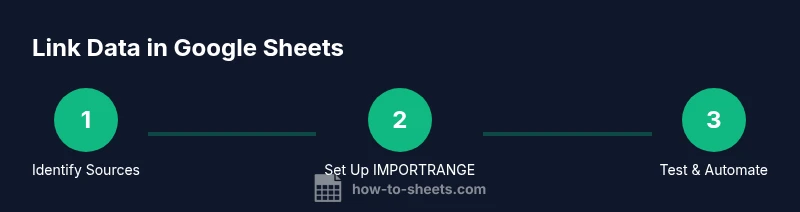
IMPORTRANGE is the cornerstone for cross-workbook linking. Steps begin with copying the source sheet URL, then entering the formula in the destination sheet: =IMPORTRANGE("https://docs.google.com/spreadsheets/d/ABC123.../edit","Sheet1!A1:C10"). The first time you link a new source, Google prompts you to grant access—click Allow. Best practices include importing only the necessary range, using named ranges in the source sheet to simplify references, and validating updates with small test ranges before expanding. If you encounter #REF!, ensure access is granted and the range string is correct.
Linking data within the same spreadsheet vs across workbooks
Links within the same workbook use direct references like Sheet1!A1, which updates instantly. Cross-workbook links rely on IMPORTRANGE and require initial permission, which introduces a brief latency and potential for permission changes to break the link. Cross-workbook links are more flexible for dashboards and reports, but require careful handling of permissions, data ranges, and refresh expectations. Understanding these differences helps you choose the right approach for each scenario.
Apps Script and custom data linking
When you need more control than built-in functions offer, Google Apps Script lets you build custom data-pulling routines, transform data on the fly, and schedule automatic refreshes. You can write functions that read from a source sheet, clean or reformat data, and push results to a target sheet. For larger implementations, consider the Sheets API for batch operations and error handling. This approach is powerful for scale and automation beyond IMPORTRANGE.
Common pitfalls and how to avoid them
Watch for common issues such as #REF! when access hasn’t been granted or ranges move after sheet edits. Verify that the source URL and range exactly match the layout of the source sheet, and avoid importing excessively large ranges that slow down the destination. If data seems stale, check refresh timings and whether permissions have changed. Regular audits help prevent accidental data leakage or broken links.
Tools & Materials
- Source Google Sheet URL(Clipboard-ready URL from the source sheet)
- Destination Google Sheet(Sheet where linked data will appear)
- Internet connection(Stable connection to refresh links)
- Google account with access to both sheets(Sufficient permissions to read the source and write to the destination)
- Optional: Google Apps Script editor(For custom automation beyond IMPORTRANGE)
- Optional: Named ranges in source(Simplify and stabilize references)
Steps
Estimated time: 25-40 minutes
- 1
Identify sources and destinations
Decide which sheet will provide data and where it will appear. Note the exact ranges or named ranges you will reference to keep the links consistent across edits.
Tip: Document sources and expected update cadence to prevent surprises. - 2
Prepare URLs and ranges
Copy the source sheet URL and determine the precise range (e.g., Sheet1!A1:C10) you want to import. If possible, replace large areas with named ranges for easier maintenance.
Tip: Using named ranges makes future updates simpler and reduces formula errors. - 3
Enter the IMPORTRANGE formula
In the destination sheet, enter the IMPORTRANGE formula with the correct URL and range string. The first run will prompt for access permission.
Tip: Ensure the URL uses the correct spreadsheet ID and the range matches the source data. - 4
Grant access and test the link
Click Allow when prompted to grant access. Check several cells to confirm data appears and formats are preserved.
Tip: Test with a small range first to confirm connectivity. - 5
Validate results and handle errors
Look for #REF!, #N/A, or mismatched formats. Investigate permissions, range accuracy, and data integrity in both sheets.
Tip: If you see #REF!, recheck access and ensure the source range exists. - 6
Consider automation for ongoing updates
If you need ongoing synchronization, consider Apps Script to refresh data on a schedule or to apply transformations before loading into the destination.
Tip: Start with a simple trigger (e.g., time-driven) before adding complexity.
FAQ
What is IMPORTRANGE and how does it work?
IMPORTRANGE imports a range of cells from a specified spreadsheet URL into your current sheet. It creates a live link that updates when the source changes.
IMPORTRANGE pulls a range from another sheet and updates automatically when the source updates.
Can I link data from Excel to Google Sheets?
You can bring data from Excel by exporting to CSV or using a converter, or by integrating via APIs. Live cross-file linking is not native between Excel and Sheets, but data can be synchronized through intermediate steps.
You can move data from Excel to Sheets by importing a file or using an API-based workflow, but it isn’t a real-time link by default.
How often do linked data refresh when using IMPORTRANGE?
Linked data via IMPORTRANGE updates when the source changes, typically with near real-time behavior. Apps Script can offer scheduled refreshes if you need strict timing.
IMPORTRANGE updates when the source data changes, and Apps Script can schedule refreshes for more control.
What permissions are needed to link sheets?
You need access to the source sheet and at least edit access on the destination sheet. The first link requires you to grant permission when prompted.
You must have access to both sheets, and you’ll be asked to grant permission for the link to work.
What are common errors with IMPORTRANGE?
#REF! typically means access is not granted or the range is invalid. #VALUE! can indicate a mismatch in range format or an unsupported range. Check syntax and permissions.
Usually #REF! means access or range problems; double-check the URL, range, and permissions.
Can I link multiple sheets into one dashboard?
Yes. You can import multiple ranges and combine them with formulas like QUERY or FILTER to build a cohesive dashboard across files.
You can pull several ranges and combine them for a multi-source dashboard.
Watch Video
The Essentials
- Link data with IMPORTRANGE to enable live dashboards.
- Grant access once to establish cross-sheet links.
- Use named ranges to keep references stable across edits.
- Test links regularly to catch refresh delays and permission changes.