Link to Google Sheets: A Complete Step-by-Step Guide
Learn how to generate, share, and manage a link to google sheets with secure permissions, best practices, and practical examples for students and professionals.


By the end of this guide, you’ll confidently generate a shareable link to google sheets, choose appropriate access (Viewer, Commenter, Editor), and implement best practices to protect sensitive data. You’ll also learn how to control link sharing, manage permissions for individuals and groups, and troubleshoot common access issues across different devices and platforms.
Understanding the value of a shareable link in Google Sheets
A well-managed shareable link is a cornerstone of modern collaboration. It lets colleagues view, comment, or edit a spreadsheet without sending separate copies. This guide focuses on how to create a reliable link to google sheets and control who can access it, when, and how. According to How To Sheets, adopting a consistent sharing approach reduces confusion and keeps data secure while enabling fast teamwork. Before you share, define the purpose of the link and the level of access you’re comfortable granting. Keep in mind policy and privacy requirements, especially for sensitive data. The phrase 'link to google sheets' serves as the practical anchor for this topic, and you’ll see practical examples throughout this article to illustrate how different sharing scenarios play out in real projects.
Tip: Start with a plan for who needs access and what they’re allowed to do. This prevents unnecessary sharing of editable data and helps preserve version history across teams.
Generating a shareable link: a practical flow
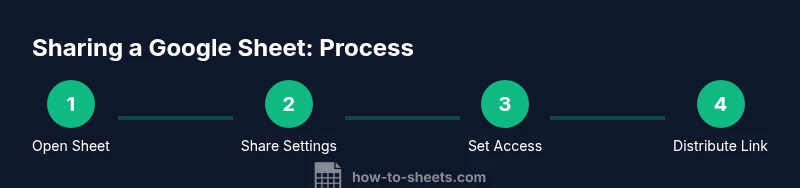
Generating a link to google sheets is straightforward, but the exact steps vary slightly between web and mobile apps. The core idea remains the same: open the sheet, access sharing options, and copy the link after choosing the appropriate permission level. As you follow the steps, consider whether you want to limit access to specific people or allow anyone with the link to view or edit. The goal is to create a reliable link that enables collaboration without compromising data integrity. Remember: even when you share broadly, you retain control by periodically reviewing access and revoking permissions as needed. This approach aligns with broad industry best practices for cloud-based collaboration and reflects the strategies advocated by How To Sheets for consistency and security in sharing workflows.
Pro tip: Always test the link from a separate account to ensure the intended permissions behave as expected.
Viewer, Commenter, and Editor: what each role means
Within Google Sheets sharing settings, the three primary roles shape what recipients can do with the sheet. Viewers can read content but cannot make changes. Commenters can leave notes and suggestions without altering data directly. Editors can modify content, formulas, and structure, which requires stronger trust and clear responsibility. Choosing the right role reduces accidental edits and maintains data integrity. If you’re teaching or coordinating across teams, start with Viewer or Commenter for broad audiences and elevate to Editor only for trusted collaborators. As you implement this, keep the principle of least privilege in mind, which means granting only the access necessary for a given task. This section helps you decide when to upgrade someone’s permissions and when to revert them to a more restricted role.
Note from the How To Sheets team: these practices minimize risk while preserving collaboration.
Sharing with specific people vs. anyone with the link
Google Sheets offers two primary sharing paradigms: sharing with specific people or sharing via a link that works for anyone with access. Sharing with specific people sends invitations to named accounts, with explicit permission settings. This method is ideal for sensitive data and controlled environments, such as classrooms or small teams. In contrast, a link that anyone with the link can access is convenient for broadcasting data to a large audience, but it requires stricter controls, like Viewer-only access and domain restrictions when possible. The choice depends on your audience, data sensitivity, and the need for ongoing control. In professional contexts, a mixed approach—use specific invites for sensitive sheets and a controlled link for broadly shared information—can offer the best balance.
How To Sheets suggests documenting your sharing policy to keep everyone aligned.
Embedding links in emails, docs, and websites
Once you have a stable link to google sheets, you’ll likely want to embed or share it across multiple channels. Embedding a link in an email is common, but you should pair it with a brief explanation of the purpose and the required access level. Embedding in documents like Google Docs or slides can streamline workflows when the sheet complements the content. If you’re publishing the link on a website, consider using a short, descriptive anchor text rather than a raw URL to improve accessibility. In all cases, ensure the link is easily discoverable but not exposed to unintended audiences. Keeping a clear context around the purpose of the sheet helps recipients understand why they’re being invited to view or edit.
In all distributions, follow the principle of clear labeling and responsible sharing.
Managing access: revoking links and monitoring activity
Access management is an ongoing process. Regularly review who has access to your sheets and revoke permissions that are no longer necessary. If you notice unexpected edits or access from unfamiliar accounts, revoke the link or modify the permissions immediately. Google Sheets provides an activity log for some accounts, which can help you monitor changes and identify potential issues. For organizations, consider enabling domain-restricted sharing to limit access to users within a specific email domain. By maintaining a routine of audit and revocation, you reduce risk while keeping collaboration smooth and efficient. The How To Sheets team highlights that proactive monitoring is essential to preserving data security in shared environments.
Troubleshooting common link issues
Sometimes a shareable link doesn’t work as expected. Common problems include incorrect permissions, private documents, or recipients not signed in with a compatible Google account. Start by rechecking the link's permission level and ensuring that you’ve not restricted access to a single user. If recipients report access denial, verify their email addresses, confirm that the sheet isn’t restricted by a domain policy, and consider temporarily switching to a broader permission level to diagnose the issue. Another frequent cause is incorrect sharing options—always choose the right context: link sharing versus invitations. Clear communication with recipients about the required login and permissions helps prevent repeated access problems. This proactive approach aligns with practical guidance from How To Sheets for real-world collaboration.
Advanced tips: named ranges, parameters, and more
Advanced sharing strategies can boost both security and usability. Use named ranges to keep references stable when the underlying data changes, which reduces the risk of broken links or incorrect data views. If you frequently share the same sheet, consider creating a template with predefined permissions and a documented sharing policy. For more technical workflows, you can append query parameters to links to preconfigure certain views or ranges, although this requires careful handling to avoid exposing sensitive information. Domain-restricted sharing and access auditing can further enhance security for teams and classrooms. By combining these techniques, you can create scalable, secure sharing practices that align with modern collaboration needs.
Tip: Keep a versioned log of link permissions and and access changes for accountability.
Real-world scenarios: education, teams, and startups
In education, instructors often share class sheets with students to streamline assignments and feedback. In teams, project sheets can synchronize reporting and budgeting, provided access is tightly controlled. Startups may require rapid sharing with investors or contractors, but they should still maintain ownership and control through defined roles. Across all scenarios, the core principle is to align sharing with responsibilities and data sensitivity. Always start by defining the intended audience, the level of access, and the expected duration of access. Then apply a conservative approach and adjust as you observe how the sheet is used in practice. The result is a flexible yet secure sharing framework that scales with your needs.
How To Sheets suggests documenting your approach to facilitate onboarding and ensure consistency across projects.
Quick-start checklist for sharing Google Sheets links
- Define the purpose and required access level (Viewer, Commenter, Editor).
- Decide between “specific people” or “anyone with the link” sharing.
- Copy the link and test permissions from a separate account.
- Share with appropriate channels and provide context.
- Regularly audit access and revoke as needed.
- Consider domain restrictions for organizational safety.
Tools & Materials
- Active Google account(Required to access Google Sheets and manage sharing)
- Target Google Sheet(The file you plan to share)
- Stable internet connection(Necessary for real-time collaboration)
- Device with browser or mobile app(To access sharing controls)
- Sharing plan (permissions)(Decide Viewer, Commenter, Editor before sharing)
Steps
Estimated time: 15-25 minutes
- 1
Open the target Google Sheet
Navigate to the file you want to share and ensure you have editing rights to modify sharing settings if needed. Opening the correct document is essential before configuring access.
Tip: Tip: Verify you are in the right sheet by checking the title and any sensitive data visible on the first screen. - 2
Click Share to open sharing settings
In the upper-right corner, click the Share button to access sharing controls. This menu is where you’ll define who can access the sheet and at what level.
Tip: Tip: If the sheet is not yet saved in Drive, save it first to ensure link management is available. - 3
In Get link, choose the access level
Select the appropriate permission: Viewer, Commenter, or Editor. Consider starting with Viewer for broad audiences and only elevate as needed.
Tip: Tip: Prefer least privilege; avoid giving Editor access unless necessary to prevent unintended changes. - 4
Copy the link
Click Copy link to capture the shareable URL. Keep this link secure and only distribute it through trusted channels.
Tip: Tip: Use a short URL if you’re sharing in an email or document to improve readability. - 5
Decide who should receive access
Choose whether to share with specific people via their emails or allow anyone with the link. This choice affects privacy and control.
Tip: Tip: For sensitive data, prefer inviting specific people instead of broad link sharing. - 6
Send the link and provide context
Share the link through the chosen channel and include a brief note on expected use and permissions. Context helps recipients act appropriately.
Tip: Tip: Include a note about the expected duration of access and the action recipients should take if data changes. - 7
Test access with different accounts
Open the link from another account (or ask a colleague) to confirm the permissions behave as intended and no unintended data exposure occurs.
Tip: Tip: Use an incognito window or a separate browser profile to emulate different user experiences. - 8
Review and revoke as needed
Periodically audit who has access and revoke permissions for users who no longer require access. Update roles as projects evolve.
Tip: Tip: Schedule a quarterly review and note any changes in your project documentation.
FAQ
What is the difference between sharing a link and inviting specific people?
Sharing a link can allow broad access, while inviting specific people controls who can access and what they can do. Specific invites provide stronger permission management, especially for sensitive data.
Sharing a link may reach more people, but inviting specific people gives you tighter control over who can view or edit.
How can I change permissions after sharing?
Open the sheet, click Share, and adjust the access level or remove individuals. You can revoke the link entirely if needed.
Open sharing settings to adjust access or revoke the link.
What if someone loses access or can’t sign in?
Verify the recipient’s email and permissions. If necessary, re-send an invitation or switch to a broader access temporarily for testing.
Check the recipient’s access and resend invitations if needed.
Is it safe to share with anyone with the link?
Only share broadly for non-sensitive data and consider restricting access to reduce risk. Always document when such sharing is used.
Only use broad sharing for non-sensitive data and monitor who uses the link.
Can I revoke access later without breaking links for others?
Yes. You can revoke permissions or disable link sharing without removing the sheet entirely. Auditing helps ensure ongoing control.
Yes, you can revoke or restrict access later.
Watch Video
The Essentials
- Define access level before sharing.
- Choose specific people or link sharing appropriately.
- Test access from multiple accounts to verify permissions.
- Regularly audit and revoke access when necessary.
- Use domain restrictions for organizational security when possible.