How can you share and protect data in google sheets
Learn how to share and protect data in google sheets with practical steps for permissions, protections, and audits to keep collaboration secure.


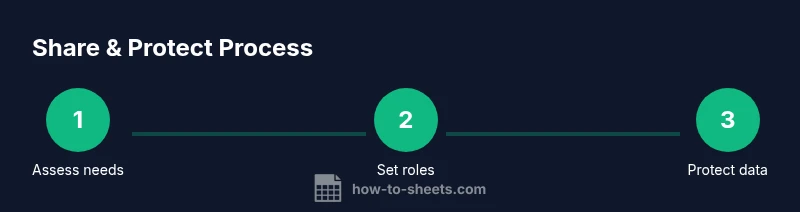
You can share Google Sheets securely by using precise access controls and protecting sensitive ranges. Start by deciding who can view, comment, or edit, then apply sheet and range protections, audit changes, and regularly review access. This guide shows practical steps and safeguards to share data without exposing it. Follow these steps to maintain confidentiality while enabling collaboration.
Why sharing and protecting data in google sheets matters
In collaborative environments, spreadsheets often hold sensitive information like financial figures, personal identifiers, or project milestones. If access is too broad, data leaks, accidental edits, or corrupted formulas can occur. Establishing clear sharing policies and protection rules reduces risk while preserving teamwork. The How To Sheets team emphasizes a governance mindset: define who can do what, and enforce safeguards consistently across projects, departments, and external partners. By aligning sharing practices with data classification, you minimize exposure without hampering collaboration.
Understanding the built-in sharing settings
Google Sheets offers a tiered access model: Viewer, Commenter, and Editor. You can share a sheet via link or invite specific people, and you can restrict access by domain. For sensitive data, start with Viewers or Commenters and grant Editor access only to trusted teammates. Additionally, consider disabling options that encourage broad distribution, like downloading or printing. Regularly review the shared list and remove anyone who no longer needs access. These controls form the foundation of how can you share and protect data in google sheets in practical terms.
Protecting sheets and ranges with Google Sheets
Protection features let you lock down critical parts of a workbook. You can protect an entire sheet or specific ranges, and you can specify who can edit each protected area. To set this up, open the sheet, go to Data > Protect sheets and ranges, select the target area, and define editors. This prevents unwanted edits by casual or accidental touches and guides collaborators to the right sections. For highly sensitive areas, restrict editing to a single administrator, then distribute reference copies for visibility only.
Using data validation and protected cells to reduce risk
Data validation enforces correct inputs and reduces errors that can propagate across calculations. Create rules for numeric ranges, dates, or dropdown lists, and pair them with protected cells to ensure only approved values are entered. For example, a budget sheet might restrict category codes and require a consistent currency format. When users try to enter invalid data, Sheets prompts a clear message, preventing downstream problems and preserving data integrity.
Implementing granular access controls in real-world scenarios
In teams, roles vary: analysts may need edit rights to specific sections, while executives require only view access to sensitive dashboards. Use a combination of protected ranges, sheet protections, and share settings to implement least privilege. For external consultants, provide a read-only copy or a periodically refreshed export rather than permanent access. Document these decisions and include expiration dates for temporary access to avoid indefinite exposure.
Auditing changes and recovering data
Version history in Google Sheets records edits over time, showing who changed what and when. Encourage periodic reviews of edits and protect critical formulas to prevent accidental destruction. When something goes wrong, restore a previous version from the Version history panel and notify teammates about the change. Regular audits deter careless sharing and help you answer questions like who accessed a document and what modifications occurred.
Best practices for data governance in Sheets
Create a simple data governance plan that includes naming conventions, data classifications (public, internal, confidential), and a schedule for access reviews. Use a central document to track permissions, owners, and protection rules across all sheets in a project. Train teammates on how to request access properly and how to report suspicious activity. A standardized approach accelerates onboarding and reduces security gaps.
Common pitfalls and how to avoid them
Common mistakes include sharing with broad access, forgetting to revoke access, or using worksheets for sensitive data without protections. Avoid these by auditing permission lists monthly, protecting critical cells, and restricting export options for sensitive sheets. Always test your protections with an invited user role to verify that the settings behave as intended.
Tools & Materials
- Stable internet connection(Needed to access Google Drive and collaborate in real time)
- Google account with appropriate access(Used to sign in and set permissions)
- Access to the Google Sheet(Must be owner or have edit rights to manage sharing)
- Secure devices and password managers(Helps protect login credentials)
- Data classification guidelines(Optional, to determine sharing levels)
Steps
Estimated time: 45-60 minutes
- 1
Assess sharing needs
Identify which teammates or external partners require access and define their level of interaction (view, comment, or edit). Document criteria to ensure consistent decisions.
Tip: Create a short access policy so future requests follow the same rules. - 2
Check current permissions
Open the sheet’s share settings and review who already has access and what roles they hold. Note any expired invitations and potential over-privilege.
Tip: Export the current access list for your records. - 3
Set access roles per user
Assign Viewer, Commenter, or Editor based on the user’s role. Apply least privilege, granting Editor rights only where truly necessary.
Tip: Start with Viewers for highly sensitive data and escalate carefully. - 4
Protect sheets and ranges
Go to Data > Protect sheets and ranges, select the target area, and choose editors. Lock down critical data so accidental edits don’t occur.
Tip: Limit protection to essential areas; avoid broad, blanket protections. - 5
Set up data validation and protected cells
Create validation rules and lock cells that should not change. Use dropdowns to standardize inputs and reduce errors.
Tip: Test validation with representative user inputs before going live. - 6
Audit changes and enable version history
Rely on Version history to track edits and restore earlier versions if needed. Encourage documenting major changes with named versions.
Tip: Periodically review the change log and verify permissions. - 7
Review access periodically
Schedule quarterly reviews of who has access and adjust permissions as teams change. Revoke unused accounts promptly to minimize risk.
Tip: Set calendar reminders for access reviews.
FAQ
Who should have editing rights on a shared Google Sheet?
Only trusted teammates who directly contribute to the data should receive editing rights. Use Editor sparingly and rely on View or Comment permissions for others.
Editors should be limited to trusted team members who contribute to the data.
How do I revoke someone’s access after sharing?
Open the sheet’s sharing settings, locate the user, and select Remove access. For domain-wide settings, adjust the domain policy to limit external sharing.
Open sharing settings and remove access for the person.
Can I share with people outside my organization without exposing everything?
Yes. Use restricted sharing and individual permissions, or provide view-only copies for external partners.
Yes, use restricted access and view-only copies.
What is the difference between protecting a sheet and protecting a range?
Protecting a sheet locks all its cells; protecting a range locks only the selected area. Both help control edits and minimize risk.
Sheet protection locks all cells; range protection locks only selected areas.
How can I tell who changed what and when?
Version history shows who changed data and when. You can restore previous versions if needed and add comments for context.
Check version history to see edits and dates.
Is there a way to automate access management in Google Sheets?
Automation options exist through Apps Script and Workspace administration, but basic sharing controls remain manual. Plan governance to minimize risk.
Automation can help, but start with solid governance and manual checks.
Watch Video
The Essentials
- Define who can view, comment, or edit.
- Protect sheets and ranges to prevent unintended edits.
- Audit changes and use version history to recover data.
- Review access regularly to minimize risk.
- Use data validation to reduce input errors.