How to Protect a Sheet in Google Sheets: A Step-by-Step Guide
Master protecting sheets in Google Sheets: lock cells, ranges, and sheets; manage editors, test permissions, and safeguard data while collaborating.


Today you’ll learn how to protect a sheet in Google Sheets, including locking cells, ranges, and entire sheets, plus configuring who can edit. You’ll practice via the Protect Sheets and Ranges tool, adjust sharing settings, and test permissions to prevent accidental edits. By the end, your data stays secure while collaborators still view or edit what you permit.
Why Protecting Sheets Matters
Protecting data in Google Sheets is essential for maintaining integrity when multiple people collaborate. When you protect a sheet, a range, or individual cells, you control who can edit specific content while still allowing access for viewing or commenting. This is especially important for financial models, project trackers, and shared databases where even small changes can cascade into errors. According to How To Sheets, implementing layered protections reduces accidental edits and preserves auditability in team workflows. You’ll also learn how to balance collaboration with control, so teammates can contribute where appropriate without compromising critical data. In practice, most teams start with protecting sensitive sheets, then extend protections to key ranges and finally to individual cells that should remain immutable. The goal is clear: prevent unintended edits while keeping the sheet useful for everyone involved.
note$:null
Tools & Materials
- Google account with edit access(Needed to configure protections and verify permissions.)
- Web browser (Chrome recommended)(Ensure you’re signed in to the correct Google account.)
- Target Google Sheet(Have the sheet you want to protect open and ready.)
- Backup copy of the sheet(Always keep a restore copy before applying major protections.)
- Test account or collaborator(Use a separate account to verify protections without locking yourself out.)
Steps
Estimated time: 15-25 minutes
- 1
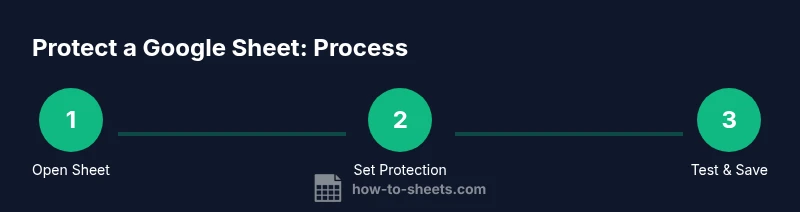
Open the target sheet
Open the Google Sheet you intend to protect and review its current sharing settings. If you’re not the owner, confirm you have the necessary permissions to make protection changes. This initial check helps prevent surprise lockouts later.
Tip: Document current sharing permissions before changing anything. - 2
Decide the protection scope
Choose whether you want to protect an entire sheet, a specific range, or individual cells. Sheets with formulas or references across tabs may require more granular protection to avoid breaking functionality.
Tip: Start with the smallest scope that meets your security needs to minimize user friction. - 3
Create a protected range or sheet
Use Data > Protected sheets and ranges to add a new protection rule. Select the range or sheet, then specify who can edit it. For ranges, you can lock only certain cells while leaving others editable.
Tip: Give the protection a descriptive name to help future auditors understand its purpose. - 4
Set editors and permissions
Choose specific people who can edit the protected area, or opt to restrict edits to only you. Avoid granting edit access to everyone unless it’s necessary for workflow.
Tip: Prefer explicit editor lists over broad groups when possible. - 5
Configure viewing and commenting access
Decide whether viewers or commenters should still see the data and how much they can interact with it. In many cases, you’ll allow viewing while preventing edits.
Tip: Utilize comment threads to capture feedback without altering protected data. - 6
Save and name the protection
Name the protection clearly and save. This helps you locate and adjust protections later. Document the rationale if you’re working within a team policy.
Tip: Link the protection to your team policy or governance doc for consistency. - 7
Test the protections with a non-owner account
Log in as a user who should be restricted and verify that editing is blocked where intended. Check that allowed areas still function (formulas, data input in permitted ranges, etc.).
Tip: Testing is essential—one failed test can reveal a misconfigured rule. - 8
Review and adjust as needed
After initial tests, reassess if any area needs different permissions. Update the protection rules to strike the right balance between security and collaboration.
Tip: Plan periodic reviews to adapt protections as teams and projects evolve. - 9
Document the changes
Record what was protected, who has access, and the expected workflow. This documentation helps new team members comply with governance and reduces future surprises.
Tip: Create a short checklist for onboarding new collaborators.
FAQ
What does Protect Sheet do in Google Sheets?
Protect Sheet restricts edits on a sheet, range, or cells. You control who can modify protected areas, while others can still view or comment as configured.
Protect Sheet lets you limit edits to select people, while others can view or comment depending on permissions.
How do I protect a specific range instead of the entire sheet?
Select the cells you want to protect, go to Data > Protected sheets and ranges, and specify the allowed editors for that range.
You protect a range by selecting it and assigning editors there.
Is there a password for protected ranges in Google Sheets?
Google Sheets protections do not use passwords. Access is controlled by Google account permissions and the editors you grant.
There isn’t a password for protected data; access depends on the editors you authorize.
Can protections apply to multiple sheets within a workbook?
Yes, you can create protections on multiple sheets within the same workbook, applying distinct editor lists per sheet or range.
You can protect several sheets with different editor rules in one workbook.
What’s the best practice for testing protections before broad rollout?
Use a test account or an incognito session to verify that protections block edits as intended without impacting actual collaborators.
Test protections with a separate account to confirm rules work as expected.
Watch Video
The Essentials
- Protect sheets, ranges, and cells to control edits
- Grant specific editors to minimize risk
- Test protections with a real-user account to verify behavior
- Document protections for future governance