How to Protect Ranges in Google Sheets: A Step-by-Step Guide
Step-by-step instructions to protect ranges in Google Sheets, manage editors, and safeguard data in shared workbooks. Practical tips for students, professionals, and small teams.


This guide covers how to protect ranges in google sheets, including when to use range protections vs entire sheets, and how to assign editing permissions. You'll walk through the exact steps to set protected ranges, test access, and recover control if needed. Practical, real-world tips help students, professionals, and small teams keep critical data safe.
What protecting ranges does in Google Sheets
Protecting ranges locks specific cells or regions from edits by non-owners or certain collaborators. This is essential for protecting formulas, templates, and other sensitive data in shared workbooks. According to How To Sheets, using precise protections reduces accidental changes and helps teams maintain data integrity. As you explore how to protect ranges in google sheets, you’ll learn to designate who can edit which parts while keeping other areas open for ongoing work. Start with a small, clearly defined range and verify permissions after saving. If your sheet includes multiple sections requiring different access levels, you can layer protections gradually, testing access at each step to avoid blocking essential tasks.
When to protect ranges vs entire sheets
When data accuracy and governance matter most, protecting a specific range is often enough. Full-sheet protection is useful for protecting all content in a sheet, but it can impede collaboration if multiple people need to edit different areas. In practice, use range protections to guard critical formulas, lists, or templates while leaving other cells editable. You can layer protections: start with the most important ranges and progressively cover adjacent cells as needed. For shared documents, it’s common to protect the most sensitive region (e.g., financial totals) and leave the rest open for data entry or note-taking. Periodically review protections to ensure they still align with your team’s roles and projects.
Understanding permissions and editors
Google Sheets lets you assign who can edit each protected range. You choose from owners, editors you specify, or viewers who can see but not edit. The trick is to balance security with productivity: give editing rights only to those who truly need them. Consider creating a small, clearly defined “editor group” to simplify management. If someone gains unintended access, you can revise the editor list quickly by returning to the Protect ranges dialog and updating permissions. Remember that the protection applies to the range as defined; changing the range requires updating protections accordingly.
Step-by-step: Set a protected range
This section walks you through the exact actions to lock a portion of your sheet. Start by selecting the cells you want to guard and opening the protection panel. The following steps outline how to lock a range to prevent edits by non-editors. This ensures you protect a precise area without hindering collaboration elsewhere.
Step-by-step: Protect a sheet vs a range
Protections can be applied either to a specific range or to an entire sheet. A range lock limits only the selected cells, while a sheet lock blocks edits everywhere on that tab. If your workbook contains sections like budgets or milestone trackers, protect only the sensitive regions and leave non-critical areas editable for your team. When deciding between the two, consider who needs access to which sections, and balance protection with workflow efficiency.
Handling multiple ranges and different editor permissions
For complex documents, you may need to protect several ranges with different editor sets. Create a small structure: a primary protected region for core data, plus secondary ranges for inputs that require limited modification. The editor lists can be layered to prevent accidental leakage of rights. Periodically review each range to ensure editors remain appropriate as project roles change.
Best practices for collaboration and data integrity
Document each protection with a short note explaining why that range is locked and who can edit it. Use descriptive range names to simplify future edits. Combine range protections with sheet protections only when necessary to avoid accidental lockouts. Regularly audit protection settings after new team members join or when project scopes shift.
Common mistakes to avoid
Avoid protecting an unnecessarily large area; this complicates collaboration and slows work. Always test protections with a non-editor account to verify behavior. Don’t forget to update protections when ranges move or when rows/columns are added. Keep a changelog of protection changes for accountability.
Security considerations when sharing Google Sheets
Protection is a powerful tool, but it doesn’t replace proper access governance. Treat ranges like sensitive data and pair protections with clear sharing policies. In shared environments, use groups rather than individual accounts when possible to simplify permission management and reduce the risk of unintentional edits.
Troubleshooting: protection not applying or conflicting with edits
If a range won’t protect, double-check the range selection, refresh the page, and reopen the protection dialog. Conflicts occur when overlapping protections exist; resolve by consolidating ranges or re-defining permissions. If edits slip through, re-evaluate editor lists and test again with a control account to isolate the issue.
Advanced tips: named ranges and Apps Script for protections
Named ranges simplify long-term maintenance and can be used to apply protections more consistently. For power users, Apps Script can enforce protection rules on sheet creation or trigger audits when edits occur. These approaches help scale governance as your workbook complexity grows.
Real-world example and references
In a quarterly budgeting workbook shared with a small team, the primary financial totals were placed in a protected range with a restricted editor group. This prevented accidental changes while allowing finance staff limited access. For further reading, see the official Google Docs Editors Help on protecting sheets and ranges, and refer to data governance best practices from recognized standards publishers.
Tools & Materials
- Google account with edit access to the sheet(Needed to modify protections)
- Target Google Sheet (open in Google Sheets)(Identify the exact sheet and range to protect)
- List of approved editors(Specify who can edit protected ranges)
- Stable internet connection(Required to save changes in real time)
- Google Workspace admin access (optional)(Only if you need organization-wide protections)
Steps
Estimated time: 15-25 minutes
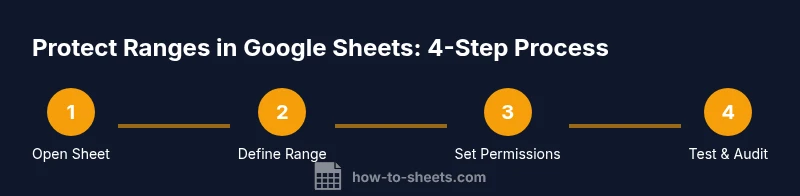
- 1
Open the target sheet and select the range
Open the sheet you want to protect and highlight the exact cells or block you wish to lock. This defines the scope of protection so only the intended area is affected.
Tip: Double-check the boundaries before proceeding to avoid locking the wrong cells. - 2
Access the protection menu
From the menu, choose Data > Protected sheets and ranges to open the protection panel on the right side. This panel is where you manage all protections for the sheet.
Tip: If you don’t see the option, ensure you have editing rights in this workbook. - 3
Add a protected range
In the protection panel, click Add a protected range and verify that the correct range is displayed. You can rename it for future reference.
Tip: Give each protected range a descriptive name to simplify later updates. - 4
Set permissions
Choose who can edit the protected range. You can restrict to the owner, a specific editor group, or leave it protected for everyone except owners.
Tip: Keep the list as small as possible to reduce management overhead. - 5
Save and confirm
Click Done to save the configuration. Return to the sheet and test with different user accounts to verify the protection behavior.
Tip: Document the outcome of the test in your team notes. - 6
Review and adjust
If a range has moved or needs adjustment, update the protected range accordingly. Protections should reflect current workflow.
Tip: Schedule periodic reviews, especially after major edits to the workbook. - 7
Document a protection policy
Maintain a short policy describing which ranges are protected, why, and who may edit. This supports accountability during audits.
Tip: Link the policy to your project documentation for quick reference.
FAQ
What is a protected range in Google Sheets?
A protected range prevents edits by non-owners or designated editors. You can specify who may edit the cells within the protected area.
A protected range locks edits for specific cells, and you choose who can edit.
Can I protect multiple ranges with different editors?
Yes. You can create several protected ranges, each with its own editor list. Keep track of each range to avoid overlapping permissions.
Yes, you can set different editors for each protected range.
Does protecting a range affect formulas inside it?
Protecting a range blocks edits to all cells in that range, including any formulas. Plan carefully to avoid breaking calculations.
Yes, formulas inside the protected range cannot be edited without permissions.
How do I remove a protection?
Open the Protect ranges pane, select the range, and remove or adjust its permissions. Save changes after updating.
Open protections, pick the range, and remove or adjust permissions.
Is range protection available in personal Google accounts?
Range protection works in both personal and Google Workspace accounts, with some advanced features available for Workspace admins.
Range protection works in personal and Workspace accounts, with admin options in Workspace.
What’s the simplest first step to protect data?
Identify a single critical range (e.g., totals) and apply protection there before expanding to additional areas.
Start by protecting one critical range, then expand as needed.
Watch Video
The Essentials
- Identify critical ranges to protect.
- Choose between range protections and full-sheet protections.
- Test permissions after applying protections.
- Review protections periodically.
- Document protection policies for accountability.