Google Sheets Protect Cells: A Practical Step-by-Step Guide
Learn how to protect cells in Google Sheets to safeguard formulas and sensitive data. This practical guide covers protected ranges, permissions, and best practices for collaboration across teams.


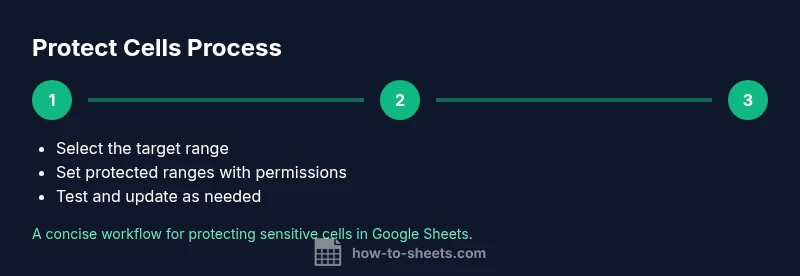
By the end, you'll be able to 'google sheets protect cells' to safeguard data. Steps: (1) select the cells you want to lock; (2) Data > Protected sheets and ranges and set a description; (3) click Set permissions and choose who can edit. This helps keep important data safe while allowing others to view.
Why protecting cells matters in Google Sheets
In collaborative workbooks, even small edits can ripple into big mistakes. Protecting cells prevents accidental changes to critical formulas, reference data, or manually entered constants. According to How To Sheets, implementing cell protection is a practical guardrail for students, professionals, and small-business teams who rely on shared spreadsheets. The phrase google sheets protect cells captures the core capability: you decide which parts of a sheet are editable, and Google Sheets enforces it at the user level.
Protection works best when applied to ranges with clear intent. For example, you can lock cells that contain built formulas, such as tax calculations or reconciliation totals, while leaving input fields unlocked for data entry. You’ll still be able to view the data, but only designated editors can modify protected areas. This separation reduces the chance of accidental formula breaks and helps you maintain a reliable audit trail. It’s especially valuable in classroom templates, project budgets, and inventory trackers where multiple teammates contribute.
Key considerations include understanding that protection is not a fortress against all edits. Users who have editing rights can still copy, paste, and even view the content, depending on sheet settings. Warnings-only protections exist, but they don’t prevent edits; they simply remind users that a protected area exists. For most teams, pairing protected ranges with explicit sharing settings and clear ownership is enough to maintain data integrity while preserving collaboration. In the next sections, you’ll learn practical steps to set up protections, test them, and manage them as your workbook evolves. How To Sheets Analysis, 2026, emphasizes user-friendly control over who can edit which parts of a sheet.
Understanding when to use protection and what to protect
Not every cell needs protection. The most common targets are cells that drive calculations (formulas), fixed references, or sensitive data (budgets, contact lists, or project codes). A balanced approach locks essential areas while leaving input zones free for collaboration. When you plan protection, map out ownership: who can edit protected ranges, who can view them, and whether you want warning prompts for others. Google Sheets lets you apply protection at the range level, or protect an entire sheet if needed. This flexibility is crucial for sharing workbooks with different teams or clients.
In practice, start by protecting the core formula blocks and any static references. Then, iteratively lock additional ranges as needed. If you anticipate frequent changes to the structure of the sheet, use a lighter protection layer combined with version control notes in the sheet itself. The goal is to minimize disruption while preserving data integrity. For most projects, a small set of protected ranges and clearly assigned editors provides the right balance between safety and collaboration.
Step-by-step approach to protecting cells in Google Sheets
Before you begin, ensure you have edit access to the sheet and that you understand the difference between locking a range and locking an entire sheet. The protection feature can lock both formulas and input areas, with the ability to grant exceptions to specific people. Start by selecting the exact cells you want to protect, then use the protection tool to define the range and set permissions. With careful planning, you can prevent accidental edits while still inviting collaboration where it’s needed. You’ll also want to periodically audit protected areas to ensure they align with changing team roles and project requirements.
Practical examples and common scenarios
Budget templates: protect formulas and totals, allow data entry in the input columns by designated teammates. Grade sheets: lock the answer key and calculation columns, expose only the student-facing input fields. Inventory trackers: protect reference codes and price calculations, permit stock entry fields for warehouse staff. In each case, the protection strategy is the same: decide what to lock, who can unlock, and how to test the protections. Remember that protections can be adjusted later as teams evolve, so treat this as a dynamic control rather than a one-time setup.
Testing, troubleshooting, and best practices
After setting protections, test by signing in as a non-editor and attempting to edit protected cells. If edits fail as expected, the protection is working; if not, review the protected ranges for overlaps or conflicting permissions. A common pitfall is accidentally protecting the wrong range or forgetting to update permissions after adding new editors. Maintain a simple, documented policy for who can edit which areas and review it quarterly. As a rule, avoid protecting everything; lock only the essential blocks to minimize friction and maintain visibility for collaborators.
Collaboration considerations and governance
Protection is most effective when combined with clear governance. Share a short guide with editors that outlines which areas are protected, who can request permission changes, and how to report issues. When multiple teams rely on the same workbook, consider splitting sensitive data into dedicated sheets that are protected, while keeping a read-only or editable version available to broader audiences. This approach helps preserve data integrity while enabling smooth collaboration across departments.
Tools & Materials
- Google Sheets (web or mobile app)(Access to the sheet you intend to protect; ensure you have edit rights.)
- Internet connection(Stable connection to apply protections and sync changes.)
- Admin or editor access(Needed to set protected ranges and permissions.)
- Clear ownership plan(Document who can edit protected areas and why.)
Steps
Estimated time: 15-25 minutes
- 1
Open and select cells
Open the Google Sheet and select the exact cells or range you want to protect. Aim for a focused scope (e.g., a formula block or a critical data column) to minimize editing friction for others.
Tip: Start with a small test range to verify your protections before applying to larger blocks. - 2
Open protected ranges pane
From the menu, go to Data > Protected sheets and ranges. This opens the pane where you can define the scope and description of the protection.
Tip: Give the protection a clear name and description to avoid confusion later. - 3
Define the protected range
Click 'Add a protected range' and confirm the range you selected. You can adjust the range in the pane if needed.
Tip: If protecting a whole sheet, choose 'Sheet' and select the full tab; plan permissions carefully. - 4
Set editing permissions
Choose who can edit the protected ranges. You can restrict to specific people or allow only the sheet owner to modify.
Tip: Prefer least privilege: grant edits to only those who truly need them. - 5
Save and test protection
Click 'Done' to save, then sign in as a non-editor to test that edits are blocked where expected. Adjust permissions if needed.
Tip: Document the testing results to reference when team changes occur. - 6
Review and iterate
Periodically review protected ranges as roles evolve or new data is added. Update permissions or ranges to reflect current needs.
Tip: Set a quarterly reminder to audit protections and maintain data integrity.
FAQ
How do protected ranges work in Google Sheets?
Protected ranges restrict edits for non-authorized users. Editors you specify can modify those ranges, while others may only view or be prevented from making changes. This helps preserve formulas and critical data.
Protected ranges restrict edits to authorized users, keeping critical data safe while allowing viewing for others.
Can I apply protection to an entire sheet?
Yes. You can protect the entire sheet and specify who can edit. This is useful when you want to guard all formulas and fixed references in a tab.
You can protect the entire sheet and choose who can edit.
Who can edit protected ranges?
Only users you grant edit access to. You can add or remove editors at any time, and you can combine this with view-only permissions for other collaborators.
Editors you specify can modify protected areas; others can only view or be restricted.
What happens if someone edits a protected cell?
If a user without permission tries to edit, Google Sheets blocks the action and shows a warning. If they are an editor, changes are saved as normal.
Non-editors will be blocked from changing protected cells; editors can edit normally.
Are there limits to the number of protections?
There isn’t a hard numeric limit enforced by Google Sheets, but very large numbers of protections can complicate management and slow responsiveness in very large workbooks.
There isn’t a strict limit, but manage protections to stay practical.
Watch Video
The Essentials
- Protect critical ranges to preserve data integrity
- Define precise editor permissions for each range
- Test protections with non-editors before full deployment
- Regularly audit protections as teams change
- Combine protection with clear ownership and governance