Lock Sheet in Google Sheets: A Practical Step-by-Step Guide to Protecting Data
Learn how to lock sheets and protect ranges in Google Sheets to prevent unwanted edits while keeping collaboration intact. This practical, step-by-step guide covers full-sheet protection, range-specific protections, permissions, testing, and best practices for 2026.


Locking a sheet in Google Sheets prevents unauthorized edits and helps protect sensitive data. In this guide, you’ll learn how to protect an entire sheet or specific ranges, assign editor permissions, and confirm protections work before sharing. According to How To Sheets, proper protections reduce editing errors while preserving collaboration.
What locking protects in Google Sheets
According to How To Sheets, locking a sheet or specific ranges in Google Sheets is a guardrail that prevents unintended edits while preserving collaboration. In practical terms, protection ensures that formulas, headings, and sensitive data remain intact even when multiple people have access to a shared file. Locking is particularly important for financial trackers, project plans, and datasets that drive decisions. You can choose between protecting an entire sheet or protecting individual ranges within a sheet. The protection system uses a permissions model: editors and viewers interact with the file differently based on the access level you assign. The overarching goal is to create a predictable editing environment where contributors can do their work without accidentally altering the core structure or formulas. As you plan protections, consider who needs access to what, and document those decisions for future audits. The How To Sheets team emphasizes that thoughtful protection pairs with clear sharing rules to reduce confusion and support smooth teamwork in 2026 and beyond.
When to lock a sheet
Locking decisions should align with data sensitivity and collaboration needs. If a sheet contains finalized financials, critical formulas, or a master layout used by multiple teams, protection is typically warranted. Conversely, for draft content or loosely structured project boards, lighter controls can suffice to keep the workflow fluid. How To Sheets's analysis indicates that teams often overexpose data in early stages, leading to accidental edits or leaks. A practical approach is to lock only the most sensitive ranges first, then expand protections as the project matures. Keep in mind that locking a sheet does not remove access entirely; it redefines who can edit and where edits are allowed, so you can still enable collaboration in a controlled way. Balance guardrails with trust in teammates, and re-evaluate protections at least quarterly to reflect evolving roles and data needs.
Sheet-level protections vs. range protections
There are two primary modes: sheet-level protections and range protections. Sheet-level protections secure an entire tab, ideal for protecting a summary page or a dataset with many interdependent formulas. Range protections focus on specific cells or blocks, which is useful when a few critical cells must stay pristine while the rest of the sheet remains editable. The distinction matters for how you manage editing rights and for the complexity of the permission setup. In practice, many teams start with a sheet-level lock for the main tab and then add range protections for key formulas or inputs. This multi-layer approach minimizes risk while preserving day-to-day productivity. The choice depends on data sensitivity, collaboration frequency, and the need for rapid iteration in shared work.
How permissions drive collaboration
Permissions determine who can edit, comment, or view protected areas. In Google Sheets, you can designate editors (with full editing power within permitted areas), commenters (can read and propose changes), and viewers (read-only). When you set protections, you can carve out exceptions—allowing certain collaborators to edit protected ranges or become editors for specific sheets. This granular control is essential for preserving the integrity of critical cells, formulas, and structures while still enabling teams to contribute where appropriate. Remember to document permission tiers so new teammates understand the rules, and periodically review editor lists to ensure they align with current roles. How To Sheets stresses that clear ownership reduces both errors and ambiguity in collaborative environments.
How to plan your protection strategy
A solid protection plan starts with inventorying sensitive areas: formulas, data connections, tax or budget cells, and any locking that could affect downstream reports. Map who should edit each area, then implement a layered approach: protect the most critical sections first, add protected ranges for key formulas, and leave open areas for routine data entry. After you implement protections, test them with a non-editing user account to confirm the experience matches your intent. Consider implementing a short change-log policy so editors understand what edits are permissible and how to request approvals for exceptions. The planning phase is where you can often save the most time and prevent confusion later.
Testing protections before sharing
Testing is a critical step to prevent accidental lockouts or workflow bottlenecks. Create a test user (or ask a trusted colleague) with the lowest permissions you intend to grant. Attempt edits in protected and unprotected areas to verify that protections behave as expected. If edits fail where they should, the protection is working; if they succeed in protected zones, revisit your settings. Document any adjustments and re-test after changes. This proactive quality check aligns with best practices from How To Sheets and helps you maintain confidence as your team grows or shifts roles.
Tools & Materials
- Google account with edit access(Ensure you have permission to modify protection on the target sheet)
- Spreadsheet opened in Google Sheets(Use the web or mobile app, but the web UI tends to be clearer for protections)
- Target sheet tab(Identify the exact sheet tab you want to protect)
- A clear access policy document(Optional but recommended for ongoing governance)
- A test user account or colleague(To validate protections before deployment)
- Stable internet connection(Prevents interrupted protection changes)
Steps
Estimated time: 10-20 minutes
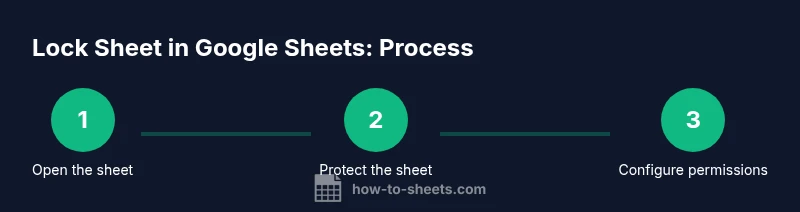
- 1
Open the target spreadsheet
Navigate to the Google Sheets file and select the tab you want to protect. This initial step sets the scope for protection and ensures you’re applying rules to the correct area. If you protect the wrong sheet, you may impede colleagues’ ability to work, so double-check the tab name.
Tip: Double-check the sheet tab name before proceeding to avoid accidental protection of the wrong area. - 2
Open Protect Sheet dialog
From the menu, go to Data > Protected sheets and ranges. This opens the protection panel where you can choose what to lock—sheet-wide or specific ranges. The interface groups options in a way that helps you visualize the scope of protection.
Tip: If you don’t see Protected sheets and ranges, ensure you have editing rights on the file and you’re using the standard Google Sheets interface. - 3
Choose the protection type
Select 'Sheet' to lock the entire tab or specify a Range to lock a subset of cells. For a new protection, click 'Add a protection' and draw or type the range. If you’re protecting the whole sheet, the range will default to the sheet’s bounds.
Tip: Use range protection for sensitive inputs like formulas or budget numbers rather than locking the entire sheet unless necessary. - 4
Set editing permissions
Decide who can edit the protected area. You can set editors to specific people or groups, or choose to show a warning when edits are attempted. For tighter control, restrict edits to a small list of trusted editors.
Tip: Prefer explicit editor lists over 'Anyone with access' to minimize accidental edits. - 5
Save and review
Apply the protection and review the final settings in the Protect sheet panel. Return to the sheet to ensure the protected zones behave as expected. If you see unexpected access, reopen the panel and adjust permissions.
Tip: Always re-check after saving; a small mis-click can unlock or lock more than intended. - 6
Test with a non-editor account
Log in as a different user or use an incognito session to simulate an editor with restricted access. Validate that protected areas can’t be modified by unauthorized users while open areas remain editable.
Tip: Document the test results for future audits and to train teammates on the new protections.
FAQ
Can I lock a sheet for only certain users, while others can edit?
Yes. Use Protect Sheet or Protect Range and specify individual editors. You can grant permission to a select group while others are restricted to viewing or commenting. This allows precise collaboration without exposing critical sections.
Yes. You can specify editors for protected areas to control who can modify them.
What happens if someone tries to edit a protected area?
Editors who are not on the allowed list will see a restriction message when attempting to edit protected cells or sheets. The rest of the sheet remains editable according to the protection setup.
Users without permission will see a restriction when trying to edit protected parts.
Can I remove or change protections later?
Yes. Open the Protected sheets and ranges panel again and modify or delete protections as needed. Always re-test after changes to ensure the correct areas stay protected.
Protections can be edited or removed later, but re-test after any change.
Is full workbook protection available, or should I protect individual sheets?
Google Sheets allows protecting individual sheets or specific ranges. Protecting the entire workbook isn’t a separate setting; you apply protection to each sheet as needed for consistent governance.
Protection is applied per sheet or per range, not as a single workbook lock.
Will protections affect filters, sorts, or data tools?
Protections primarily affect edits. Viewing, filtering, or using data tools remains available as defined by your permissions. If a protected area contains a filter or formula, other users may still work with related data where allowed.
Editing is restricted; viewing and other data tools stay usable as permitted.
How often should I review protections?
Regular reviews—at least quarterly or after staffing changes—help ensure protections match current responsibilities and data sensitivity levels.
Review protections quarterly or after role changes.
Watch Video
The Essentials
- Define who can edit each protected area.
- Protect important formulas and headings to prevent breakage.
- Test protections with a dedicated test account before broad rollout.
- Document sharing rules to reduce confusion and errors.