Is It Safe to Share Google Sheets? A Practical Guide
Learn practical, step-by-step methods to share Google Sheets safely. Identify access controls, privacy risks, and best practices to protect data while collaborating.


Is it safe to share Google Sheets? Yes, when you control access and apply the right permissions, but safety hinges on who can view or edit and how data is prepared. Before sharing, review recipients, enable domain restrictions where possible, avoid exposing sensitive data, and use version history to track changes. This How To Sheets guide helps you do it securely.
What it means to share a Google Sheet
Sharing a Google Sheet is about granting access to collaborators so they can view, comment, or edit the document. The default behavior when you create a sheet is private to you, but you can invite people via email or share a link. The critical decision is which people should have which level of access and whether the sheet should remain editable or be view-only for most stakeholders. According to How To Sheets, a careful sharing strategy starts with a precise list of recipients and a mapped access plan. As your team grows or collaboration expands across departments, you’ll want to audit and adjust permissions regularly to prevent accidental exposure. The goal is to enable productive teamwork while minimizing risk to sensitive data.
Access levels explained: viewer, commenter, editor
Viewer, commenter, and editor are the three main permission levels in Google Sheets. Viewers can only read data; commenters can leave feedback without altering content; editors can modify data, structure, and sharing settings. When you assign roles, consider the principle of least privilege: give people exactly what they need to do their job and nothing more. This approach reduces the chance that someone will accidentally misconfigure shared settings or copy restricted data. The How To Sheets team emphasizes using distinct roles for different collaborators and avoiding blanket access for large groups. Regular reviews help catch drift before it leads to a data leak.
Privacy risks you should know
Even with Google’s robust infrastructure, sharing a sheet introduces risk if data is not properly prepared. Common issues include exposing private identifiers, financial figures, or proprietary information through broad access, or via links that don’t enforce restrictions. Misconfigured permissions can persist after people leave a project, creating silent vulnerability. Remember that collaborators may forward links or copy data to untracked locations. How To Sheets analysis shows that mismanagement of access controls is a frequent contributor to data exposure, underscoring the need for disciplined sharing practices.
How Google Sheets permissions are applied
Permissions are applied at the sheet level and, for Google Workspace users, can be restricted by domain. Start by clicking the Share button, then choose specific people or groups and select Viewer, Commenter, or Editor. If you enable link sharing, set it to restricted or limit access to your domain. For sensitive work, consider duplicating the data into a sanitized version or using protected ranges to lock critical cells. Regularly review who has access and remove anyone who no longer needs it.
Best practices for safe sharing
- Share with specific people rather thanAnyone with the link.
- Use the least-privilege principle: assign only View or Comment permissions when editing isn’t required.
- Create a sanitized copy when showcasing data that contains sensitive fields.
- Enable domain restrictions and set up alerts for access changes.
- Regularly review and revoke access when projects end or roles change.
- Use protected ranges and data validation to prevent accidental edits.
- Document sharing decisions and keep an audit trail to reassure stakeholders.
Practical audit checklist to tighten controls
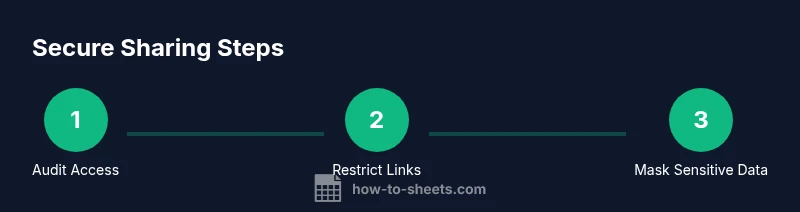
- List current collaborators and their access levels. 2) Remove anyone who no longer needs access. 3) Switch from edit to view where possible. 4) Disable link sharing or switch to domain-restricted sharing. 5) Mask or split sensitive data into a separate sheet. 6) Review version history and set up notifications for changes. 7) Save a clean backup prior to major sharing changes.
Handling sensitive data: when to mask or split sheets
If your sheet contains personal identifiers, financial numbers, or confidential notes, mask or remove these fields for external sharing. Consider creating a separate, read-only version that contains non-sensitive data, and keep the original with full access under tighter controls. This separation reduces inadvertent exposure while preserving collaboration on non-critical content.
Monitoring and maintenance: tracking activity
Leverage version history to see who changed what and when. Turn on notifications for access changes if your workspace supports it, especially for external collaborators. Periodic audits—quarterly or per project—aid in catching stale permissions and ensuring that ongoing access aligns with current roles. The goal is continuous risk reduction through visibility and proactive management.
Scenarios and safety considerations
Different scenarios demand different sharing practices: a student project may require stricter controls than an internal team document; a contractor’s access should be time-limited; and a live data feed should be read-only for most recipients. Plan ahead with a documented sharing policy and templates to standardize your approach across teams. This reduces errors and boosts trust in your collaboration processes.
Alternatives to direct sharing: templates and copies
When collaboration needs are strong but risk is high, consider using templates, forms, or separate copies for input collection. Limit live data exposure by sharing a populated form that feeds a sanitized sheet, or set up an approval workflow where changes must be approved before affecting the main document.
Tools & Materials
- Computer with internet access(Any device with a modern browser to access Google Sheets)
- Google account(Authenticated access to Google Sheets; consider workspace domain)
- Backup copy of sheet(Create a sanitized backup before broad sharing)
- Audit checklist template(Optional, helps track who has access and why)
- Guidelines for sensitive data(Prepare a policy document for your team)
Steps
Estimated time: 15-25 minutes
- 1
Open sharing settings
Open the sheet and click the Share button in the top-right corner. Review the current access list and identify who truly needs access. This step sets the foundation for a secure sharing plan.
Tip: Use the preview to quickly see who can access the document and what permissions they have. - 2
Decide the right permission level
For each recipient, assign Viewer, Commenter, or Editor based on need. Avoid giving Edit rights to external parties unless absolutely necessary.
Tip: Apply least privilege: start with Viewer and escalate only if required. - 3
Review and adjust link sharing
If a shareable link exists, decide whether it should be restricted to specific people or limited to your domain. Disable public link sharing unless the project requires it.
Tip: Prefer domain-restricted access over public links. - 4
Mask or split sensitive data
If the sheet contains sensitive fields, either mask them or move them to a separate sheet with restricted access. This reduces risk while preserving usefulness for collaborators.
Tip: Consider creating a sanitized copy for broad sharing. - 5
Enable protections and alerts
Use protected ranges to lock critical cells and enable change alerts if available in your workspace. This helps prevent unintended edits.
Tip: Lock key cells before inviting external collaborators. - 6
Audit changes and revoke when needed
Periodically review who has access and revoke permissions for users who no longer need them. Keep a record of sharing decisions for accountability.
Tip: Schedule regular reviews aligned with project milestones.
FAQ
Is it safe to share a Google Sheet with anyone who has the link?
Sharing via a public link increases exposure risk. Prefer restricting access to specific people or your domain and disable broad link sharing unless the data is non-sensitive. Always back up before changing link settings.
Public links should be avoided for sensitive data. Use specific people or domain restrictions and back up first.
What are the differences between viewer, commenter, and editor permissions?
Viewers can only read; commenters can read and leave comments; editors can make changes. Assign roles based on what each collaborator needs to do, and avoid giving editing rights to external partners unless necessary.
View, comment, or edit—choose the least privilege needed.
How do I revoke access after sharing?
Open the sheet's Share settings, locate the person or group, and remove their access. If you shared via a link, turn off link sharing or set it to restricted. Regular audits help ensure old collaborators no longer have access.
Go to Share settings, remove people or disable the link.
Can domain restrictions help protect data when sharing a sheet outside your organization?
Yes. Domain restrictions limit access to your organization’s domain, preventing unaffiliated users from opening the sheet even if they have the link. This is a strong defense for business data.
Domain restrictions keep external users out.
Should I copy data before sharing with a large group?
If the data is sensitive, consider sharing a sanitized copy or a form that feeds into a separate sheet. This approach preserves the original data’s integrity while enabling collaboration.
Create a sanitized copy for broad sharing.
How can I monitor who changes the sheet and when?
Version history and activity dashboards provide visibility into edits and access. Regularly review these logs to catch unexpected changes and confirm that collaborators follow guidelines.
Use version history to track edits.
Watch Video
The Essentials
- Audit access before sharing
- Limit edit access to only those who need it
- Use domain restrictions or restricted links
- Regularly review and revoke unused access
- Protect critical cells and keep backups