Google Sheets Visitor Sharing: A Practical Guide to Secure Collaboration
Learn how to safely share Google Sheets with visitors, choose the right permission levels, manage share links, and audit access with practical, step-by-step guidance.


This guide helps you share Google Sheets with visitors while preserving data security. You’ll learn how to choose the right permission levels, configure share links, invite collaborators, and audit access to prevent unintended exposure. By the end, you’ll have a repeatable, secure sharing checklist you can apply to projects, classwork, or client work.
Why visitor sharing matters in Google Sheets
Collaborating in Google Sheets is convenient, but sharing access with visitors—people who are not core team members—introduces security and privacy considerations. According to How To Sheets, the simplest path to secure collaboration is to define who can view, comment, or edit, and to use link settings that minimize exposure. In practice, you should tailor access for each guest: grant the minimum permission necessary, and prefer invitation-based access over open links. This approach protects confidential data while keeping collaborators productive. In educational, freelance, and small business contexts, clear sharing policies help teams avoid data leaks, accidental edits, and outdated access. By adopting a deliberate sharing approach, you reduce risk and maintain control over who sees what.
As you plan, keep in mind that visitor sharing should be a repeatable process, not a one-off task. Consistency matters for compliance and audit readiness. The How To Sheets team emphasizes that documented sharing rules make it easier to onboard new collaborators and to revoke access when a project ends. Your goal is to balance collaboration with protection of sensitive information.
- Start with the minimal permission needed for the guest’s role.
- Prefer invited access over public links for confidential data.
- Schedule periodic access reviews to avoid stale permissions.
Understanding permission levels and link settings
Google Sheets uses three core permission levels: viewer, commenter, and editor. Viewers can only see data, commenters can add comments but not change content, and editors can modify data. Each sheet can also be shared via links with different access scopes. A link that grants viewer access is safer than one that grants editor rights. For security, avoid enabling "Anyone with the link" with edit privileges. If you must share broadly, opt for viewer or commenter access and require sign-in. How To Sheets analysis suggests that teams improve security by pairing permission choices with explicit invitations and periodic access reviews. The exact options you see depend on your Google account type and domain policies. When you combine precise permissions with controlled link sharing, you dramatically reduce the chance of accidental edits or data exposure.
- Use viewer or commenter for guests who don’t need to edit.
- Require sign-in to track who accesses the sheet.
- Avoid public links with edit rights whenever possible.
Preparation: assessing what to share and with whom
Before you hit Share, map who needs access and why. Create a simple matrix listing people or groups, their role (viewer, commenter, editor), and the specific parts of the sheet they need. If your sheet contains sensitive data, consider splitting it into separate, permission-limited tabs or using data masking with formulas like IF to hide values. Documenting the sharing plan helps you communicate expectations and provides a reference for audits. The preparation step reduces last-minute surprises and keeps everyone aligned on responsibilities.
- Identify guest profiles (students, clients, contractors, vendors).
- Decide the minimum permission each profile requires.
- Check if any data should be hidden or split into tabs with restricted access.
Best practices for link sharing and access revocation
Use direct invitations rather than public links when possible; restrict link sharing to specific people. Periodically revoke access for people who no longer require it. For Google Workspace domains, set expiration for access where available and use Drive audit logs to track changes. If a sheet must be shared with a broader audience, prefer read-only access and provide a clear data-use policy. How To Sheets highlights that a disciplined approach to revocation and reviews prevents long-tail exposure after projects finish. Documented policies help you scale sharing across teams without increasing risk.
- Prefer invite-based access over open links.
- Revoke access for former collaborators promptly.
- Use read-only sharing when possible and provide context in comments.
Step-by-step overview of the sharing workflow
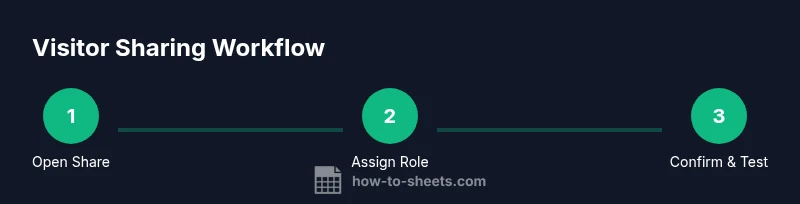
- Open the sheet and click the Share button in the upper-right corner to see current access.
- Review existing permissions and remove anyone who no longer needs access.
- Add individuals or groups with the appropriate permission (viewer, commenter, editor).
- Choose the link sharing setting: restrict to specific people, or create a viewer-only link if needed.
- If inviting guests, enter their email addresses and send invitations with a short note on expectations.
- Test access by signing in as a guest or using a private window.
- Schedule periodic reviews (e.g., every 60–90 days) depending on project sensitivity.
- Revoke access when the project ends or when roles change.
- Tip: For Workspace users, use expiration dates where available to automatically limit access after the project ends.
Auditing and governance: tracking who has access
Auditing who has access is essential for accountability. Use Drive’s sharing settings to see who can access the file and what level of permission they hold. If you’re on a Google Workspace plan, you can take advantage of admin dashboards to monitor sharing activity across your domain. How To Sheets analysis shows that teams that implement regular access reviews experience fewer lingering permissions and improved data governance. Keep a record of sharing decisions in a team wiki or policy document so future members understand the rules and rationale.
- Maintain a running log of who has access and when it was granted.
- Review access after major project milestones or personnel changes.
- Use groups instead of individual emails to simplify revocation.
Real-world scenarios: student projects and client work
In student projects, you often need collaborators from different institutions. Use restricted access for sensitive data, share a read-only copy for peer review, and provide explicit instructions on how to leave feedback in comments. For client work, keep the master sheet highly controlled: invite only essential personnel, segment data into protected tabs, and ensure a clear data-use agreement accompanies invitations. These practical patterns help you apply a consistent approach to various contexts while protecting privacy and confidentiality. The How To Sheets team emphasizes tailoring the strategy to the risk level of the data and the collaboration goals.
- Students: share with classmates for review, use comment permissions to gather feedback.
- Small businesses: restrict editors to core team; use viewers for external stakeholders.
Troubleshooting common issues and pitfalls
- Issue: People report they can’t see the sheet after you sent an invitation. Check that you sent to the correct email and that you chose the right permission level.
- Pitfall: Keeping a public link with edit rights. Solution: revoke the link or switch to view-only invites.
- Issue: Someone can still edit despite being given only view access. Confirm you didn’t grant editing on a linked folder or in tab-level permissions.
- Pitfall: Forgetting to revoke access after a project ends. Solution: schedule a final access review and delete or reassign permissions.
Quick reference: permission matrix and link options
| Access level | What it allows | Best use case | |---|---|---| | Viewer | View only; no edits | Shared reports for stakeholders | | Commenter | Add comments; no edits | Peer review with notes | | Editor | Edit content | Collaboration where changes are needed |
Link settings:
- Restricted link (specific people): invites only guests with explicit permissions.
- Viewer link (read-only): allows broad visibility without edits.
Tools & Materials
- Laptop or desktop computer with internet access(Ensure your browser is up to date (Chrome, Edge, Firefox, or Safari))
- Google account(Use a standard account and verify 2FA if available)
- Target Google Sheet(s) to be shared(Have the sheet organized to minimize exposure of sensitive data (use separate tabs if needed))
- An intended recipient list (emails or groups)(Prepare names and roles to map permissions accurately)
- Optional: Google Workspace administrator access(Helpful for auditing at domain level)
- Notes on data sensitivity and privacy policy(Keep a copy of policy for guests to read)
Steps
Estimated time: 25-40 minutes
- 1
Open sharing settings
Open the sheet, click the Share button in the upper-right corner, and review current access. This initial view shows who already has access and at what level. If you’re starting fresh, you’ll see a prompt to add people or share via a link.
Tip: Use the search box to verify suspected invitees and avoid sending invites to the wrong addresses. - 2
Choose the right permission level
Decide whether each guest needs Viewer, Commenter, or Editor rights based on their role. Assign the minimum level that still enables productive work. This reduces risk of unintended edits.
Tip: When unsure, favor Viewer or Commenter and elevate permissions only after a concrete need arises. - 3
Decide on link sharing scope
Select whether to share with specific people or create a link. If link sharing is necessary, set it to 'Viewer' or 'Commenter' with sign-in required, not 'Editor' with link access.
Tip: Avoid ‘Anyone with the link’ with edit rights unless absolutely necessary. - 4
Invite guests with a clear purpose
Enter emails, add optional notes about expectations, and send invitations. Provide context so guests know what they can do and what data is off-limits.
Tip: Include a data-use guideline to prevent accidental exposure. - 5
Test access from a guest account
Open an incognito window or ask a collaborator who isn’t in the invited list to verify they can access with the intended permissions.
Tip: If access fails, re-check the email, permission level, and domain restrictions. - 6
Document the sharing setup
Record who has access, what level, and why. Store this in your team wiki or policy document for audits and onboarding.
Tip: A written policy helps future collaborators understand the rules. - 7
Schedule a periodic review
Set a reminder to review access every 60–90 days, or at project milestones. Remove access when it’s no longer needed.
Tip: Regular reviews prevent stale permissions from becoming a risk. - 8
Revoke access when done
Once the project ends, revoke all guest access or reassign ownership to internal staff. Confirm that no external links remain active.
Tip: Double-check any shared folders that contain the sheet.
FAQ
What is the difference between viewer, commenter, and editor when sharing with visitors?
Viewer allows only viewing, commenter adds comments but cannot change data, and editor can modify the sheet. Choose the lowest level that meets the guest’s needs to minimize risk.
Viewers can see the data, commenters can leave notes, and editors can change the sheet. Pick the safest level that still supports the guest’s task.
Can visitors access a sheet without signing in?
Access can be granted via a link without signing in if you enable public access. For sensitive data, require sign-in and use specific invites to control who can view or edit.
Access can be granted without signing in if you use a public link, but that increases risk. Prefer invited access with sign-in.
How do I revoke access for someone who should no longer see the sheet?
Open the Share settings and remove the person, or revoke the link if it was shared publicly. For Workspace, consider changing ownership if needed.
Go back to the sharing settings and remove their access; you can also disable the link entirely if you shared one.
How can I audit who has access to my sheet?
Use the Share settings to view current access and recent changes. For Workspace, use admin dashboards to monitor sharing activity across the domain.
Check who has access in the share settings and review changes over the last period.
Should I use Google Workspace or personal accounts for visitor sharing?
Workspace offers more granular control, expiration options, and admin auditing. Personal accounts are simpler but provide fewer governance tools.
Workspace typically provides stronger controls and auditing features for guests.
What are best practices for sharing publicly?
If you must share publicly, set read-only access, clearly state data-use expectations, and revoke access when the project ends.
Public sharing should be used sparingly and always with read-only access unless collaboration is essential.
Watch Video
The Essentials
- Review permissions before sharing any sheet
- Prefer invite-only access over public links
- Use expiration dates where available to limit access
- Audit access regularly to detect leaks
- Document your sharing policy for teams