How to Share a Google Sheets: A Practical Step-by-Step Guide
Learn how to share a Google Sheets file securely with teammates, including permissions, link sharing, and best practices for collaboration. Clear steps, tips, and practical examples for students, professionals, and small businesses.


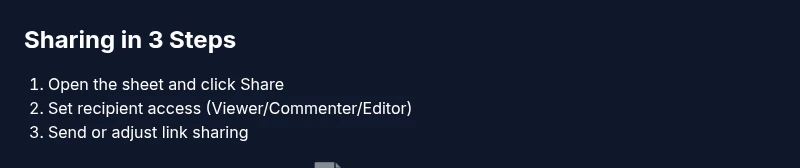
Step 1: Open the sheet and click Share. Step 2: Choose access by specific people or via a link, set permissions (Viewer, Commenter, Editor), and add email addresses. Step 3: Send, and if needed enable link sharing or expiration controls. Verify ownership and sharing scope first, per How To Sheets today.
Why sharing settings matter
When you collaborate on a Google Sheet, the way you share it determines who can see, edit, or comment on the data. Misconfigured sharing can lead to accidental edits, data leakage, or version confusion, especially in cross-functional teams. A well-planned sharing strategy protects sensitive information while keeping collaboration smooth. For students, freelancers, and teams, it's worth taking a moment to align on who should access what and under which conditions. According to How To Sheets, setting clear visibility and access boundaries at the start reduces risk and saves time later in a project. In practice, this means labeling sheets with purpose, using named ranges for sensitive numbers, and documenting the intended audience in a central place. By thinking through access from the outset, you avoid backtracking later when someone edits a formula or a budget cell that should have remained private.
Practical steps include outlining access roles in a shared governance doc and mirroring those roles in every sheet you publish. This upfront alignment helps prevent confusion during deadlines, audits, or revisions. It also supports accountability when multiple people touch the same data. A simple checklist—who can view, who can comment, who can edit—can make a big difference during fast-moving projects.
For learners and new teams, adopting a lightweight policy (who, what, and when to share) is often enough to start; you can refine it as you grow. The goal is to protect sensitive data while preserving collaboration speed. This is especially important in classrooms, startups, and small businesses where data is actively created and updated.
To reinforce best practices, reserve the most sensitive sections for protected ranges and avoid mixing raw data with analysis in the same sheet when possible. With disciplined sharing, your Google Sheets stay both useful and secure.
Tools & Materials
- Google account(Required to access Google Sheets and sharing controls)
- Google Sheet to share(The file you want others to access)
- Recipient email addresses or link(Emails for invited collaborators or the shareable link)
- Internet-enabled device(Phone, tablet, or computer)
- Optional: expiration or access controls(Not always available; use if you need time-limited access)
Steps
Estimated time: 5-15 minutes for initial sharing; ongoing audits as needed
- 1
Open the sheet and access Share settings
Open the Google Sheet you want to share, then click the Share button in the top-right corner to open the sharing dialog.
Tip: Make sure you are in the correct Google account. - 2
Choose sharing method
Decide whether to share with specific people via email or generate a link for broader access.
Tip: Using specific people minimizes unintended access. - 3
Set initial permissions
Assign a role for each recipient: Viewer, Commenter, or Editor, based on how much control they need.
Tip: Start with the least privileged role necessary. - 4
Add recipients and send
Enter email addresses for the people you want to share with, or copy the link and distribute it securely.
Tip: Double-check emails to avoid misaddressing. - 5
Configure link sharing and expiration
If using a link, set proper access (Viewer/Editor) and consider expiration dates if available.
Tip: Limit link exposure by using time-bounded access when possible. - 6
Monitor and revoke as needed
Review who has access and revoke permissions for anyone who no longer needs it or who has left the project.
Tip: Regular audits prevent drifting access.
FAQ
What sharing options does Google Sheets offer?
Google Sheets supports sharing with specific people who can view, comment, or edit, and also offers link sharing with viewer/commenter/editor roles.
You can share with specific people or via a link, and set roles accordingly.
Can someone revoke access after sharing?
Yes, owners can remove access from the Share dialog or revoke link sharing at any time.
Yes, you can remove someone’s access from the Share settings.
How do I prevent accidental edits from others?
Set recipients’ permissions to Viewer or Commenter when editing is not required; use protected ranges and sheet protection for added safety.
Limit who can edit by using Viewer or Commenter or protect ranges.
What about sharing outside my organization?
You can share with anyone via a link; some organizations may restrict external sharing in Google Workspace Admin settings.
External sharing is possible but check your admin rules.
Does Google Sheets show who accessed the sheet?
Google Sheets maintains version history and activity logs that show edits and access events over time.
You can review recent activity to see who changed what and when.
How do I share a sheet on mobile?
Open the Sheets mobile app, tap the three-dot menu on the sheet, choose Share, and set recipient permissions.
In the mobile app, use Share from the menu to grant access.
Watch Video
The Essentials
- Choose the right access level for collaborators
- Use specific-people sharing for sensitive data
- Regularly audit shared sheets for unwanted access
- Revoke access promptly when collaborators leave
- Document sharing decisions for governance