The Best Way to Share Google Sheets: A Step-by-Step Guide
Learn the best way to share Google Sheets with colleagues, including permissions, sharing methods, and collaboration workflows for secure, efficient teamwork.


Learn the best way to share Google Sheets by choosing the right access level, sharing methods, and collaboration practices. You'll set link sharing or invite-only access, decide who can edit or view, and implement review trails and notifications to keep data secure while collaborating efficiently. This approach helps teams work securely with the least privilege and clear accountability.
Why sharing Google Sheets matters
According to How To Sheets, sharing Google Sheets effectively is essential for productive collaboration. A well-structured sharing strategy reduces duplicate work, keeps data current, and strengthens accountability across teams. When a single document serves as the truth source, the whole team can align on decisions and updates. The key is to balance accessibility with protection: provide enough access for teammates to contribute, while safeguarding sensitive information and maintaining auditability. In practice, you set who can view, comment, or edit, and you establish a workflow for reviews and version control that fits your project size and organizational policies. This approach scales from a small study group to a large cross-functional team, ensuring everyone stays on the same page without stepping on each other’s work.
Think of sharing as a spectrum. Start with targeted invites for critical collaborators, then layer in link sharing only for trusted stakeholders, and finally apply organization-level controls if available. Label sheet owners clearly and assign a reviewer for major changes. These practices save time, minimize risk, and make collaboration smoother for students, professionals, and small business owners alike.
Access levels explained: viewer, commenter, editor
Google Sheets supports three core permission tiers: viewer, commenter, and editor. Viewers can only see the content, commenters can leave notes or suggestions, and editors can make changes directly to the data and structure. Understanding these roles is essential for minimizing risk. Use viewers for stakeholders who need visibility but not the ability to alter data; use commenters when you want feedback without changing the sheet; reserve editors for trusted teammates who will update formulas, inputs, or layouts. In practice, apply the principle of least privilege: grant the minimum permissions necessary for each person to complete their tasks. When roles change, adjust permissions promptly to reflect current responsibilities.
Beyond these core roles, you can assign per-user permissions on a case-by-case basis during the invitation flow. If your organization uses Google Workspace, you may also benefit from domain-restricted sharing and access auditing. Keeping a mental map of who can do what helps prevent accidental edits and data loss.
Sharing via links vs. direct invites
Link sharing is convenient but comes with tradeoffs. When you enable link sharing, you must decide whether anyone with the link can view, comment, or edit, or if restrictions apply only to people within your organization. Direct invites via email provide tighter control because only invited individuals gain access, and you can assign specific roles per person. For sensitive documents, start with the invite-based approach and use link sharing only for collaborators you trust or for non-sensitive data. If you do use a link, consider tying it to a controlled group and periodically auditing who has access. Keep in mind that link settings can be changed later, so document the intended audience and permissions in a quick notes field or a separate sheet within the project folder.
Practical tip: always send a short, clear message with invitations explaining purpose, expected contributions, and data sensitivity. This reduces surprises and helps new collaborators jump in quickly.
Best practices for invitations and access control
When inviting people, include just-in-time access that matches the task at hand. For larger teams, use groups or distribution lists to simplify permission management rather than inviting individuals one by one. Use descriptive sheet names and set per-user permissions to editors, commenters, or viewers as appropriate. Avoid sharing entire workspaces if only a single sheet is required. For external partners, consider creating a copy of the relevant sheet in a shared drive or a separate folder with restricted access, rather than giving blanket access to the original document. Regularly review access lists—if someone changes jobs or leaves the project, revoke their access promptly.
Proactive governance reduces risk and makes it easier to scale sharing across multiple projects. Keep a simple audit trail by noting changes in version history and attaching a short description when you grant or revoke access.
Managing sharing across teams and projects
As teams grow, it becomes harder to track who has access to which sheets. Centralize control by using a shared drive structure and standardized sharing templates. Create a small set of core sheets with clearly defined owners and updated access rules. For cross-functional projects, define the expected interaction level for each role and assign a gatekeeper who reviews requests for access. Consider implementing a tiered access policy: most users get view or comment rights, a smaller group gets edit rights, and a very small set handles governance. Regularly update these policies to reflect changes in the project scope and personnel.
In practice, this means setting up a monthly or quarterly review: verify current collaborators, remove stale access, and adjust permissions for any new phases of the project. This discipline keeps data secure and ensures the right people can contribute when needed.
Using Google Drive folders to organize shared sheets
Organization matters for scalability. Placing related sheets into clearly named folders helps users locate the right files and understand the governance around them. Use folder-level permissions to enforce a baseline access policy, then refine permissions at the file level for exceptions. When possible, avoid placing confidential sheets in folders with broad access. Use a naming convention that conveys ownership, version, and purpose to reduce confusion during audits. Finally, enable simplified discovery by using consistent metadata and descriptions on each sheet, so teammates can locate what they need without guessing.
External collaborators: policies and safeguards
External collaborators require extra safeguards. Limit access to the minimum necessary data and create separate copies if possible. Use restricted sharing settings to prevent outside parties from re-sharing content further. Establish a clear policy for data retention, confidentiality, and return of data after project completion. When working with external vendors or clients, document the scope of access in a shared agreement and periodically audit external accounts. Good practice includes turning on notifications for edits and comments so you can respond quickly to important changes.
Security considerations: audit trails, version history, and protections
Google Sheets maintains an in-app version history that lets you restore previous states of your data. Teach your team to use version history to roll back unintended edits promptly. Enable notifications for changes to track activity in real time, especially on sensitive sheets. For additional protection, disable actions that could export or download data when appropriate, and use protected ranges to lock critical cells against edits by unauthorized users. Finally, consider adding 2-step verification prompts for high-risk sheets to guard against account compromise. These measures help balance collaboration with security and data integrity.
Version history and restoring data
Version history serves as a safety net when mistakes happen. You can name versions to mark significant changes or milestones, making it easier to locate the exact state you want to restore. If a collaborator overwrites crucial data, simply revert to a prior version and communicate what happened to the team. This capability reduces downtime and confusion after errors. Encourage teammates to add brief notes when making substantial edits so the history remains informative and navigable.
Notifications and activity dashboards
Setting up notifications ensures you stay informed about key activities without checking the sheet constantly. Decide which events trigger alerts, such as edits to critical cells or changes in permissions. An activity dashboard can summarize who did what and when, helping with accountability during audits. For busy teams, batch notifications to avoid alert fatigue while preserving situational awareness. Regularly review notification settings to align with evolving project needs.
Practical workflows by team size
Small teams often share a single sheet with broad but controlled access. Medium teams benefit from branching by function, using separate sheets for different components of the project and linking results in a master sheet. Large teams require a governance model with defined owners, review cycles, and automated checks for data integrity. Regardless of size, document the sharing policy and provide onboarding guidance so new members can join without disrupting existing work. This clarity supports faster onboarding and reduces miscommunication.
Common mistakes to avoid when sharing sheets
Avoid overexposing data by default. Never enable edit access to everyone without assessment, and avoid sending links to broad audiences. Don’t forget to revoke access when someone changes roles or leaves the project. Don’t rely solely on informal channels to communicate changes in permissions; keep a formal record. Finally, skip the habit of duplicating sheets for minor edits; instead, use copy protection and version history to preserve the original data.
A checklist to finalize sharing settings
Before sharing, verify sheet ownership, confirm each collaborator's role, choose the sharing method, and review audit trails. Ensure external collaborators have a defined scope and are bound by data protection rules. Confirm that protection on critical cells or ranges is enabled, and test access from another user account to validate permissions. End with a quick summary note in the sheet describing the purpose, responsible owners, and expected update cadence.
Next steps and resources
For further guidance, consult official Google documentation on sharing and permissions, explore team collaboration templates, and review case studies demonstrating effective sharing workflows. Practically, start with a pilot sheet to refine the process, then roll out the agreed policy to other projects. As you implement, document lessons learned to improve future sharing practices.
Tools & Materials
- Active Google account with Google Sheets access(Log in before starting; ensure you have permission to share within your organization)
- Target Google Sheet(Open the sheet you want to share and review current permissions)
- Recipients' emails or official groups(Collect emails or use domain-based groups for easier management)
- Up-to-date browser or mobile app(Prefer the latest version of Chrome or another supported browser)
- Clear access plan (viewer/commenter/editor) per recipient(Optional but recommended for precise control)
Steps
Estimated time: 20-30 minutes
- 1
Open sharing settings
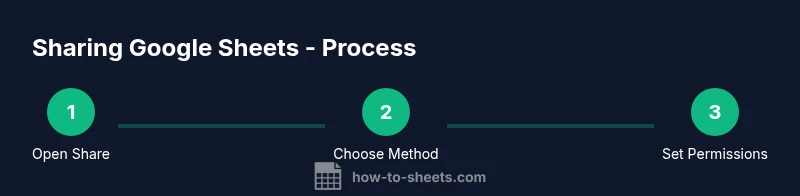
Open the Google Sheet you want to share and click the Share button in the top-right corner. Review current access and prepare a list of intended collaborators. This step sets the foundation for your sharing plan.
Tip: If you plan to share externally, prepare a short description of data sensitivity to include with invitations. - 2
Choose sharing method
Decide between inviting specific people via email or enabling a link with restricted access. Invitations provide tighter control, while links offer quick access for groups that require ongoing collaboration.
Tip: For external partners, prefer invitations; use links only when necessary and with strict permissions. - 3
Set per-user permissions
Assign viewer, commenter, or editor roles for each collaborator. Apply least privilege and adjust as tasks change. Document the rationale for each permission level when possible.
Tip: Avoid giving editors broad access unless required; consider tiered permissions for sensitive sections. - 4
Send invitations or share link
If inviting, enter each recipient’s email and select the appropriate role. If using a link, choose the access level and copy the link to distribute with a short context note.
Tip: Include a brief note about expected usage and data sensitivity in your invitation or link description. - 5
Review advanced sharing settings
Check options like preventing download, copy, and print where appropriate. Consider restricting access by domain or enabling notification settings for critical sheets.
Tip: If data is confidential, lock down export options to reduce data leakage risk. - 6
Establish ongoing governance
Set up a plan to review access periodically, monitor version history, and adjust permissions as team roles change. Document changes in a quick changelog within the sheet.
Tip: Schedule regular audits and keep a centralized log of permission changes.
FAQ
What is the simplest way to share a Google Sheet?
For a quick start, use the Share button to invite specific people by email and assign each person a role. This keeps access controlled and traceable while enabling collaboration.
Use the Share button to invite people by email and assign roles for simple, controlled collaboration.
Can I share with people who don’t have a Google account?
Yes, you can share via a link with appropriate restrictions. Be mindful of data sensitivity and consider creating a read-only version for external viewers.
Yes, you can share with non-Google users using a restricted link, but be careful with data sensitivity.
How do I stop someone from accessing my sheet?
Open the Share settings, find the person or link, and remove their access or change their role. If you used a link, disable it or set it to restricted access.
Open Share settings, remove the user or disable the link to revoke access.
What permissions should I grant to external collaborators?
Grant external collaborators view or comment access when possible and elevate to edit only if absolutely necessary. Use separate sheets or copies for sensitive data.
Give external collaborators view or comment access, and only grant edit rights if truly needed.
How can I track changes and who edited what?
Use version history to review edits and restore previous versions if needed. Enable notifications for important sheets to stay informed about activity.
Use version history to review edits and enable notifications for key activity.
What is the best practice for organizing shared sheets?
Organize sheets in clearly named folders, with owners assigned and consistent naming conventions to simplify discovery and governance.
Keep sheets in clearly named folders with owners and consistent naming for easy governance.
Is it safe to use link sharing for project dashboards?
Only use link sharing when the data isn’t sensitive and you trust the audience. Prefer invites for dashboards containing confidential data.
Only use link sharing for non-sensitive dashboards; invite-only access is safer for confidential data.
How can I enforce data protections while collaborating?
Use protected ranges, restrict downloads, and apply domain restrictions if your workspace supports it. Regularly review permissions and audit activity.
Apply protected ranges and domain restrictions, and regularly audit access.
Watch Video
The Essentials
- Define access per collaborator using least privilege
- Prefer invite-based sharing for sensitive data
- Use per-user permissions and protected ranges where possible
- Regularly audit access and review version history