How to Manage Sharing on Google Sheets
Learn to manage sharing on Google Sheets with role-based access, link controls, and auditing tips for safe collaboration in teams and classrooms.


Short answer: You will learn how to manage sharing on google sheets by inviting collaborators, assigning viewer, commenter, or editor roles, and configuring link sharing. You’ll also learn how to revoke access, monitor who has access, and adjust permissions as needs evolve. This guide covers practical steps, common pitfalls, and best practices for safe collaboration.
Why Sharing Matters in Google Sheets
Collaboration is at the heart of productive teams, and Google Sheets serves as a shared workspace that updates in real time. When you plan how to manage sharing on google sheets, the foundation is clear access controls and deliberate sharing practices. A well-structured sharing setup reduces the risk of accidental data exposure and speeds up teamwork. This section explains why access control matters, how different roles affect what collaborators can do, and how to balance openness with security. Throughout, we emphasize practical steps you can take right away to improve visibility, accountability, and workflow efficiency. By the end, you'll understand how permissions, link settings, and audit basics come together to support safe collaboration in school, business, and personal projects.
Understanding Access Levels: Viewer, Commenter, Editor
Google Sheets offers three primary access levels: Viewer, Commenter, and Editor. Viewers can only see content; they cannot change anything. Commenters can add notes, suggestions, and comments but cannot edit cell values unless they have Editor rights. Editors can modify data, formulas, and structure, including sharing settings (unless restricted). Understanding these roles helps you assign the least privilege necessary, protecting sensitive data while enabling collaboration. In practice, start with the broadest audience you can safely support (e.g., viewers for most stakeholders) and grant Editor access only to contributors who actively work on the data. For collaborative workflows, consider combining roles with features like protected ranges and comment threads to keep communication organized.
The Anatomy of a Shared Sheet: Who, What, Where, When
A shared Google Sheet isn't just a document; it's a collaboration workflow. The owner controls ownership and broad permissions, while editors can modify content. Commenters participate in discussions without changing data, and viewers read and review results. The 'where' refers to the sheet itself, the drive location, and any linked domains in a workspace. The 'when' includes update frequency, review cycles, and expiry dates for access. If you're managing multiple sheets, standardize on a consistent naming convention, set up folder-level sharing rules for teams, and document who is responsible for each sheet. This structured approach reduces confusion and ensures that everyone knows their role in the project.
How to Share a Google Sheet: Step-by-Step (UI)
To share a sheet, open it in Google Sheets and click the Share button in the top-right corner. Enter the email addresses of collaborators, then select a role (Viewer, Commenter, or Editor) for each person. If you want to restrict access, choose "Restricted" by default and add people individually. You can also paste a Google Group’s email to invite multiple people at once. Optional: add a message to accompany the invitation. Finally, press Send. If you prefer link sharing, click "Change" under Get link and choose the appropriate access level, then copy the link or share it. Keep in mind that link-based access can expose data if not controlled carefully.
Sharing with Specific People vs. Anyone with the Link
Two core approaches determine how open your sheet is. Sharing with specific people keeps access tightly controlled: only invited users can view or edit, depending on the assigned role. Enabling link sharing—"anyone with the link"—dramatically widens access, which increases the risk of accidental edits or data leakage. For most professional and educational contexts, start with Invite-only sharing and enable link access only for trusted stakeholders who require quick access. Always monitor who has access and remove individuals as soon as they no longer need it. If your organization uses Google Workspace, take advantage of domain-wide sharing policies to enforce consistency across teams.
Managing Permissions Across a Large Team
When dozens or hundreds of people need access, manual sharing becomes tedious. Use Google Groups or domain-based access to streamline invites. Create standard roles per project and assign group-level permissions rather than individual emails. Consider using protected ranges to prevent accidental edits on critical cells, and set up audit-friendly practices like comments for suggestions and trackable edits. Periodic access reviews are essential: schedule quarterly checks to verify that everyone still needs access and adjust roles as projects evolve. For extra control, enable warning banners for external collaborators and enforce strong authentication across the domain.
Audit Trails and Activity History in Google Sheets
Google Sheets provides built-in history and activity visuals to help you see who changed what and when. Version history allows you to revert to earlier states, which is invaluable after accidental edits or data corruption. The Activity dashboard highlights recent activity by user and can help you identify unauthorized changes or unusual patterns. Use these tools as part of your governance practice to reassure collaborators and maintain data integrity. For sensitive projects, combine history with protected ranges and permission reviews to keep the sheet auditable and accountable.
Best Practices for Safe Collaboration
- Define roles clearly at the start of every project and document who has what access.
- Prefer "Share with specific people" over public links for sensitive data.
- Use protected ranges to lock critical cells and formulas.
- Turn on notifications for major edits to stay informed.
- Schedule regular access reviews and document changes in a log.
- Educate collaborators about acceptable use to minimize accidental leakage.
Security Considerations and Compliance
Data security is not optional when sharing spreadsheets. Avoid placing confidential information in shared sheets unless absolutely necessary. Keep access to the minimum viable set of people and implement strong authentication, especially for external collaborators. If your work involves regulated data, align with your organization’s compliance framework and document who can access the sheet. In educational settings, remind students to respect privacy and avoid posting sensitive information. Finally, maintain a clear retention policy for shared data and review permissions after project completion.
Common Pitfalls and How to Avoid Them
- Sharing with too many people by default.
- Forgetting to remove access after a project ends.
- Allowing editors to overwrite formulas without review.
- Not using protected ranges for critical data.
- Failing to audit access regularly.
- Neglecting notification settings, leading to missed updates.
Troubleshooting Sharing Issues
If you run into issues sharing a Google Sheet, start by checking the sheet's Share settings to confirm the correct people and roles are listed. If collaborators report they can't access, verify their email addresses for typos and confirm their Google accounts are active. For external users, ensure exposure is limited via link restrictions. If changes don't appear for others, refresh the page or have others reopen the sheet. When access remains blocked, consult workspace domain policies or contact the owner for updated permissions.
Revoke Access and Transfer Ownership when Needed
Finally, you can revoke access by returning to the Share settings, clicking the person's name, and selecting Remove access or changing their role to viewer with limited capabilities. If you need to hand over control, transfer ownership to another user in the same Share settings dialog. Regularly reviewing and updating ownership helps keep control with trusted team members.
Authority Sources
For additional guidance on access control and secure sharing practices, review these sources:
- National Institute of Standards and Technology (NIST): Security and Privacy Controls for Information Systems and Organizations (Special Publication 800-53 Rev. 5): https://www.nist.gov/publications/sp-800-53r5
- Cybersecurity and Infrastructure Security Agency (CISA): Best practices for access management: https://www.cisa.gov/publication/insights-cybersecurity
- Harvard Business Review: The importance of communication in remote work: https://hbr.org/2020/12/the-importance-of-communication-in-remote-work
Tools & Materials
- Computer with internet(Stable connection and up-to-date browser)
- Google account(Active account with access to the sheet)
- Web browser (Google Chrome recommended)(Latest version for best compatibility)
- Target Google Sheet(Owner or editor access required to adjust sharing)
- Optional: Admin privileges for Workspace/domain sharing(Helps enforce domain-wide policies)
Steps
Estimated time: 20-40 minutes
- 1
Open the Sheet and access Share settings
Open the Google Sheet you want to share and click the Share button in the top-right corner to access the sharing controls.
Tip: Use the keyboard shortcut Ctrl/Cmd + S if you are saving a new share note before inviting others. - 2
Add collaborators and assign roles
Enter email addresses or groups, then choose Viewer, Commenter, or Editor for each person based on needed access.
Tip: Follow the principle of least privilege—grant only what is necessary. - 3
Choose link sharing behavior
Decide whether to restrict access or allow a link with a chosen permission level.
Tip: Avoid setting link access to Editor for broad audiences unless required. - 4
Send invitations or share the link
Click Send to email invitations or copy the link to distribute through other channels.
Tip: Include a brief note that clarifies expectations and responsibility. - 5
Protect sensitive ranges
Use Data > Protected sheets and ranges to lock critical cells or formulas.
Tip: Name protected ranges clearly to avoid confusion for collaborators. - 6
Use commenter access for reviews
When feedback only is needed, set some collaborators to Commenter to prevent data edits.
Tip: Encourage threaded comments for traceable feedback. - 7
Review access regularly
Periodically inspect who has access and adjust roles as project needs evolve.
Tip: Set a calendar reminder for quarterly reviews. - 8
Enable notifications for major edits
Turn on email notifications for significant changes to stay informed.
Tip: Combine with filters to catch urgent edits quickly. - 9
Revoke access when personnel leave
Remove or adjust access promptly for departing team members.
Tip: Maintain a shared log of access changes for accountability. - 10
Transfer ownership when needed
If responsibilities change, transfer sheet ownership to a trusted teammate.
Tip: Only transfer ownership to someone in a position to manage permissions. - 11
Document a sharing policy
Create a short policy document outlining who can access what and under which conditions.
Tip: Post the policy in your project folder for visibility. - 12
Audit and adjust within a structured workflow
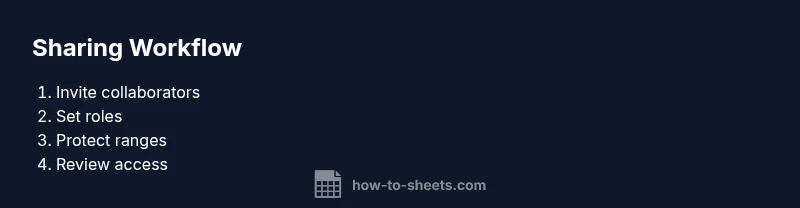
Integrate sharing with regular audits, protected ranges, and documented changes.
Tip: Treat sharing as a living process, not a one-off setup.
FAQ
How do I share a Google Sheet with specific people?
Open the sheet, click Share, enter emails, assign a role, and click Send.
Open the sheet, tap Share, enter emails, pick a role, and press Send.
What are the different access levels and what can they do?
Viewer can view, Commenter can view and add comments, Editor can edit content and sharing settings.
Viewer can only view, Commenter can comment, Editor can edit and share.
Can I restrict editing to certain cells or ranges?
Yes, use Protected ranges to lock specific cells or ranges while allowing access elsewhere.
Yes, you can lock cells with Protected ranges so others cannot edit them.
How do I revoke access for someone?
Open Share settings, find the person, and choose Remove access or set a lower permission.
Go to Share, select the person, and remove or lower their access.
How can I see who has access to my sheet?
Open the Share dialog to view current collaborators and their roles.
Open Share to see who has access and what they can do.
What should I do if someone shares the sheet beyond the intended audience?
Revoke their access, check link settings, and communicate the policy to the team.
Revoke access and adjust link settings, then inform the team.
Watch Video
The Essentials
- Set clear access levels for every collaborator.
- Prefer 'Share with specific people' over link sharing.
- Regularly audit who has access and revoke when needed.
- Use comments to add context without granting edits.
- Protect critical cells to prevent accidental changes.