List of Items in Google Sheets: A Practical Guide
Learn to build, maintain, and share a reliable list of items in Google Sheets with validation, templates, and smart formulas. A practical How To Sheets guide.


Goal: Create and manage a clean, shareable list of items in Google Sheets. You will learn how to structure a list, apply validation to prevent errors, and use filters and search methods to find items quickly. This guide covers best practices, sample templates, and practical tips you can apply immediately.
What a list of items means in Google Sheets
According to How To Sheets, a list of items is a structured table where each row represents a single item and each column captures a property such as name, category, quantity, status, or location. This simple, repeatable structure makes it easy to scan, sort, filter, and apply formulas across the dataset. In professional contexts—inventory, project tasks, shopping lists—a well-designed item list reduces entry errors, speeds up reporting, and supports collaboration across teams. A good list balances clarity with flexibility, allowing you to add fields as needs evolve while preserving consistent data integrity. For students, professionals, and small business owners, mastering item lists in Sheets translates to faster workflows and cleaner records.
From a practical perspective, start with a clear purpose for the list: what items you want to track, what properties you need, and who will rely on it. This upfront clarity makes subsequent steps (validation, templates, and automation) much smoother and more reliable.
Core data model: choosing columns and data types
A robust item list typically includes a stable core set of columns you can reuse across projects:
- Item name (text, required)
- Description (text)
- Category (text with defined options or a numeric code)
- Quantity (number)
- Status (e.g., In stock, In transit, Sold)
- Location (text)
- Date added or due date (date)
Defining data types early keeps formulas predictable and reduces cleanup later. Where possible, enforce data types with validation. For example, use numbers for Quantity, date format for Date added, and a pick-list for Category and Status. If you plan to grow the list into tasks or assets, design the schema with future expansion in mind (e.g., adding an Assigned To field or a Priority level).
Tip: consider a separate sheet or a named range to hold your valid category and status options. This ensures consistency and makes updates easier across multiple item lists.
Data validation and input controls
Data validation is your shield against messy data. Start by creating dropdown lists for Category and Status so every entry uses a controlled vocabulary. Then, apply numeric validation to Quantity to prevent non-numeric entries. Date fields can be constrained to valid dates, and you can add a required field indicator (e.g., Item name) to flag incomplete rows.
Implementation steps:
- Create a separate range that holds allowed values for Category and Status.
- Select the column, choose Data > Data validation, set Criteria to List from a range, and point to your allowed values.
- Enable Show dropdown list in cell and set a helpful rejection message for invalid entries.
Why it matters: validation reduces cleanup time, keeps analyses accurate, and makes it easier for teammates to enter data consistently. In practice, validated lists also support downstream formulas like FILTER and VLOOKUP more reliably.
Starter templates you can copy and adapt
Templates give you a quick on-ramp to a usable item list. Here are two starter templates you can adapt:
Template A: Inventory List
- Headers: Item, Description, Category, Quantity, Status, Location, Date Added
- Validation: Category and Status drop-downs; Quantity as a number; Date Added as a date
- Sample data: a handful of items to illustrate structure
Template B: Task/List Tracker
- Headers: Item, Description, Priority, Status, Due Date, Assigned To
- Validation: Priority (Low/Medium/High); Status (To Do/In Progress/Done)
- Conditional formatting: highlight overdue items
To adapt, copy either template into a new Google Sheet, replace sample data with your actual items, and connect the allowed values to a separate sheet with your categories and statuses. This keeps the main list clean and consistent while letting you scale.
Formulas and automation to manage items efficiently
Formulas turn your static list into a living dataset:
- FILTER: Create dynamic views of items by category, status, or location.
- SORT: Present items in a preferred order (e.g., by Date Added or Priority).
- UNIQUE: Identify and remove duplicate items based on the Item name and Category.
- VLOOKUP or XLOOKUP: Pull additional item details from a master catalog.
- COUNTIF/COUNTIFS: Track counts by category or status.
Example use case: A separate “Active Items” view can be created with FILTER, showing only items with Status not equal to Done and Quantity greater than zero. By using named ranges for Category and Status, your formulas remain readable and maintainable across sheets and projects.
Views, filters, and collaboration best practices
Once your data is structured, enable filters on the header row to let teammates quickly narrow the list by Category, Status, or Location. Consider creating named filter views for common perspectives (e.g., “Pending Repairs,” “Low Stock,” “Q4 Deliverables”). When collaborating, keep a shared access policy: provide edit access to a core team, with view-only access for stakeholders. Regularly review permissions to prevent unintended changes.
In practice, view-based workflows reduce friction and improve focus. Your team can work asynchronously, each applying their own filters without altering the core data.
Visual design: formatting that aids scanning
Use conditional formatting to draw attention to items that need action, such as low stock (Quantity below threshold) or overdue dates. Align column widths to content, freeze header rows for easy scrolling, and use alternating row colors to improve readability. Keep the color palette accessible—use high-contrast color pairs and ensure screen-reader compatibility. A clean visual design reduces cognitive load and helps users process the list quickly, whether they’re checking stock levels or verifying task completion.
Common pitfalls and how to avoid them
Avoid loose or free-form entries in the Category and Status fields. Always use a controlled vocabulary via data validation to prevent misspellings or new, unrecognized categories. Don’t neglect header freezing or filters; these are essential for large lists. Finally, back up the sheet periodically and establish a naming convention for templates and shared copies so team members know which file to use and where to enter data.
Quick-start checklist to create your first item list
- Define the core columns (Item, Description, Category, Quantity, Status, Location, Date Added).
- Create a separate range with allowed values for Category and Status and apply data validation.
- Enter a small sample of items to validate the structure.
- Add filters, freeze headers, and apply basic conditional formatting for urgent items.
- Save a named range for the list and share with teammates using appropriate permissions.
Tools & Materials
- Google Sheets(Browser or mobile app with access to your Google account)
- Sample item data(A small dataset to practice structuring and validation)
- Validation lists (Categories, Status)(Create a separate sheet or range for allowed values)
- Starter templates(Optional templates you can copy and adapt)
- Named ranges and basic formulas(Improve readability and reusability of formulas)
Steps
Estimated time: 25-40 minutes
- 1
Create the sheet and define headers
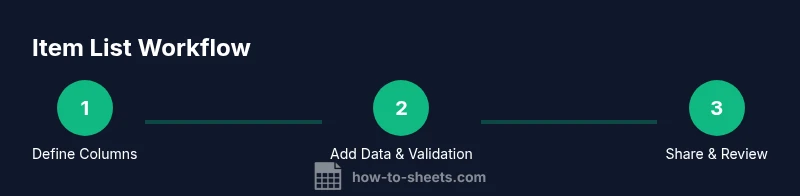
Open a new Google Sheet and set headers: Item, Description, Category, Quantity, Status, Location, Date Added. This establishes the data model and makes data entry predictable.
Tip: Use bold header formatting and freeze the top row to keep headers visible. - 2
Populate an initial list
Enter a small set of items to validate your structure. Include examples for each column to catch edge cases early.
Tip: Keep descriptions concise and use consistent wording for items. - 3
Set up data validation
Create allowed values for Category and Status and apply them via Data validation. Validate Quantity as a number and Date Added as a date.
Tip: Point validation lists to a centralized range to simplify updates. - 4
Add filters and freeze headers
Turn on filters and freeze the header row to enable quick scanning and multi-criteria searches across the list.
Tip: Use Filter Views for different teams or perspectives without altering the main list. - 5
Leverage formulas for automation
Incorporate formulas like FILTER, SORT, and UNIQUE to create dynamic views and deduplicate entries as you grow.
Tip: Name ranges for frequently used fields to keep formulas readable. - 6
Share and govern access
Share the sheet with teammates using appropriate permissions and establish a simple change-management rule.
Tip: Use comment threads for suggestions; reserve edit rights for core contributors.
FAQ
How do I start a basic list of items in Google Sheets?
Create a new sheet, define headers, and begin entering items. Use clean, consistent terminology and keep the dataset small at first to validate the structure.
Start by creating headers and filling in a few items to validate your structure.
What data validation options should I use for an item list?
Use drop-down lists for Category and Status, and enforce numeric bounds for Quantity. Date fields should accept only valid dates.
Use drop-downs for categories and statuses, plus numeric checks for quantities.
How can I automatically highlight low stock items?
Apply conditional formatting to the Quantity column with a threshold. Color items when Quantity is below the threshold.
Set a color rule to flag low stock items automatically.
Can I share item lists with teammates?
Yes. Use Google Sheets sharing controls to grant specific permissions (viewer, commenter, editor) as appropriate.
Yes, share with the right permissions to collaborate safely.
What are common mistakes to avoid?
Avoid free-text categories, skip data validation, and forget to freeze headers or update validation lists.
Avoid free-text categories and skip validation to keep data clean.
How do I import items from another source?
Use File > Import to bring data from CSV or Excel, then align headers with your sheet’s columns.
Import data using the Import function and align headers.
Watch Video
The Essentials
- Define headers clearly for every item field
- Enforce data integrity with validation rules
- Use FILTER, SORT, and UNIQUE to manage lists
- Enable filters and views for quick lookups
- Share with proper permissions to collaborate safely