How to Lock a Row in Google Sheets: Freeze and Protect Rows
Learn how to lock a row in Google Sheets by freezing or protecting it. Step-by-step guides, practical tips, and best practices for teams to manage headers, data integrity, and collaboration safely.


You can lock a row in Google Sheets by using two approaches: freezing the row for persistent visibility, or protecting a range to prevent edits. This guide covers both methods with clear steps, best practices, and caveats so you can choose the right approach for headers versus sensitive data. By applying these techniques, you’ll improve navigation and governance in shared workbooks.
What locking a row means in Google Sheets
Locking a row in google sheets can mean two related but distinct actions: freezing a row so it remains visible while you scroll, and protecting a row so its contents can't be edited by unwanted collaborators. The difference matters for readability versus data integrity. If your sheet uses headers or critical identifiers, freezing keeps those lines in view as you scroll. If you have rows with formulas, sensitivities, or approved baselines, protecting them helps prevent accidental edits. According to How To Sheets, choosing the right strategy reduces mistakes and clarifies responsibilities in shared workbooks. When you lock a header row, users immediately understand the data structure without scrolling back to the top. Protecting a range, on the other hand, creates a permission boundary that can be refined by user or group. You can combine both approaches in the same workbook: freeze the header for navigation and protect sensitive data in the same view. In this article, we examine practical workflows, prerequisites (like sufficient permissions), and step-by-step methods you can apply in real projects. If you want to lock row in google sheets, you have two core options, each with its own setup and consequences.
Freeze vs Protect: Two ways to lock a row
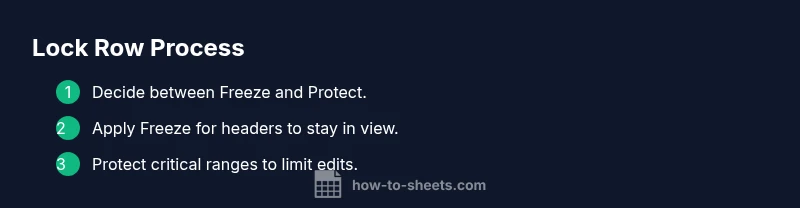
There are two main modalities to lock a row in google sheets: freezing and protecting. Freezing keeps a row visible, which is ideal for header rows or key identifiers in long datasets. Protecting a row locks edits so only authorized editors can change its values, which is essential for preserving formulas, baselines, or sensitive data. The choice depends on whether your priority is visibility or edit control. In practice, many teams use both: they freeze the header for orientation and protect specific data rows or ranges to enforce data governance. How To Sheets recommends starting with freezing for headers and then layering protection where collaboration patterns require stricter controls. Keep in mind that freezing does not restrict edits, and protection does not hide information. Combining both techniques can improve workflow clarity and reduce accidental changes in shared sheets. This section helps you decide which method to apply to different parts of your workbook and explains how permissions interact with each approach. If you want to lock row in google sheets for editing restrictions, freezing and protecting are the two primary, complementary options.
When to use freezing (keep rows visible while scrolling)
Freezing is ideal when a row contains headers, labels, or identifiers that should stay in view as you scroll through data. In practice, you can freeze the top row, or any single row, so its contents remain anchored to the top of the screen. This improves navigation and reduces context switching for readers. Decide on the number of rows to freeze based on your data height and how readers will scroll. The action is quick: you choose View, then Freeze, then select the number of rows. However, freezing does not restrict anyone from editing the row’s content, so it is not a security measure. If your goal is clarity and consistency while many people work on the sheet, freezing is typically the first step. In this context, the goal is legibility, not governance; locking row in google sheets via freezing should be used primarily for presentation and navigation.
When to use Protect ranges (control edits, not visibility)
Protecting a row or a specific range is a governance tool. It does not affect how the sheet looks, but it does affect who can change what. You can protect a single row or a block of cells: set permissions for editors, viewers, and commenters, and specify who may edit the protected area. Use protection when you have formulas, baselines, or sensitive information that should not be altered by accidental clicks or casual collaborators. The protection mechanism allows you to show a message when editing is attempted, and you can assign different editors for different ranges. The How To Sheets analysis notes that most teams like to protect critical rows while leaving other data open to collaboration. Remember that protecting data may require an ownership or admin role, and you should document the rationale for each protected range so future contributors understand the rules.
Step-by-step: Freeze a row in Google Sheets
- Open the target Google Sheet and locate the row you want to lock for visibility. 2) Decide how many top rows you want frozen (usually 1 for headers). 3) Click on the View menu, choose Freeze, then select 1 row (or the number you determined). 4) Confirm that the selected row remains visible when you scroll. 5) If you use multiple sheets or sections, repeat for each sheet as needed. 6) Communicate the change to collaborators to avoid confusion. 7) Test scrolling in different devices to verify the header remains visible and accessible. Tip: Freeze is purely a visual aid and does not restrict edits; plan long-term readability in your layout.
Step-by-step: Protect a row (lock a range) in Google Sheets
- Open the sheet and select the exact range to protect, for example A2:A2 if you want to lock a single row's editable area. 2) Right-click the range or go to Data > Protect sheets and ranges. 3) In the sidebar, set a description, then choose the range you selected. 4) Click "Set permissions" and choose who can edit the range (only specific people or only you). 5) Save the protection and return to the sheet to test. 6) Have a collaborator try to make an edit to confirm the restriction is active. 7) If necessary, adjust permissions or add more ranges. Tip: For large sheets, consider grouping related cells into protected ranges to simplify management.
Best practices for team collaboration with locked rows
- Document your locking rules in a sheet note or description. 2) Use distinct ranges for different risk levels. 3) Combine protection with version history to track changes. 4) Communicate changes to the team, and train new users on the rules. 5) Periodically audit protections to ensure they still align with project roles. By following these practices, teams reduce accidental edits and improve consistency across data. How To Sheets's guidance emphasizes clear governance and practical steps for consistent results.
Troubleshooting common issues when locking rows
Common problems include not having sufficient rights to set protections, accidentally selecting protected ranges, or conflicts with existing sharing settings. If protections disappear after a collaborator updates permissions, re-check the sheet ownership and the protection rules. Always test edits with different user accounts to verify behavior. If a protected range interferes with necessary edits, adjust the range or permissions and re-test. When in doubt, back up the sheet before making large changes to protections.
Tips for complex sheets with many collaborators
- Use named ranges to simplify management of protected areas. - Break large sheets into logical sections and apply separate protections per section. - Maintain a short changelog in the sheet description for governance. - Schedule periodic audits of protections as roles evolve. How To Sheets emphasizes practical, repeatable steps to keep complex sheets usable and secure for everyone.
Tools & Materials
- Google account with editing access(Needed to access and modify protections.)
- Google Sheets open in a modern browser(Chrome/Edge/Firefox latest.)
- Clear plan for which rows/ranges to lock(Predefine ranges to avoid misconfigurations.)
- Backup copy of the sheet(Optional safeguard before applying protections.)
- List of collaborators by role(Helps assign appropriate edit permissions.)
Steps
Estimated time: 15-25 minutes
- 1
Open the target sheet
Launch Google Sheets and navigate to the workbook where you want to lock a row. Verify you have the necessary rights to apply protections or freeze panes. This initial check prevents later permission errors.
Tip: If you’re unsure about permissions, ask the owner to grant you temporary edit rights during setup. - 2
Decide the locking method
Choose between freezing for visibility or protecting for edit control. If you need both, do freezing first for navigation and then apply protections to sensitive content.
Tip: Document your choice in a comment or sheet description for future readers. - 3
Freeze a row for visibility
Select the row to anchor (often the header row). Use View > Freeze > 1 row (or more if needed). Check that scrolling keeps the row visible across sections.
Tip: Test on different screen sizes to confirm the header stays in place. - 4
Select a range to protect
Highlight the exact cells you want to lock from edits. This could be a single row or a larger data block that requires protection.
Tip: Be precise with the range to avoid unintended edit restrictions. - 5
Apply protection and set permissions
Open Data > Protect sheets and ranges, enter a description, choose the range, and click Set permissions to restrict who may edit.
Tip: Limit editing to trusted editors; avoid broad permissions. - 6
Test the protections
Have a collaborator attempt to edit the protected area and confirm the block is enforced. If not, revisit the range and permission settings.
Tip: Document any test results for governance records. - 7
Maintain and adjust as needed
Update protected ranges when the project changes scope or team composition. Periodically review protections for relevance and accuracy.
Tip: Maintain a changelog to track who changed what and when.
FAQ
What is the difference between freezing and protecting a row in Google Sheets?
Freezing keeps a row visible as you scroll, improving navigation. Protecting locks edits to a range, preventing changes by unauthorized users. Use freezing for headers and protection for sensitive data.
Freezing keeps the row in view; protection prevents edits. Use freezing for headers and protecting for sensitive data.
Can I lock multiple rows at once?
Yes. You can select a range of rows before applying protection to lock edits across all chosen rows.
Yes, just select the range you want to protect and apply permissions.
Will locked rows stop others from viewing the data?
No. Protecting a range only restricts edits; the data remains visible to all collaborators unless the sheet itself is restricted.
Locking edits doesn’t hide data; it only restricts who can change it.
How do I remove or modify a lock?
Open Protect sheets and ranges again, select the protected range, and adjust or delete the permissions. Save changes and test with a collaborator.
Open protections, adjust or remove them, then test to confirm.
Does freezing affect editing permissions?
No. Freezing changes only the visual behavior; it does not alter who can edit the cells.
Freezing is visual only, not a permission setting.
What should I document about row locks?
Record which rows are protected, who can edit them, and why. This aids onboarding and governance.
Document which rows are locked and why for future readers.
Watch Video
The Essentials
- Freeze headers to improve navigation and readability.
- Use protected ranges to enforce data governance.
- Test access with multiple user accounts to verify behavior.
- Document the locking rules and rationale for future readers.
- Review protections periodically to stay aligned with roles.