Maximum Sheets in Google Spreadsheet: Limits and Workarounds
Learn the maximum sheets in Google Spreadsheets, how limits affect performance, and practical strategies to manage large workbooks. This guide covers official caps, implications, and actionable workarounds for scalable data organization.


The maximum number of sheets you can have in a single Google Spreadsheet is 200. This hard cap influences how you organize data, so plan tabs carefully. When you reach the limit, you must split data across workbooks or restructure into a master index with IMPORTRANGE connections. Understanding this cap helps improve manageability and performance.
What is the maximum number of sheets in a Google Spreadsheet?
In Google Sheets, a single workbook can contain up to 200 separate sheets (tabs). This cap is per spreadsheet, not per user account, and it applies regardless of whether sheets are visible or hidden. If you routinely approach the cap, you should consider strategies to maintain accessibility and performance, such as an index sheet that points to data stored across multiple sheets or even distributing datasets across multiple spreadsheets while maintaining a unified reporting layer. This limit is particularly relevant for teams that track multi-year data, logs, or split projects that are naturally tabbed by category. Plan ahead to avoid bottlenecks when new data streams arrive.
Why does Google Sheets impose this limit?
The 200-sheet cap exists to balance performance, responsiveness, and data integrity across real-time collaboration scenarios. A larger number of sheets can increase formula recalculation time, slow down UI operations, and complicate maintenance. Google Sheets uses a distributed architecture where each sheet adds overhead for rendering, formulas, and data validation. By enforcing a practical cap, Google aims to keep common tasks fast and reliable for most users, while still allowing large projects to be split judiciously across multiple workbooks.
How limits affect large-scale workbooks
When your workbook nears or hits the sheet limit, common symptoms include slower recalculation, longer load times, and occasional lag when switching tabs. Large graphs, heavy use of array formulas, and intricate data validation can compound these effects. If your project demands ongoing growth, it’s wise to design data models that minimize cross-tab dependencies. Use reference sheets with controlled imports, batch data into separate workbooks, and centralize reporting through a dedicated dashboard that consolidates crucial figures from multiple sources.
Strategies to manage many sheets efficiently
Adopt an index-driven approach: create a master sheet that lists all tabs with metadata (purpose, last update, owner). Use consistent naming conventions and color coding to make navigation intuitive. Limit per-sheet complexity by moving heavy calculations to dedicated sheets or scripts, and use functions like QUERY or IMPORTRANGE to pull only the necessary data into a central dashboard. Where feasible, segment historical data into separate workbooks and keep active data in a lean set of sheets.
Real-world scenarios and alternatives
For teams that routinely exceed a handful of sheets, consider modularizing data into multiple workbooks, with a separate “control” workbook that consolidates key metrics. If cross-workbook analysis is essential, leverage IMPORTRANGE, Google Data Studio (Looker Studio), or data connectors to centralize insights without increasing the per-spreadsheet tab count. In some cases, migrating extremely large datasets to a database or BI tool can reduce the burden on Sheets while preserving accessibility for stakeholders.
How to test and monitor your workbook’s growth
Regularly audit the number of sheets, the total cell count, and formula complexity. Use a simple inventory sheet to track active tabs, last update times, and owners. Monitor performance indicators such as load time and calculation latency after adding a set number of sheets. Establish thresholds that trigger a redesign (for example, moving to a new workbook once you approach 150–180 sheets) to prevent surprises during critical reporting periods.
Core limits of Google Sheets as of 2026
| Limit Area | Value | Notes |
|---|---|---|
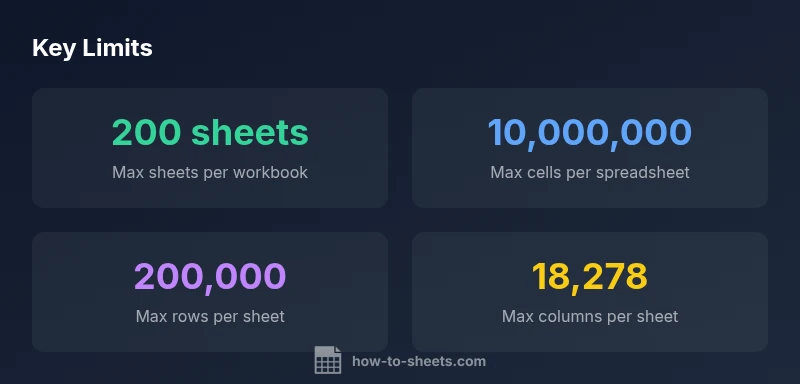
| Maximum sheets per spreadsheet | 200 sheets | Google Sheets limit (per workbook) |
| Maximum cells per spreadsheet | 10,000,000 cells | Total cells across all sheets |
| Maximum rows per sheet | 200,000 rows | Sheet-level cap |
| Maximum columns per sheet | 18,278 columns | Sheet-level cap |
FAQ
What is the maximum number of sheets per Google Spreadsheet?
The maximum is 200 sheets per workbook. If you reach this cap, consider splitting into multiple workbooks or consolidating data into a smaller number of sheets.
Google Sheets caps at 200 sheets per workbook. You can split data across workbooks or consolidate into fewer sheets.
Does the limit affect formula performance?
Formulas across many sheets are supported, but overall performance may degrade with large workbooks and complex calculations.
Yes, performance can slow down as the workbook grows with many sheets.
Is there a limit to total cells across all sheets?
Yes, up to 10 million cells per spreadsheet. This cap applies regardless of how many sheets are used to store data.
There is a 10 million cells cap for a single spreadsheet.
What are best practices for large workbooks?
Use a master index, clear naming, and limit per-sheet complexity. Consider consolidating data in external tools if needed.
Indexing and clear naming help; consider splitting data when needed.
Can I link data across workbooks without duplicating tabs?
Yes, via IMPORTRANGE or QUERY, but be mindful of performance and data freshness when linking across workbooks.
You can link using IMPORTRANGE, but watch performance and freshness.
“A well-planned sheet architecture prevents hitting hard limits and keeps analysis fast, even as teams scale data across many tabs. Plan for growth by indexing data and using cross-workbook references wisely.”
The Essentials
- Plan workbook structure around the 200-sheet cap
- Use a master index tab to navigate many sheets
- Consolidate data when possible to reduce tab count
- Organize with clear naming, color-coding, and an index