Refresh Google Sheets Android: Step-by-Step Guide
Learn how to refresh Google Sheets on Android, troubleshoot syncing, manage offline edits, and keep data up to date across devices with practical steps and best practices.


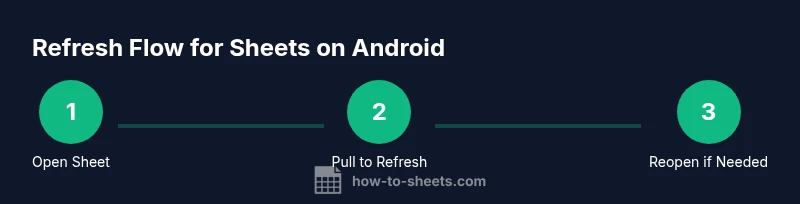
To refresh google sheets android, ensure you have an active internet connection, then reopen the Sheets app and pull down on any sheet to refresh. If changes don’t appear, try closing the app completely and reopening, or sign out and back in. For persistent issues, use Google Drive to force-synchronize offline edits once you reconnect.
How refreshing works with Google Sheets on Android
On Android, Google Sheets uses a hybrid sync model where local edits are stored on the device and synchronized with the cloud when an active internet connection is available. The phrase refresh google sheets android describes the act of reloading data so the latest edits appear across devices. In this section, you’ll understand how the app’s cache, online status, and account permissions influence refresh behavior, and what you can do to trigger a reliable refresh without risking data loss. You’ll also learn how different network conditions—from strong Wi‑Fi to spotty mobile data—affect sync timing and the visibility of changes across collaborators. A solid refresh workflow reduces confusion when collaborating in real time on Android devices, and helps you avoid stale data in shared spreadsheets. Expect practical guidance, concrete steps, and common pitfalls to avoid.
Why refresh on Android matters for teams
When multiple people edit the same Google Sheet, refresh consistency matters just as much as speed. Android devices can cache data to reduce bandwidth, which means your view might lag behind recent edits made on another device. Refreshing ensures you’re looking at the most current version, helps resolve conflicts, and minimizes duplicate work. In environments with intermittent connectivity, understanding refresh behavior helps you plan updates and communicate status with teammates.
How offline edits are queued and synchronized
If you enable offline mode, the Sheets app saves edits locally and queues them for sync once connectivity returns. This can lead to a brief delay between changes and their appearance in the cloud. Knowing how offline edits are stored and surfaced on Android helps you decide when to rely on offline vs online work streams, and how to communicate expected timing to stakeholders.
Tools & Materials
- Android smartphone(Device with Google Sheets installed and updated)
- Active internet connection(Stable Wi‑Fi or mobile data)
- Google account(Account with access to the target sheet)
- Google Sheets app(Ensure the latest version is installed)
- Backup plan(Optional: snapshot important data before major refreshes)
Steps
Estimated time: 30-45 minutes
- 1
Open Google Sheets and load the spreadsheet
Launch the Google Sheets app on your Android device and open the specific spreadsheet you want to refresh. Confirm you’re logged into the correct Google account and that the sheet is accessible. If you rely on offline edits, make sure you’re on the version that needs syncing.
Tip: Tip: Pin the sheet to your home screen for quick access during frequent refreshes. - 2
Verify internet connectivity
Check that you have an active internet connection. If you’re on cellular data, ensure data isn’t blocked for Google Sheets and you have enough signal for a stable connection. A poor connection can cause partial refresh or no update at all.
Tip: Tip: Switch to a stronger network (Wi‑Fi) if you notice slow refresh behavior. - 3
Pull down to refresh the sheet
Within the open sheet, perform a downward swipe (pull-to-refresh) to trigger a sync. This action prompts the app to fetch the latest changes from the cloud. Wait a few moments to see if new edits appear.
Tip: Tip: If the refresh indicator lingers, move to another tab and return to the sheet to force another check. - 4
Close and reopen the app if needed
If updates still aren’t visible, swipe away the Sheets app to close it completely, then reopen and navigate back to the sheet. A full restart helps clear transient cache and re-establish a fresh connection to the cloud.
Tip: Tip: On some devices, you may need to force-stop the app from system settings for a clean restart. - 5
Sign out and sign back in (optional)
If refreshing remains inconsistent, sign out of your Google account within the Sheets app and sign back in. This can revalidate permissions and reinitialize the cloud link for the sheet.
Tip: Tip: Have backup access to the account credentials or use a trusted device to avoid login friction. - 6
Check other sheets to confirm cross‑sheet sync
Open a second sheet in the same file or a related file to confirm that edits are syncing across tabs. If some sheets update while others don’t, the issue may be per-sheet rather than global.
Tip: Tip: If multiple collaborators are editing, coordinate a short refresh window to minimize conflicts. - 7
Assess offline edits and re‑enable offline mode if needed
If you must work offline, enable offline mode and plan for a post‑reconnect refresh. Understand that offline edits won’t appear in the cloud until the device reconnects and a refresh occurs.
Tip: Tip: Keep offline edits small and track changes to avoid confusion after re‑sync. - 8
Document the refresh outcome
Record whether the refresh succeeded, which sheets updated, and any anomalies you observed. This helps teams diagnose intermittent sync issues and plan follow‑ups.
Tip: Tip: Create a quick checklist for repeat refresh cycles to standardize your workflow.
FAQ
Can I refresh all sheets in a file at once on Android?
There isn’t a single global refresh button in Google Sheets for Android. Refreshing typically happens per sheet via pull-down or when the app detects online activity. To ensure all sheets are current, repeat the refresh action on each sheet you’re actively using.
There isn’t a global refresh option on Android; you refresh each sheet separately by pulling down. Do this for every sheet you’re monitoring.
What should I do if changes don’t show after refreshing?
First confirm you’re online and signed into the correct account. Then retry pull-to-refresh, restart the app, and, if needed, sign out and back in. Persistent issues may indicate a cache problem or a temporary service disruption.
If changes don’t show after refresh, check internet, retry, restart the app, and re‑sign in if needed.
Does offline mode prevent refreshing?
Yes. Offline edits are saved locally and won’t sync until you reconnect to the internet and refresh. If you need up-to-date data, ensure you’re online before refreshing and sharing with collaborators.
Offline mode keeps edits locally until you reconnect; refresh only reflects changes after you come back online.
How can I clear cache for the Sheets app on Android?
Go to Android Settings > Apps > Google Sheets > Storage > Clear Cache. This can help resolve stale data issues, but your saved documents remain intact in Google Drive. Reopen the app and refresh afterward.
You can clear cache in the app settings to resolve stale data, then reopen Sheets and refresh.
Is data automatically synced across devices once online?
Yes. When online, Google Sheets typically syncs changes automatically to the cloud so other devices can see the updates, though the exact timing can vary based on network conditions and file activity.
Online, edits usually sync automatically, but timing can vary with network conditions.
What if I see a data conflict after refreshing?
Conflicts occur when simultaneous edits happen. Choose which version to keep on the prompt, or use version history in Sheets to review and resolve changes after re-sync.
If you see a conflict, pick the version you want to keep or use version history to review edits.
Watch Video
The Essentials
- Refresh google sheets android relies on a stable internet connection.
- Pull-to-refresh and app restarts help resolve stale data.
- Offline edits queue and sync when online; plan refresh windows accordingly.
- Sign out/in or clear cache only if standard refresh fails.
- Document refresh results to diagnose intermittent issues.