Spreadsheet Download: A Practical Step-by-Step Guide
Learn how to locate, export, and save spreadsheets in XLSX, CSV, and other formats. This How To Sheets guide covers Google Sheets, Excel, and data portals with practical steps, tips, and troubleshooting for reliable spreadsheet downloads.


This guide teaches you how to locate, export, and save spreadsheets in formats like XLSX, CSV, and ODS. You'll learn how to export from Google Sheets and Excel Online, grab public data portals, and choose the right format for your task. By the end, you'll confidently download the exact spreadsheet you need for analysis or sharing.
What is a spreadsheet download and why it matters
According to How To Sheets, a spreadsheet download is the process of exporting a spreadsheet from an online source or portal and saving it in a local or cloud location. This action enables offline access, sharing, and data portability across apps like Google Sheets, Microsoft Excel, or LibreOffice Calc. Whether you’re preparing a class worksheet, compiling a budget, or conducting data analysis, understanding how to download a spreadsheet correctly saves time and reduces errors. In this guide we’ll cover common formats (XLSX, CSV, ODS), typical sources, and practical tips to ensure your downloaded file is ready for immediate use. The goal is to give you a repeatable workflow you can apply to many scenarios, so you can focus on the task rather than the mechanics of saving a file.
Throughout this article you’ll see actionable steps, concrete examples, and safe practices that help you avoid common pitfalls like encoding mismatches, broken links, or misnamed files. By the end, you’ll have a reliable method to obtain exactly the data you need, in the format that fits your workflow, while keeping your files organized and easy to locate.
Where to find spreadsheets to download
Spreadsheets are published in many places, and the right source depends on your goal. Public templates hosted by software providers (Google Sheets templates, Excel templates) offer ready-made structures for budgets, calendars, and project trackers. Open data portals from government or educational institutions provide raw datasets in CSV, XLSX, or TSV formats that you can import into your preferred tool. Company dashboards and team folders may also host export-ready spreadsheets.
Tips for locating good sources:
- Use targeted search queries like “site:.gov spreadsheet download” or “template budget XLSX” to find credible files.
- Check the file format and encoding before downloading to avoid compatibility issues.
- Prefer sources with clear metadata and version dates so you know you’re working with up-to-date data.
When you’re starting a new project, consider where your data will live after download: a local drive, a cloud folder, or a shared team repository. Planning storage and naming conventions early saves time during review and collaboration. This approach aligns with best practices from How To Sheets for keeping spreadsheets organized and easy to reference later.
Choosing the right export format: XLSX, CSV, ODS, and more
The file format you choose affects compatibility, editing capabilities, and how data is interpreted by downstream tools. Here’s a quick guide to common formats:
- XLSX (Microsoft Excel): Best for preserving formulas, cell formats, and complex layouts. Widely supported, ideal for collaboration in Excel environments.
- CSV (Comma-Separated Values): Lightweight and universally readable. Perfect for data interchange, importing into databases, or when you only need raw data without formulas.
- ODS (OpenDocument Spreadsheet): Open-source alternative that preserves most features, suitable if you prefer non-proprietary formats.
- PDF: Useful for sharing a readable snapshot of data, not for editing.
When to export to XLSX: you plan to continue editing in Excel or Google Sheets with formulas intact. When to export to CSV: you need clean data rows for ingestion into a database or data analysis tool. When to export to ODS: you’re collaborating with teams that favor open formats.
Remember to double-check locale settings (decimal and thousands separators) and date formats, as these can change when moving between formats. This step avoids misinterpretation of values after download.
Best practices for organizing downloaded spreadsheets
A downloaded spreadsheet is only as useful as its organization. Implement a consistent naming convention, a clear storage location, and a simple version-tracking system so you can find and reuse data quickly. Consider the following practices:
- File naming: Use a pattern like project_data_YYYYMMDD_versionX.ext to capture content, date, and version.
- Folder structure: Create a dedicated folder per project with subfolders for raw downloads, validated data, and analyses.
- Metadata: Maintain a short readme.txt alongside the file describing data origin, last updated date, and any transformations applied.
- Backups: Enable automatic cloud backups or periodic local copies to prevent data loss.
By standardizing how you download and store spreadsheets, you reduce confusion for teammates and ensure you can reproduce results later. This discipline is a core part of professional data work and aligns with How To Sheets’ recommended practices for data hygiene.
Troubleshooting common download issues
Downloads don’t always go smoothly. Here are common problems and how to handle them:
- File won’t open: Ensure you have a compatible program installed (XLSX for Excel/Sheets, CSV reader). Check that the file isn’t corrupted and that the download completed fully.
- Encoding problems: If characters appear garbled (especially non-English text), re-download with UTF-8 encoding or save as CSV with UTF-8.
- Missing formulas after export: Verify that you exported as XLSX or retained correct formula references during CSV export.
- Dates display incorrectly: Inspect regional settings in your spreadsheet app and adjust date formats after import.
If you encounter issues repeatedly, try a different format or source, and compare the downloaded content with the source to ensure data integrity. Keeping a small validation checklist helps ensure each download is usable.
How to validate data after download (QA checklist)
Once downloaded, run a quick validation to confirm data quality:
- Open the file and skim the header row for accuracy.
- Check a sample of rows for expected data types (numbers, dates, text).
- Verify the number of rows matches the source or portal listing.
- Confirm that key columns (IDs, dates, amounts) maintain consistency after export.
- If you use formulas, recalculate a few cells to ensure they yield expected results.
A small validation reduces downstream errors in analysis and reporting, and it’s a best practice recommended by data professionals at How To Sheets.
Tools & Materials
- Computer or mobile device with internet(Ensure you have an up-to-date browser and download permissions on the device.)
- Web browser(Chrome, Edge, or Firefox recommended for reliable downloads.)
- Spreadsheet software or viewer(Google Sheets, Microsoft Excel, or LibreOffice Calc for opening and editing.)
- Storage location(Choose local drive or cloud storage with a clear folder structure.)
- File format reference sheet(A quick-reference guide to formats (XLSX, CSV, ODS) helps choose the right export.)
Steps
Estimated time: 15-40 minutes
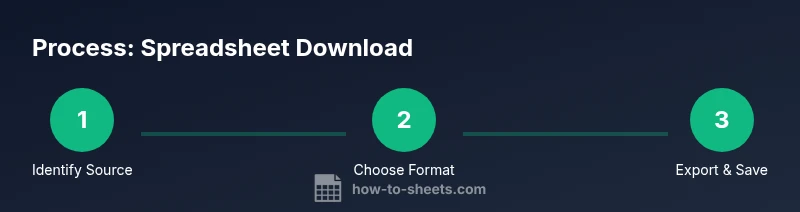
- 1
Identify the spreadsheet you need
Clarify the data you require and locate the exact spreadsheet or data portal that contains it. This ensures you don’t waste time downloading the wrong file.
Tip: Note the source URL and data last updated date if shown. - 2
Choose the source and locate the file
Open the source in your browser, navigate to the file, and confirm it’s the most recent version. If you’re using a portal, use filters to find the right dataset.
Tip: Prefer official portals or reputable providers to avoid outdated or corrupt files. - 3
Decide the export format
Select XLSX for editing, CSV for data transfer, or ODS for open formats. Consider downstream apps and whether formulas should be preserved.
Tip: If in doubt, export a quick sample in two formats to compare usability. - 4
Initiate the download/export
Click the export or download option and choose the format. Wait for the download to complete before moving the file.
Tip: Ensure a stable internet connection to prevent partial downloads. - 5
Rename using a clear convention
Rename the file with a consistent pattern like project_data_20260303_v1.xlsx to support versioning.
Tip: Include date and version number for quick reference. - 6
Save to the designated folder
Place the file in the correct project folder or cloud location to maintain organization.
Tip: Create a subfolder structure for raw downloads, validated data, and analysis. - 7
Open and perform a quick check
Open the file in your editor, verify headers, and skim a few rows for obvious issues.
Tip: Check for any encoding or date format anomalies right away. - 8
Document any changes or notes
If you adjusted formats or cleaned data during download, record those steps in a readme or notes file.
Tip: Maintains reproducibility for future users.
FAQ
What is a spreadsheet download and why do I need it?
A spreadsheet download is exporting a file from a source to use offline or in other apps. It enables data sharing, analysis, and archival. Understanding how to do this reduces friction in reporting workflows.
A spreadsheet download is exporting a file from a source for offline use or other apps, which helps with sharing and analysis.
Which formats should I choose for downloads?
XLSX preserves formulas and formatting for editing; CSV is lightweight for data import; ODS is a good open format option. Choose based on your downstream tool and whether you need editing.
XLSX for editing, CSV for data transfer, or ODS for open formats depending on your tools.
How do I download from Google Sheets?
In Google Sheets, use File > Download and select XLSX, CSV, or PDF. The file is saved to your browser’s default download location or a specified folder.
In Sheets, go to File > Download and pick the format you need; it saves to your downloads folder.
What if the downloaded data looks wrong?
Check encoding, locale settings, and the source data. Re-download in a different format if needed and verify the headers and sample rows.
If data seems off, check encoding and locale, then re-download in another format if necessary.
Can I download multiple spreadsheets at once?
Yes, many portals support batch downloads or zipped archives. For individual files, repeat the export process for each spreadsheet and organize them in a shared folder.
You can download multiple files by batch exporting or downloading individually and keeping them organized.
Watch Video
The Essentials
- Define your data need before downloading
- Choose the right format for your workflow
- Organize with consistent naming and folders
- Validate data after download to prevent downstream errors