Where Are Google Docs on iPhone: A Practical Finder Guide
Learn where Google Docs lives on iPhone, how to access Docs via the app or web, offline options, and best practices for mobile document editing. A practical How To Sheets guide for students, professionals, and small business owners.


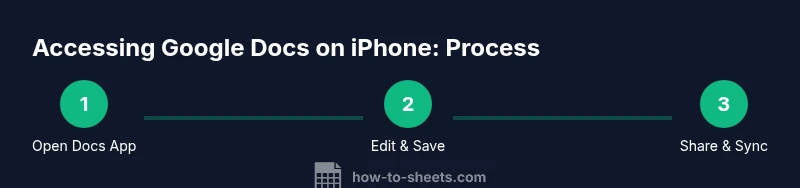
Google Docs on iPhone can be used via the Docs app or by opening docs.google.com in Safari. Install the app for offline access and better integration with Drive, or use the web version if you’re avoiding apps. This quick guide shows you how to locate and start editing from your iPhone.
Where Google Docs Lives on iPhone: App vs Web
If you’re wondering where Google Docs lives on iPhone, you have two main pathways: the dedicated Google Docs app or the mobile web. According to How To Sheets, most users start with the Docs app for reliability and offline work, while others use the web version through Safari for quick access. In this guide, we’ll map out the differences, the best scenarios for each approach, and how to decide which path fits your workflow. The Google Docs ecosystem on iPhone is designed to sync with your Google account, so changes you make on one device appear on others almost instantly. The Docs app is especially helpful for editing on the go with built-in offline support, while the web approach can be handy when you don’t want to install extra apps. If you’re a student, professional, or small business owner, understanding these options can save you minutes every day and cut down on file-management friction. Whether you open documents in the Docs app or through docs.google.com, you’ll benefit from familiar features like formatting options, comments, and sharing controls tuned for mobile use.
This section sets the stage for practical on-device access and explains when to choose the app versus the web interface on iPhone.
Installing the Google Docs App from the App Store
To get the best mobile editing experience on iPhone, start with the Google Docs app. Open the App Store, search for “Google Docs,” then tap Get and Install. Sign in with your Google account or add one during setup. After installation, grant the necessary permissions (storage, notifications) so the app can save, sync, and alert you to changes. The app streamlines learning, editing, and collaboration on the go, especially on smaller screens where built-in controls are optimized for touch.
Accessing Google Docs via Safari on iPhone
If you prefer not to install additional apps, you can access Google Docs through the mobile web by visiting docs.google.com in Safari. Sign in with your Google account, and you’ll see your documents in a familiar interface that mirrors the desktop experience. The web approach is lighter on storage and can be useful on devices with storage limits or when you’re on shared equipment. Note that some advanced features may be limited or rearranged for touch navigation, but basic editing, commenting, and sharing are supported.
Using Google Docs through the Google Drive App
Google Drive can also serve as a gateway to Google Docs on iPhone. Open the Drive app, locate a Google Docs file, and tap to open it in Docs view. This route is handy if you already organize your files in Drive or if you frequently share documents from a central hub. When you open a Docs file from Drive, edits sync back to Google Docs automatically, ensuring consistency across devices and platforms.
Offline Access and Syncing on iPhone
Offline access is a major advantage of using Google Docs on iPhone. The Docs app and Drive app offer offline editing, with changes syncing automatically once you regain internet connectivity. To enable offline mode, ensure the file is marked available offline or that the app’s offline settings are turned on. This capability is especially valuable for travel, commutes, or meetings without reliable connectivity. Keep in mind that some features, like real-time co-editing, require an active internet connection.
Managing Documents: Sharing and Permissions on iPhone
Managing sharing and permissions from an iPhone is straightforward. Open the document in Docs, tap the Share icon, and add people or groups with view or edit access. You can also adjust link sharing settings and revoke access as needed. For mobile collaboration, comments and suggested edits flow just like on desktop, keeping your team aligned as you work from a phone. Always verify the access level before sending a document link to preserve security.
Common Problems and Quick Fixes
If you run into trouble locating or opening Docs on iPhone, try these quick fixes: (1) Update the Google Docs app or the Safari browser to the latest version; (2) Sign out and back into your Google account; (3) Clear browser cache in Safari or reset app permissions; (4) Check your internet connection and try again; (5) Ensure offline mode is enabled for the files you need when offline. These steps resolve most basic issues without needing advanced troubleshooting. This section helps you recover smoothly when things don’t go as planned.
Best Practices for Everyday Docs on iPhone
For efficient mobile editing, keep a small set of documents readily accessible and organize them with clear naming conventions. Use the Docs app’s offline mode for travel or meetings without reliable data, and rely on Drive’s sharing features to collaborate securely. Enable notifications for shared documents to stay updated on edits, and use comments to propose changes without altering the original text. Following these practices makes on-the-go document work fast and reliable.
Tools & Materials
- iPhone with supported iOS version(Ensure you have the latest iOS or at least a version compatible with the Google Docs app.)
- Google Docs app(Download from App Store; sign in with your Google account.)
- Active Google account(Needed to access and sync documents.)
- Internet connection(Wi‑Fi or cellular data for syncing and real-time collaboration.)
- Safari browser (optional alternative)(Use docs.google.com if you don’t want to install the app.)
- Google Drive app (optional)(Helpful for file organization and quick access to Docs files.)
Steps
Estimated time: 15-25 minutes
- 1
Check device compatibility and sign in
Verify your iPhone is up to date and that you are signed in to your Google account. This ensures seamless syncing across devices and access to all Docs features.
Tip: If you’re on a shared device, use guest mode or sign out after finishing to protect your account. - 2
Install the Google Docs app from the App Store
Open the App Store, search for Google Docs, then install. After installation, open the app and sign in with your Google account.
Tip: Enable automatic updates so you always have the latest features and fixes. - 3
Open Docs and locate your documents
Launch the Docs app and browse your documents, or use the search bar to find a specific file quickly.
Tip: Use the star or pin features to keep your most-used documents handy. - 4
Edit a document on your iPhone
Tap a document to open it, then use the on-screen toolbar to format text, add comments, and insert images.
Tip: Tap and hold on a word to see quick edit options like bold, italic, or underline. - 5
Enable offline access for editing without internet
In Docs (or Drive), mark the needed documents as available offline so you can work anywhere.
Tip: Offline changes upload automatically when you reconnect to the internet. - 6
Share and collaborate from iPhone
Open the Share dialog, add collaborators, and choose permissions (viewer, commenter, editor).
Tip: Be cautious with edit access for sensitive documents; adjust permissions as needed. - 7
Switch accounts if you need access from another workspace
In Docs, tap your profile icon to switch between Google accounts or sign out to switch devices.
Tip: Keep your work and personal accounts separate to reduce confusion. - 8
Keep documents organized on iPhone
Use Drive folders and Doc titles that reflect the content for easy retrieval.
Tip: Regularly archive old docs to reduce clutter and speed up search.
FAQ
Where can I find Google Docs on my iPhone?
You can find Google Docs on iPhone either by using the dedicated Google Docs app or by visiting docs.google.com in Safari. Both paths sync with your Google account, but the app typically provides better offline support and a smoother mobile experience.
Open the Google Docs app or go to docs.google.com in Safari to start editing on iPhone.
Can I use Google Docs offline on iPhone?
Yes. Enable offline editing in the Docs app or Drive, and mark specific documents to be available offline. Changes will sync automatically when you reconnect to the internet.
Yes, you can work offline by enabling offline mode for your documents.
Do I need Google Drive to access Google Docs on iPhone?
No, you can access Google Docs directly via the Docs app or docs.google.com. Drive is useful for file organization and quick access to Docs files, but it isn’t strictly required.
You don’t need Drive, but it helps for organization and access.
Is Google Docs available in Safari on iPhone?
Yes. You can open docs.google.com in Safari and edit documents without installing the app, though some features may be limited compared to the mobile app.
Yes, you can use Docs in Safari as an alternative.
How do I share a document from my iPhone?
Open the document in Docs, tap the Share button, and add collaborators with the desired permissions. You can also adjust link sharing settings for broader access.
Open the doc, tap Share, and choose who can edit or view.
How do I switch Google accounts on iPhone Docs?
In the Docs app, tap your profile image to switch between Google accounts or sign out to log in with a different account. Ensure the active account has access to the document you’re editing.
Tap your profile image to switch accounts and pick the right one.
What should I do if Docs won’t open on iPhone?
First, check for app updates and your internet connection. If needed, restart the app or device, and try clearing the browser cache if you’re using the web version.
Update the app, check connection, and restart if needed.
Can I edit Google Docs on iPhone with other apps?
You can import or export documents to other apps that support Word or PDF formats, but real-time collaboration and formatting are best handled in Docs.
You can export or import, but editing is best in Docs.
Watch Video
The Essentials
- Install the Docs app for best iPhone experience
- Use Drive to organize and share documents
- Enable offline access when you expect limited connectivity
- Switch accounts smoothly to access different workspaces