Where Is Google Sheets on Mac? Quick Access Guide
Learn where Google Sheets lives on a Mac, how to open it in a browser, access from Google Drive, and practical steps to create, edit, and share Sheets on macOS.


On a Mac, Google Sheets is accessed via a web browser—there is no dedicated macOS app. Open Safari, Chrome, or Firefox, go to sheets.google.com, sign in, and you can create or edit spreadsheets. You can also access Sheets from Google Drive and use offline features if desired. For best results, keep your browser up to date and enable offline access in Sheets settings. According to How To Sheets, this browser-based approach keeps your work synchronized across devices.
Where Google Sheets Fits on Mac
If you’re asking where is google sheets on mac, the short answer is simple: there is no Mac-specific application. Google Sheets runs entirely in your web browser, so your Mac doesn’t need a dedicated Sheets app. This design leverages cloud storage, real-time collaboration, and automatic autosave features, allowing you to work from any device that has an internet connection. The How To Sheets team notes that browser-based access is intentional to keep Sheets consistently up-to-date across platforms, including macOS. This means your work saved in Sheets is available in Chrome on Windows, Safari on Mac, or any other supported browser, without transferring files manually. If you’re new to Google Sheets, start by visiting sheets.google.com and signing in with your Google account. You’ll immediately see your recent sheets, templates, and any shared documents.
For Mac users, this approach also reduces clutter: there’s no separate installer to download, and you don’t have to worry about OS version compatibility. If you’re transitioning from Excel, remember that Sheets supports many common formulas and functions, with cloud-based sharing and collaboration baked in. In short, where is google sheets on mac? It’s everywhere you browse—from your Mac’s browser to your Drive.
note
Tools & Materials
- Web browser (Safari, Chrome, or Firefox)(Updated to the latest version for compatibility with Sheets features)
- Active Google account(Needed to sign in and access your spreadsheets)
- Internet connection(Stable connection preferred for real-time collaboration)
- Google Drive access(Helpful for file organization and offline access setup)
- Optional: Browser shortcut(Create a desktop or Dock bookmark for faster access)
Steps
Estimated time: 15-25 minutes
- 1
Open a supported browser
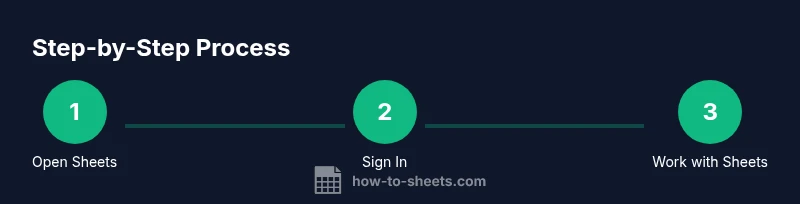
Launch Safari, Chrome, or Firefox on your Mac. Navigate to sheets.google.com to reach the Google Sheets home screen. If you’re already signed into a Google account, you’ll be taken directly to your sheets; otherwise you’ll prompt to sign in.
Tip: Pro tip: Use a browser that you already keep in your Dock for quick access. - 2
Sign in to Google Sheets
Enter your Google account credentials or choose a saved account. Verify you have the correct permissions for any shared documents you intend to edit.
Tip: If you use two-factor authentication, complete the second step to proceed. - 3
Create or open a sheet
From the Sheets home, click Blank to start a new sheet or select an existing document from the list. You can also use templates for budgeting, calendars, or project tracking.
Tip: Tip: Use the File menu to rename, move, or duplicate a sheet for organized workstreams. - 4
Rename and organize your files
Rename your sheet to reflect its purpose and save it to a specific Drive location if needed. Use folders to keep similar sheets grouped together for easy retrieval.
Tip: Pro tip: Add meaningful names and dates to avoid confusion later. - 5
Enable offline access (optional but recommended)
In Google Drive settings, enable offline editing to work without an internet connection. Sheets will sync changes automatically when you reconnect.
Tip: Pro tip: Do a quick offline test to ensure your edits appear when you come back online. - 6
Create a quick access shortcut
Drag sheets.google.com into your browser’s bookmarks bar or create a Desktop/Dock shortcut (varies by browser) to speed up access for future use.
Tip: Note: Shortcuts open Sheets in a regular browser window; you can opt to open in a separate window for distraction-free work.
FAQ
Is there a dedicated Google Sheets desktop app for Mac?
No. Google Sheets does not have a standalone Mac desktop app. It’s designed to run in web browsers, which makes it accessible from any device with internet access.
There isn’t a dedicated Mac app; you use Sheets in your browser.
Can I use Google Sheets offline on a Mac?
Yes. Enable offline editing in Google Drive settings and Sheets will sync changes when you’re back online. This works best with a stable internet plan and trusted devices.
Yes, you can edit offline after enabling offline mode.
How do I share a Sheet from my Mac?
Open the sheet and click the Share button to add people or generate a link with specific permissions. Manage visibility and editing rights to protect data.
Open the sheet, click Share, and set permissions.
Where are Sheets files stored when opened from Mac?
Sheets files are stored in Google Drive online. If offline mode is enabled, limited local caches are used until you reconnect.
Files are stored in Drive, with local cache for offline work.
Do I need an internet connection to start using Sheets on Mac?
A connection is required to access the Sheets interface and to save changes to Drive. Offline mode mitigates this when you’re not connected.
An internet connection is needed for access, but offline mode helps when you’re offline.
Watch Video
The Essentials
- Open Sheets in your Mac's browser for quick access.
- Sign in with a Google account to view and edit files.
- Enable offline mode to work without internet.
- Organize files with Drive folders and meaningful names.
- Use bookmarks or shortcuts to reach Sheets fast.