Where is Google Sheets Template Gallery: A Practical Guide
Discover where to find the Google Sheets Template Gallery, how to access it from Sheets or Drive, and how to choose and customize templates for budgeting, calendars, and projects.


The Google Sheets Template Gallery is the official collection of starter templates you can open directly in Sheets or from Drive. It helps you start projects faster by providing ready-made spreadsheets for budgeting, calendars, event planning, and data tracking. Access it from within Google Sheets by selecting Template Gallery, or from Drive via New > Google Sheets > From template. You don’t need to build from scratch.
What is the Google Sheets Template Gallery?
The Google Sheets Template Gallery is the official collection of starter spreadsheets you can open directly in Sheets or from Drive. It includes templates for budgeting, calendars, project trackers, inventory, and more. The gallery helps users avoid reinventing the wheel and speeds up workflows for students, professionals, and small business owners. According to How To Sheets, accessing ready-made templates reduces setup time and helps you start with proven structures. Many new users also wonder where is google sheets template gallery and how to navigate it efficiently. Knowing the gallery's purpose helps you choose templates that fit your workflow and save time in daily tasks.
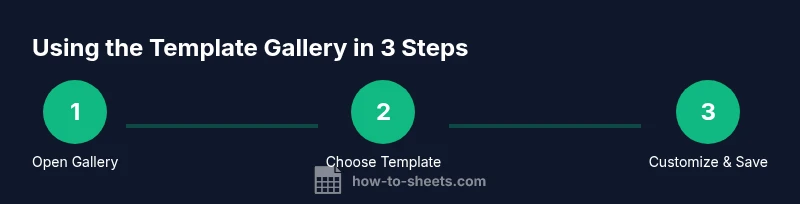
To access, you can go from the Google Sheets home screen and choose Template Gallery in the top-right corner, or navigate via Drive: New > Google Sheets > From template. Some templates are designed to be shared; you can copy them to your own Drive and customize the data. The interface offers search, filters by category, and previews so you can quickly judge fit. If you use templates often, you can save favorites and return to them later. Templates are updated periodically, so revisiting the gallery every few months can surface new options for common tasks.
How to access the template gallery?
Accessibility is straightforward and consistent across Google accounts. From Google Sheets, look for Template Gallery in the top-right corner of the home screen. A panel slides in showing categories like Budget, Calendar, Project Tracker, and Data Entry templates. Use the search bar to filter results by keyword, such as budget or calendar, and hover over a template to preview sample data. If you prefer using Drive, go to New > Google Sheets > From template to open the same gallery within Drive. You can copy a template to your Drive, rename it, and start editing. For teams, template sharing can speed onboarding—just ensure you have permission to copy or modify shared templates.
Finding templates: search, filters, and categories
The gallery is organized by practical categories: Budget, Calendar, Project Tracking, Invoicing, Inventory, and Data Analysis are common starts. Use filters to narrow results by category, popularity, or recency. The search feature accepts keywords like 'monthly budget', 'marketing calendar', or 'expense tracker'. Preview tiles show sample content, growth indicators, and the date of the latest update. For users who regularly rely on templates, creating a short list of go-to templates reduces search time and ensures consistency across projects.
Common template categories and sample uses
- Budget templates help track income, expenses, and forecasts for personal finance or small businesses.
- Calendar templates support event planning, project milestones, and team schedules.
- Project trackers include task lists, assignees, due dates, and progress bars.
- Invoicing templates generate simple, repeatable bill details with totals and due dates.
- Inventory templates assist with stock levels, reorder points, and supplier data.
- Data-entry templates streamline repetitive fields with validation rules.
Each template typically comes with sample data you can replace. How To Sheets emphasizes picking templates that align with your data structure and reporting needs, rather than forcing a template to fit your data.
Choosing the right template for your project
Start by defining the project scope and data requirements. Ask: What will be tracked? How often will it be updated? Which metrics matter for stakeholders? A good template should offer clear columns, consistent formulas, and scalable structure. If a template is too feature-heavy for your task, choose a simpler starter and gradually add complexity. Remember to check if the template supports multiple sheets, which is helpful for separating inputs from outputs. According to How To Sheets analysis, starting with a well-scoped template reduces rework and accelerates delivery.
Customizing templates for your needs
Customization is often the key to fit-for-purpose templates. Start by renaming sheets and headers to reflect your data. Replace sample data with your own values and validate formulas to avoid errors. Add conditional formatting to highlight key metrics, and protect critical cells to prevent accidental edits. Document any custom rules in a dedicated sheet or a README tab so future teammates understand the setup. When possible, create a local copy for experimentation before updating the production template in Drive.
Saving, renaming, and sharing templates
After making changes, save the new version with a descriptive name that includes the project or department. If you plan to reuse the setup, consider adding it to your personal template library or sharing it with your team via Drive. Organize templates in a dedicated folder and set appropriate access permissions. If you’re working within an organization, check your admin policies for template submission or reuse rules. Keeping a clean, organized library helps reduce search time and ensures consistency across projects.
Troubleshooting access issues and permissions
If a template isn’t visible, verify your Google account and sign-in status. Some templates may be restricted by domain permissions or by the owner’s sharing settings. Clearing browser cache or trying a different browser can resolve occasional display issues. If you still can’t access Template Gallery, contact your administrator or try accessing templates from a different Google Workspace domain. For offline work, ensure you have internet access when pulling the latest templates, then save copies locally for later use.
Advanced tips and next steps
Stay current with new templates by checking the Template Gallery periodically. Set a reminder to review templates every few months to capture improvements and new categories. For frequent users, keep a short list of favorite templates and duplicate them to maintain a clean baseline. If you work with teams, establish a standard naming convention and a shared folder to streamline onboarding and collaboration. How To Sheets recommends documenting your chosen templates and customization rules for future projects.
Tools & Materials
- Google account with Sheets access(Ensure you can save changes to Drive and access shared templates if needed)
- Device with internet and a modern browser(Chrome, Edge, Firefox, or Safari are all suitable)
- Stable internet connection(Template loading and previews rely on connectivity)
- Common data set or project brief(Helpful for immediate customization after opening a template)
Steps
Estimated time: 25-40 minutes
- 1
Open Google Sheets
Navigate to sheets.google.com and sign in with your Google account. This is the first step to access the Template Gallery from within Sheets.
Tip: Use a stable internet connection to avoid mid-step interruptions. - 2
Open the Template Gallery
From the Sheets home screen, click Template Gallery in the top-right to reveal the gallery panel with previews.
Tip: Hover templates to preview data before selecting. - 3
Browse or search
Use categories and the search bar to locate templates by keyword like budget or calendar. Preview items to judge fit.
Tip: Filter by category to narrow results quickly. - 4
Open or Use Template
Click a template and select Use Template to create a new sheet in your Drive with the template’s structure.
Tip: Always start with a copy to preserve the original template. - 5
Rename and save
Rename the new sheet with a descriptive title and folder path that matches your project.
Tip: Include date or project name for easy searching later. - 6
Customize data and formulas
Replace sample data, adjust column headers, and verify formulas to align with your data sources.
Tip: Document any formula changes to avoid confusion later. - 7
Share and collaborate
Set sharing permissions as needed and invite teammates to contribute or review.
Tip: Use comment threads for collaborative feedback. - 8
Save as a new baseline
If you’ll reuse this setup, save a copy as a personal template or add it to a team template library.
Tip: Establish a naming convention to keep templates organized.
FAQ
Where is the Google Sheets Template Gallery located?
In Google Sheets, click Template Gallery in the top-right corner of the home screen. From Drive, use New > Google Sheets > From template to open the same gallery. How To Sheets notes that this is the fastest way to access ready-made templates.
Open Sheets, tap Template Gallery to browse templates, or go through Drive via New > Google Sheets > From template to open the same gallery.
Can I edit templates after opening them?
Yes. Opening a template creates a new copy you can edit. Changes affect only your copy unless you deliberately overwrite the original.
Yes—templates open as copies you can customize; edits stay in your copy unless you overwrite the original.
Are templates free to use?
Templates are free to use within Google Sheets as part of your account. There are no separate charges for accessing template content.
Yes, templates are free to use with your Google account.
What if I can’t find templates in my region?
Templates are generally available globally, but some templates or sharing features may be restricted by domain permissions or admin settings.
Templates are usually available worldwide, but access can depend on your account settings.
How can I create a template from my own sheet?
To reuse a sheet as a template, save a clean copy with a descriptive name and store it in a dedicated templates folder. You can then use copies for new projects.
You can save a clean copy as a template and reuse it for future projects.
Watch Video
The Essentials
- Open the Gallery from Sheets or Drive to start quickly
- Use filters and search to find templates fast
- Copy templates before editing to preserve originals
- Customize data and formulas to fit your project
- Organize and share templates for team consistency