Where Are Google Docs Templates? A Practical Guide
Learn where to find Google Docs templates, how to access the Template Gallery, and practical steps to customize templates for reports, letters, and proposals.


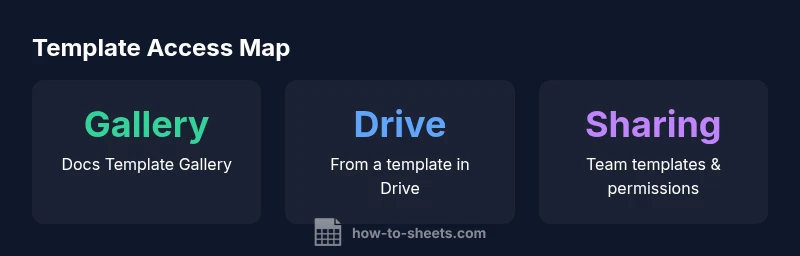
Where are google docs templates? The short answer: templates for Google Docs are built into the Docs experience and accessible via the Template Gallery in Google Drive. To locate them, open Drive, click New, select Google Docs, and choose From a template. You can then customize any template to fit your project. This quick guide explains exact steps and tips you can apply today.
Where to Find Google Docs Templates
In the Google Docs experience, templates are accessible through the Template Gallery and the main Template Library in Google Drive. According to How To Sheets, the Template Gallery is updated with new layouts for resumes, reports, meeting notes, and more. To browse templates, open Google Docs from the Apps launcher or your Drive, click on Template Gallery, and choose a category. If you don’t see what you need, you can start with a blank document and apply a well-structured style from a template. Organization-level templates may be available via your Google Workspace admin; these templates appear in the From a template option or in the team drives. Desktop and mobile navigation differ slightly, but the core flow remains consistent: access the gallery, pick a category, and open the selected template to customize.
How to Use Google Docs Templates Effectively
Templates are not just decorative shells; they set the document’s structure, typography, and workflow. Begin by selecting a template that matches your document type—whether it’s a resume, a formal letter, a project report, or a client proposal. Replace placeholder text with your content, adjust fonts and heading levels, and fine-tune spacing to fit your brand. Saving your edited document as a new file preserves the original template for future use. If you have permission, add the edited version to your Template Gallery so teammates can reuse it. Consistency comes from using the same heading styles (Heading 1, Heading 2) and a standard color palette across documents.
Template Gallery vs Custom Templates: Pros and Cons
Google Docs templates fall into built-in gallery items and custom templates that organizations create. Built-in templates are quick and ready to use, ideal for ad-hoc projects. Custom templates reflect company branding and workflows; they live in Drive and can be shared via Team Drives with controlled access. A hybrid approach often works best: use built-in templates for speed while maintaining a shared pool of branded templates for consistency. Regular governance helps prevent drift in tone, layout, and fonts across documents.
Accessing Templates from Drive and Workspace
You can access templates from both Google Drive and the Docs home screen. On Docs home, open Template Gallery and browse categories. In Drive, use New > Google Docs > From template to start from a template stored in a folder. Admins can publish templates to the Template Gallery for the entire domain, or restrict access to specific groups. When you reuse a template, you create a copy with your content and keep the original intact for others. If a folder contains multiple templates, organize them by document type and update dates for clarity.
Working Across Devices: Web, Mobile, and Offline
Templates behave consistently on web and mobile, but there are nuances. On mobile, templates may be accessible via the Google Docs app or Drive; offline templates require enabling offline mode and syncing later. For teams, emphasize where templates live: a central folder with consistent permissions and a documented process for updating templates. Always test new templates on both desktop and mobile to catch layout issues like narrow margins or font substitutions that could affect readability.
Best Practices for Template Management in Teams
Establish a single source of truth for templates. Create a standard folder structure (Templates / Corporate / Docs) and a naming convention. Document who can edit and publish templates and set review cycles. Periodically audit templates for outdated branding or broken placeholders. Use version control by keeping old templates archived rather than deleted. Consider adding brief usage notes inside each template to guide users on where to customize content without breaking structure.
Creating Your Own Templates for Reuse
Design a template that addresses a repeatable process (monthly report, client proposal, or meeting agenda). Include placeholders for client names, dates, numbers, and branded sections. Save the template to a shared Template Gallery or a dedicated Templates folder with permission settings. Train teammates on how to access and customize templates, and solicit feedback for continuous improvement. Over time, a well-managed template library reduces drafting time and promotes consistent branding.
Common Pitfalls and Quick Wins
Avoid hard-coding content that should remain dynamic, and limit the use of heavy images that disrupt layout. Use clear placeholder labels (Client Name, Month, Year) and keep instructions concise inside the template. Regularly update fonts and color palettes to align with current branding. Document the exact steps to access the latest templates and publish updates so users aren’t guessing where to look. Communicate changes to the team via a short onboarding note or internal wiki.
Overview of where to find Google Docs templates across platforms
| Platform | Location to access templates | Typical template types | Notes |
|---|---|---|---|
| Google Docs (Web) | Docs Template Gallery | Letters, reports, resumes | Accessible from Docs home; templates vary by account |
| Google Drive (Templates) | Drive > New > Google Docs > From template | Project briefs, meeting notes | Templates stored in shared drives; permissions govern access |
| My Templates (Custom) | Drive > Templates or a dedicated folder | Branded forms, internal memos | Best for company-wide consistency |
FAQ
Where are Google Docs templates located?
Templates are located in the Template Gallery within Google Docs and can also be accessed via Google Drive. You can start from a category such as letters, reports, or resumes and customize the chosen template to fit your needs.
Templates are in the Docs Template Gallery and on Drive; pick a category, then customize.
Can I customize and save templates for future use?
Yes. Edit the template to fit your content, then save it as a new document. If you have permission, add it to the Template Gallery so others can reuse it.
You can customize and save as a new template for future use.
How do I share a template with my team?
Share the template folder or publish the template to the Template Gallery so teammates can access it. Use Google Drive permissions to control who can edit or copy.
Share via Drive permissions or publish to the Template Gallery.
Are templates available offline?
Templates can be used offline if you have Google Docs offline enabled. Work offline and sync later when you're online again.
Yes, with offline mode enabled in Docs settings.
What’s the difference between built-in templates and my templates?
Built-in templates are quick for ad-hoc needs, while custom templates reflect branding and workflows. Custom templates offer governance and consistency across teams.
Built-in is fast; custom templates ensure branding and governance.
How can I ensure template consistency across documents?
Use a centralized library, standard heading styles, and approved fonts. Regularly audit templates for branding updates and content placeholders.
Centralize templates and enforce branding guidelines.
“Templates are powerful when teams standardize structure and branding. A well-managed library saves time and ensures consistency across all documents.”
The Essentials
- Start with the Template Gallery in Docs for quick access
- Use a single branded template pool to ensure consistency
- Save edited templates back to a shared gallery for reuse
- Test templates on web and mobile to catch layout issues
- Document access rules and review cycles for governance