Where is My Google Sheets Toolbar? A Practical How-To Guide
Learn how to locate, reveal, and customize the Google Sheets toolbar across desktop and mobile. Follow step-by-step guidance, troubleshooting tips, and practical examples to restore quick access to formatting and data-management tools.


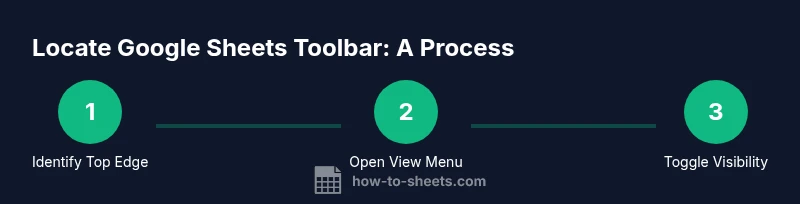
To locate or restore the Google Sheets toolbar, open your sheet and look at the top edge for the menu bar (File, Edit, View, Insert, Format, Data, Tools). If the toolbar is hidden, use View > Show toolbar to toggle visibility. On mobile, access toolbar controls through the app menu.
Understanding the Google Sheets toolbar
The Google Sheets toolbar is the hub for formatting, alignment, and quick actions. On desktop, you’ll find it along the top edge of the window, just under the main menu (File, Edit, View, Insert, Format, Data, Tools, Extensions, Help). The icons let you apply bold or italics, adjust alignment, format numbers, insert charts, and access add-ons. Because speed matters in data work, knowing where the toolbar lives helps you execute tasks with fewer clicks. In practice, you’ll use it to apply formatting, set conditional formatting, and quickly switch between sheets. For new users, treat the toolbar as your primary set of formatting tools that you reach for when shaping data, applying styles, or creating summaries. With practice, you’ll reach for these controls almost by habit, shortening workflows and reducing mistakes.
The desktop toolbar is designed for broad actions, while some features may appear or disappear based on your current selection. If you’re editing a header, the icons might look different than when you’re working with numbers in a range. The goal is to minimize navigation time so you can focus on the data itself and the insights you’re trying to derive. If you’re unfamiliar with any icon, hover it to reveal a tooltip that explains its function. Over time, you’ll memorize a core set of tools you reach for daily, which speeds up tasks like formatting, data validation, and quick styling.
Understanding where the toolbar lives and how it changes with context—such as selected cells, charts, or text—will make you more productive and reduce guesswork when performing routine operations.
Desktop vs mobile toolbar: key differences
Google Sheets on desktop and mobile differ in layout, space, and the way controls are accessed. Desktop presents a broad horizontal ribbon with clearly labeled icons and text, plus a secondary ribbon for extended options. This setup is optimized for larger screens and precise cursor control, so you can perform batch edits, apply complex formatting, and insert charts with a few clicks.
On mobile, the toolbar collapses to a compact set of icons, and some features live behind a three‑dot menu or a bottom bar. The smaller screen means you may need to tap to reveal additional commands, switch views, or scroll more frequently to reach tools. If you switch devices, expect some icons to move or hide behind menus, and plan for slightly slower workflow during readjustment.
The key takeaway: desktop users typically enjoy quicker access to a full set of tools, while mobile users rely on compact controls and gesture-driven access. When teaching others, emphasize device-specific differences to avoid confusion during essential tasks like data cleaning, formatting, and chart creation.
Common visibility issues and quick fixes
If the toolbar seems missing, the issue is usually a UI state, a display setting, or an external interference rather than a missing feature. Start with the simplest checks: ensure you’re in a normal browser window (not full screen) and that the page has fully loaded. Then inspect the View menu for visibility options like compact controls or toolbar toggles. Some users report the toolbar only appears when the sheet isn’t in full-screen mode, so toggling that state can restore visibility.
Next, consider browser extensions or privacy settings that might hide UI elements. Open the sheet in an Incognito/Private window to rule out extensions, then reintroduce extensions gradually if the toolbar reappears. If you still don’t see it, try signing out and back in, or switching browsers to isolate the issue. Finally, confirm you’re on a supported Google account and that Sheets isn’t running in a sandboxed or restricted profile.
If the problem persists, a simple refresh or clearing the browser cache can reset UI state and often resolves visibility glitches. In rare cases, differences between corporate profiles or school accounts can alter UI features; in those instances, consult your administrator for any applied UI policies.
Personalization and accessibility options
Google Sheets offers several UI customization options aimed at improving readability and speed. You can switch between full controls and compact mode to adjust how much detail is visible at a glance. Accessibility features like high-contrast themes and larger UI elements can improve legibility and reduce eye strain, especially on smaller screens or for users with visual impairments.
Another customization point is the formula bar visibility, which some users prefer to keep visible while others disable for a cleaner workspace. Keyboard shortcuts become invaluable when the toolbar is hidden or reduced; learning a few core shortcuts can maintain speed even when icons aren’t immediately visible. Finally, consider enabling gridlines or adjusting zoom levels to optimize how you interact with cells and controls, depending on your screen size and eyesight preferences.
Tools & Materials
- Computer or mobile device with internet access(Ensure you are connected to the internet and can access Google Sheets in a browser or the mobile app.)
- Active Google account(You must be signed in to access and modify Google Sheets.)
- Test sheet for practice(Use a copy of a sheet to safely experiment with toolbar visibility and settings.)
- Alternative browser (optional)(Having a second browser helps diagnose UI differences.)
Steps
Estimated time: 60-75 minutes
- 1
Open the sheet and locate the toolbar
Open Google Sheets in your browser and navigate to the sheet you want to edit. Look at the top edge for the toolbar area—the horizontal band with formatting icons and menus. If you don’t see it, verify you’re not in full‑screen mode and that the page has finished loading.
Tip: If the toolbar remains hidden, try refreshing the page or exiting full‑screen mode. - 2
Check the View menu for visibility options
Click the View menu at the top of the window and scan for options related to toolbar visibility, such as Show toolbar or Compact controls. Turning these on or off toggles the toolbar’s presence.
Tip: Keyboard shortcut: Use your browser’s menu access to reach View quickly if you prefer keyboard navigation. - 3
Toggle between full and compact controls
If you see only icons or labels disappear, switch between full controls and compact controls to restore the expected display. This affects how much toolbar you see at once and can reduce clutter.
Tip: Choose the mode that best fits your screen size and task load. - 4
For mobile: reveal the toolbar via the app menu
On mobile devices, the toolbar is often reachable through the app menu (three dots or a dedicated menu). Tap to reveal additional tools as needed for formatting and editing.
Tip: If you use the official Sheets app, ensure you’re on a supported version for full UI access. - 5
Rule out extensions or browser quirks
Extensions or privacy settings can hide parts of the Sheets UI. Try opening the sheet in an Incognito/Private window or temporarily disable extensions to identify the culprit.
Tip: Test with extensions disabled to isolate the issue. - 6
Refresh, re-login, and verify changes
If you still don’t see the toolbar, sign out, refresh, and sign back in to reset the UI state. Reopen the sheet and confirm the toolbar returns.
Tip: If problems persist, clear your browser cache and try again.
FAQ
Where is the Google Sheets toolbar located on desktop?
On desktop, the toolbar runs along the top edge under the main menu. It contains the most-used formatting and quick-access tools. If you don’t see it, check for full-screen mode and confirm the page has fully loaded.
On desktop, look along the top edge under File and Edit for the toolbar. If it’s missing, check your screen mode and loading status.
How can I show the toolbar if it’s hidden?
Use the View menu to toggle toolbar visibility or disable full-screen mode. If the toolbar still doesn’t appear, try refreshing the page or opening Sheets in a different browser profile.
Go to View and toggle the toolbar visibility; if needed, refresh or try another browser profile.
Is the toolbar different on mobile?
Yes. Mobile versions use a condensed toolbar with a three-dot menu or bottom bar. Access the full set of tools by tapping the menu to reveal more options.
Mobile users will tap the menu to reveal tools not shown by default.
What if the toolbar disappears after a browser update?
Try opening Sheets in an Incognito window to rule out extensions, then clear cache or switch browsers. If the issue persists, check with your administrator for UI policy changes.
If it disappeared after an update, test in private mode and clear cache, then retry in another browser.
Can I customize toolbar icons or options?
Google Sheets doesn’t support full customization of icons, but you can adjust visibility with Compact controls and other View options to tailor the toolbar to your workflow.
You can adjust visibility with View options, but full icon customization isn’t available.
Does signing out affect the toolbar visibility?
Toolbar visibility generally persists across sign-ins, but a new session may reset some UI states. If issues persist, sign out, clear cache, and reload.
Toolbar usually stays the same after signing back in, but you may need to refresh or clear cache if problems persist.
Watch Video
The Essentials
- Find the toolbar at the top edge of Google Sheets
- Use the View menu to toggle visibility when it disappears
- Mobile toolbar access differs—use the app menu to reveal tools
- Rule out browser extensions by testing in private mode
- Refresh or re-login to reset UI state and recover controls