How to Put Google Sheets on Desktop: A Practical Guide
Learn practical steps to access and use Google Sheets on your desktop, including creating desktop shortcuts, enabling offline access, and choosing the best method for your workflow.


With Google Sheets on your desktop, you can open and edit spreadsheets in a dedicated window, mimicking a native app. You’ll learn three reliable methods: creating a desktop shortcut that opens Sheets in a window, enabling offline access for uninterrupted work, and using browser-based wrappers to approximate a desktop experience. Follow the steps, and you’ll gain faster access and improved focus.
Why putting Google Sheets on desktop matters
Having Google Sheets available on your desktop can significantly streamline workflows for students, professionals, and small business owners who rely on fast spreadsheet access. A desktop-like experience minimizes tab juggling, keeps your work in a single focused window, and helps you maintain context during data tasks. According to How To Sheets, transforming web apps into desktop-like experiences can improve focus and efficiency by reducing time wasted on context switching. When you work in a dedicated window, you’re less prone to accidentally closing important sheets and more likely to retain your place in large projects. This article explains practical, repeatable steps to put Google Sheets on your desktop, plus the trade-offs you should consider.
As you explore the desktop option, you’ll encounter three core approaches: a native desktop shortcut that opens Sheets in a window, offline mode for reliable work without an internet connection, and a browser wrapper or PWA-like setup that mirrors a desktop app. Each method has its own strengths, setup steps, and caveats. The goal is to give you a workflow that feels seamless and minimizes friction when you start new sheets or update data across teams.
Key takeaway: choose the method that fits your typical device, network reliability, and whether you need offline access as a core capability. This guide uses practical language and actionable steps, so you can implement a desktop-friendly Sheets experience quickly.
- For students juggling coursework and group projects, a quick shortcut can save precious minutes before lectures.
- For professionals coordinating budgets or dashboards, a stable desktop-like window helps you stay consistent across apps.
- For small business owners, offline mode can protect work during spotty connectivity.
If you’re ready, you’ll discover a simple, repeatable path to a desktop Sheets workflow that aligns with your daily routines.
Desktop vs browser experiences: what changes when you move to desktop?
A desktop setup for Google Sheets changes how you interact with the tool, but not the underlying capabilities. On the browser, Sheets runs in a tab like any other web page; you switch tabs, manage multiple windows, and occasionally deal with browser slowdowns or notifications. A desktop-like experience, by contrast, centers Sheets in a standalone window with its own chrome, keyboard focus, and a more app-like feel. You gain fewer distractions and a clearer boundary between your spreadsheet work and other browser tasks. Importantly, a desktop shortcut can launch Sheets in a window, which reduces the time spent locating the tab and reorienting yourself after switching tasks.
Offline access is another crucial distinction. When you enable offline mode, Sheets continues to function even when the internet hiccups or disconnects briefly. Your changes sync automatically as soon as you regain connectivity, preserving data integrity and reducing the risk of lost work. While you cannot install a true standalone Google Sheets app on every desktop, the desktop shortcut and PWA-like approaches get very close, delivering the same core features—filters, formulas, charts, and real-time collaboration—without forcing you to toggle back to the browser repeatedly.
For most users, the decision comes down to workflow preference and network reliability. If you primarily work online and want a lightweight approach, a browser shortcut might be enough. If you need resilience against connection drops, offline mode is worth enabling. If you want a more app-like cadence, a PWA-like wrapper can be a good fit, provided your browser supports it.
- Relationship to online features remains intact: collaboration, sharing, and comments work the same way once Sheets is open in a window.
- Keyboard shortcuts translate across modes, but focus and window management feel more “native” when Sheets sits in its own window.
- Performance tends to be best when you use a fast internet connection and a modern browser.
Three solid routes to a desktop-like Sheets experience
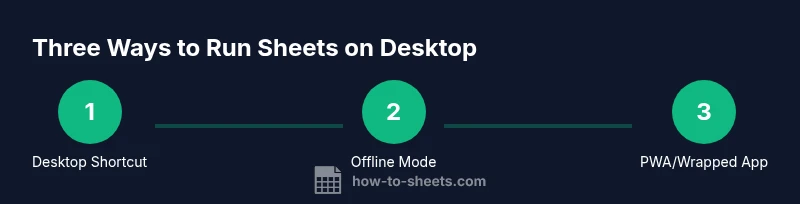
There are three practical routes you can take to get Google Sheets onto your desktop in a way that feels close to a native app:
- Desktop shortcut to Sheets in a window: Create a dedicated shortcut that launches Sheets in a separate window, giving you a windowed, focused workspace.
- Offline mode for reliable work: Enable offline access so you can edit and save locally and have changes sync when you’re back online.
- Browser wrapper or PWA-like setup: If your browser supports it, wrap Sheets in a windowed app or progressive web app wrapper for a cleaner, more app-like experience.
Each method has trade-offs in terms of setup complexity, offline capabilities, and actual “app-like” feel. The shortcut method is quick and broadly compatible; offline mode is essential for reliability; a PWA-like wrapper can deliver the closest desktop app experience where available.
When choosing, assess how often you lose internet mid-task, whether you need a true windowed experience, and whether you’re comfortable with slightly more setup for a perfect desktop illusion.
- Shortcut-based windowing is quick and accessible on most machines.
- Offline mode requires initial setup but pays off during unstable network periods.
- PWAs deliver the best app-like feel where your browser supports it.
How to create a desktop shortcut that opens Sheets in a window
Creating a desktop shortcut that opens Sheets in a dedicated window is the most universally compatible approach. The steps vary slightly across Chrome/Edge/Firefox, but the core idea remains the same: you create a bookmark that can be launched as its own window, not a tab, which helps you stay focused. This section outlines a reliable path compatible with most Windows and macOS setups. You’ll first open Sheets in your browser, then use the browser’s built-in feature to create a shortcut, and finally rename the shortcut for easy identification. Enabling the window option often reduces on-screen clutter by isolating Sheets from your regular browser tabs.
A practical tip is to pin the new shortcut to your taskbar or dock for just-in-time access. If you frequently switch between Sheets documents, consider creating multiple shortcuts named after the main projects (Budget 2026, Marketing Plan, etc.). That way, you don’t have to hunt through bookmarks each time you start a new sheet. As with any shortcut, verify you’re signed into the correct Google account to ensure you open the right documents.
- Sign in to sheets.google.com and open a sheet to verify state is saved.
- Use Chrome’s Create shortcut feature and select Open as window to simulate a desktop app.
- Name the shortcut clearly to reflect the most-used sheet or project.
- Pin the shortcut to your taskbar or dock for immediate access.
Enabling offline access for uninterrupted work
Offline access is a safety net that ensures you can work even without a reliable internet connection. To enable it, turn on offline mode in Google Drive settings and ensure your critical sheets have been opened online at least once while connected. The offline cache stores local copies of Docs, Sheets, and Slides, so edits are saved locally and synchronized when you reconnect. If you frequently work in environments with spotty connectivity, offline mode is a must.
A common pitfall is assuming offline edits are captured automatically without any online activity. Always test by disconnecting briefly and making a change, then reconnect to confirm the change synced. Keep in mind that large sheets with many collaborators may experience synchronization delays; plan larger updates when you have a reliable connection. If privacy is a concern on shared devices, sign out of your Google account after finishing work or use a dedicated work profile.
- Enable offline mode in Drive settings and ensure sheets have been opened online before going offline.
- Test changes by disconnecting briefly and verifying synchronization after reconnecting.
- Be mindful of sensitive data on shared machines; sign out when not actively using Sheets.
Wrapping Sheets as a desktop app: PWAs and wrappers
Some browsers support progressive web app (PWA) features that allow you to install web apps as desktop-like apps. If your browser offers an “Install” or “Apps” option for Sheets, you can add Sheets as a standalone app with its own icon and windowed interface. This approach provides a more authentic desktop feel than a simple shortcut, including consistent window chrome and easier switching between apps. Availability varies by browser and OS, so you may not see an Install option on all machines. If you don’t see it, focus on the shortcut or offline method as a solid alternative.
Tip: keep an eye on browser updates, since browser vendors occasionally expand PWA support to more web apps. In the meantime, using a windowed shortcut plus offline mode gives you a dependable, productive setup without waiting for a full PWA rollout.
- PWAs offer the closest desktop app experience where supported.
- Not all browsers provide PWA support for Google Sheets yet; use shortcuts as a reliable fallback.
- Regularly update your browser to access new PWA features when available.
Troubleshooting common issues and best practices
If you encounter issues, check first that you’re using the latest browser version and that Sheets is loaded online when enabling offline mode. Common problems include shortcuts opening the wrong account, offline changes not syncing, or Sheets failing to launch in a separate window. For account issues, ensure you’re signed into the intended Google account and that your browser profile reflects that account. If offline syncing stalls, verify your Drive offline cache, and try re-enabling offline mode after a full browser restart. Keyboard shortcuts can help you quickly switch between the new Sheets window and other apps, but ensure you don’t inadvertently close the window while within a critical operation.
Pro tip: keep a simple backup of critical sheets in a separate local file as a fallback during long offline periods. Avoid storing highly sensitive data on devices with weak security; always sign out when you finish work on shared machines.
- Update browser to latest version to access new desktop-like features.
- Verify correct Google account is used for the Sheets shortcut.
- Maintain backups of critical data when working offline.
- Sign out on shared machines to protect privacy.
Choosing the right method for your workflow
The optimal path to a desktop-friendly Google Sheets setup depends on your typical workflow. If you mostly work online and value speed, a desktop shortcut with a windowed view is usually enough. If you experience frequent connectivity issues, enable offline mode to preserve continuity. If you want the cleanest, most app-like feel, test a PWA-like wrapper or installed app option where available, but be aware of potential compatibility concerns. For classrooms or teams, consider standardizing on one approach to minimize confusion and keep everyone aligned on where to find their sheets. With the three strategies in hand, you can tailor a solution that minimizes friction and aligns with your daily tasks.
- Online-heavy users: stick with a shortcut in a dedicated window.
- Connectivity-challenged users: enable offline mode and test local editing.
- App-seekers: explore PWAs and installed wrappers when supported by your browser.
- Teams: standardize on one approach to simplify onboarding and use.
Quick reference: next steps and a practical checklist
- Choose a method: shortcut, offline mode, or PWA wrapper. 2) Open sheets.google.com, sign in, and create your shortcut with the window option. 3) Enable offline mode in Google Drive settings and test offline edits. 4) If available, try a PWA-like installation for the closest desktop app feel. 5) Pin the shortcut or app to your taskbar/dock for easy access. 6) Regularly review your setup to ensure you’re using the method that best fits your current workflow.
This quick reference gives you a practical, repeatable workflow to keep Google Sheets close at hand on your desktop, no matter your device or network conditions. You can revisit these steps anytime to adjust your setup as your needs evolve.
Key takeaways for desktop Sheets success
How to maintain and improve your desktop Sheets setup
Tools & Materials
- Computer with Chrome or a modern browser(Latest version, stable internet connection recommended)
- Google account(Sign in to Sheets with your work or personal account as needed)
- Internet connection(Stable broadband recommended for syncing changes)
- Optional: screenshot tool or note-taking app(Helpful for documenting steps or sharing guidance with teammates)
Steps
Estimated time: 20-30 minutes
- 1
Open Sheets in your browser
Navigate to sheets.google.com and sign in with the Google account you plan to use for work. Ensure that you can view at least one sheet to validate your access. This foundation step confirms access to all Sheets features like formulas, charts, and sharing.
Tip: Keep a single browser profile for Sheets to avoid mixing work and personal data. - 2
Create a desktop shortcut that opens Sheets in a window
In Chrome (or a compatible browser), use the menu to create a shortcut: More tools > Create shortcut, then select Open as window. This creates a desktop icon that launches Sheets in its own window rather than a tab. This mirrors a native app experience.
Tip: Name the shortcut after the most-used Sheet or project for quick recognition. - 3
Enable offline access for uninterrupted work
Go to Google Drive settings and toggle Offline to enable offline access. Open a few Sheets while online to cache them locally. When offline, you can edit these cached files and changes will sync when you’re back online.
Tip: Test the offline mode by disconnecting briefly to ensure changes save locally. - 4
Launch and verify the new desktop shortcut
Double-click the desktop shortcut to open Sheets in a dedicated window. Confirm that you’re logged into the correct account and that a recent file loads without issues. This verifies that the setup works as intended.
Tip: If the window doesn’t appear, check your browser permissions and ensure the shortcut points to sheets.google.com. - 5
Explore a PWAs-like option if available
If your browser supports installing web apps, click Install or Apps to add Sheets as a standalone app. This creates a separate window with its own icon, further mimicking desktop software behavior.
Tip: Not all browsers support this for Sheets; if unavailable, focus on the shortcut and offline options. - 6
Secure your setup on shared devices
On shared machines, sign out after use or use a separate work profile. Consider enabling two-factor authentication and reviewing connected apps to keep your data secure.
Tip: Avoid saving passwords in the browser; use a trusted password manager for quick access. - 7
Maintain your setup with periodic checks
Every few weeks, verify that the shortcut still points to Sheets, offline files are syncing correctly, and any PWAs are functioning as expected. Update your browser if you notice any performance issues.
Tip: Set a reminder to review your setup during quarterly planning.
FAQ
Can I run Google Sheets as a true desktop app?
No official standalone desktop application for Google Sheets exists. You can approximate a desktop experience with a windowed shortcut, offline mode, or a PWA-like wrapper where supported.
There isn’t a true desktop app, but you can get a near-desktop experience with a windowed shortcut and offline mode.
Is offline mode required to use Sheets on desktop?
Offline mode is not required for basic online use, but it’s essential if you expect unreliable internet. It lets you edit locally and sync when you’re back online.
Offline mode isn’t required, but it’s very useful if your connection is unstable.
Will my Sheets data save offline?
Yes, edits made offline are stored locally and will sync to the cloud when you reconnect to the internet.
Edits you make offline are saved locally and then synced once you’re back online.
How do I rename or manage the desktop shortcut?
Right-click the shortcut, choose Rename, and give it a clear label that reflects its purpose or the project it opens. If you’re using a wrapper, refer to the app name in your system settings.
Just right-click the shortcut to rename it, using a clear project name.
Do I need Chrome to do this?
Most shortcut-based methods work best in Chrome, but many browsers offer similar features. Check your browser’s menu for 'Create shortcut' or 'Install' options.
Chrome is common for this, but other browsers can do similar things.
Watch Video
The Essentials
- Create a windowed desktop shortcut for fast Sheets access
- Enable offline mode to avoid work disruption
- PWAs offer the closest desktop app feel where supported
- Sign out on shared devices to protect privacy