Download Google Sheets to Desktop: Access & Offline Use
Learn how to access Google Sheets on your desktop, enable offline mode, and sync files with Google Drive for Desktop so you stay productive online or offline.


Google Sheets runs as a web app; there is no standalone desktop app to download. You can access Sheets on desktop via a browser, enable offline mode in Chrome, or use Google Drive for desktop to sync sheets to your computer. This guide covers official methods, offline workarounds, and reliable workflows. You'll learn when to export data for Excel, how to maintain live links, and how to troubleshoot common issues.
What 'download Google Sheets to desktop' really means
Many users search for a traditional desktop app, but Google Sheets is designed as a browser-based product. There is no native Windows or macOS application to download and install. Instead, you access Sheets through your web browser and optionally enable offline support so you can work without a constant internet connection. According to How To Sheets, this web-first approach is intentional to ensure real-time collaboration and automatic updates across devices. The practical takeaway is that “downloading Sheets” means establishing reliable desktop access and offline capabilities, not installing a separate program on your computer. As you read further, you’ll see concrete steps to maximize productivity with browser-based access, offline caching, and desktop syncing. If your workflow requires desktop files, you can export Sheets to Excel or CSV when needed. This strategy provides flexibility for students, professionals, and small business owners who rely on Google Sheets daily.
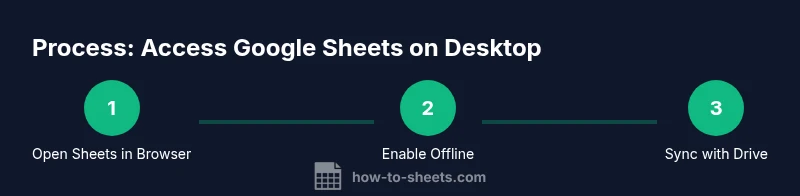
Key ideas include: 1) using a desktop browser for routine work, 2) turning on offline access for uninterrupted editing, and 3) leveraging Google Drive for Desktop to keep your files synchronized when you’re online. These options preserve the collaboration benefits of Sheets while giving you predictable desktop access. Remember: offline and export features are designed to complement, not replace, your browser-based workflow.
description
Tools & Materials
- Google account(Needed to access Sheets and Drive)
- Chrome browser (latest)(Offline support for Google Docs/Sheets works best in Chrome)
- Google Drive for Desktop (optional)(Useful for syncing files to your PC and accessing offline copies)
- Stable internet connection(Initial setup and syncing require online access)
- Device with desktop OS (Windows/macOS/Linux)(A computer where you want to access or export Sheets)
Steps
Estimated time: 15-25 minutes
- 1
Understand the desktop option landscape
Recognize that Google Sheets is browser-based and that offline work relies on caching within Chrome and Drive. This foundational step saves time later by clarifying expectations and avoiding attempts to install a non-existent desktop app.
Tip: If you need perpetual offline access, plan to enable offline mode before you disconnect from the internet. - 2
Open Google Sheets in a desktop browser
Launch Chrome and navigate to sheets.google.com. Sign in with your Google account if prompted. Verify that you can view at least one existing Sheet and that edits appear in real time when online.
Tip: Pin Sheets to your bookmarks for quick access and reduce friction in daily use. - 3
Enable offline mode for Sheets
In Google Drive, open Settings and toggle Offline to On to enable offline editing for Docs, Sheets, and Slides. Ensure you have an initial online session so the files are cached locally.
Tip: Test offline by disconnecting your network briefly and reopening Sheets to confirm it loads. - 4
Optionally install Drive for Desktop
Install Google Drive for Desktop and sign in. Choose a local folder to mirror your Google Drive files, making Sheets accessible through File Explorer/Finder when online or offline.
Tip: Select stable folders to minimize unnecessary file syncing and save disk space. - 5
Work offline and sync when online
With offline caching enabled, you can edit Sheets while offline. When you reconnect, Drive for Desktop will sync changes automatically. Keep an eye on the status indicators in Drive to confirm sync progress.
Tip: Avoid large, simultaneous edits from multiple devices to reduce merge conflicts. - 6
Export for desktop tools when needed
If you must use a separate desktop app like Excel, use File > Download in Sheets to export as .xlsx, .csv, or other supported formats. Imported files can then be opened offline in the respective application.
Tip: Exporting to Excel preserves many formulas, but some Google-specific features may not translate exactly. - 7
Keep data secure and private
Remember that offline copies reside on your device. Enable device encryption, and sign out of Google accounts on shared machines. Review Google account security settings regularly.
Tip: Use a strong device passcode and local disk encryption to protect offline files. - 8
Troubleshoot common offline issues
If offline editing fails, verify Offline is on, ensure Chrome is up to date, and confirm Drive for Desktop is syncing. Clear cache for Sheets or re-sign into Google accounts if problems persist.
Tip: Reset network settings or reinstall Drive for Desktop if synchronization stalls. - 9
Create reliable workflows for teams
Define a routine: edit in offline mode during fieldwork, then sync when back online. Use Export to share data with teammates who rely on Excel or CSV formats.
Tip: Document your workflow for new team members to avoid confusion.
FAQ
Can I download Google Sheets to desktop as a separate app?
There is no standalone Google Sheets desktop app. You access Sheets through a web browser and optionally enable offline mode or use Google Drive for Desktop to access files offline.
There is no separate Sheets desktop app; you use Sheets in your browser and can enable offline access or Drive syncing.
Is offline mode available for Google Sheets on all browsers?
Offline mode works best in Chrome with Google Drive offline settings enabled. Other browsers may not fully support offline editing for Sheets.
Offline works best in Chrome; other browsers may have limited or no offline support.
How do I enable offline access for Sheets?
Go to Google Drive settings and toggle Offline to On. Ensure you’re online when enabling for the first time, then test by disconnecting briefly.
Turn on offline access in Drive settings, then test you can reopen Sheets without internet.
Can I edit Google Sheets offline and still sync changes later?
Yes. Edits stored offline will sync automatically when you regain internet connectivity, assuming the device remains online long enough for Drive to sync.
Yes, you can edit offline; changes will sync when you reconnect.
What about exporting Sheets for use in Excel on desktop?
In Sheets, use File > Download > Microsoft Excel (.xlsx) to create a compatible desktop file. Some advanced Sheets features may not translate perfectly.
You can export Sheets as Excel files from the menu for use in desktop Excel.
Watch Video
The Essentials
- Understand Sheets is browser-first, not a separate desktop app
- Enable offline mode to edit Sheets without internet
- Drive for Desktop streamlines desktop access and syncing
- Export options bridge Sheets with Excel/CSV when needed
- Security practices protect offline data on devices