Word Count in Google Sheets: A Practical Guide
Learn how to count words in Google Sheets with built-in formulas and scripts. This educational guide covers SPLIT, REGEX, COUNTA, and practical templates for handling punctuation, multi-line text, and range-wide counts.


Master word counting in Google Sheets using built-in formulas. You’ll count words in a range with SPLIT and COUNTA, normalize punctuation with REGEXREPLACE, and handle multi-line cells. This guide covers basic counts, conditional counts, and practical templates for essays, notes, and datasets. How To Sheets shows repeatable methods for accurate results.
Why word count in Google Sheets matters
In many projects—academic essays, notes, data summaries, or content inventories—you need a reliable word count. The specific task of counting words in google sheets is common for students, professionals, and small business owners who keep notes, transcripts, or text fields in spreadsheets. According to How To Sheets, understanding word counts in Sheets helps you gauge writing efforts, monitor data quality, and meet assignment or reporting requirements without leaving the platform. This section explores why a precise word count matters, and how Sheets’ flexible text tools enable repeatable counting without switching apps.
A precise word count also supports consistency across teams. If you’re compiling feedback, customer notes, or research quotes, counting words per entry can reveal depth of detail, gauge effort, and normalize reporting. By mastering these counts you can automate status indicators, track progress, and create templates that scale with your data volume. The techniques here emphasize accessibility, reproducibility, and a workflow that fits common spreadsheet layouts.
Whether you’re a student tallying essay word counts, a professional analyzing reports, or a small business owner preparing content inventories, the goal is the same: get accurate numbers quickly while preserving the ability to audit and adjust. This guide provides practical, repeatable approaches that work in everyday Google Sheets scenarios.
noteNoneOfTheseWordsNullsOnlyForOptionalFieldsRequired},
Tools & Materials
- Google Sheets access(Use any browser; ensure you have an active Google account.)
- Sample dataset(Include a text column or a few cells with multi-line text.)
- Test data sheet(Create a dedicated sheet to experiment with counts.)
- Notepad or text editor(For jotting down observations or alternate formulas.)
- Optional: Apps Script editor(If you plan to implement a custom word-count function.)
Steps
Estimated time: 15-30 minutes
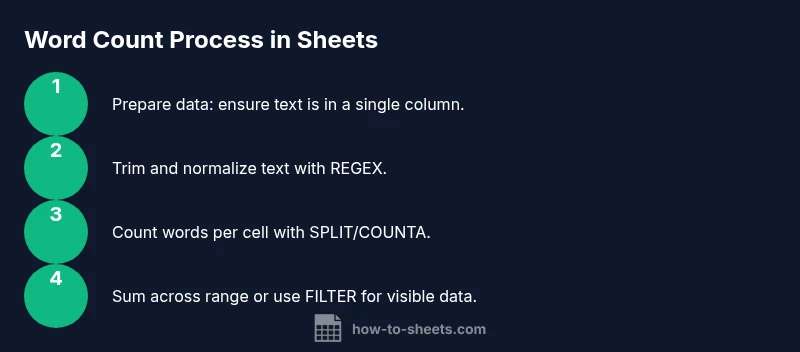
- 1
Prepare your data
Open the Google Sheet you’ll count words in and identify the column or range that contains text data. Ensure cells are not merged in ways that complicate word counting. This preparation reduces surprises when formulas run across ranges.
Tip: Label the data range with a named range like TextData to simplify later formulas. - 2
Trim spaces and normalize text
Before counting words, clean each cell by removing leading/trailing spaces. Use TRIM to collapse multiple spaces to a single space, which helps prevent inflated word counts.
Tip: For multi-line cells, TRIM still helps ensure consistent counting after line breaks are normalized. - 3
Count words in a single cell
Use a robust in-cell formula that counts words by counting spaces after trimming and removing punctuation. A common approach is to replace non-word characters with spaces, then count the resulting tokens.
Tip: Test with a few sample sentences to verify punctuation is handled as expected. - 4
Count words in a single column
Apply the cell formula across a range using ARRAYFORMULA so you can get total words for the entire column with one formula.
Tip: Wrap with IF to ignore empty cells to avoid counting false positives. - 5
Count words across a range
Extend the per-cell approach to an entire range by summing the per-cell word counts. This often uses SPLIT with REGEX to normalize text before counting.
Tip: Anchor the range (e.g., A2:A100) to avoid dynamic range shifts. - 6
Handle punctuation cleanly
Remove punctuation before counting so that words like “word,” and “word.” don’t create separate tokens. REGEXREPLACE is the typical tool for this task.
Tip: Be mindful of apostrophes in contractions; adjust your pattern if you want to treat them as part of a word. - 7
Count words with visible filters
If your sheet uses filters, count only visible rows by combining FILTER with your counting formula. This avoids counting hidden data.
Tip: Use FILTER(A2:A, B2:B= - 8
Count words in multi-line cells
Newline characters can complicate counting. Normalize newlines by replacing them with spaces using REGEXREPLACE before splitting.
Tip: Test with cells containing line breaks to confirm the count updates correctly. - 9
Create a reusable template
Place the core formula into a named range or a dedicated cell that can be copied to other sheets. This supports consistency across projects.
Tip: Document the formula logic in a cell note or adjacent documentation sheet. - 10
Validate with samples
Keep a small validation set with known word counts to verify your formulas remain accurate as you scale up the dataset.
Tip: Periodically re-check counts after data edits or formatting changes. - 11
Advanced: Apps Script option
If you need a repeatable, scalable word-count function or custom rules, consider a short Apps Script function that processes a range and returns a total.
Tip: A script is helpful when the counting logic grows beyond built-in formulas. - 12
Review and refine
List edge cases (hyphenated words, numbers, or symbols) and decide how you want them counted. Refine patterns to meet your specific counting rules.
Tip: Create a small cheat sheet for yourself so you remember exactly how words are counted in this template.
FAQ
What is the simplest way to count words in a single Google Sheets cell?
Use a combination of TRIM, REGEXREPLACE, and SPLIT to sanitize and count words. For example, =IF(TRIM(A1)="","", LEN(SPLIT(REGEXREPLACE(TRIM(A1), "[^A-Za-z0-9\s]", ""), " "))).
To count words in a single cell, trim, remove punctuation, split on spaces, and count the resulting pieces.
How can I count words across an entire column?
Apply a per-cell word-count formula across the column with ARRAYFORMULA, then sum the results. For example, =SUM(ARRAYFORMULA(IF(LEN(TRIM(A2:A))=0,0,LEN(SPLIT(REGEXREPLACE(TRIM(A2:A),"[^A-Za-z0-9\s]","")," "))+1))).
Use ARRAYFORMULA to extend a per-cell count across the whole column and sum it.
Can I count words in data that I’ve filtered?
Yes. Use FILTER to include only visible rows in your counting formula so the result reflects the filtered view. For instance, =SUM(ARRAYFORMULA(IF(LEN(TRIM(FILTER(A2:A, C2:C=TRUE)))=0,0,LEN(SPLIT(REGEXREPLACE(TRIM(FILTER(A2:A, C2:C=TRUE))),"[^A-Za-z0-9\s]","")," "))+1))).
Filter the data first, then count words in the visible subset.
What about counting words with Apps Script?
Apps Script lets you write a custom function that processes a range and returns a word count. This is useful for large datasets or complex counting rules. You can deploy a function like countWordsInRange(range) that loops through cells and aggregates counts.
If built-in formulas aren’t enough, consider a small script to handle specialized rules.
How should hyphenated words be handled?
Decide in advance whether hyphenated words count as one or two words. REGEX patterns can be adjusted to treat hyphens as part of a word or as separators, depending on your needs.
Choose a consistent rule for hyphens and document it in your template.
Is there a built-in function for word counts in Sheets?
There isn’t a single native 'word count' function in Google Sheets. You combine SPLIT, REGEXREPLACE, TRIM, and COUNTA to count words effectively.
No single word-count function exists; you combine several functions to build the count.
Watch Video
The Essentials
- Count words with SPLIT/COUNTA after cleaning data
- Use REGEXREPLACE to normalize text before counting
- Extend to ranges with ARRAYFORMULA for efficiency
- Apps Script provides scalable word-counting options
- Validate counts with sample data before scaling up