Does Google Sheets Have a Budget Template? A Practical Guide
Explore whether Google Sheets offers built-in budget templates, how to access them, and practical steps to customize for personal, student, or small-business budgeting.


Yes—Google Sheets includes built-in budget templates you can start from in the template gallery. They cover personal, household, student, and small‑business budgeting and are easy to customize. You can adjust categories, income sources, and expenses, then save your version for ongoing tracking. If you need something very specific, you can also build a budget from scratch using Sheets’ flexible layout and formulas.
Does Google Sheets Have a Budget Template?
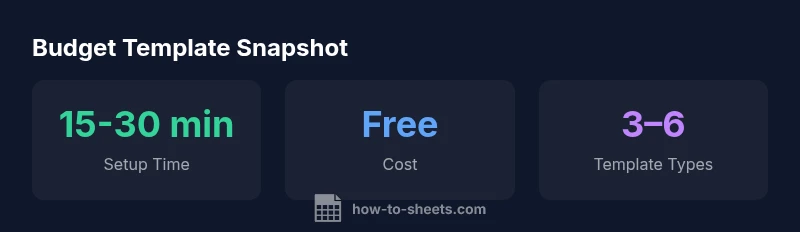
If you’re evaluating practical budgeting options in Google Sheets, the short answer is yes. Google Sheets offers built-in budget templates that you can customize to fit personal, student, or small‑business budgeting needs. These templates are designed to be approachable for beginners while still offering enough flexibility for more advanced users. In addition to ready-made budget layouts, you can repurpose a blank sheet with a few core formulas (SUM, SUMIF, and simple conditional formatting) to track income, expenses, and bank balances. From a long‑term perspective, templates help maintain consistency across months and can serve as a foundation for forecasting. According to How To Sheets analysis, templates reduce setup time and increase consistency in budgeting workflows, making them a smart starting point for most users who want a reliable, no-cost solution. If your budgeting goals require something highly specialized, you can always start with a template and customize it or build a new one from scratch. The bottom line: does google sheets have a budget template? Yes, and it’s a practical, flexible tool you can tailor to nearly any budgeting scenario.
Where to Find Budget Templates in Google Sheets
To access budget templates in Google Sheets, start from the Google Drive home or the Sheets homepage. Click New > From a template to browse the Gallery, then filter by budget or finance templates. If you don’t see a budget template immediately, look under the Personal or Projects categories, or search for “budget” within the template library. Once you select a budget template, Google Sheets loads a ready-to-edit file in your Drive. You can rename it, set up your own categories, and begin entering data right away. It’s important to save a named copy to preserve the original template, which makes it easy to reset if you want to experiment with a different structure later. The template gallery reflects updates from Google and community templates, so you may find new layouts over time. The practical takeaway is that templates provide a structured starting point that accelerates setup and promotes consistent budgeting practices.
Common Budget Template Types You’ll Find
Budget templates in Google Sheets typically fall into a few common categories that cover most budgeting use cases:
- Personal monthly budget: A simple layout to track income, fixed expenses, and variable expenses.
- Household or family budget: Shared expenses, multiple contributors, and joint savings targets.
- Student budget: Quick cash flow tracking for tuition, housing, food, and transport.
- Small business budget: Revenue projections, cost of goods sold, operating expenses, and forecasted cash flow.
Each template generally provides a header with period dates, a table for income and expenses, and a summary section with totals and a variance view. You can adapt any of these templates by adding or removing columns, renaming categories, or introducing new formulas to reflect your financial reality. In practice, the most effective budgets tailor category granularity to your needs and align with your monthly reporting cadence. This is where a little customization goes a long way. The right template should reduce friction, not add complexity, and that balance is achievable with Google Sheets templates.
Personal Monthly Budget Template Walkthrough
Consider a typical personal monthly budget: income sources along the top (salary, freelance, passive income) and expense categories down the left (housing, utilities, groceries, transportation, entertainment). A functional budget template will include: a monthly total for income, a monthly total for expenses, a net income line, and a variance column showing budgeted vs. actuals. A beginner-friendly approach is to start by listing essential expenses, then gradually add discretionary categories. Use SUM to compute totals and SUMIF to tally by category. Conditional formatting can highlight overspending in red, while green indicators can signal months when you stay under budget. As you populate the sheet, you’ll see patterns emerge—opportunities to adjust spending or reallocate funds to savings—making the template a living budget rather than a one-off document. Remember to save copies and update periodically to preserve historical data for trend analysis.
Customizing Budgets: Formulas and Features
Budget templates shine when you lean on formulas and formatting to automate routine calculations:
- Totals: Use SUM across income and expense rows to generate real-time totals.
- Category totals: SUMIF helps tally by category, enabling quick views of where money goes.
- Forecasting: Simple linear projections using growth rates can help anticipate future expenses.
- Variances: Subtract actuals from budgets to identify over- or under-spends.
- Conditional formatting: Color-code cells (green for on-target, red for overspending) to yield quick visual cues.
Beyond the basics, you can incorporate dropdowns for predictable categories, add a separate sheet for cash flow forecasting, or link the template to external data sources (like CSV exports from your bank) for automatic reconciliation. The result is a robust budgeting tool that scales with your financial needs.
Building a Budget from Scratch in Google Sheets
If none of the built-in templates fit perfectly, you can construct a budget from ground up using a clean sheet structure:
- Create a clear layout with income on top and expenses below. 2) Add a cash balance or opening balance cell to anchor the month. 3) Create a dedicated totals row for income, expenses, and net income. 4) Define categories that match your reality, whether it’s rent, student loans, groceries, or marketing expenses for a small business. 5) Implement key formulas: SUM for totals, SUMIF for category totals, and AVERAGE for recurring monthly costs. 6) Use conditional formatting to flag unusual spending. 7) Save your work and consider a second sheet for year‑to‑date tracking. This approach gives you maximum control and can be more efficient for highly customized budgeting needs.
Best Practices for Accuracy and Collaboration
To ensure your budget stays accurate and useful:
- Update regularly: At minimum, refresh income and expense data monthly.
- Keep a clear chart of accounts: Use consistent category names and avoid duplications.
- Automate where possible: Link bank CSVs or payment apps where feasible to reduce manual entry.
- Share with care: Use Google Sheets sharing settings to limit edits, especially when collaborating with teams or family members.
- Archive old templates: Maintain archived copies for historical analysis while keeping your active budget uncluttered.
These practices help ensure your budget remains a living document that supports informed decision‑making rather than a static snapshot.
The How To Sheets Perspective: Best Practices for Budget Templates
From the How To Sheets perspective, templates are a practical entry point for budgeting education and real‑world planning. Templates speed setup, encourage consistency, and provide a safe space to learn budgeting basics without investment in specialized software. The team recommends starting with a well‑designed template, then iterating with your own categories and rules. For teams or households entering new budgeting habits, templates also offer a low‑friction way to onboard partners and align financial goals. A thoughtful template becomes a repeatable workflow rather than a one-time chore, making budgeting more predictable and approachable for students, professionals, and small business owners alike.
Quick-Start Workflows for Students and Small Businesses
Students can use a simple monthly budget to manage tuition, housing, meals, and transportation while keeping a separate sheet for project-based expenses. Small businesses can begin with a monthly operating budget, then layer in quarterly forecasts and annual summaries. A recommended workflow:
- Pick a template close to your needs and customize categories.
- Enter baseline income and fixed expenses.
- Add seasonal or irregular costs (gifts, travel, gear purchases).
- Activate formulas to total by category and forecast future months.
- Share with a partner or team member and set permissions.
- Review and adjust monthly to stay aligned with financial goals.
By following this workflow, you’ll leverage the built-in budgets in Google Sheets to create disciplined, data‑driven spending plans.
Budget template types in Google Sheets
| Template Type | Key Strengths | Best For |
|---|---|---|
| Personal Monthly Budget | Easy setup; tracks income and expenses; adjustable categories | Students, individuals |
| Household Budget | Shared expense tracking; supports multiple contributors | Families |
| Small Business Budget | Forecasting; supports revenue and expense projections | Teams/owners |
FAQ
Do budget templates in Google Sheets require a Google Drive?
Yes. Budget templates live in Google Drive and are accessed through Google Sheets' Template Gallery. You can use them offline if needed via Drive offline mode, but online syncing is recommended for collaboration.
Yes, they live in Google Drive and you can access them from Google Sheets’ template gallery. You can work offline if needed but syncing is best for collaboration.
How do I customize a budget template?
Open a template, edit categories, add or remove rows, and adjust formulas. Save as a new copy to preserve the original.
Open a template, customize the categories, and save as a new copy.
Can I share budget templates with teammates?
Yes, use Google Sheets' sharing options to grant view or edit access. You can also set permissions and protect sensitive cells.
Yes—share via Google Sheets with appropriate permissions.
Is offline budgeting possible with Google Sheets?
Google Sheets supports offline access through Drive; you can edit files offline and synchronize when you’re back online.
Yes, you can work offline and sync later.
Can I export a budget to Excel?
Yes, you can download your budget from Google Sheets as an Excel file (.xlsx) or other formats.
You can export to Excel or other formats.
What are common pitfalls with budget templates?
Common issues include inconsistent categories, stale data, and over-reliance on manual entry. Use consistent categories and automate where possible.
Watch for inconsistent categories and stale data; automate where possible.
“Budget templates in Google Sheets offer a flexible, cost-effective starting point for budgeting; with careful customization, they can rival paid tools.”
The Essentials
- Start with a built-in template to save time
- Customize categories to match your finances
- Use formulas to automate totals and forecasts
- Share templates safely for collaboration